
When should I use the CSV Import feature?
The CSV Import feature can be used to track transactions:
- When your financial institution or account is unsupported
- If you need to track transactions dating further back than your financial institution allows to be pulled in automatically
- If you don’t want to link your bank or credit card and prefer to track transactions manually
How do I prepare for the CSV Import?
To use this feature, you’ll first need to download the bank statement from your financial institution. If you have an option to choose the format, choose CSV. If you don't see that option, select any spreadsheet option available and resave it as a CSV file.
For best results, we recommend using one of the following date formats for the date field when uploading a CSV file into your account:
- MM/DD/YYYY (ex: 01/02/2025 is January 2nd, 2025)
- MM/DD/YY (ex. 01/02/25 is January 2nd, 2025)
Can I select a bank account for my CSV imported transactions?
When importing your transactions via the CSV Import feature, you'll want to use a Manually Tracked Account to keep your manually imported transactions organized by account.
How do I import my transactions from a CSV?
- Navigate to the section Accounting > Transactions > Money In or Money Out
- Click the gear icon
- Select ‘Import Transactions'
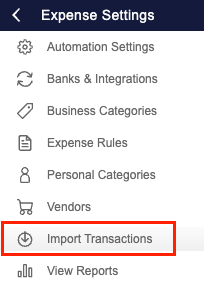
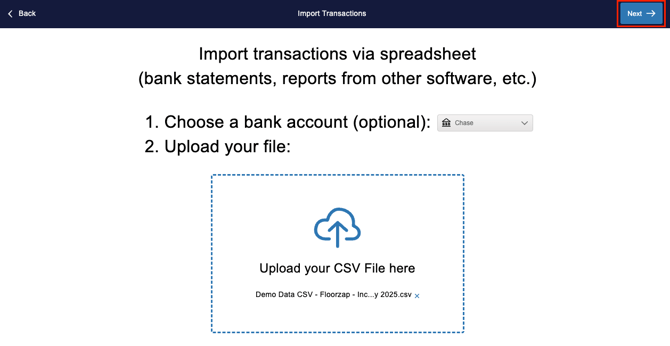
- Select an existing Manually Tracked Account or add a new Manually Tracked Account to associate these transactions with
- Upload your CSV file by clicking ‘Add File’
- Click ‘Next’
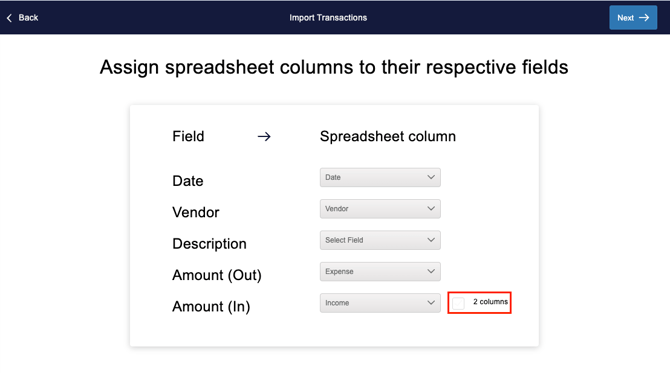
- For each field, use the drop-down to map your spreadsheet columns.
- Date: Map the column with transaction dates
- Vendor: Map the column with vendor names (optional if using the ‘Description’ column)
- Description: Map the column with transaction descriptions (optional if using the ‘Vendor’ column)
- Amount:
- For a single column showing both deposit (income) and withdrawal (expense) values, map it as is.
- If deposits and withdrawals are in separate columns, select the ‘2 column’ checkbox, and map the respective columns for:
- Amount (Out): Withdrawals
- Amount (In): Deposits
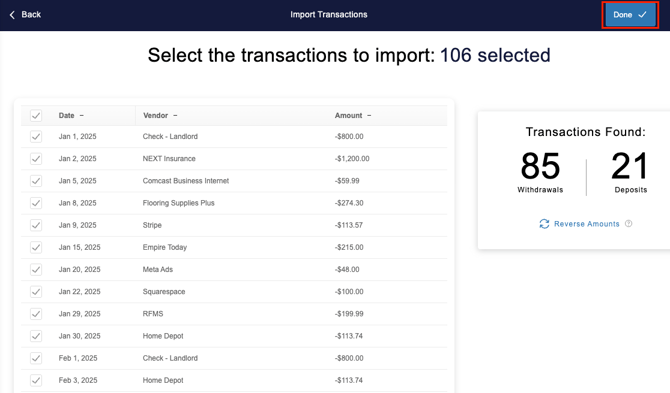
- Click ‘Next’ to see an overview of all transactions from your file.
- If needed, deselect transactions you don’t want to import by unchecking the checkbox next to the transaction
- If the deposits/withdrawals were not mapped correctly, click ‘Reverse Amounts’ to correct them
- Click ‘Done’ to complete the import
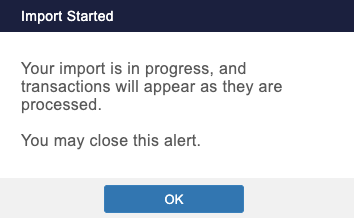
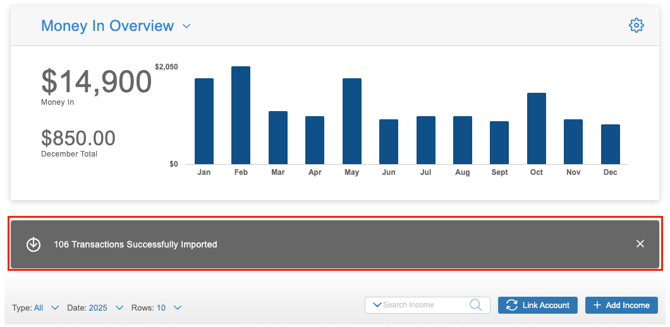
- A banner will show when the CSV file is in-progress, failed, or complete. Click ‘OK’
Once imported, you can review and edit your transactions from the Transaction Dashboard, Money Out Dashboard, or Money In Dashboard.
Can I un-do a CSV Import?
It's not possible to undo an import once you've completed it. However, you can go through and bulk delete the transactions that you imported if you don’t wish to track them.