
How do I add a vendor?
You can add a new vendor either while manually entering an expense or directly from the Money Out Dashboard.
To add a vendor while manually entering an expense:
- Navigate to the section Accounting > Transactions > Money Out
- Click ‘+ Add Expense’
- Select the ‘Vendor’ field
- Click ‘Add A New Vendor’
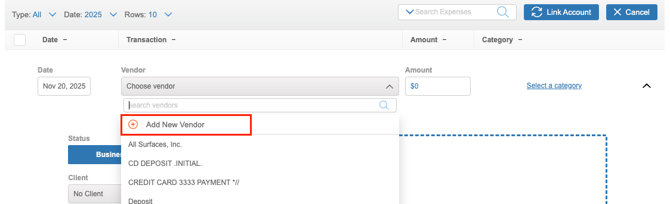
- Enter the name of the Vendor you want to add
- Click the ‘Add’ button
To add a new vendor from the Money Out Dashboard:
- Navigate to the section Accounting > Transactions > Money Out
- Click the gear icon
- Select ‘Vendors’
- Click ‘+ Add’
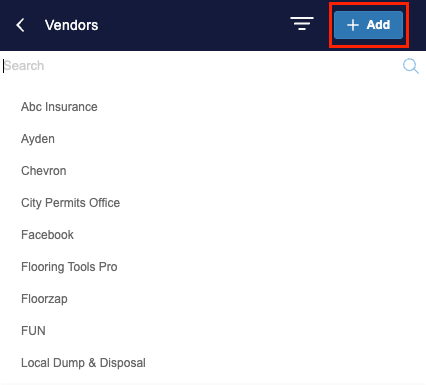
- Enter the name of the Vendor and Default Category
- Click ‘Save’
How do I delete a vendor?
If you no longer need a specific Vendor, then you can delete it. To do so:
- Navigate to the section Accounting > Transactions > Money Out
- Click the gear icon
- Select ‘Vendors’
- Click on the Vendor that you'd like to delete
- Select 'Delete Vendor' at the bottom
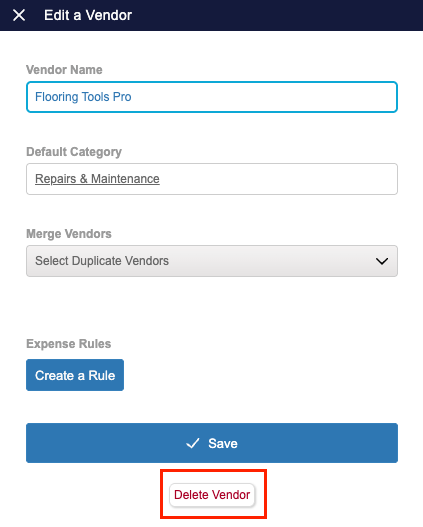
- A pop-up will show to confirm you'd like to delete the Vendor. Click 'Yes'.
- This will remove the vendor name of any transactions associated with the deleted Vendor
How do I restore a vendor?
If you accidentally deleted a Vendor or need to restore it to associate with transactions, you can follow these steps:
- Navigate to the section Accounting > Transactions > Money Out
- Click the gear icon
- Select ‘Vendors’
- Click on the 3 horizontal lines icon and select 'Archived'
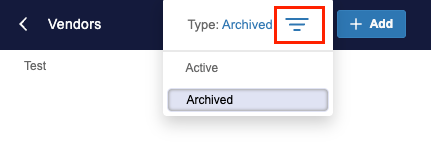
Screenshot: Three Blue Lines
- Find the Vendor you wish to restore and click on it
- Select 'Restore Vendor' at the bottom
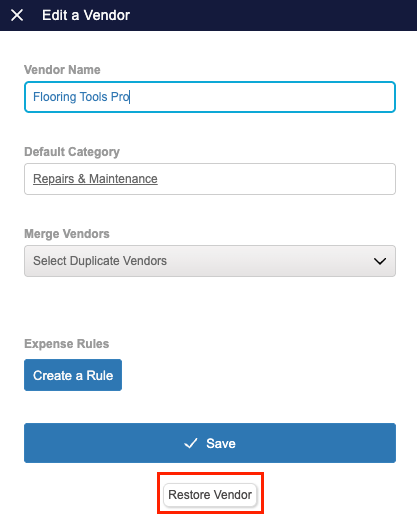
- A pop-up will show to confirm you'd like to restore the Vendor. Click 'Yes'.
How do I merge vendors?
Vendor names are pulled directly from the transaction data that pulls in from your linked accounts. Since the way financial institutions display vendor names can vary both between institutions and between transactions, it’s possible that different variations may pull in for the same vendor. For example, transactions from Costco, could pull in as “Costco Wholesale”, “Costco Whsle”, “Costco”, and “Costco Gas”, however, those are all the same vendor. To clean up your vendor list and make it easy to view your expenses by vendor, you can merge vendors so that all of the variations are updated to the one main vendor name. Once vendors are merged, it cannot be undone.
To merge Vendors:
- Navigate to the section Accounting > Transactions > Money Out
- Click the gear icon
- Select ‘Vendors’
- Click on the variation of the Vendor name that you’d like all of the transactions to reflect
- Use the ‘Merge Vendors’ field to select the variations of the Vendor name that should be merged
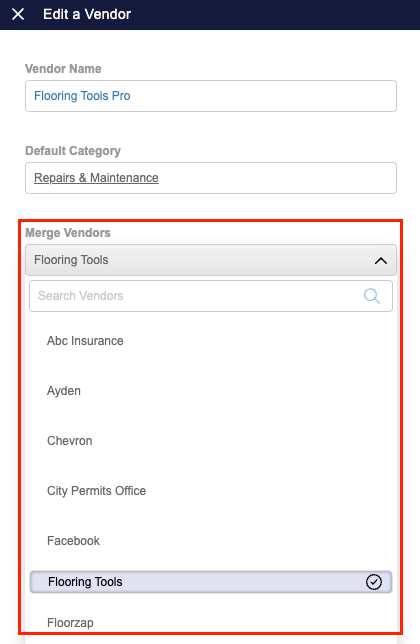
- Click ‘Save’
- You will receive a pop-up confirming that you want to merge the selected vendors, click ‘Continue’ to proceed with the merge
This will merge the variations of the Vendor’s name together so the Vendor name is the same for each transaction.