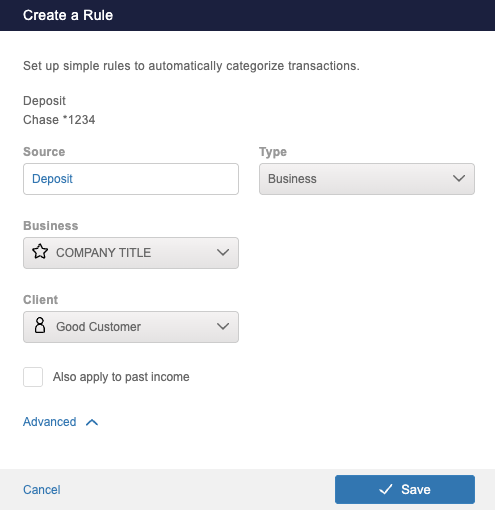
To Create an Income Rule:
- Navigate to the section Accounting > Transactions > Money In
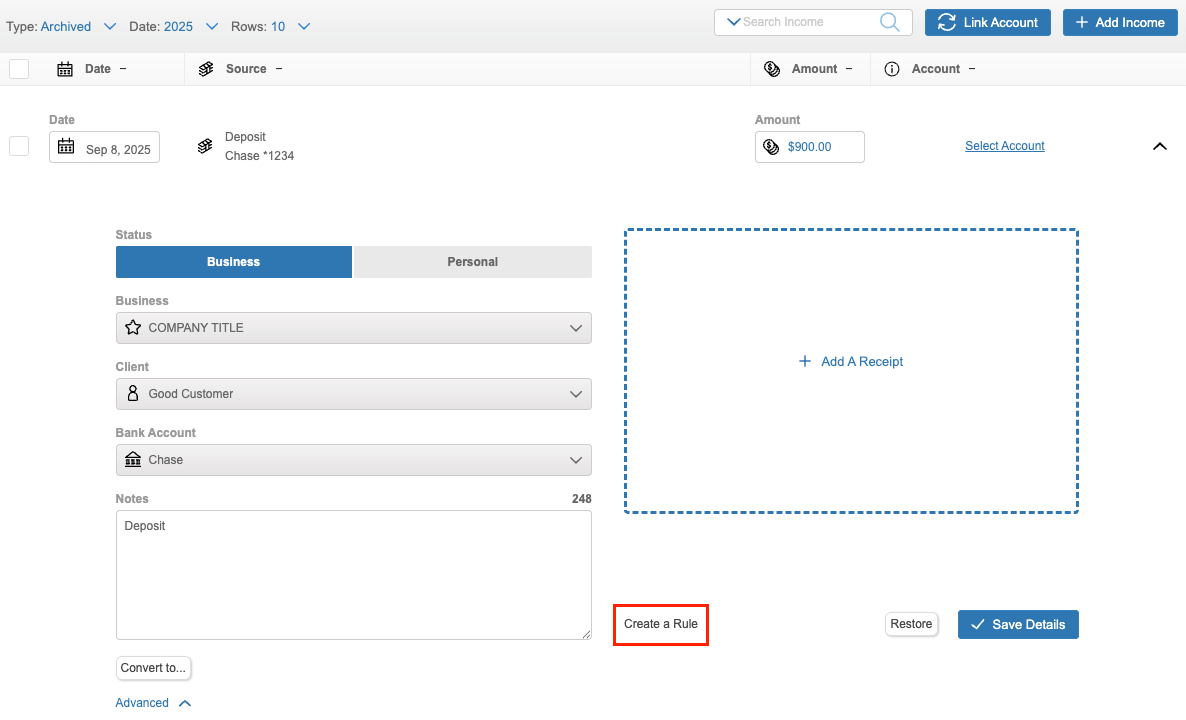
- Click on a specific income entry
- Click the ‘Create a Rule’ button
- Choose the income category that you want transactions from that vendor to be tagged to
- If applicable, tag which client (if any) you want transactions from that vendor to be associated with
- Choose if you’d like to automate those options for all transactions from that vendor (past and future) or only future
- Click ‘Save’
- If this rule matches a rule that is archived, then a prompt will show either asking you to ‘Restore Archived’ or Restore and Update’ so that you do not have duplicate rules
- If you are creating a rule similar to an active rule, then a prompt will ask you to edit the rule so it matches the already active rule or ‘Update the Existing Rule’