
Using the Order Materials Feature: Understanding Tabs and Filters
Quickly track and manage your orders with the Order Materials and Order by Vendor sections. Learn how orders appear in different sections, use status tabs, and understand the unique “Show Ready for Order” filter to keep your workflow organized.
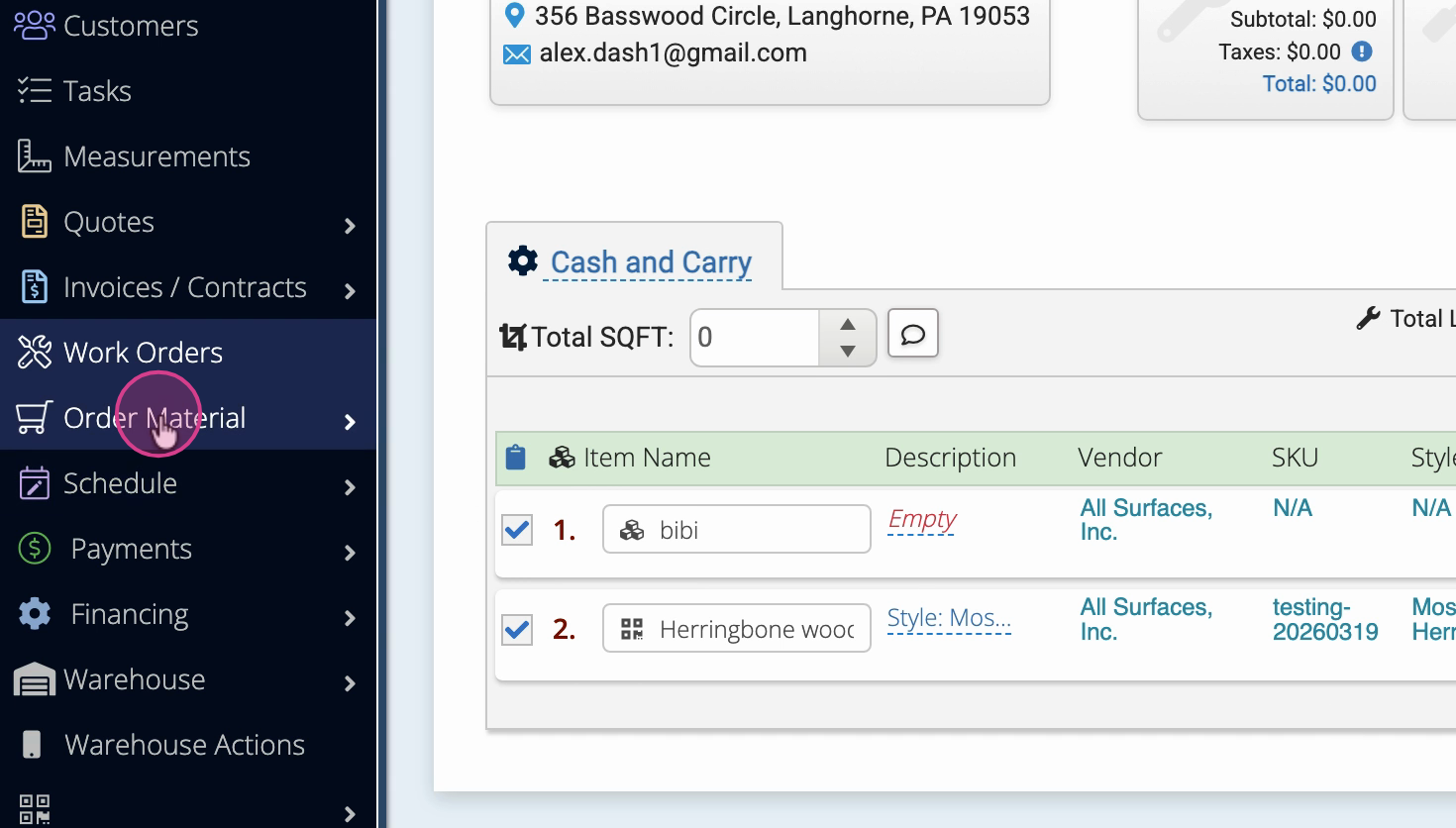
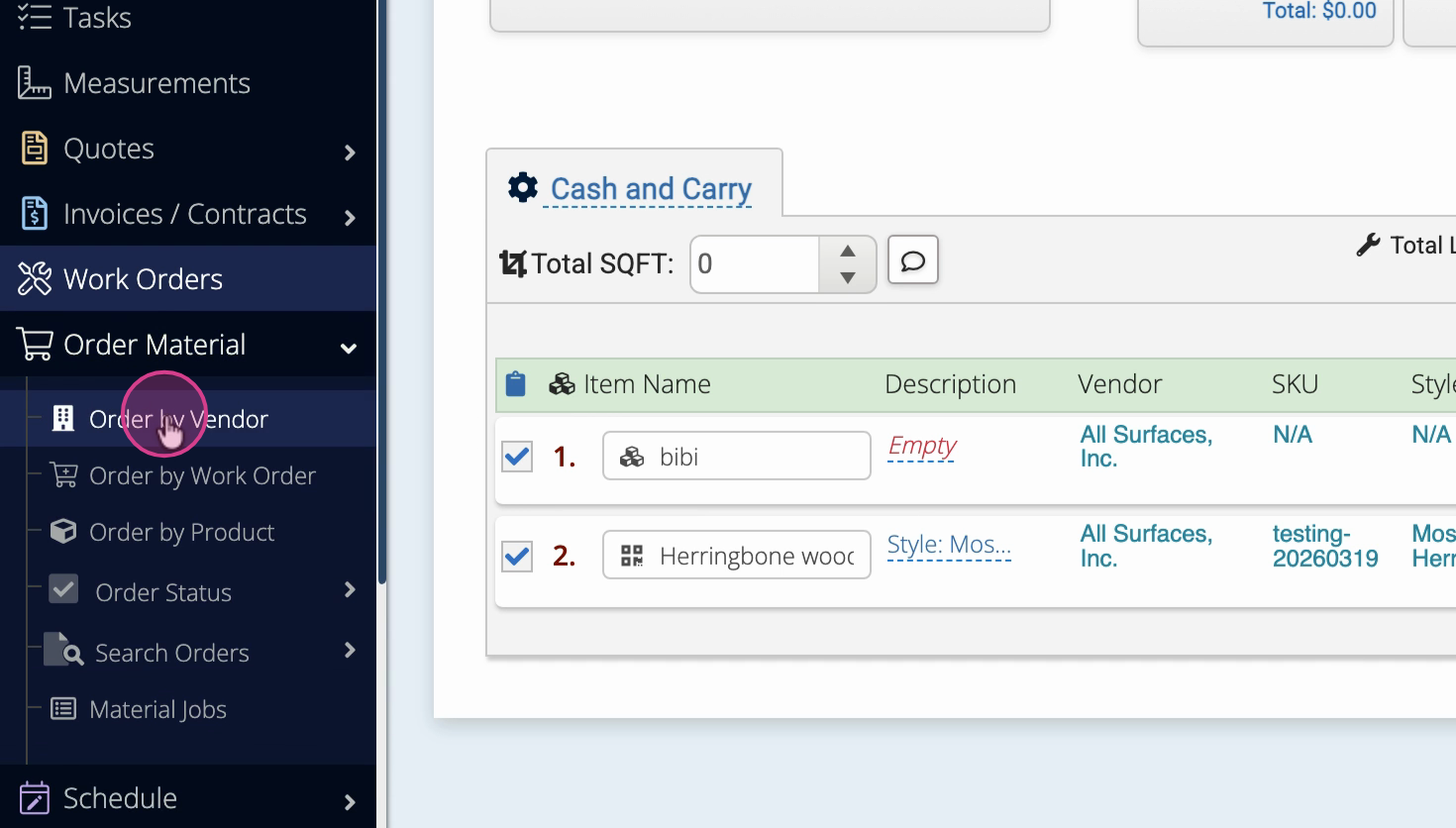
Step 1: Open the Order Materials section and switch to Order by Vendor.
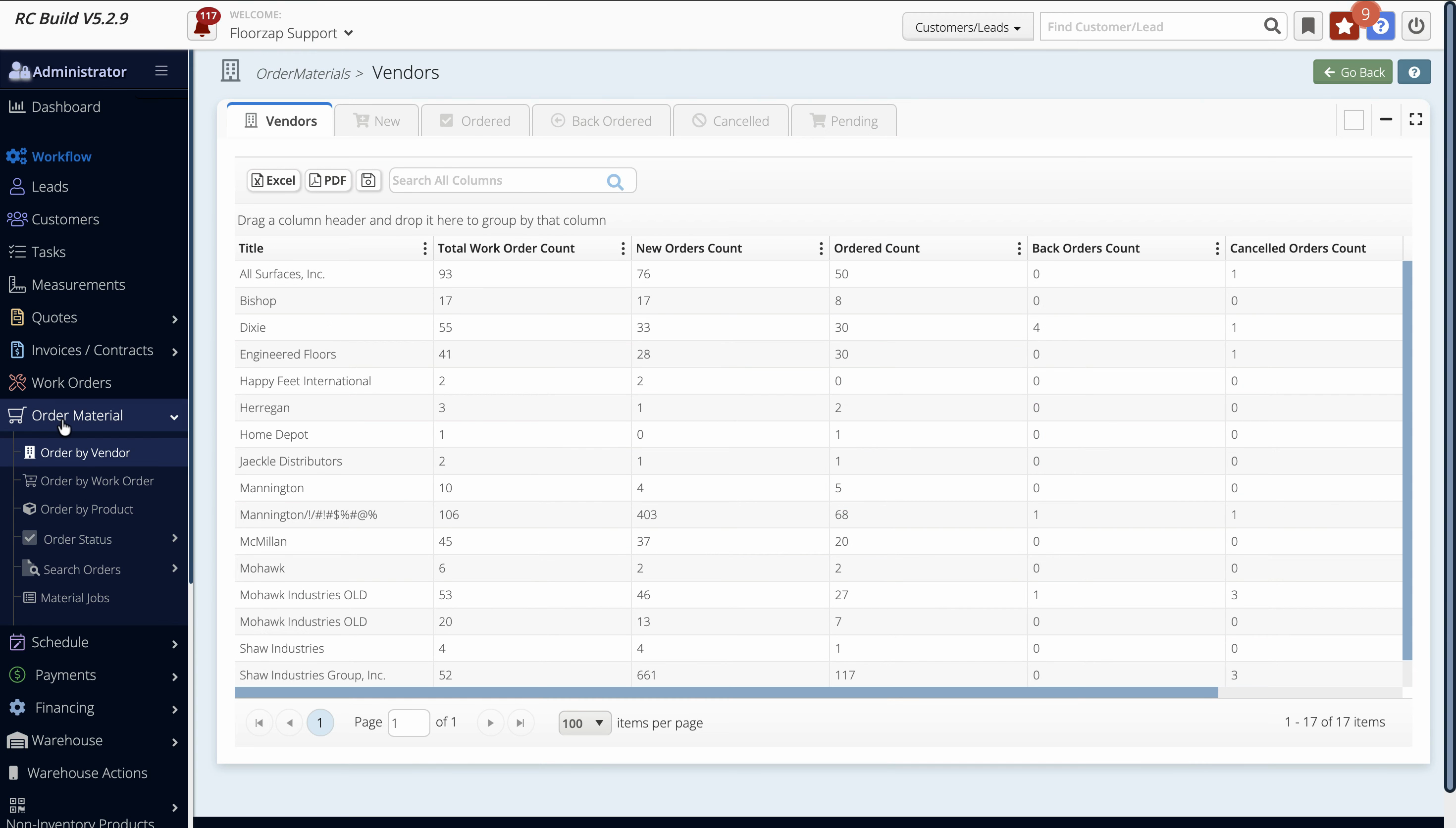
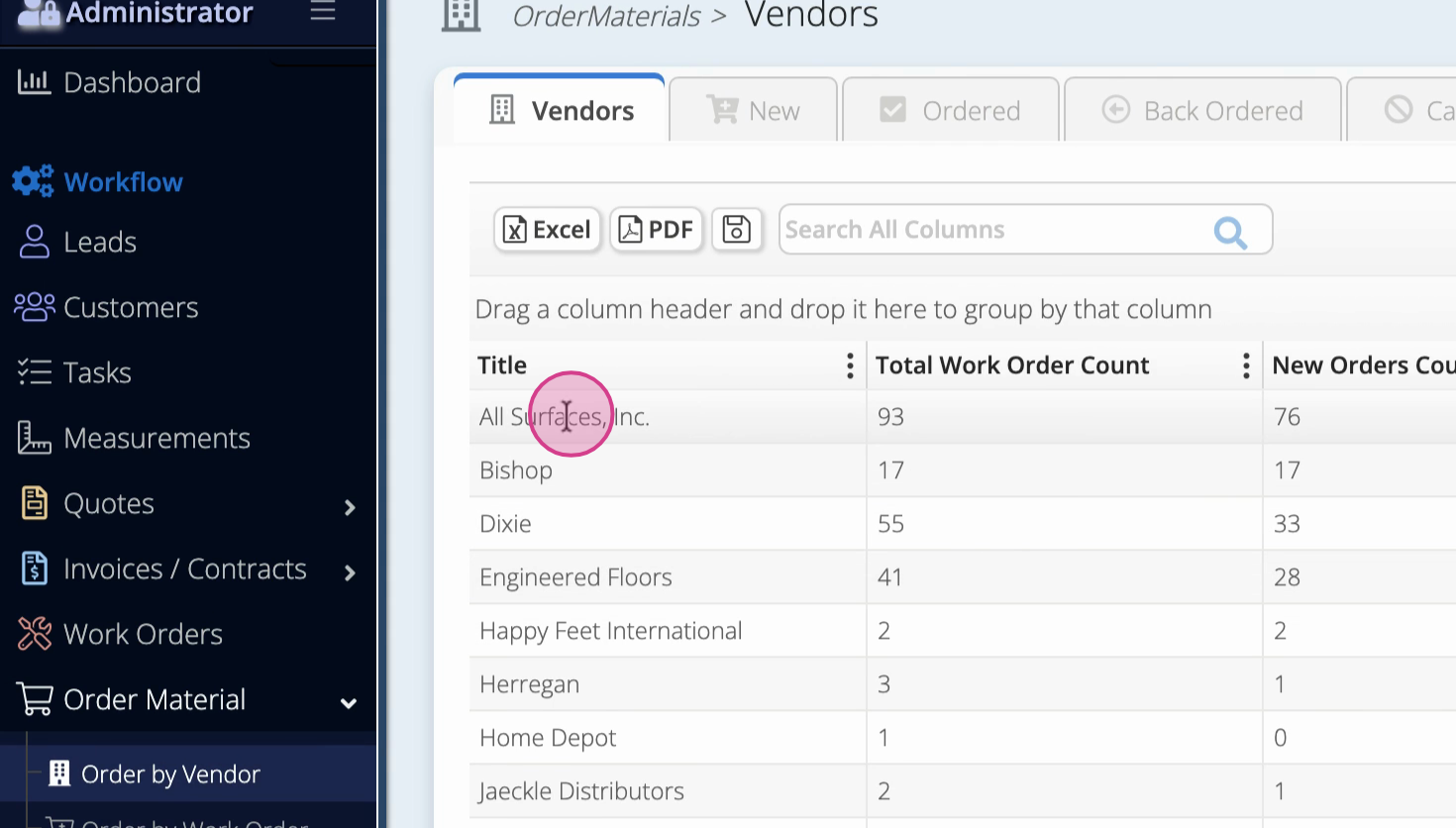
Step 2: Click on a vendor group like All Surfaces to view related orders.
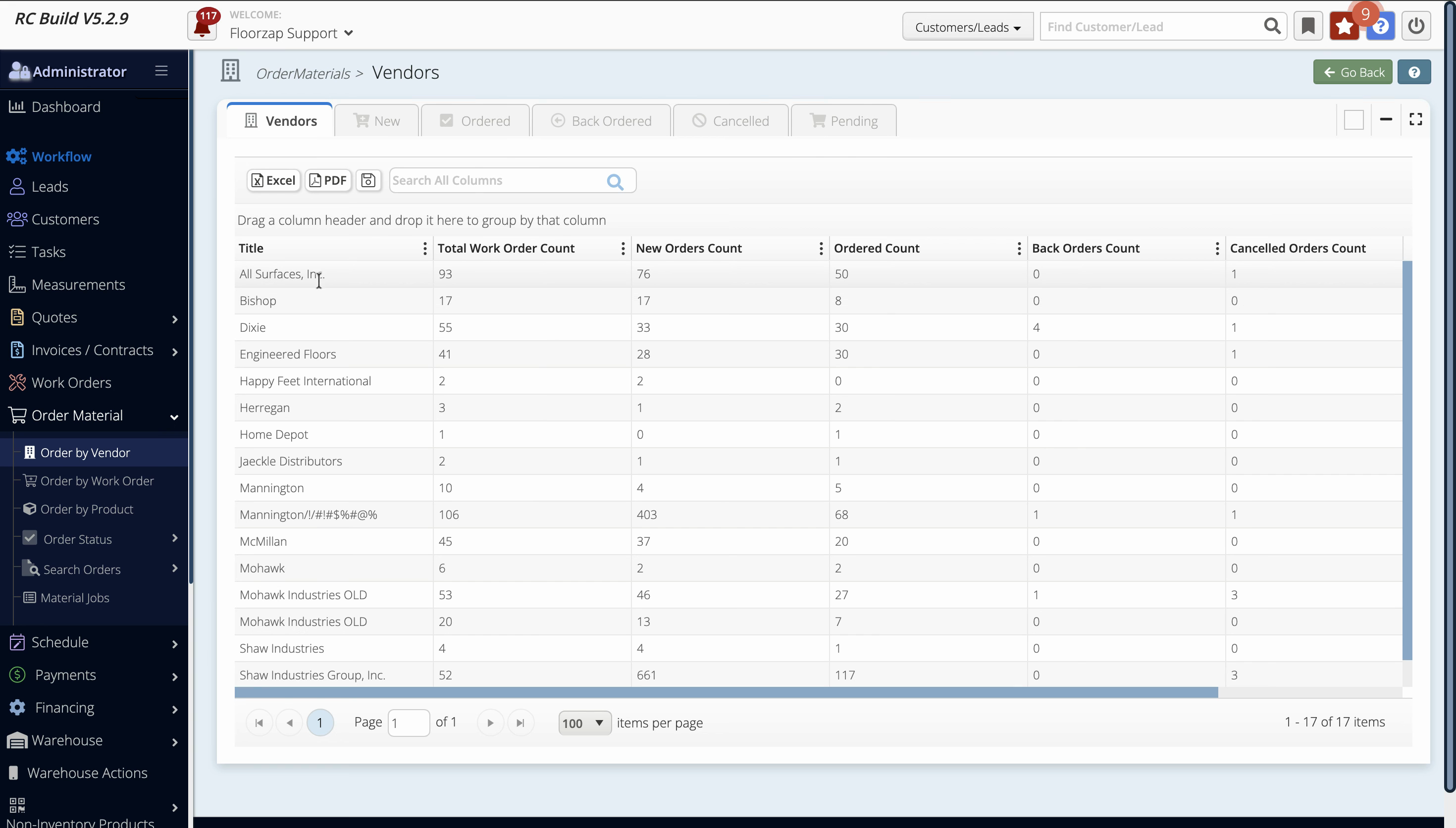
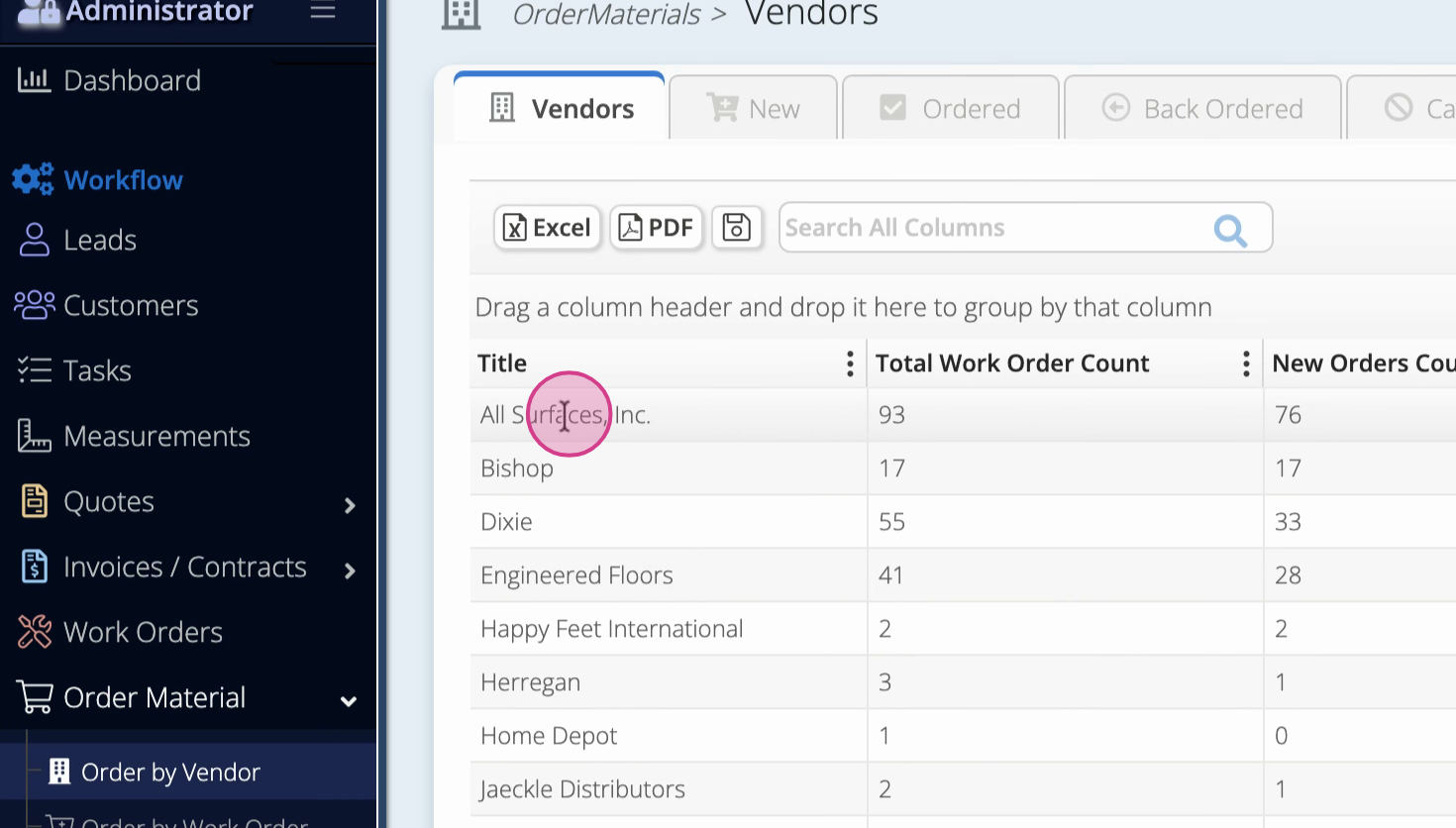
Step 3: Click any vendor under All Surfaces to view their orders and see each order’s current status.
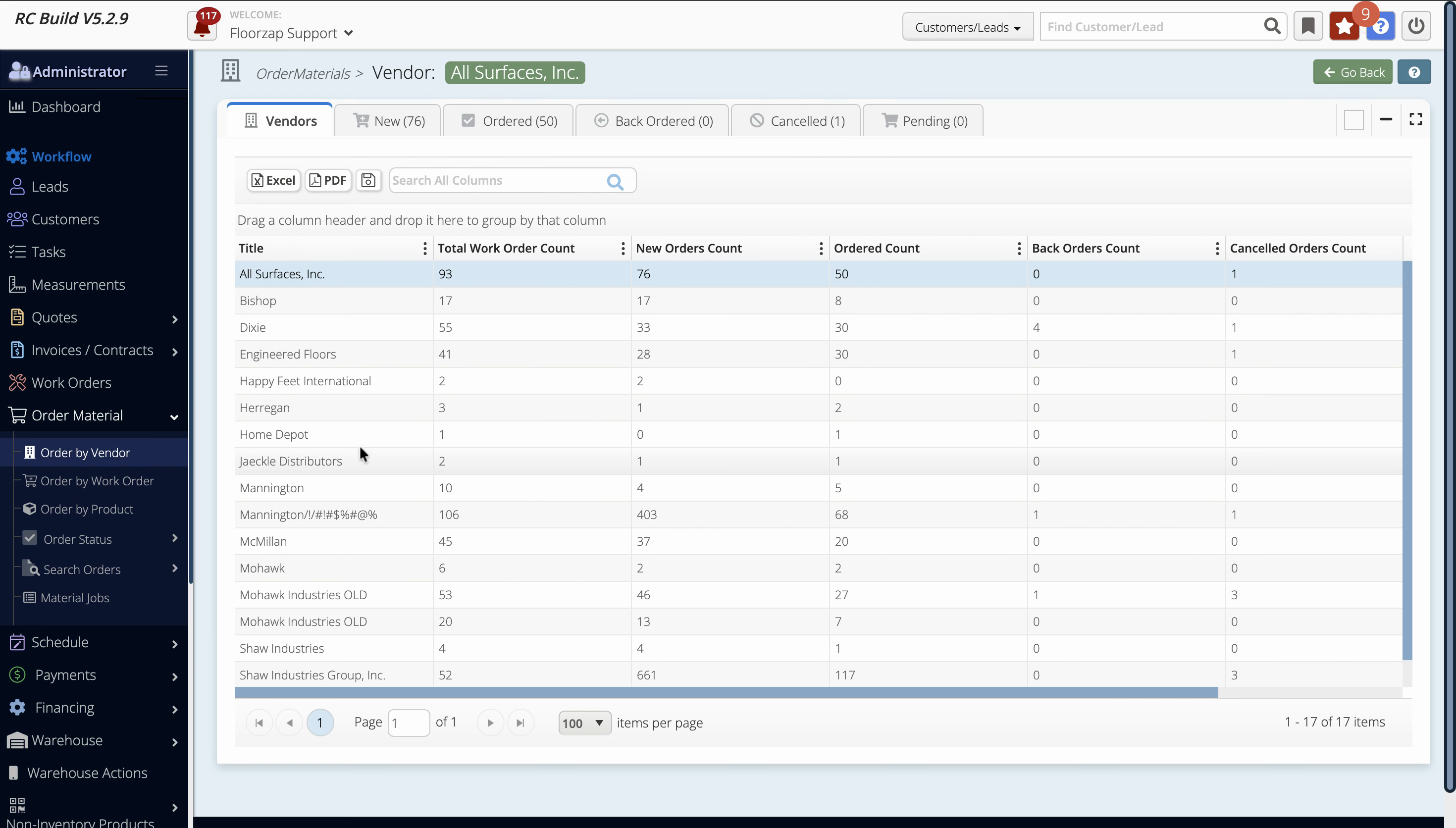
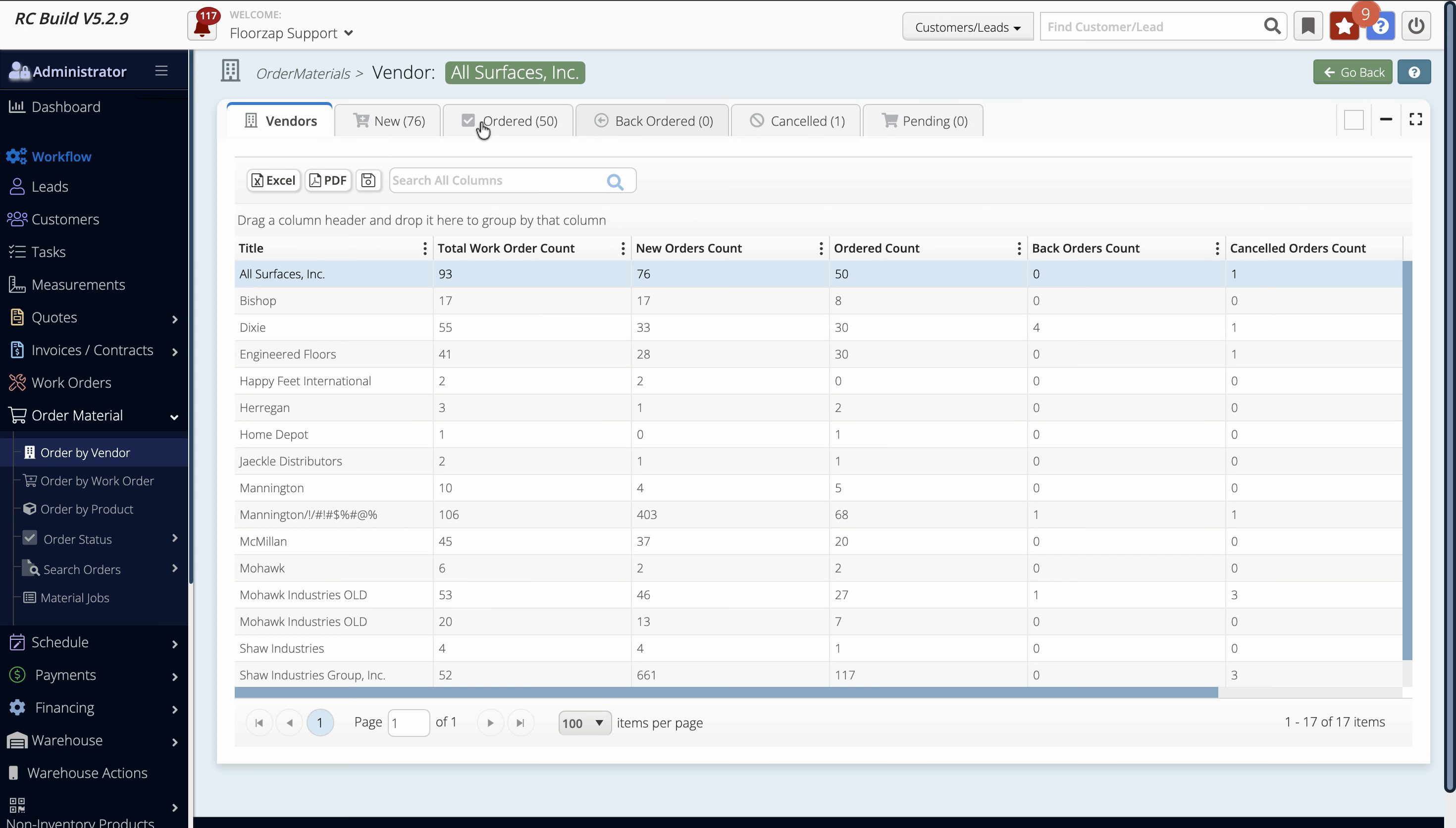
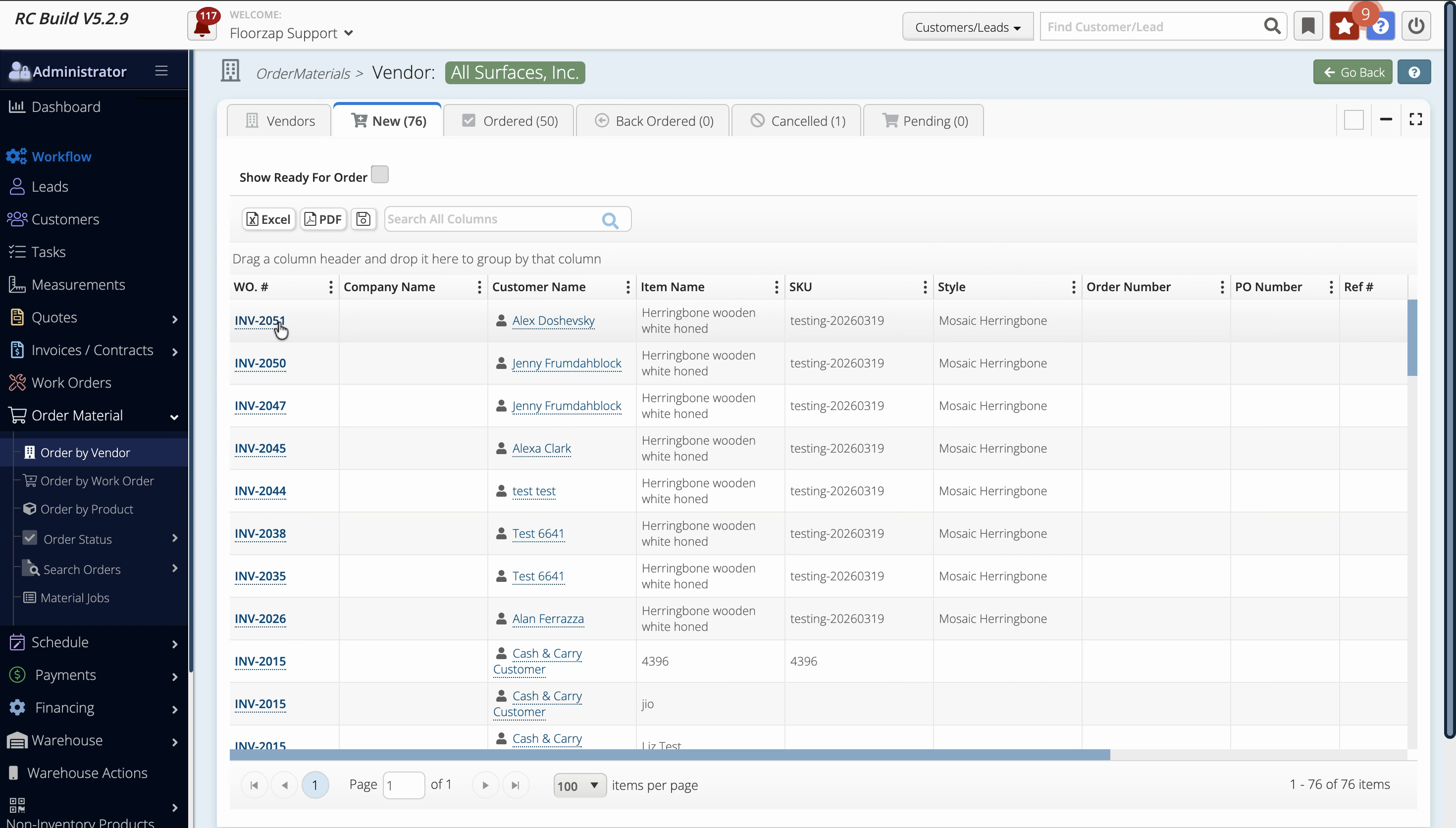
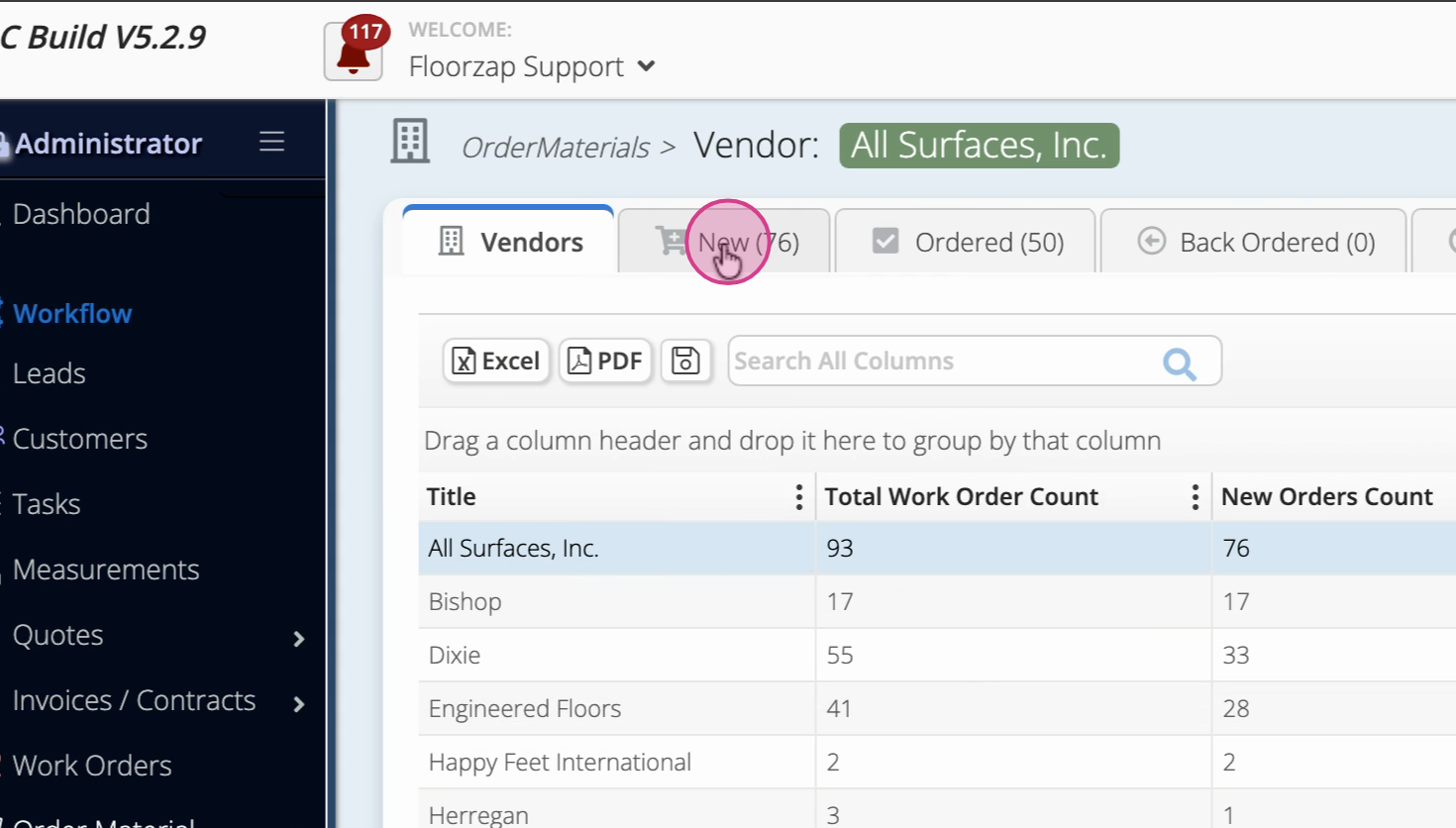
Step 4: Select the New tab to see all new orders.
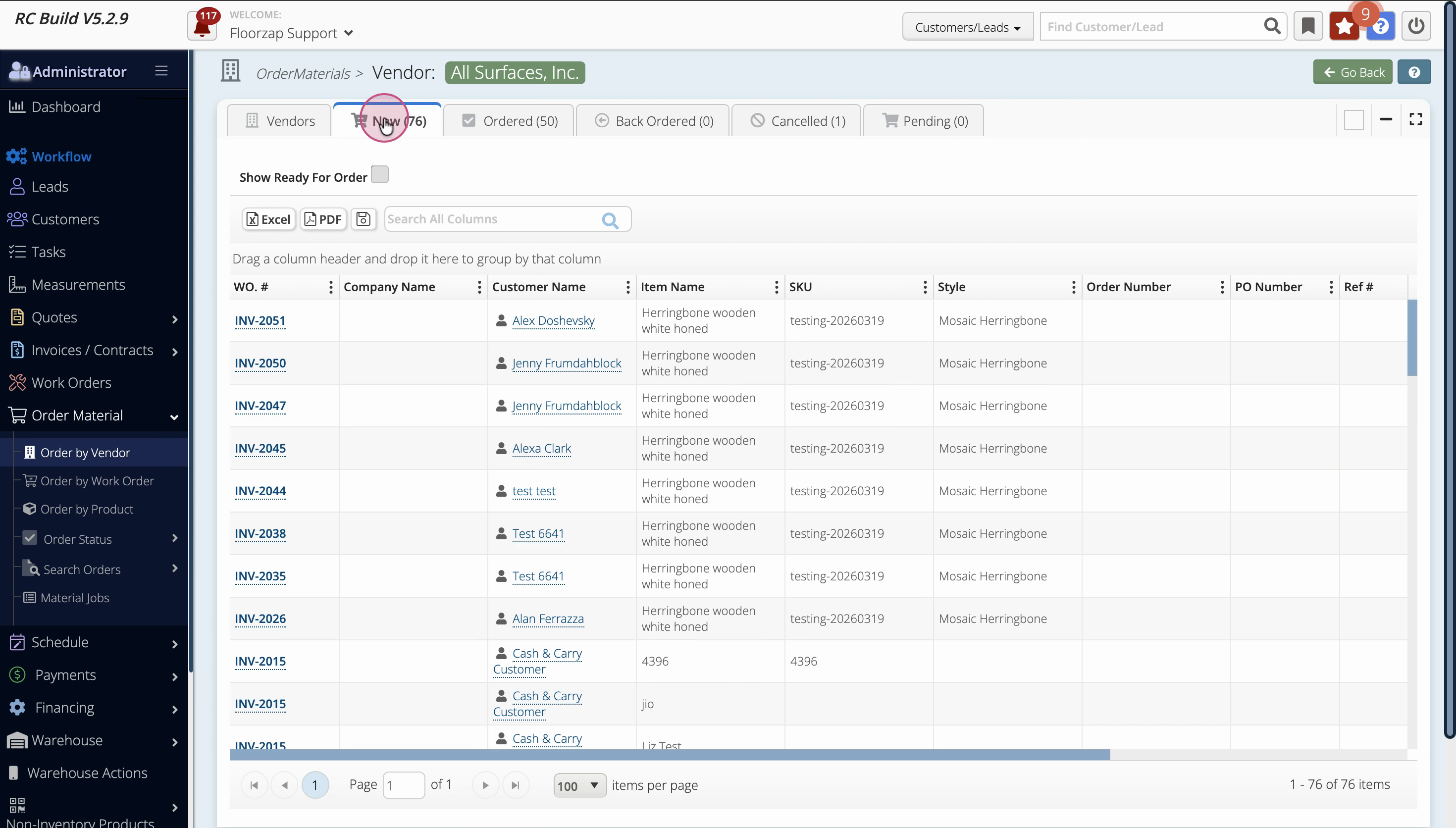
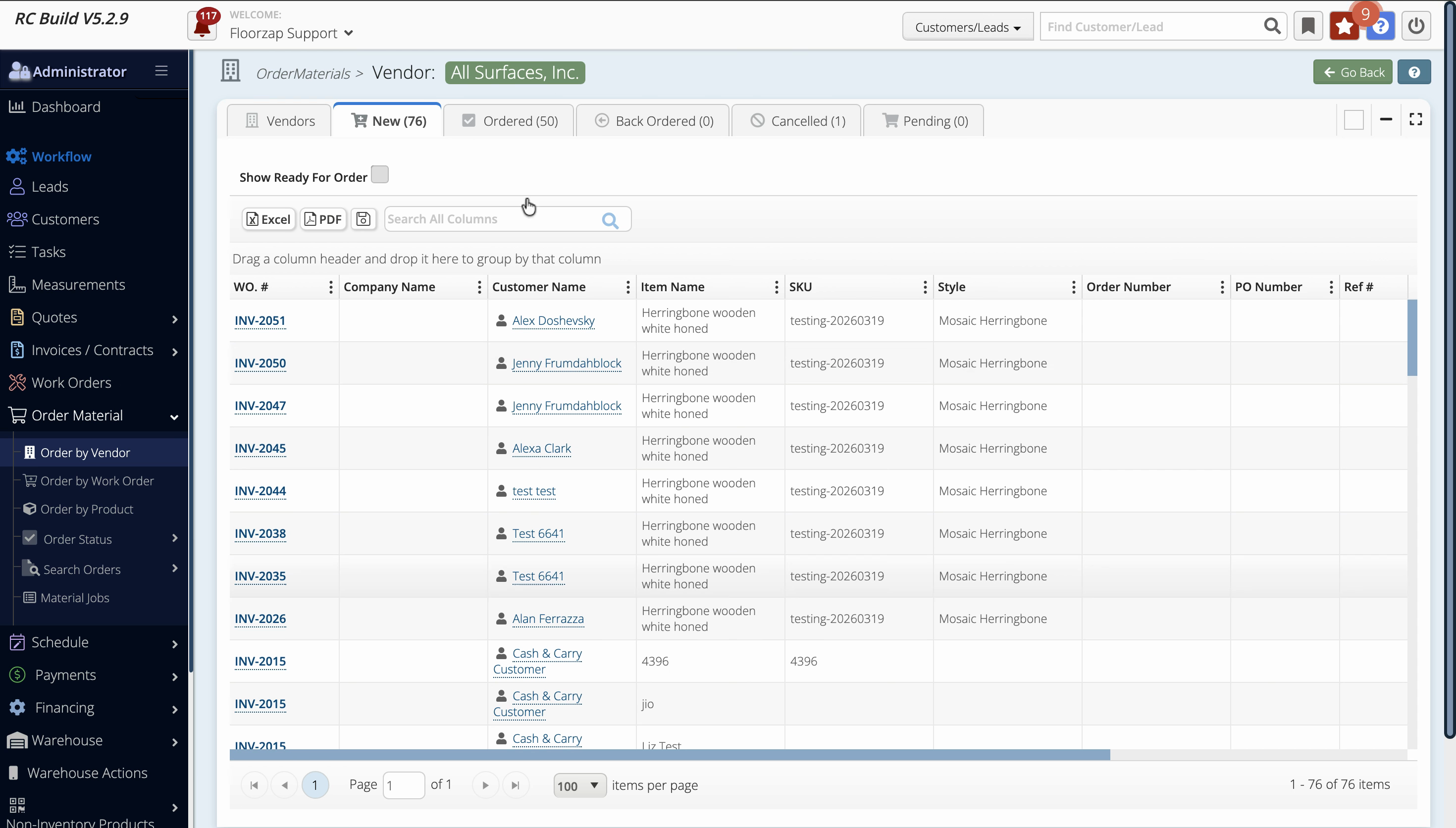
Step 5: Use other tabs, like Ordered, Backordered, or Canceled, to filter orders by status.
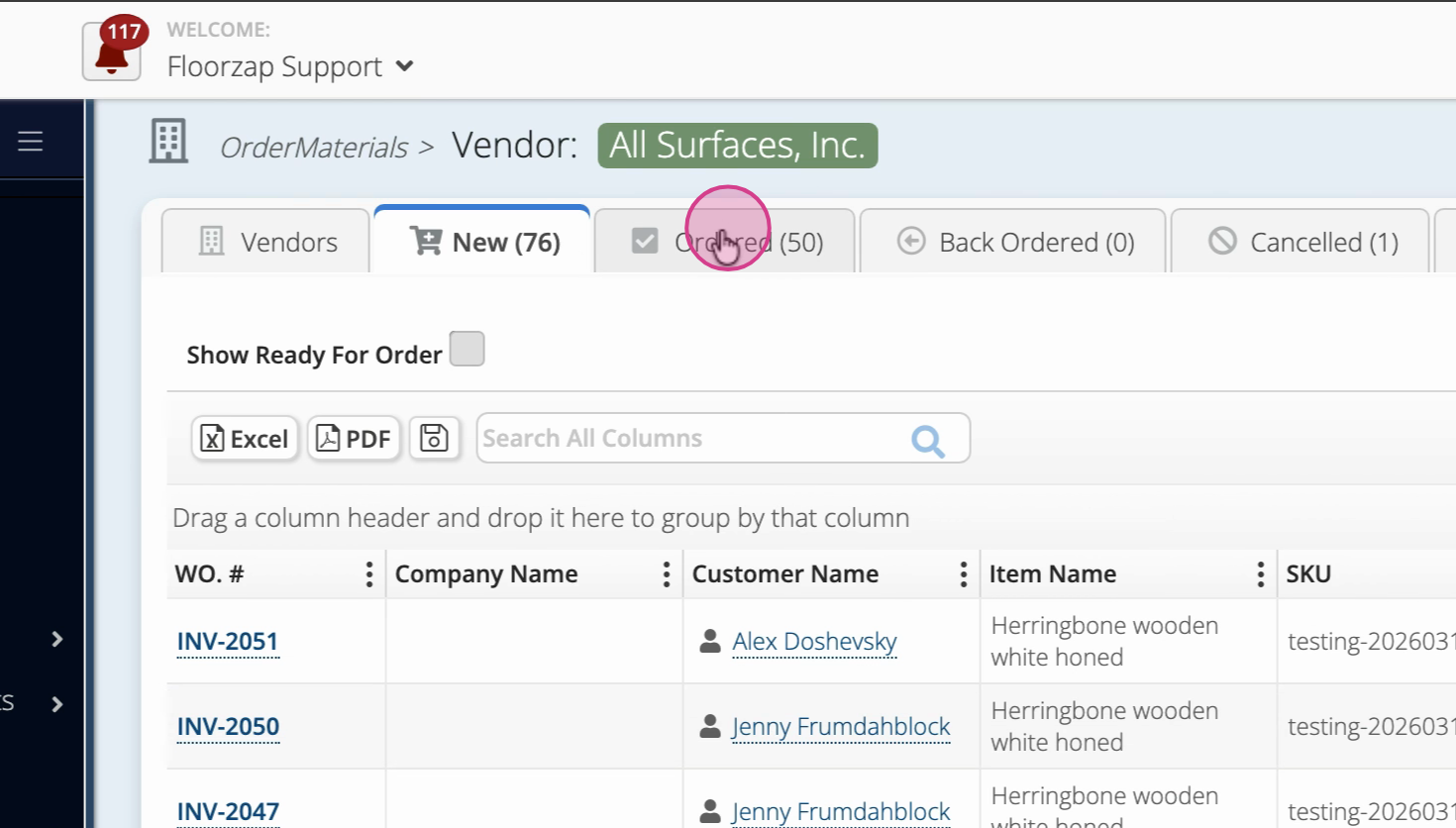
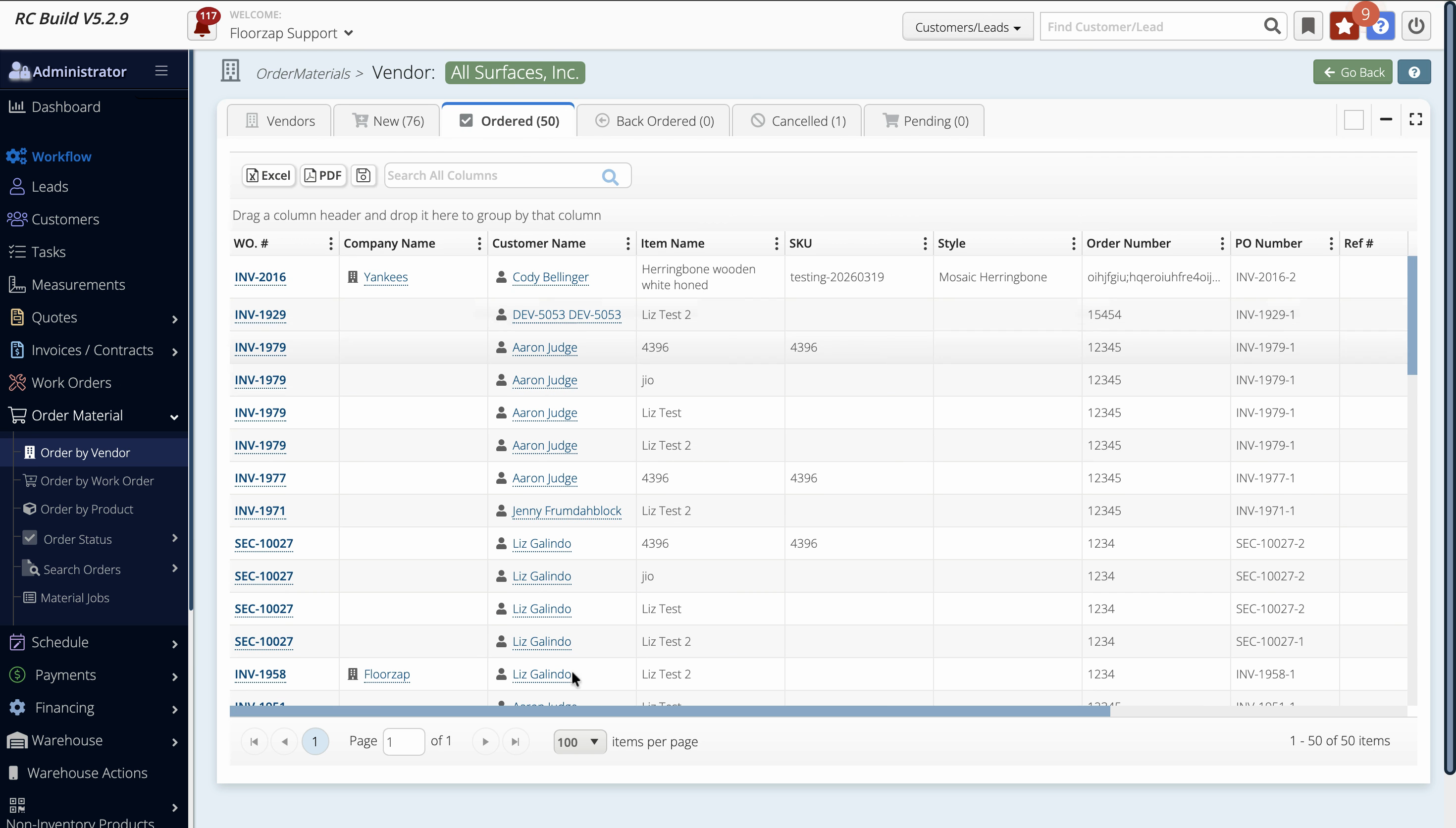
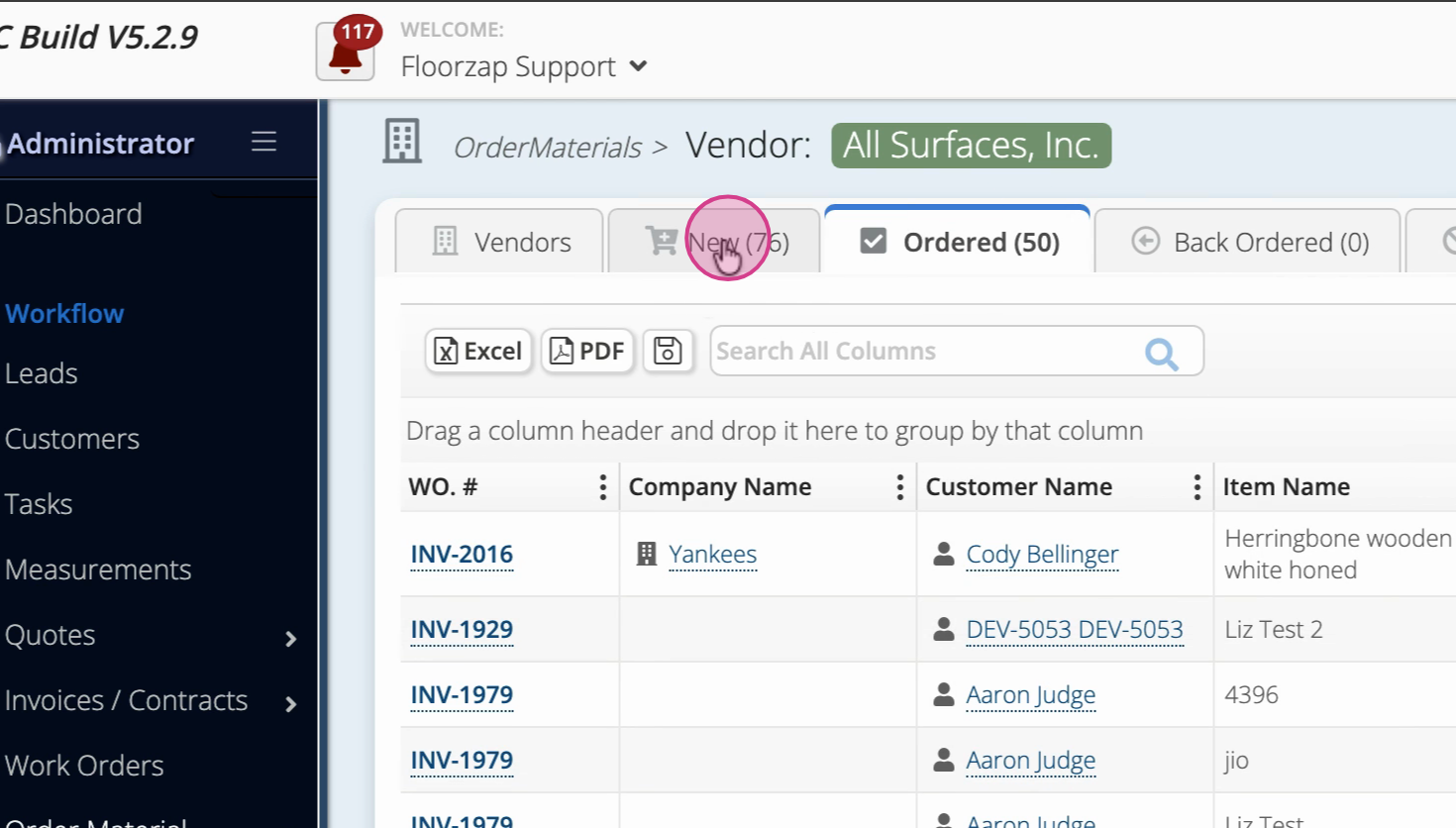
Step 6: Know that the tabs for statuses work differently than the Show Ready for Order filter. Orders can appear in both a status tab and in the ready-for-order filter at the same time.
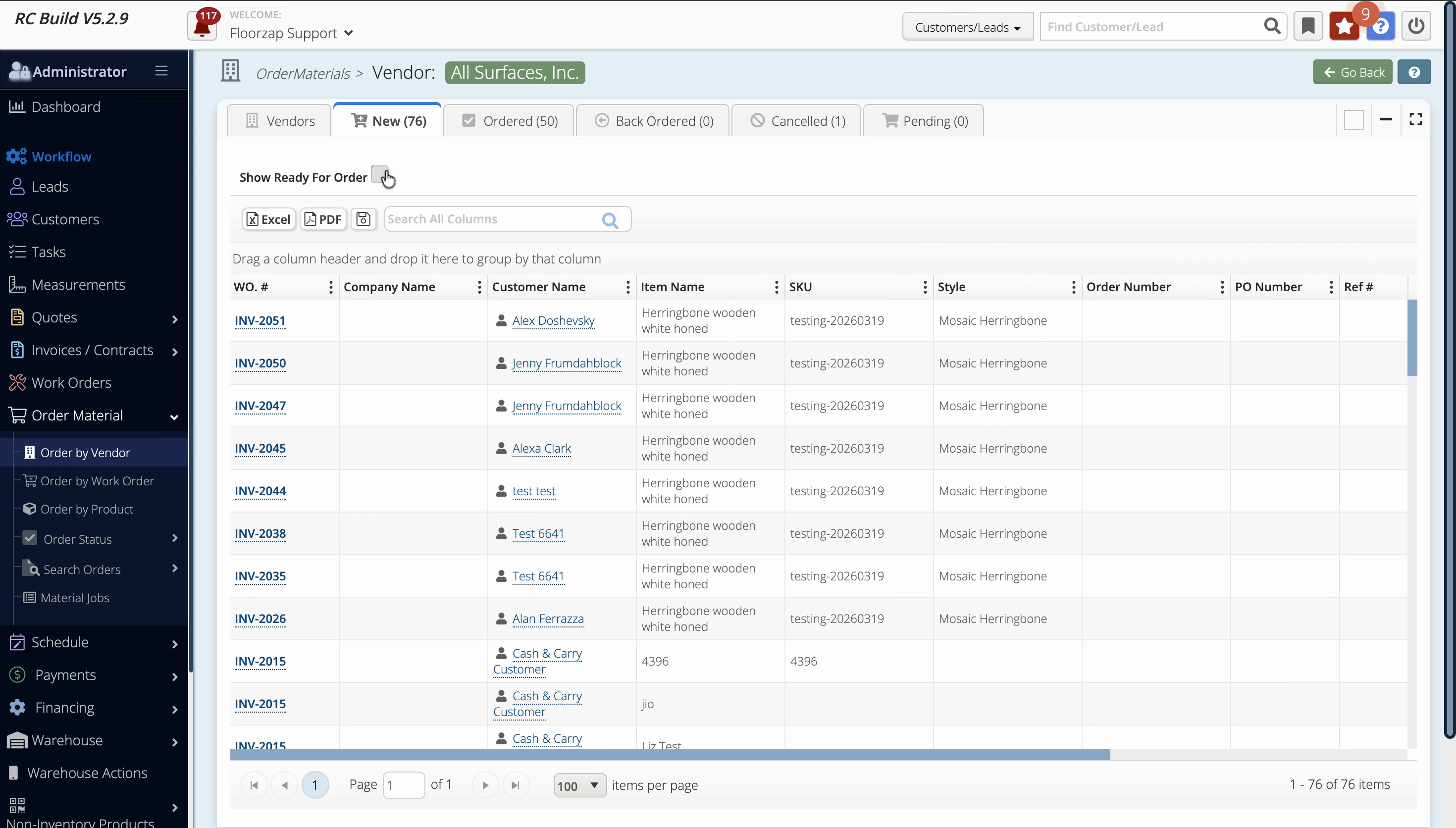
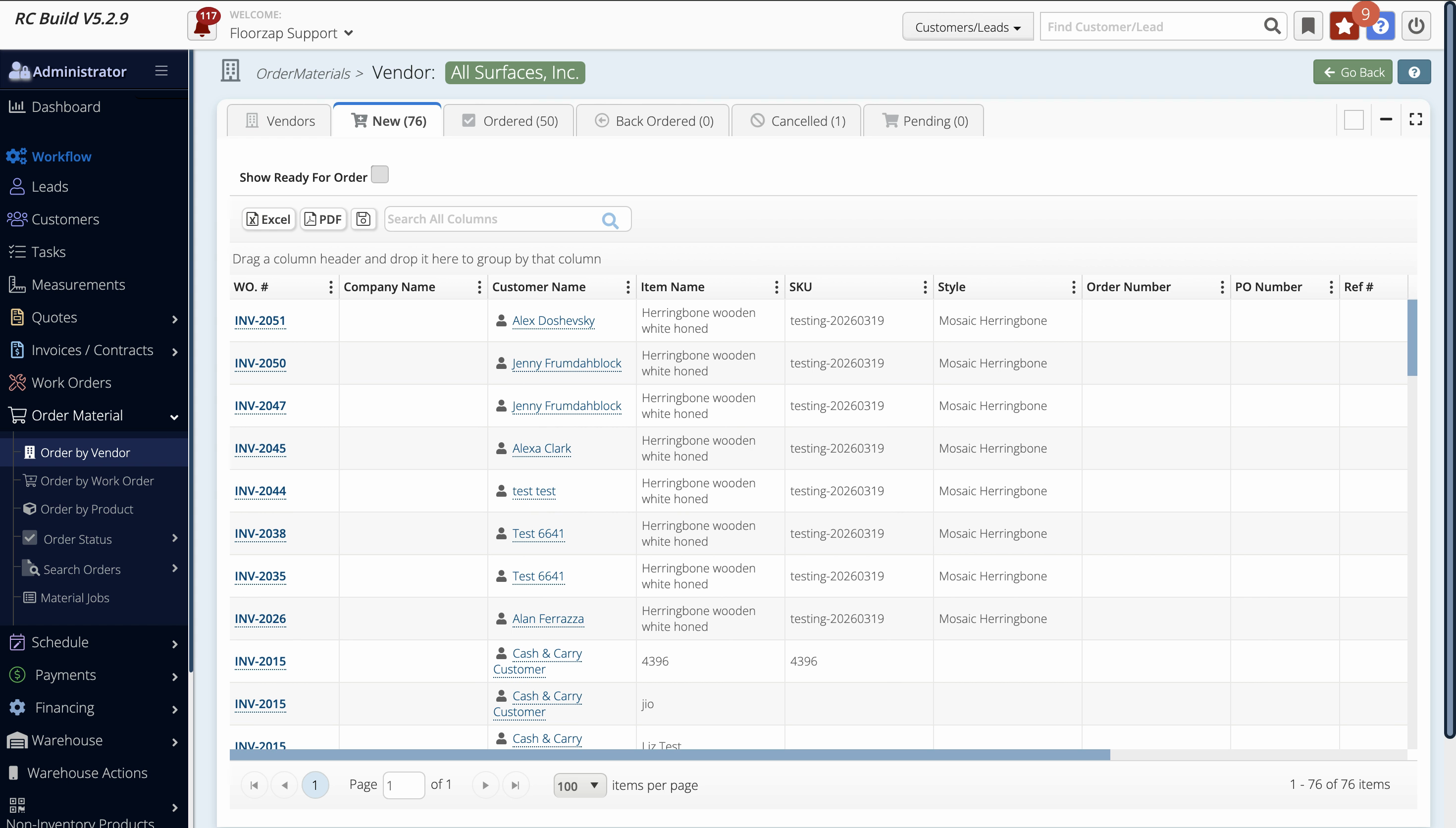
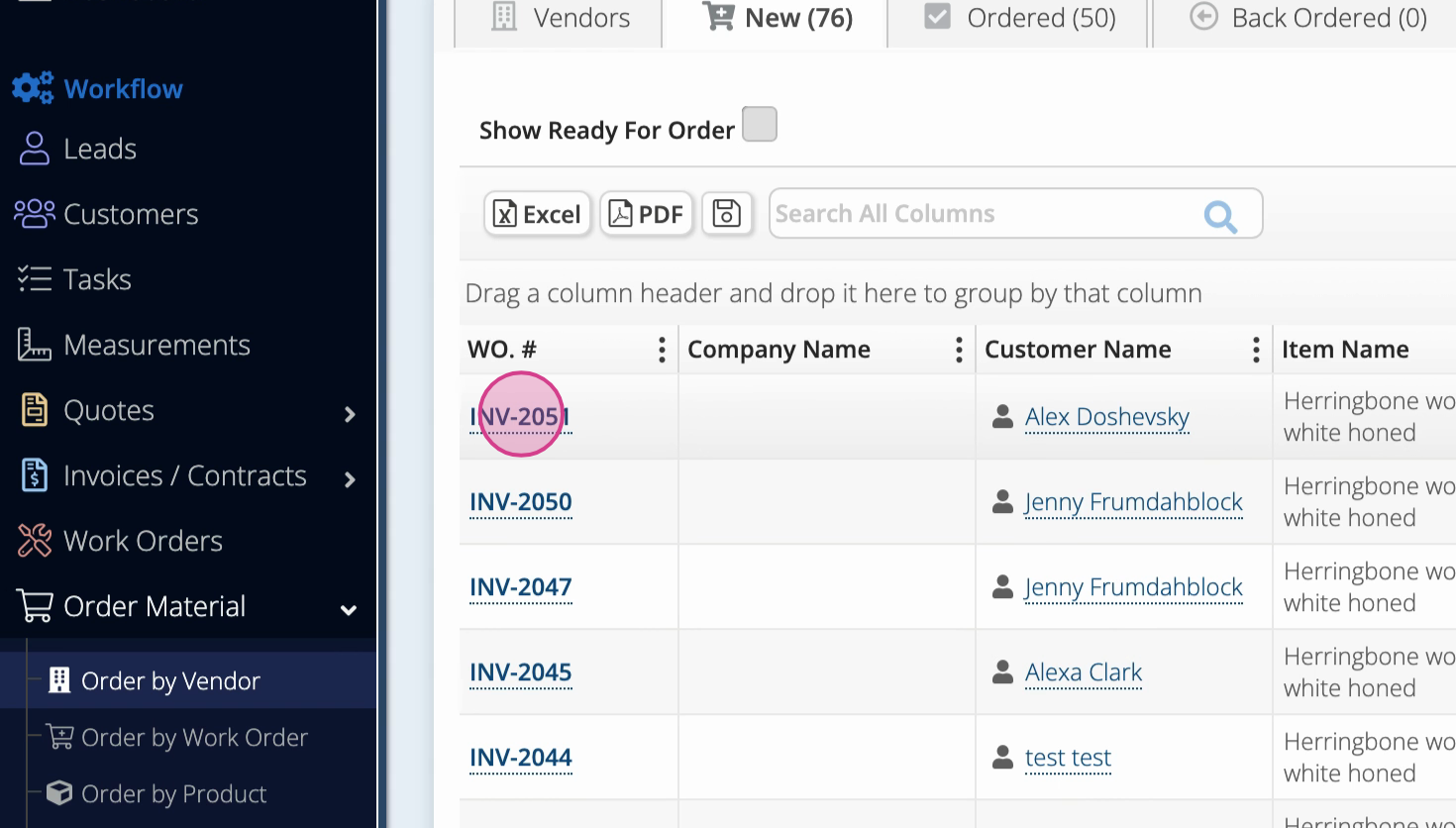
Step 7: If an order (like invoice 2051) is new and marked as ready for order, it'll show up in both places.
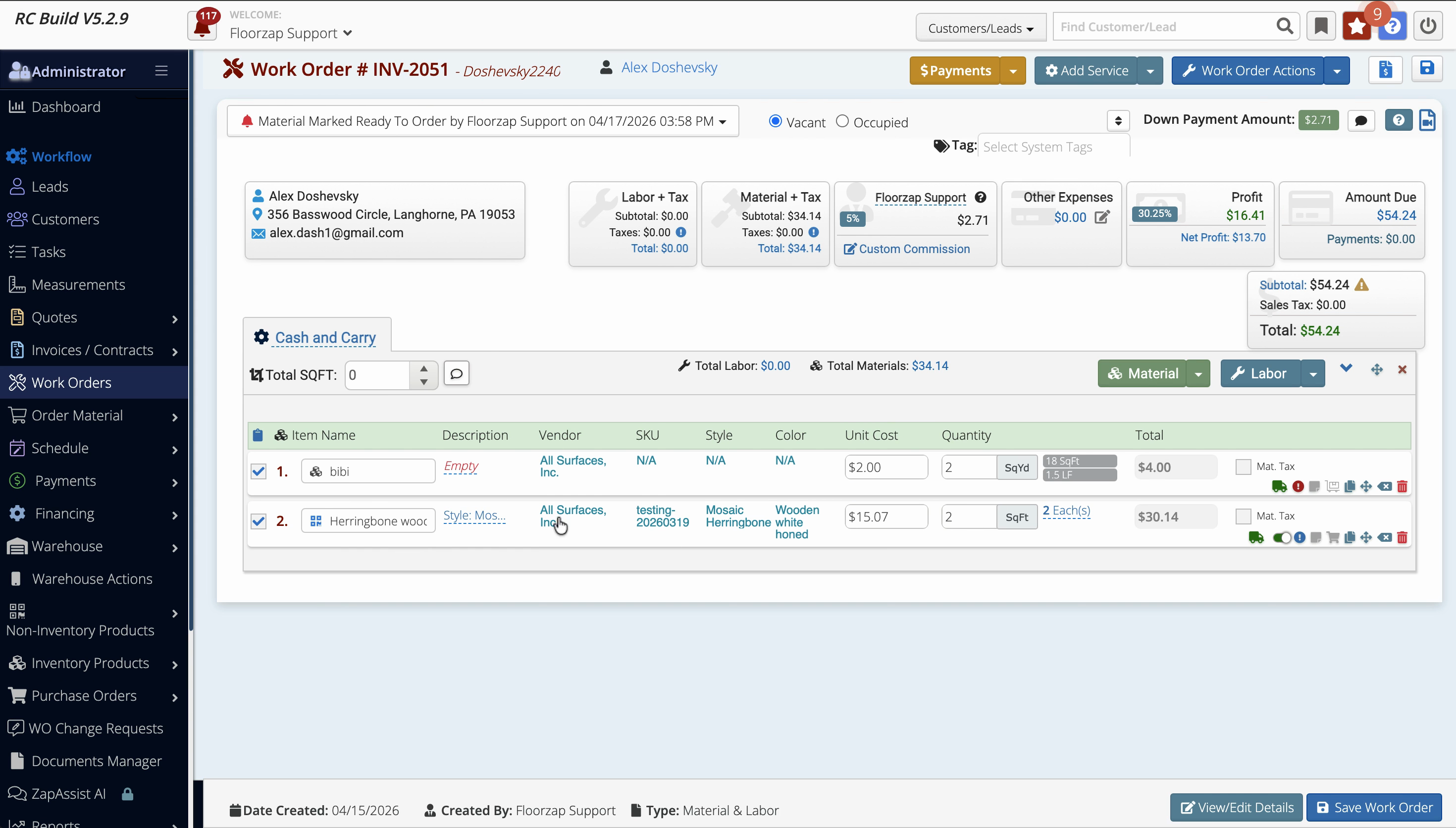
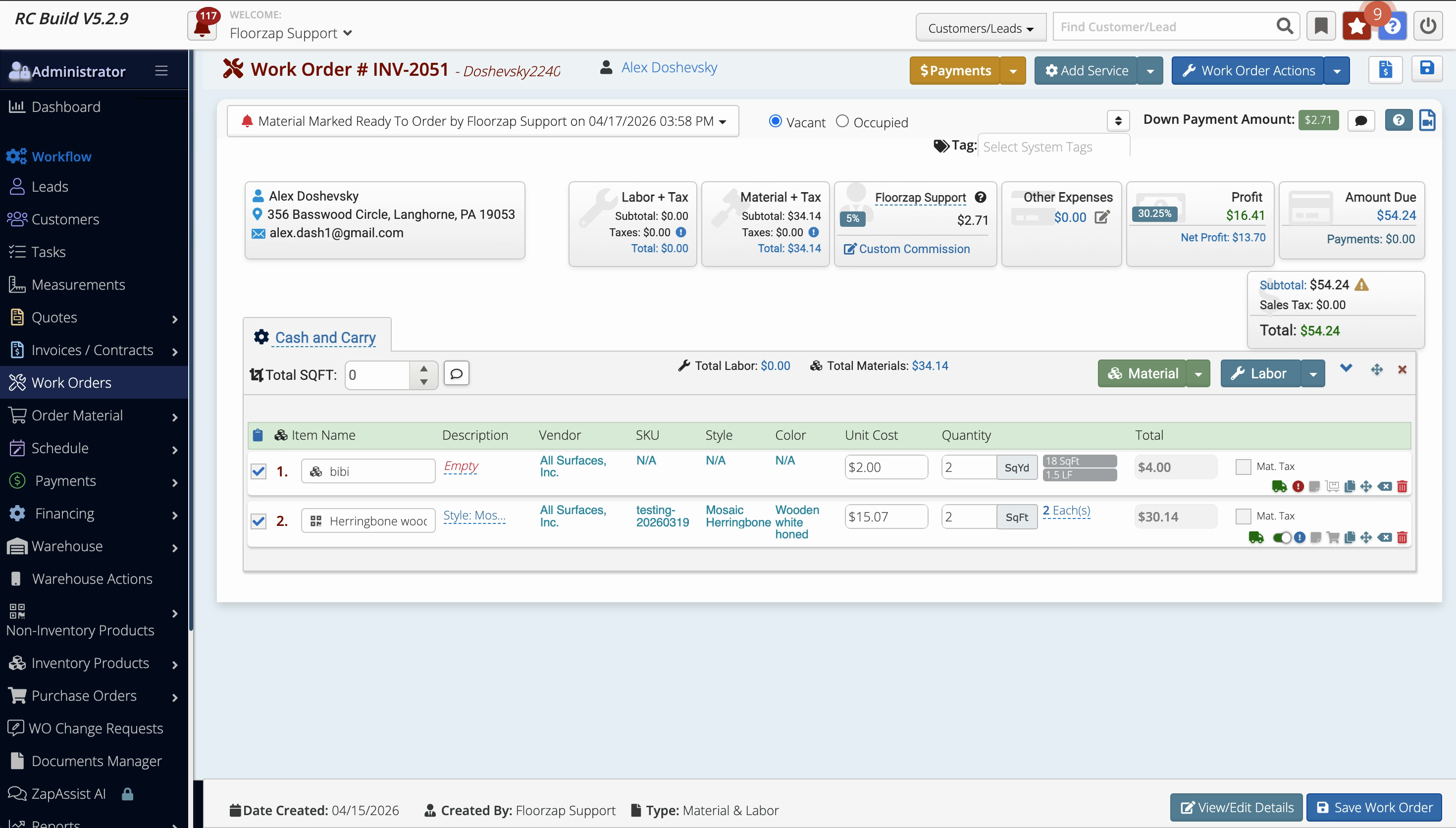
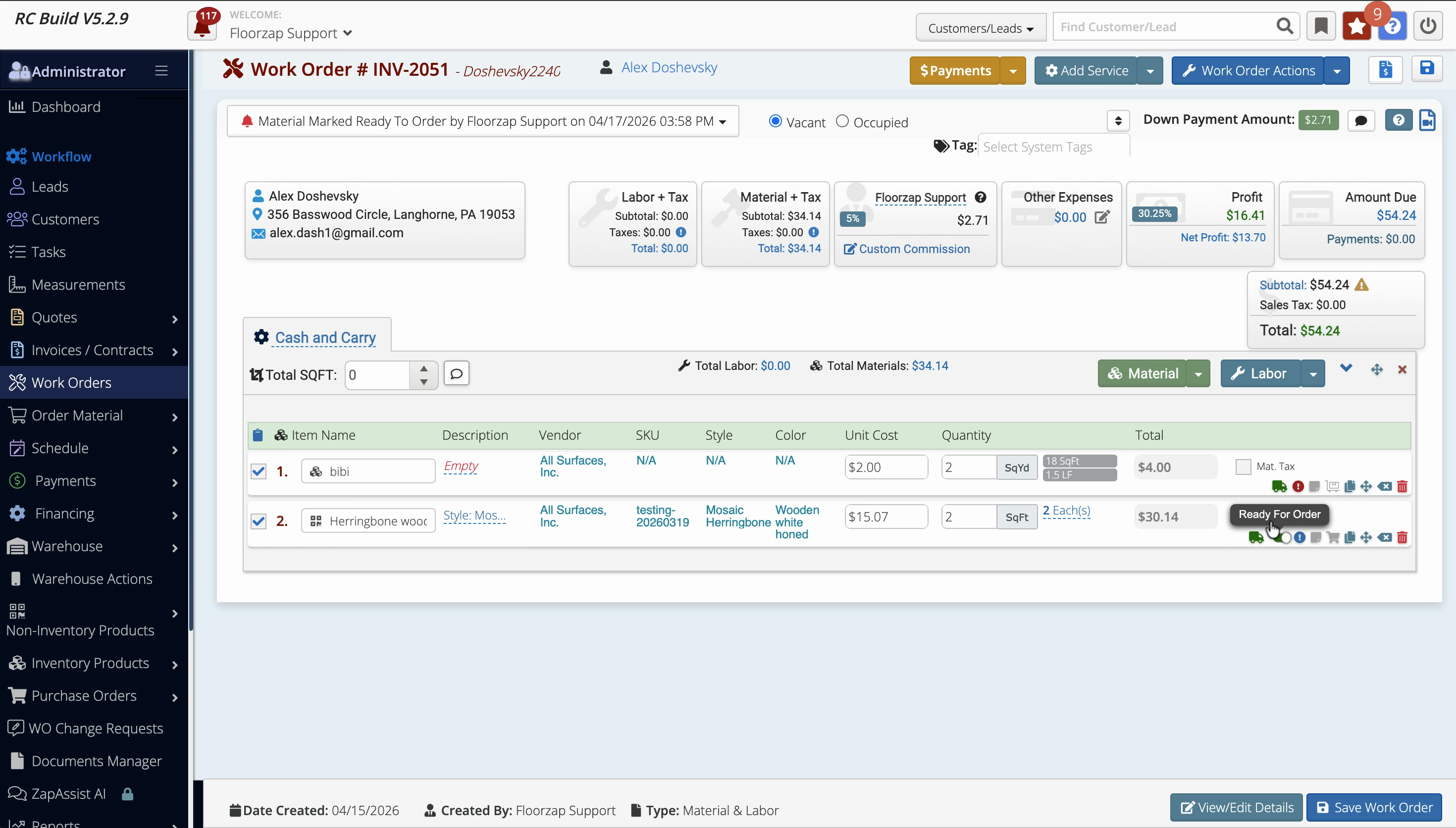
Step 8: To mark an order as ready for order, toggle Ready for Order on the order, then save the work order.
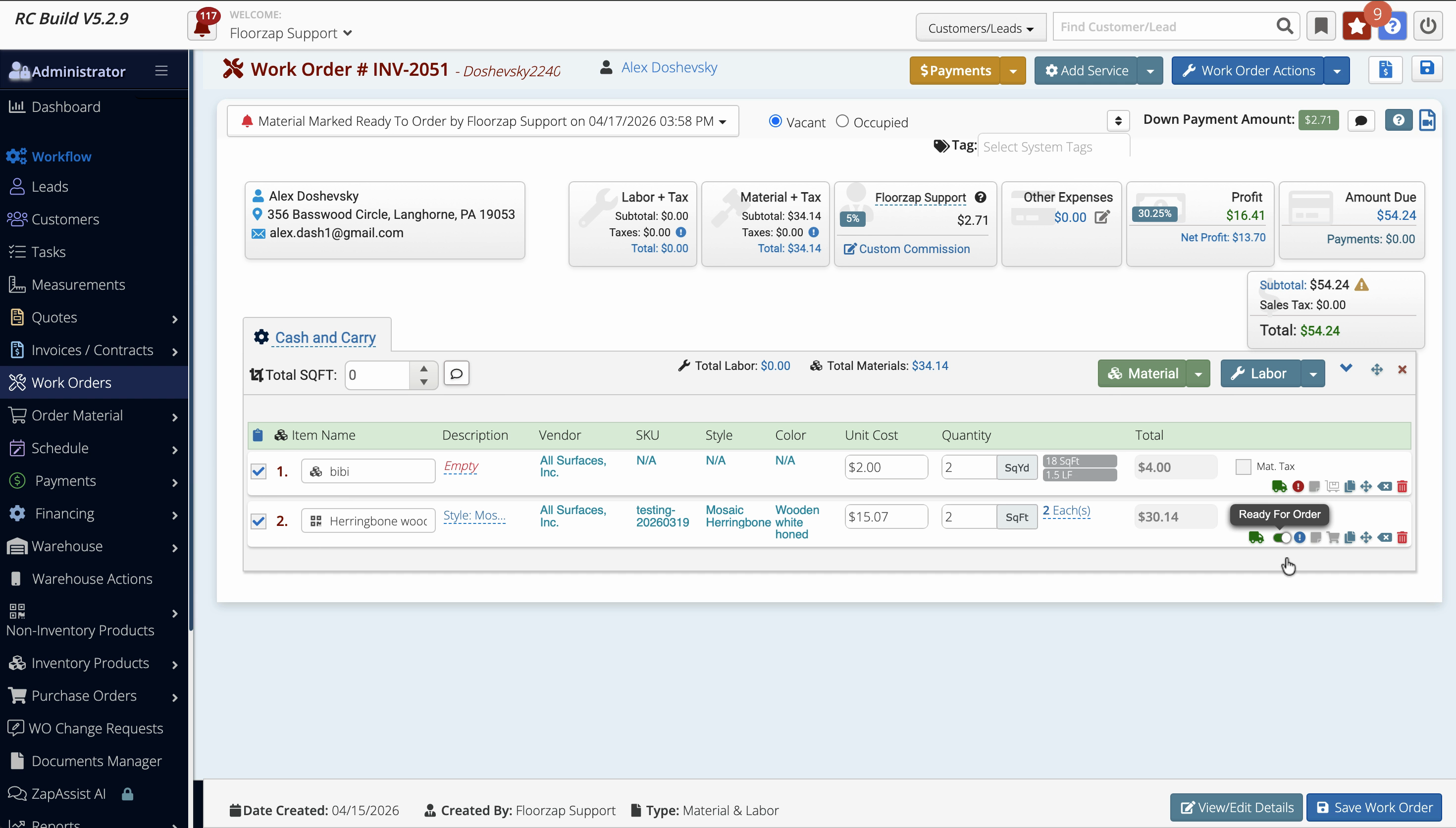
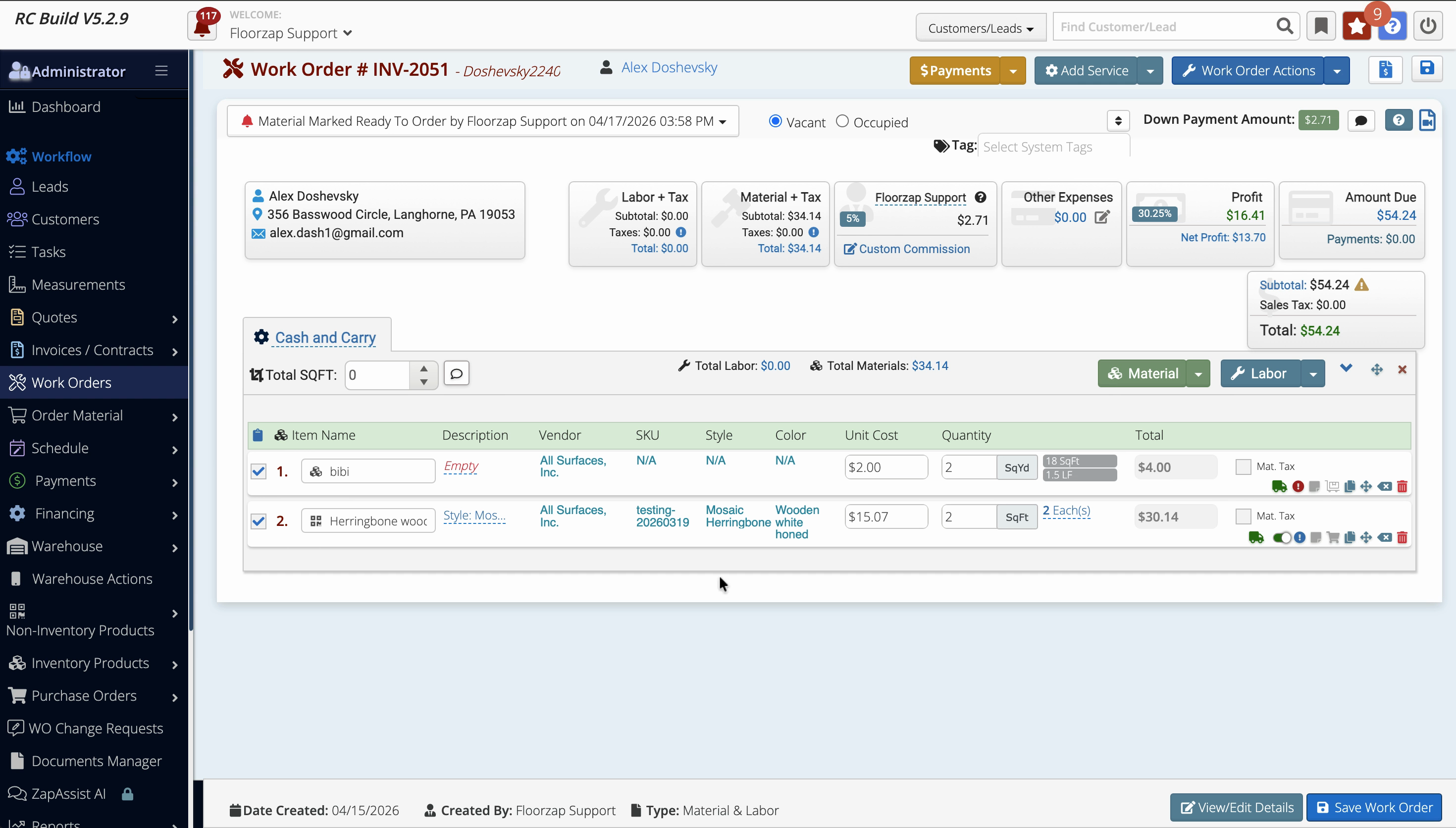
Step 9: Go back to Order Materials → Order by Vendor to check the order’s presence in both the New status tab and the Ready for Order section.
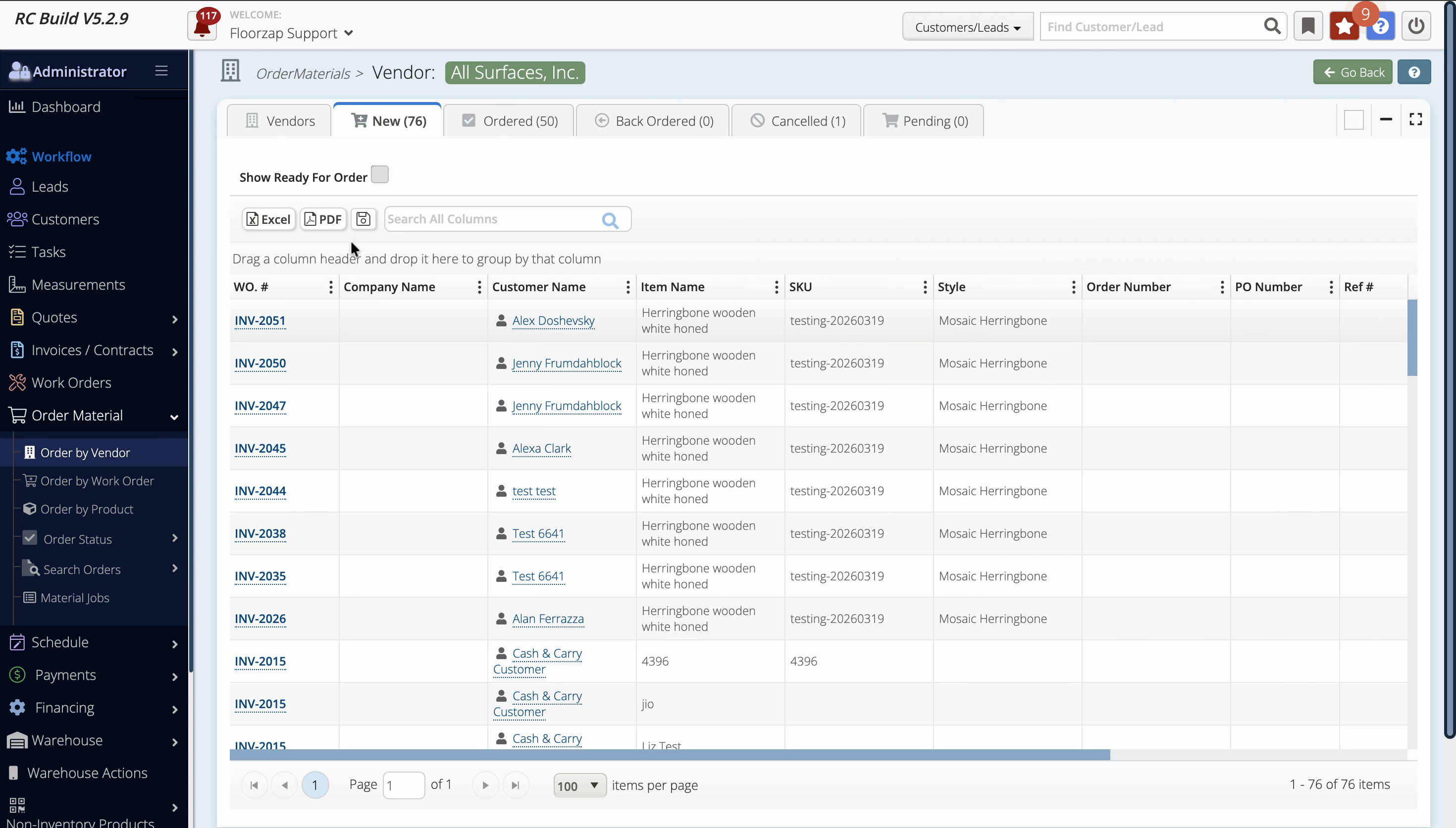
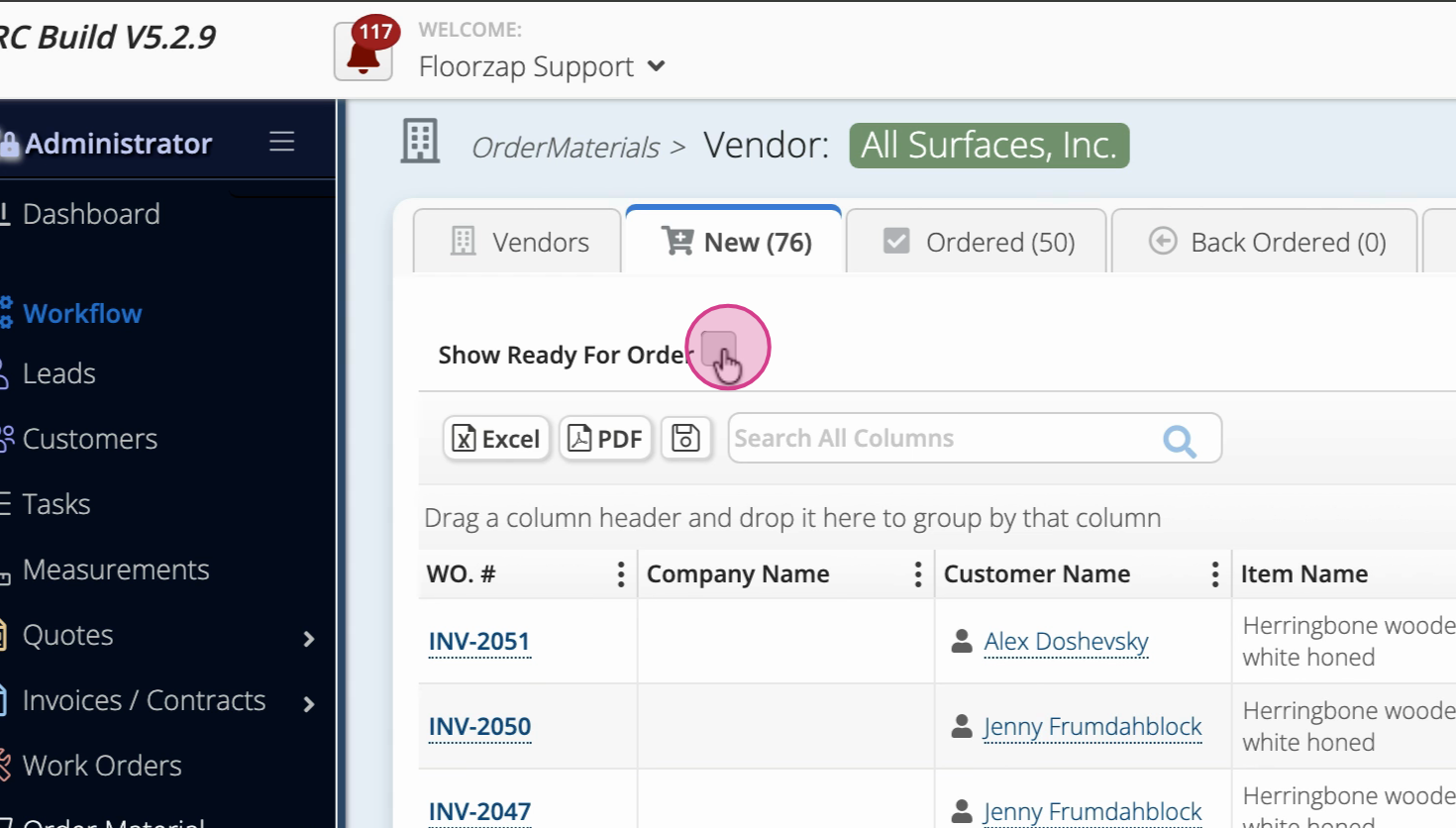
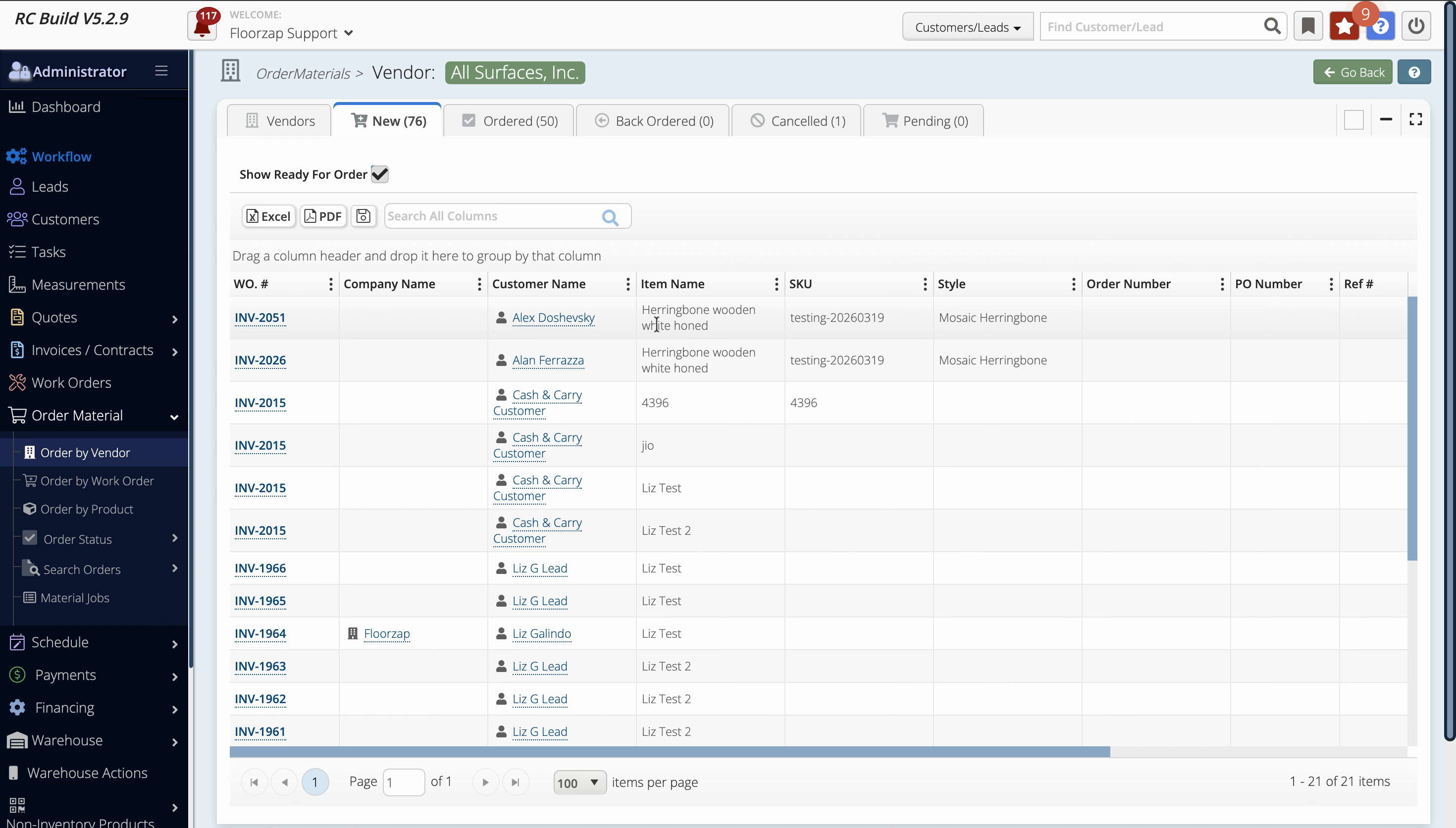
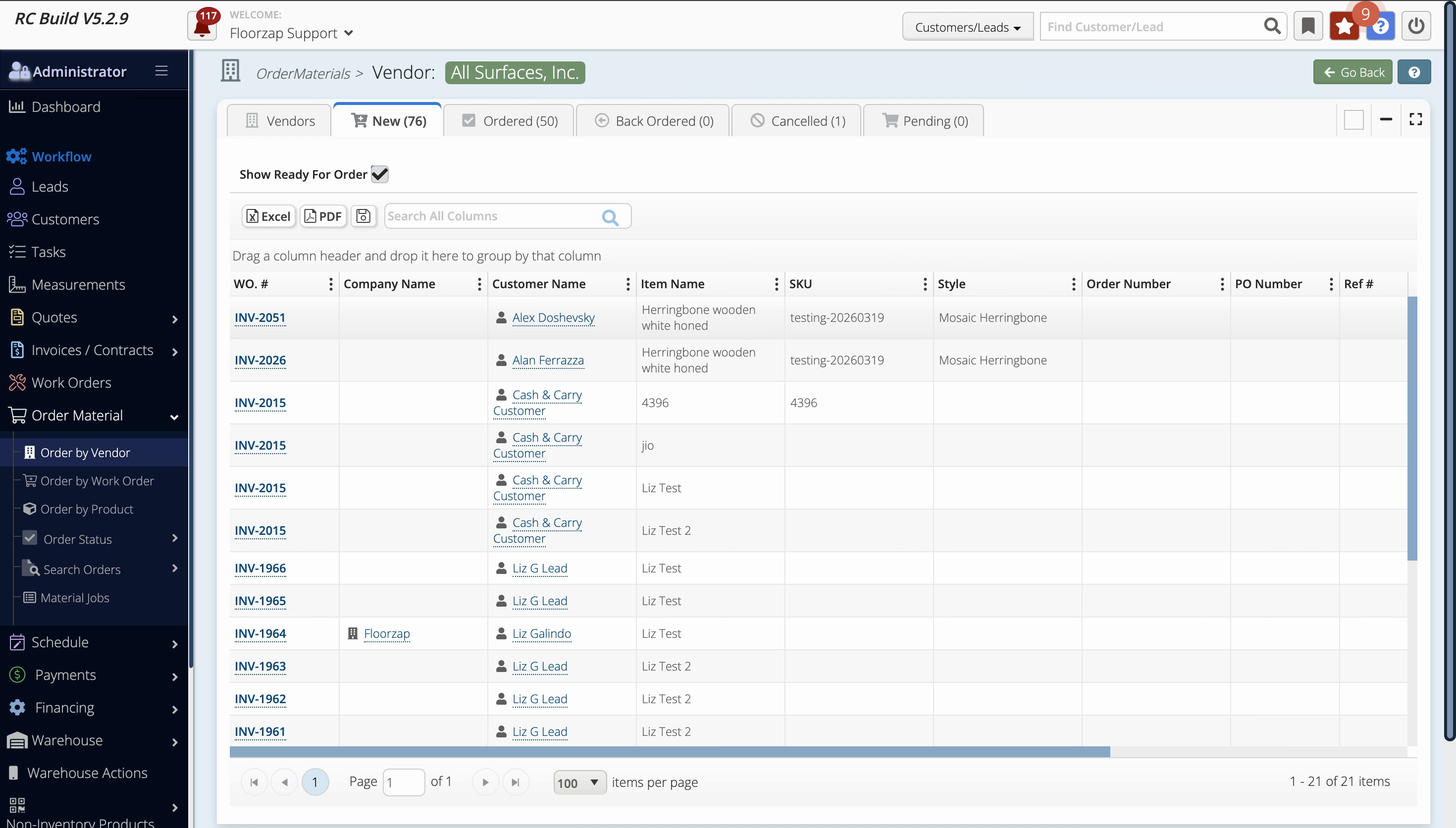
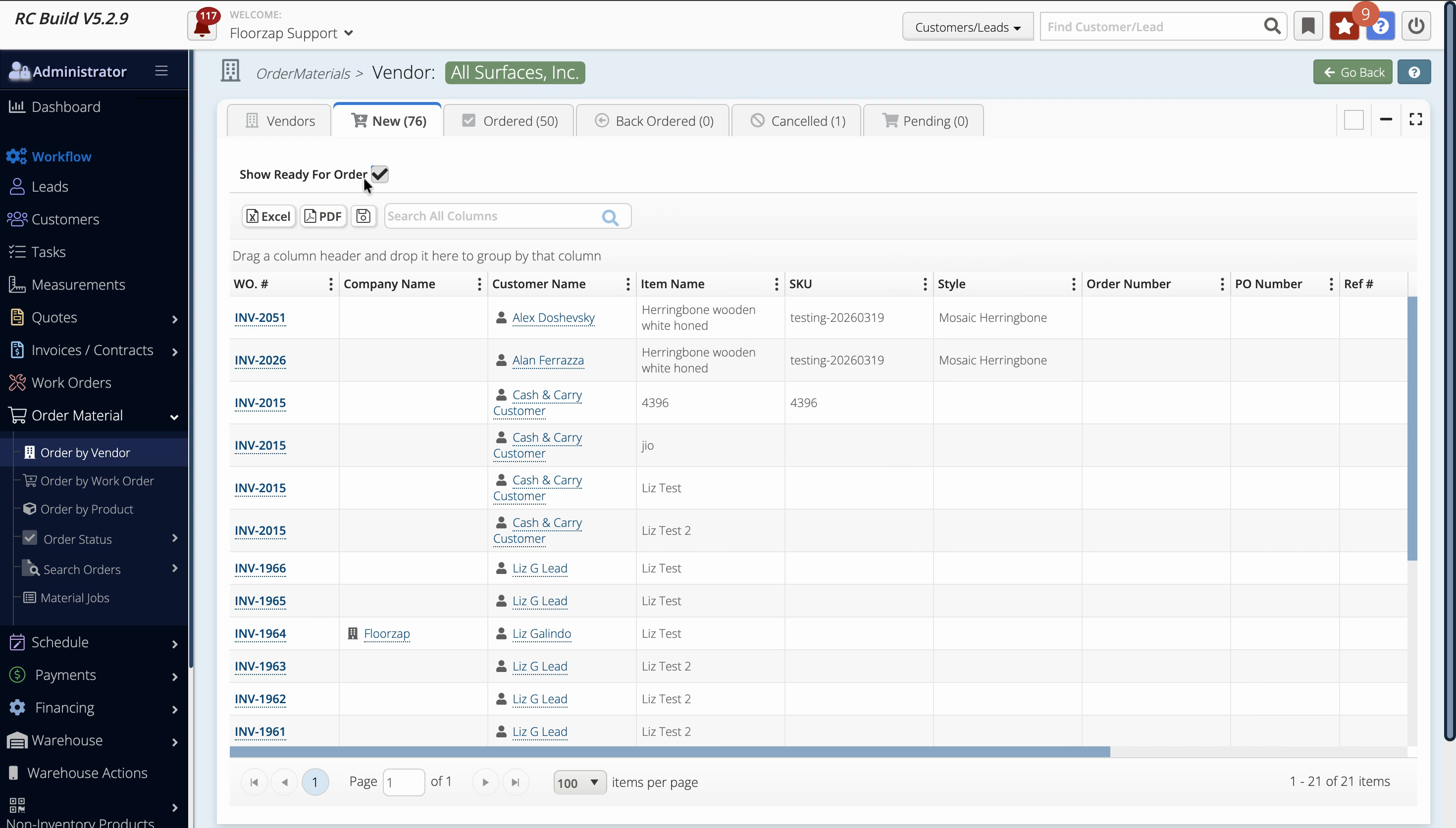
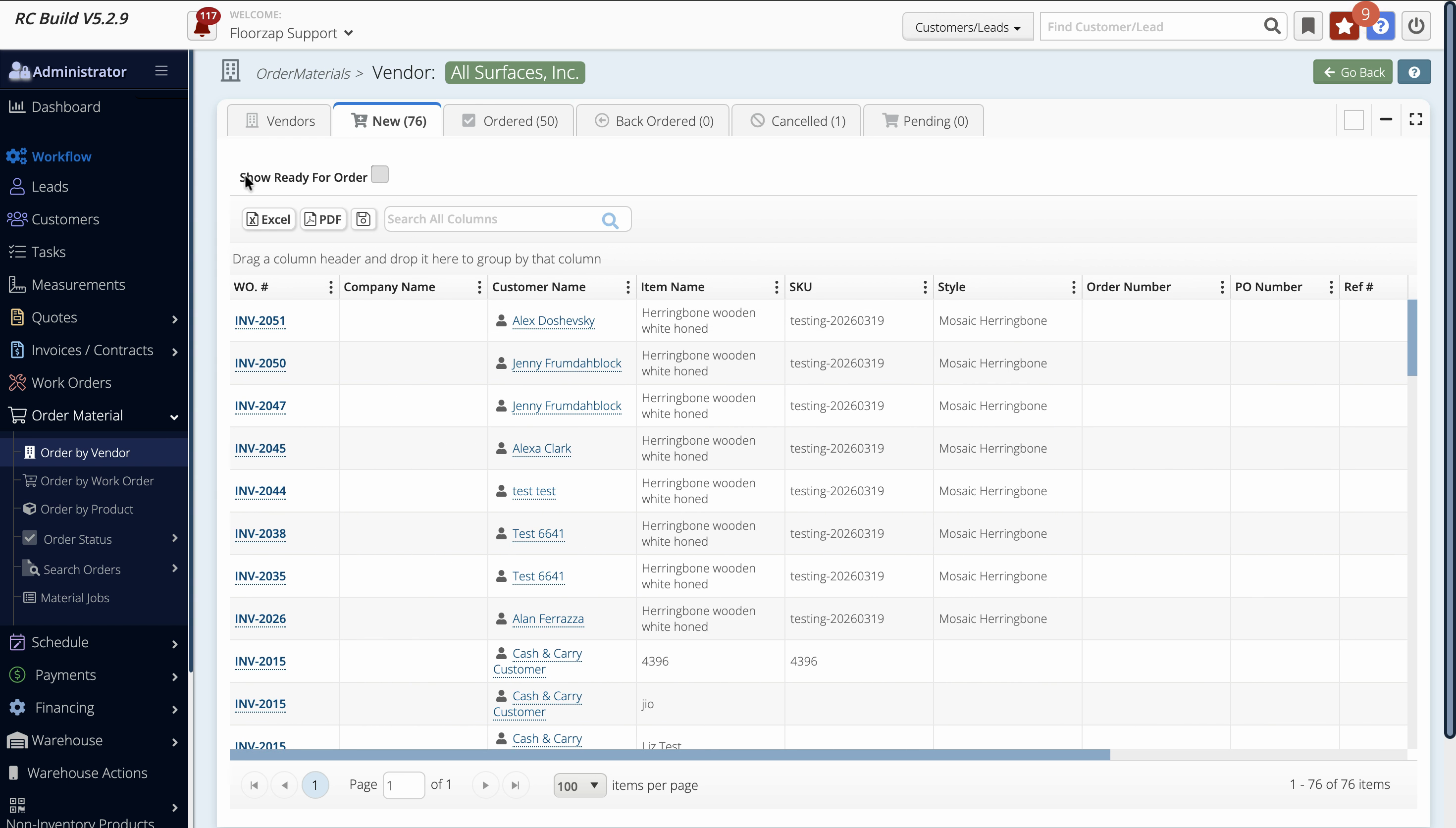
Step 10: Use the Show Ready for Order filter to confirm if an order is ready, independent of which status tab it’s in.
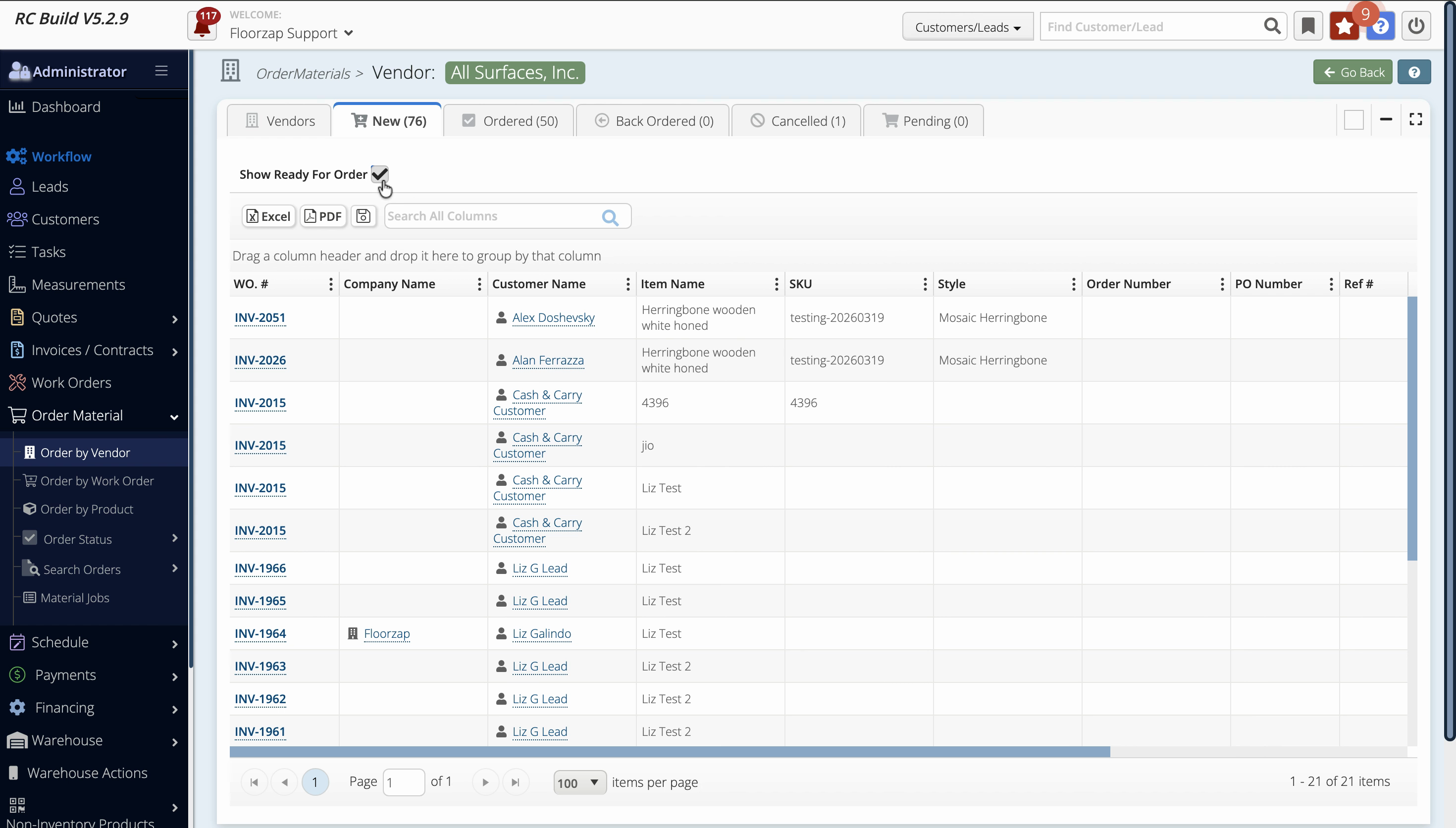
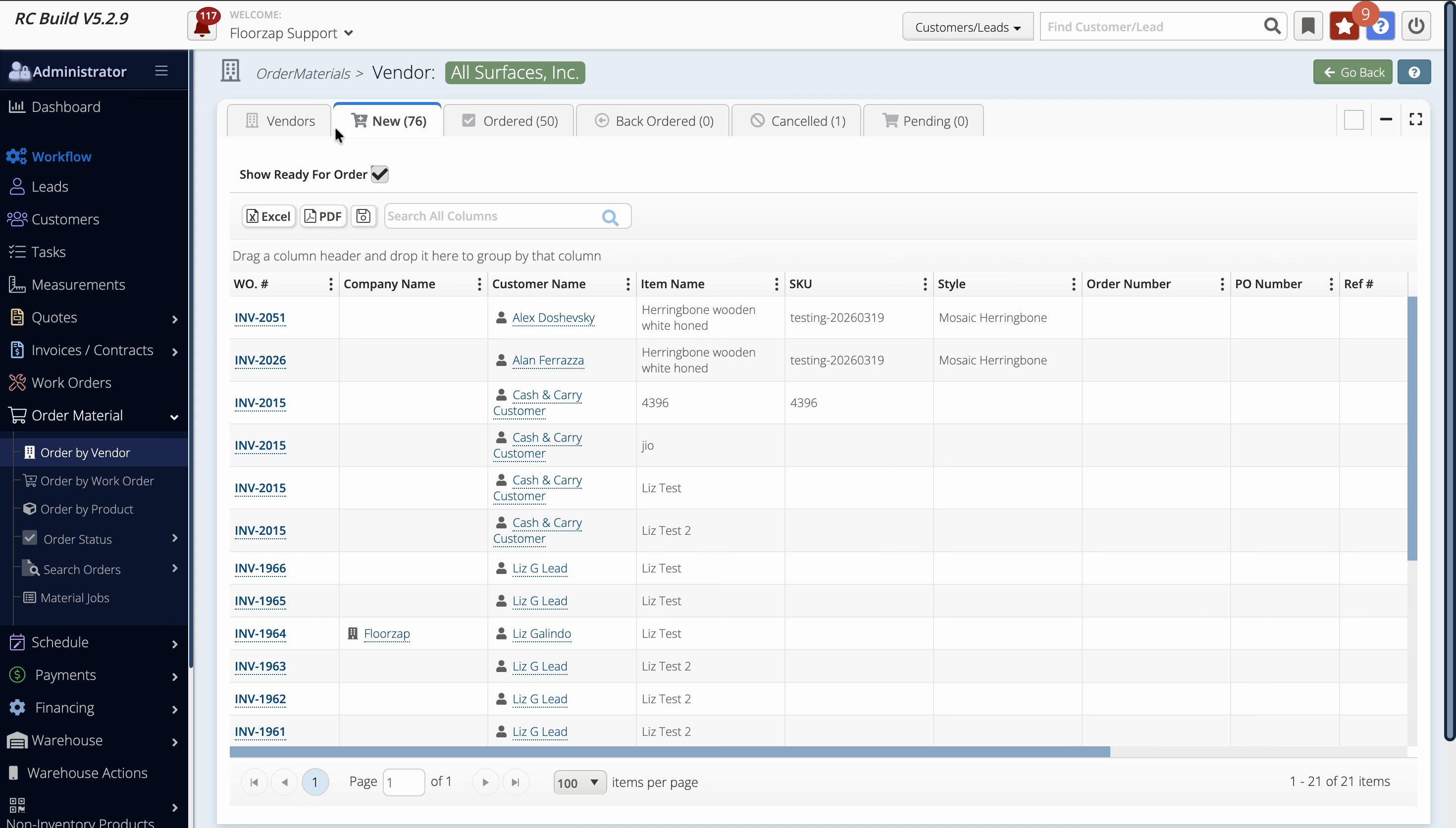
Orders move flexibly between status tabs and filters. A new order marked as ready for order appears in both its status tab and the ready-for-order view. This visibility ensures you never lose track of orders needing action. Explore these features to make your materials management easy, accurate, and efficient.