
-
How Net Deposit Works
-
With Net Deposit, Floorzap Payments deducts your processing fee from the transaction amount before sending the funds to your bank. This means your bank deposit will always be slightly less than the amount you charged your customer.
-
The formula is simple: Net Deposit = Transaction Amount − Processing Fee
-
-
This is different from a Gross Deposit model, where the full transaction amount is deposited and fees are billed to you separately (e.g., as a monthly statement charge). With Floorzap Payments, there are no surprise fee invoices — every payout is already net of fees.
Card & ACH Payment Scenarios:
Credit Card Payment
-
A customer pays a $1,500.00 invoice by credit card.
|
|
Amount |
|---|---|
|
Transaction Amount |
$1,500.00 |
|
Processing Fee (2.9% + $0.30) |
− $43.20 |
|
Net Deposit to Your Bank |
$1,456.80 |
ACH (Bank Transfer) Payment
-
A customer pays a $1,500.00 invoice via ACH bank transfer.
|
|
Amount |
|---|---|
|
Transaction Amount |
$1,500.00 |
|
Processing Fee (1.0%) |
− $15.00 |
|
Net Deposit to Your Bank |
$1,485.00 |
How Fees Appear in Your Payout Report:
Because fees are deducted per transaction before the payout is batched, your Floorzap Payments Payout Report will show both the gross transaction amount and the net amount deposited. You'll see a fee line for each transaction so you always have full visibility into what was deducted.
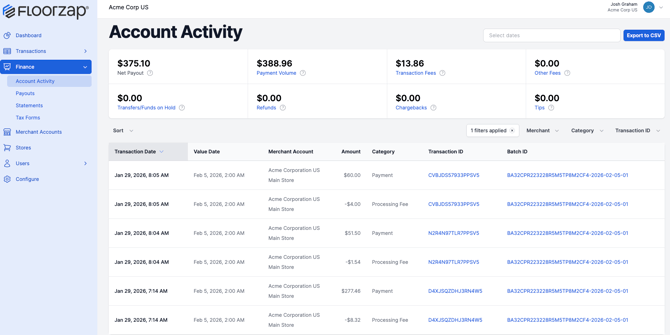
To review your transaction-level fees, navigate to Transactions → Payments and select the relevant transaction. Each transaction row will display:
-
Authorized Amount — what the customer paid
-
Transaction Fee — the amount deducted
-
Net Amount After Fees— what was included in your bank deposit
-
Surcharge — If applicable and enabled, separate line item will indicate
Tip: If the total of your net transaction amounts doesn't exactly match your bank deposit, check whether multiple transactions were batched into a single payout. Floorzap may group several transactions into one deposit.
Navigate to View Transactions in your Floorzap Payments Payout Report for more detail.
FAQ’s:
-
Why does my bank deposit not match the total amount I charged customers?
-
This is expected and normal. The difference between what you charged and what you received is your processing fee. You can verify the exact fee for each transaction within the payout breakdown.
-
-
Is there a monthly fee for using Floorzap Payments?
-
For questions about account-level fees or your specific plan, please contact Floorzap Support.
-
-
Can I pass the processing fee on to my customers?
-
Yes — Floorzap Payments supports credit card surcharging, which allows you to offset processing costs by applying a surcharge to credit card payments. This is subject to legal requirements that vary by state.
-
If your state permits this and you would like to enable this on your Floorzap subscription, please see Credit Card Surcharging Guide.
-
See Credit Card Surcharging Rules & Regulations for details on legal practices and guidelines Floorzap Payment adheres to.
-