
Assigning People to Tasks in Your System
Easily assign employees or contractors to tasks so the right team members get notified and work stays organized. The people picker in your task editor pulls names from your employee and contractor lists, letting you add one or more teammates in just a few clicks. Here’s how task assignment works, step by step.
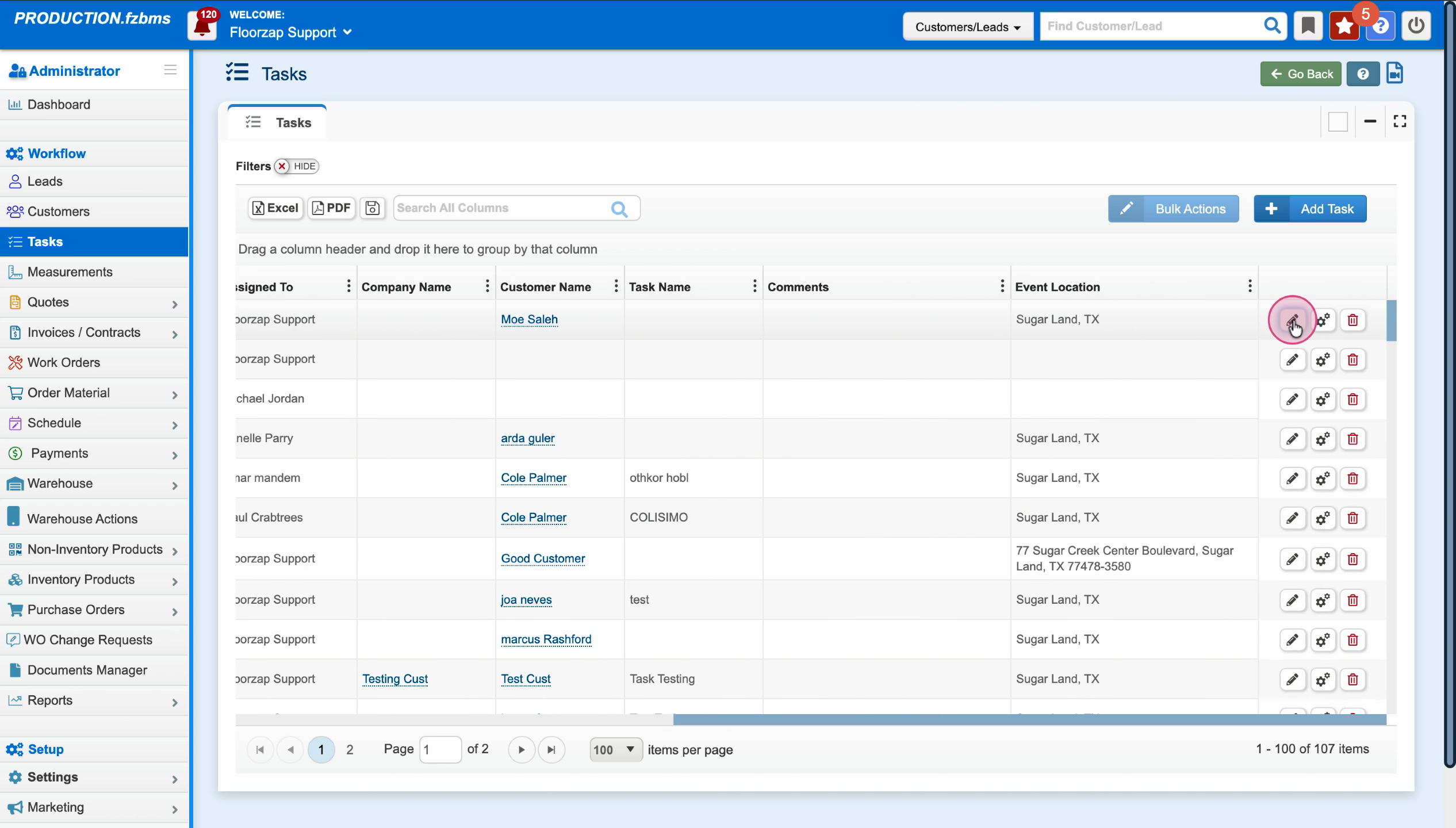
Step 1: Click on Tasks in the left sidebar.
Step 2: Select Add Task to create a new task, or click the pencil icon next to an existing task to edit it.
Step 3: Fill in task details like Customer, Task Type, and Start Date.
Step 4: In the Employee field, open the dropdown list to see all available employees and contractors.
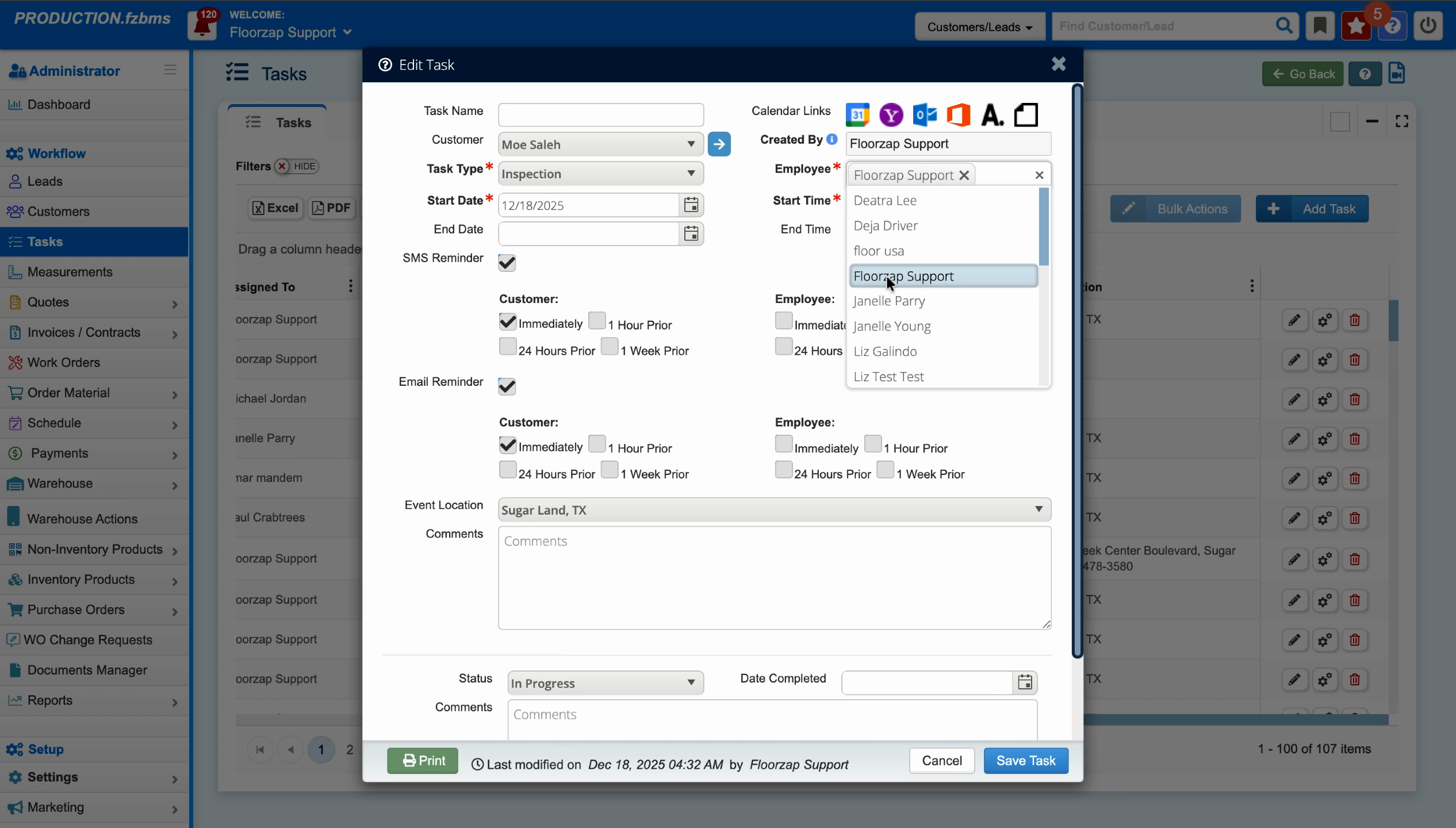
Step 5: Click names to add people to the task. Select as many as needed—just click on each person you want to assign.
Step 6: Use the X next to a name to remove someone from the task if you change your mind.
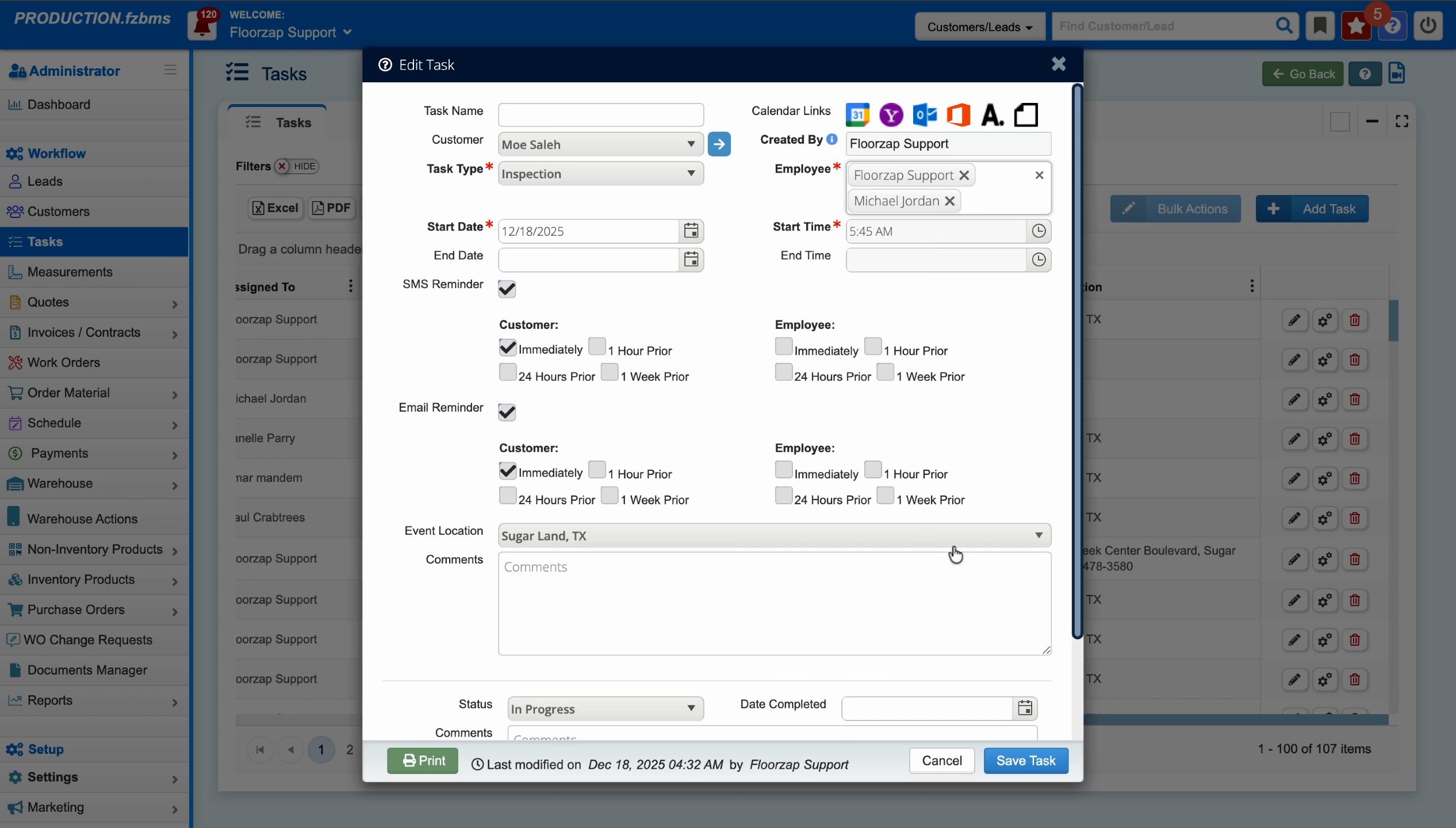
Step 7: Click Save to finalize your changes. Everyone you assigned will now be linked to the task.
If you can’t find someone in the list, make sure that person is added as an employee or contractor in your Settings.
Managing Your Employee and Contractor Lists
To control who appears in your task assignment dropdown, add or update your team in the Settings area.
Step 1: Go to Settings and choose either Employees or Contractors.
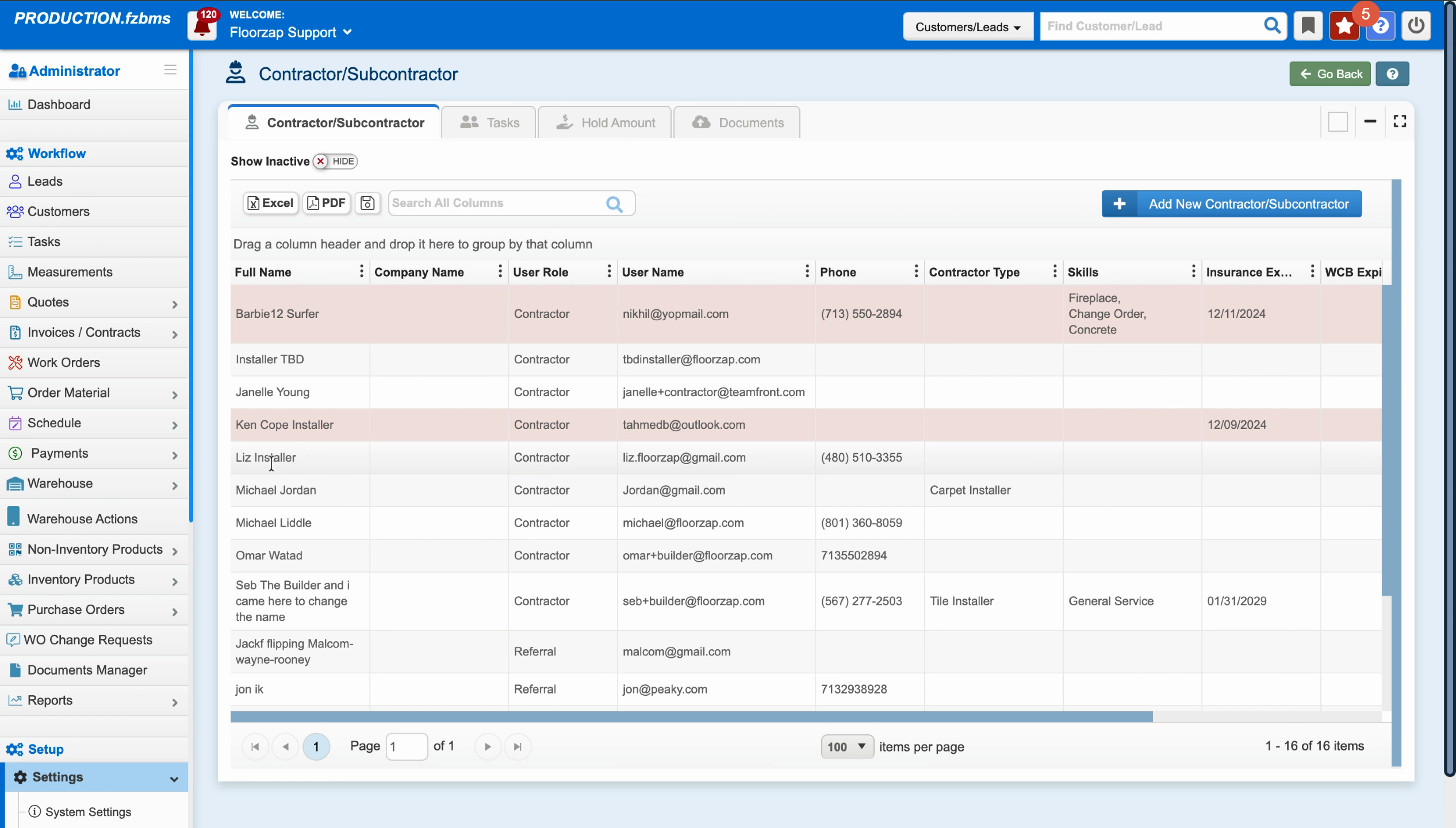
Step 2: Add new people as needed or modify existing records.
Step 3: The people you add here will automatically show up in the task assignment dropdown.
Notifying Assigned People
Want to let people know they’ve got a task? You can send a quick email or text right from the task.
Step 1: In the task editor, after adding people, click the Email or Text button.

Step 2: Choose whether to message the employee or the customer.
Task assignment keeps your workflow clear and ensures everyone knows what’s on their plate. Update your team lists in settings for easy access when creating or editing tasks.