
How to Use the Roundup Feature in Floorzap
The Roundup feature in the Floorzap makes sure your quoted material quantities always meet or exceed your set unit minimums—no more underordering! Here’s how it works, when to use it, and why it’s important for accuracy and inventory.
Understanding Roundup
With Roundup enabled for a product, the app rounds up any requested quantity to the next full unit of measure you’ve set. For example, if your material comes in increments of 200 square yards, ordering above 200 but less than 400 will automatically round up to 400.
Let’s walk through the process.
Step 1: Access the Product Profile
Go to the product in question (e.g., SKU 30614) and open its profile.
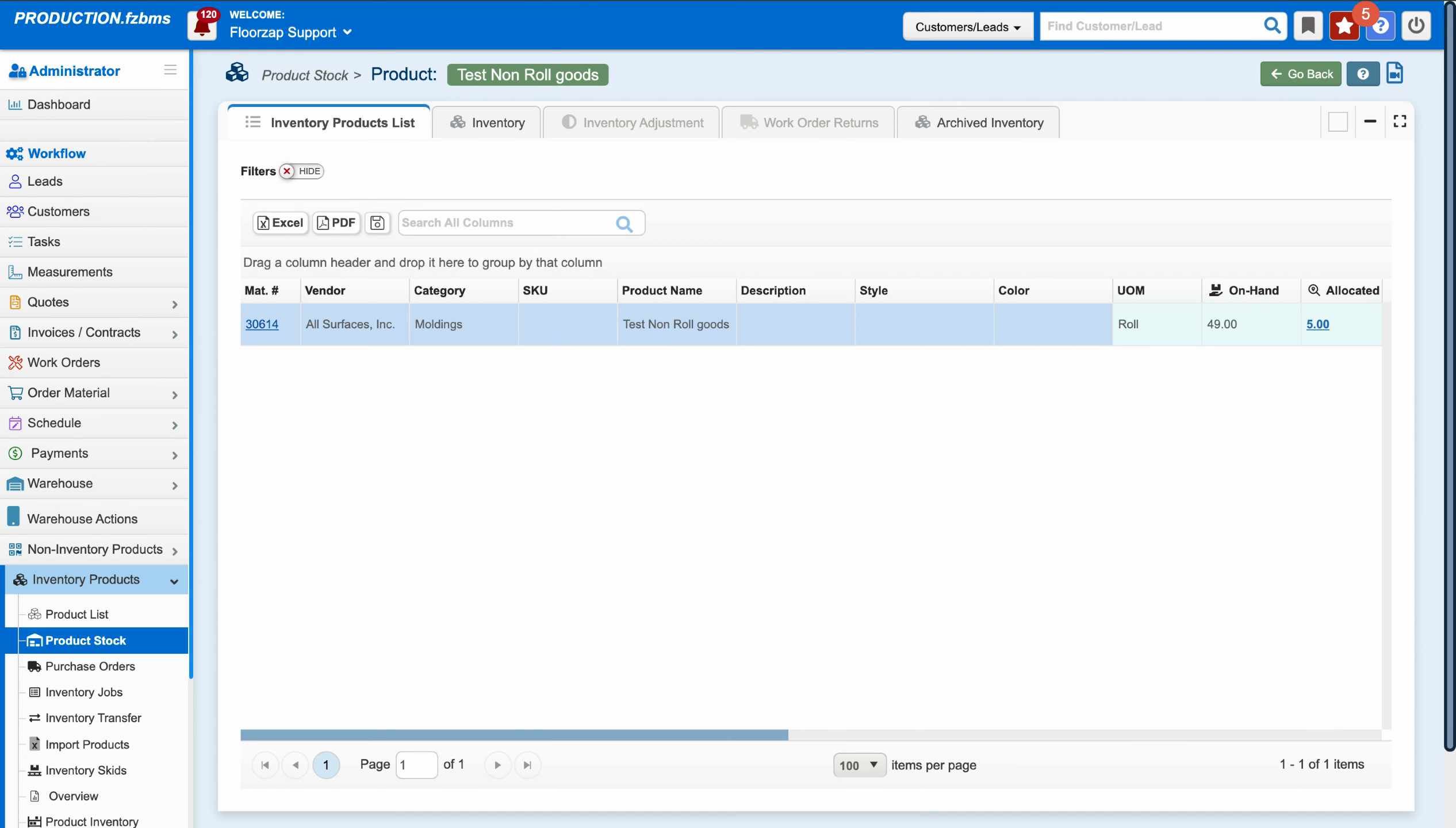
Step 2: Check the Coverage and Roundup Settings
Here, you’ll see:
-
Coverage Unit of Measure: Set to 200 square yards
-
Roundup: Enabled
-
Roundup Quantity: Enabled
You’ll also notice these settings are visible but not editable in Inventory—the profile is where you make changes.
Step 3: Add the Product to a Quote
Create a new quote for your customer. Start by heading into the Quotes section and selecting Create Quote.

Select your customer.
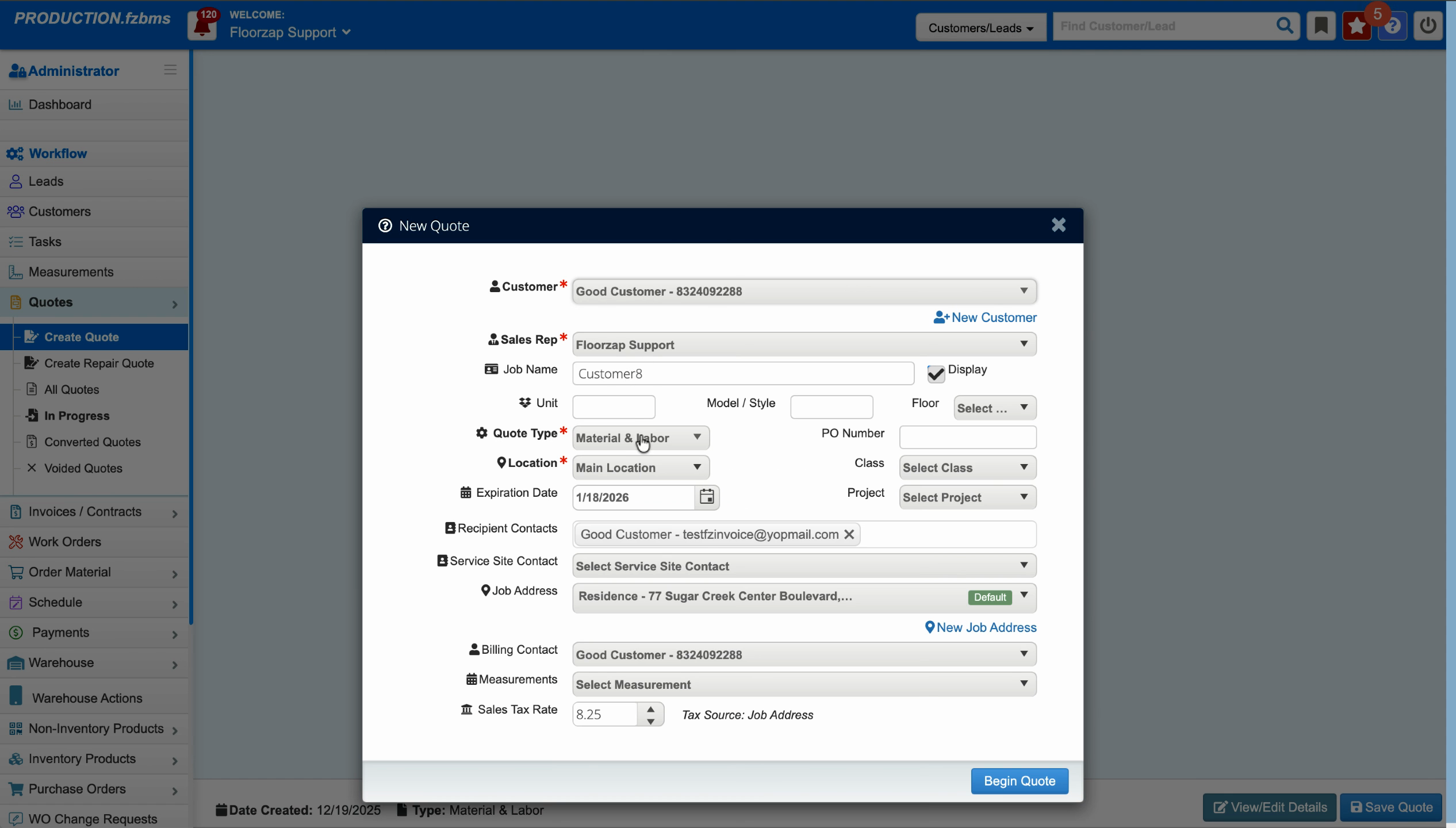
Choose Material and Labor, then begin the quote. Save the quote when prompted. If necessary, import or add a service to proceed.
Step 4: Enter the Product Number
Add 30614 as your product number (or the relevant SKU). When you add the item, you’ll see the set unit of measure—200 square yards.
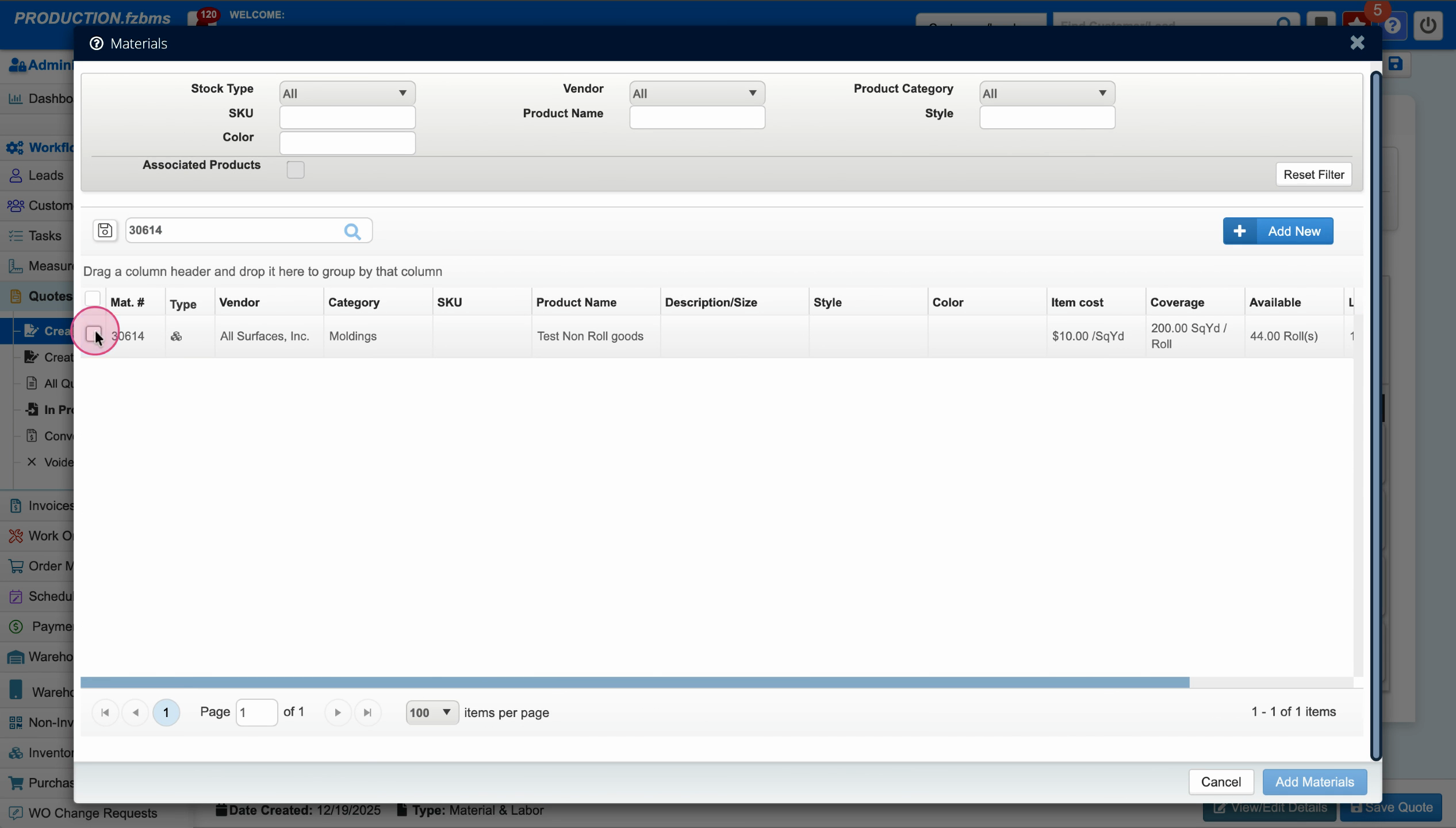
Step 5: Enter the Quantity Needed and Watch Roundup in Action
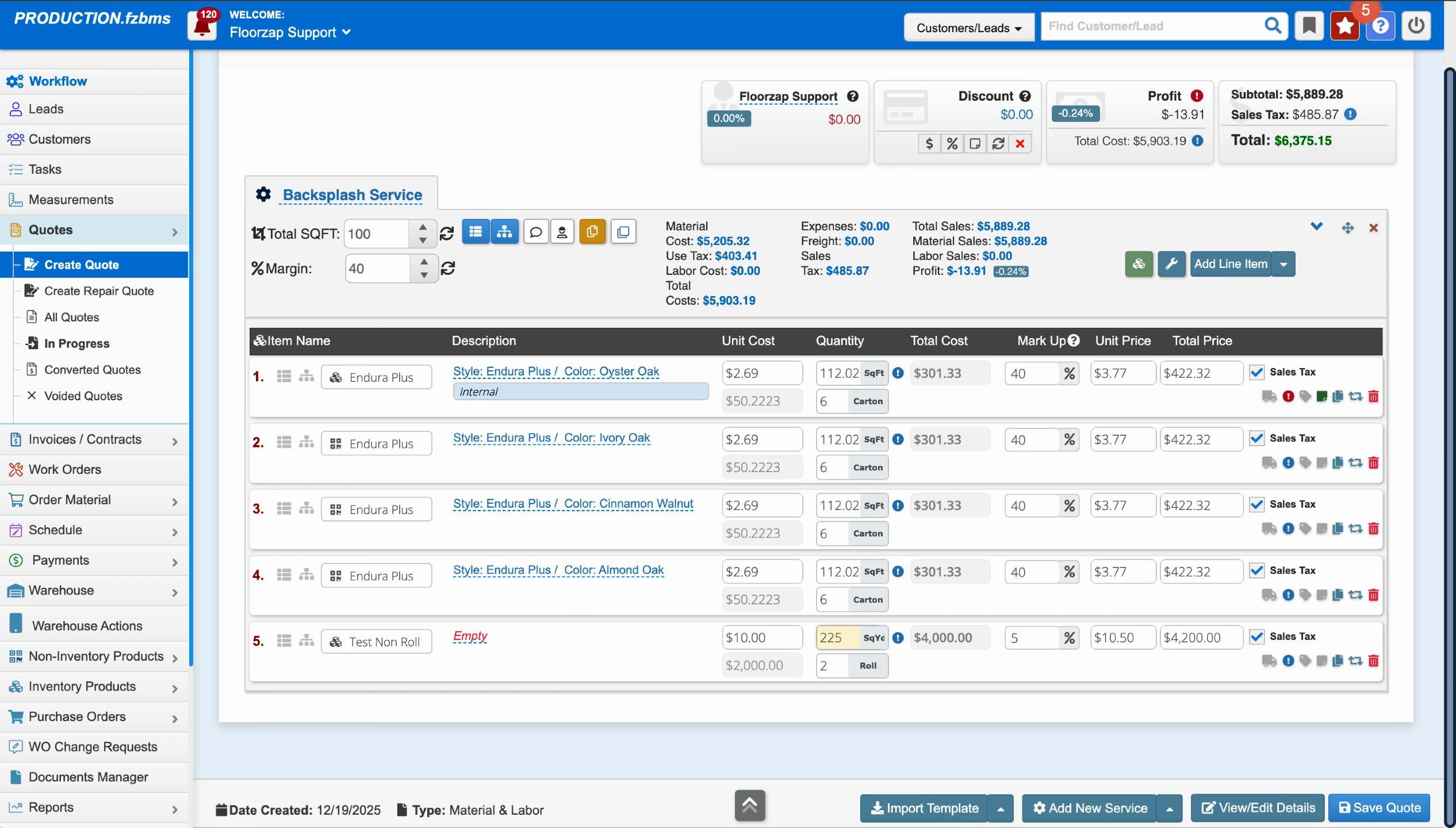
With Roundup enabled, entering any quantity above 200 (but less than 400) automatically jumps to 400. For example:
-
Enter 205 → rounds up to 400
-
Enter 225 → rounds up to 400
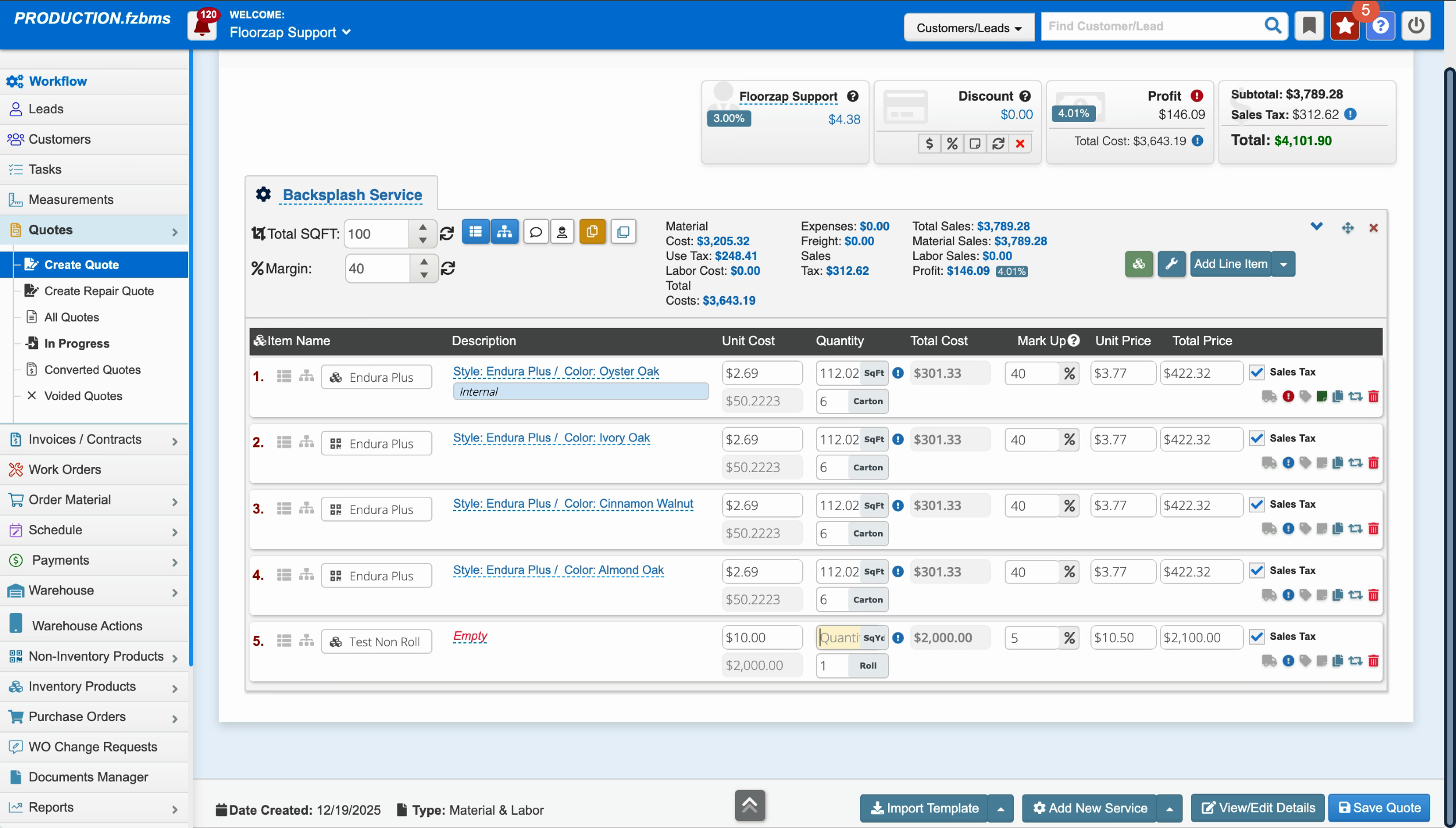
On the other hand, entering a quantity below 200, such as 190, rounds up to exactly 200.
Why Use Roundup?
Roundup ensures your quotes and invoices match how materials are packaged or sold, avoiding accidental short orders. When you check the Roundup option in the product profile, every quote always reflects these minimum units—keeping you accurate and saving time.
Next time you set up materials with fixed unit increments, make sure you enable Roundup in the profile. Your quotes will always match what actually gets delivered.