
How to Fix Closed Accounting Period Errors When Syncing Bills to QuickBooks
Encountering a “closed accounting period” error when syncing a bill to QuickBooks can be frustrating. Let’s walk through what this error means and the best ways to resolve it efficiently.
Step 1: Review the Error Message
Check the error details after trying to sync the bill. In this example, the error message says, “The account period has closed,” which means the bill’s receiving date is before 1/31/2026.
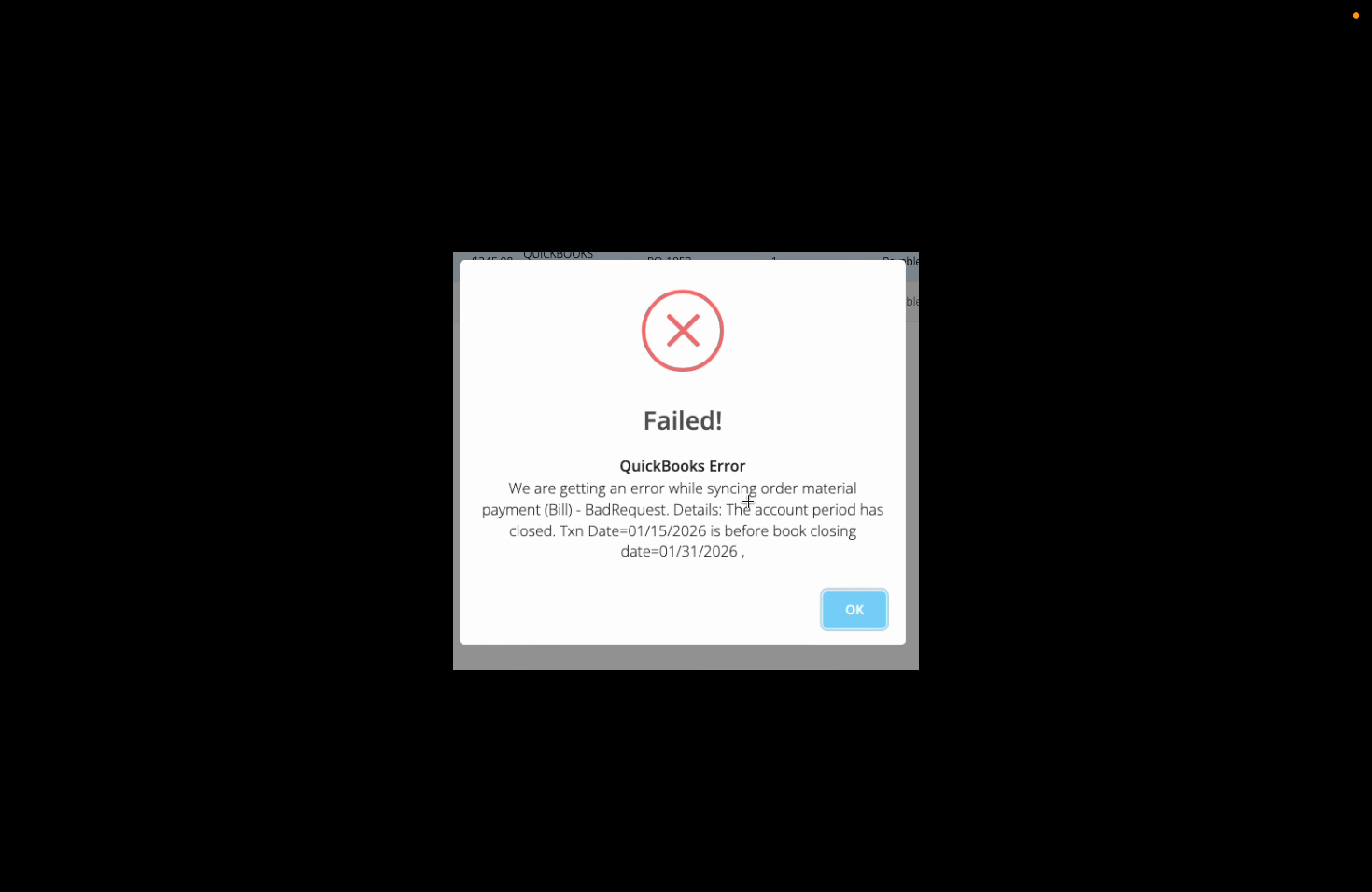
Step 2: Take a Screenshot for Reference
It’s a good idea to take a screenshot of the error. This helps if you need to reference it later or share it with support.
Step 3: Research the Solution
Paste the error message into a tool like Chat GPT and ask for troubleshooting tips related to QuickBooks. This can give you step-by-step help.
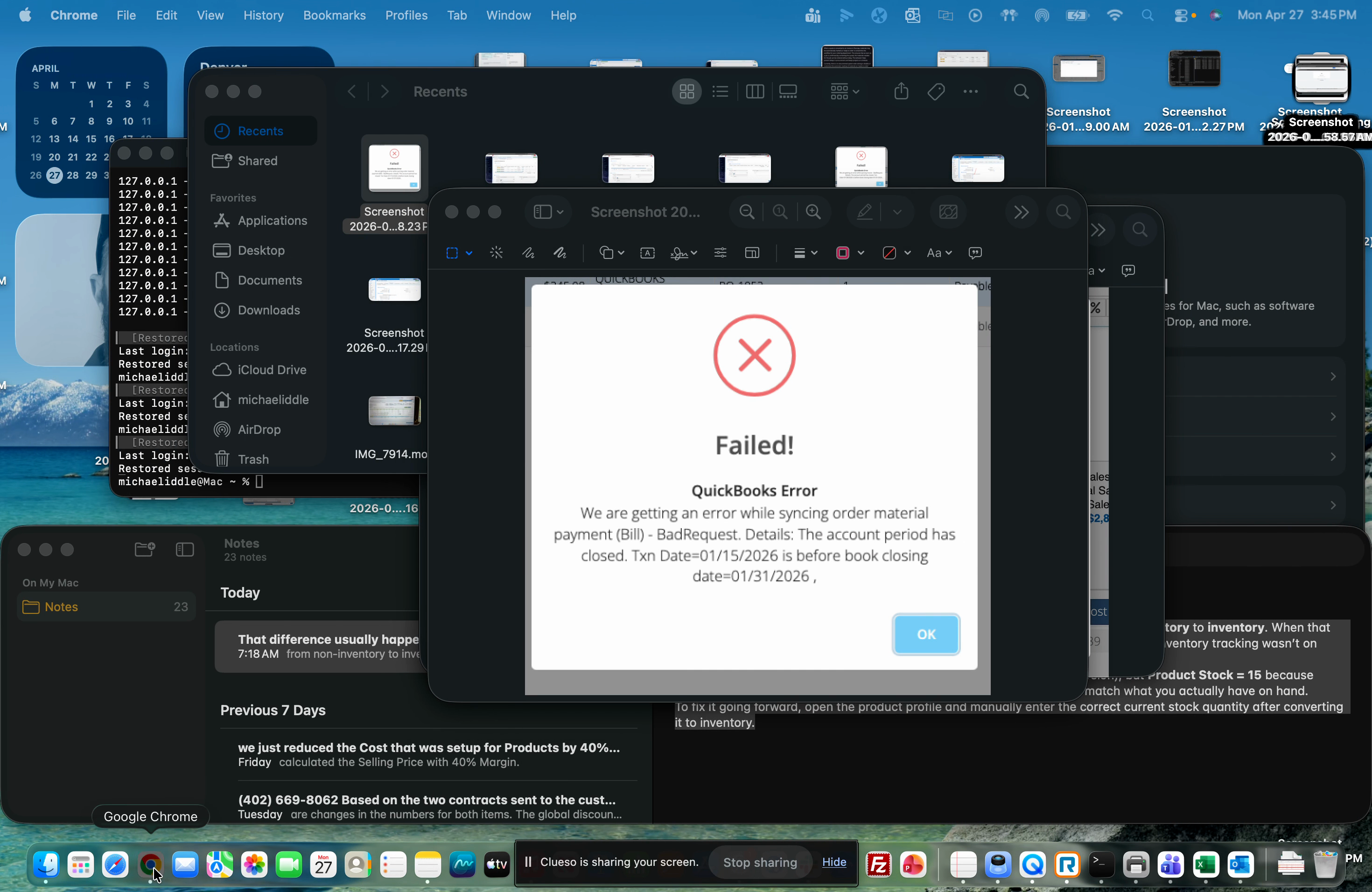
QB is rejecting bill sync because the bill’s TxnDate falls before QB’s books-closing date. QB does not allow posting to a closed period. TxnDate is set by FloorZap in priority order: Received Date → Payment Date → Current Date. There is no self-service resolution when a work order is closed in a locked period.
Step 4: Decide How to Fix the Error
You have two options:
-
Open the closed accounting period in QuickBooks, allowing you to sync bills dated before the close date.
-
Change the date on the bill to a date after the closed period (in this case, after 1/31/2026).
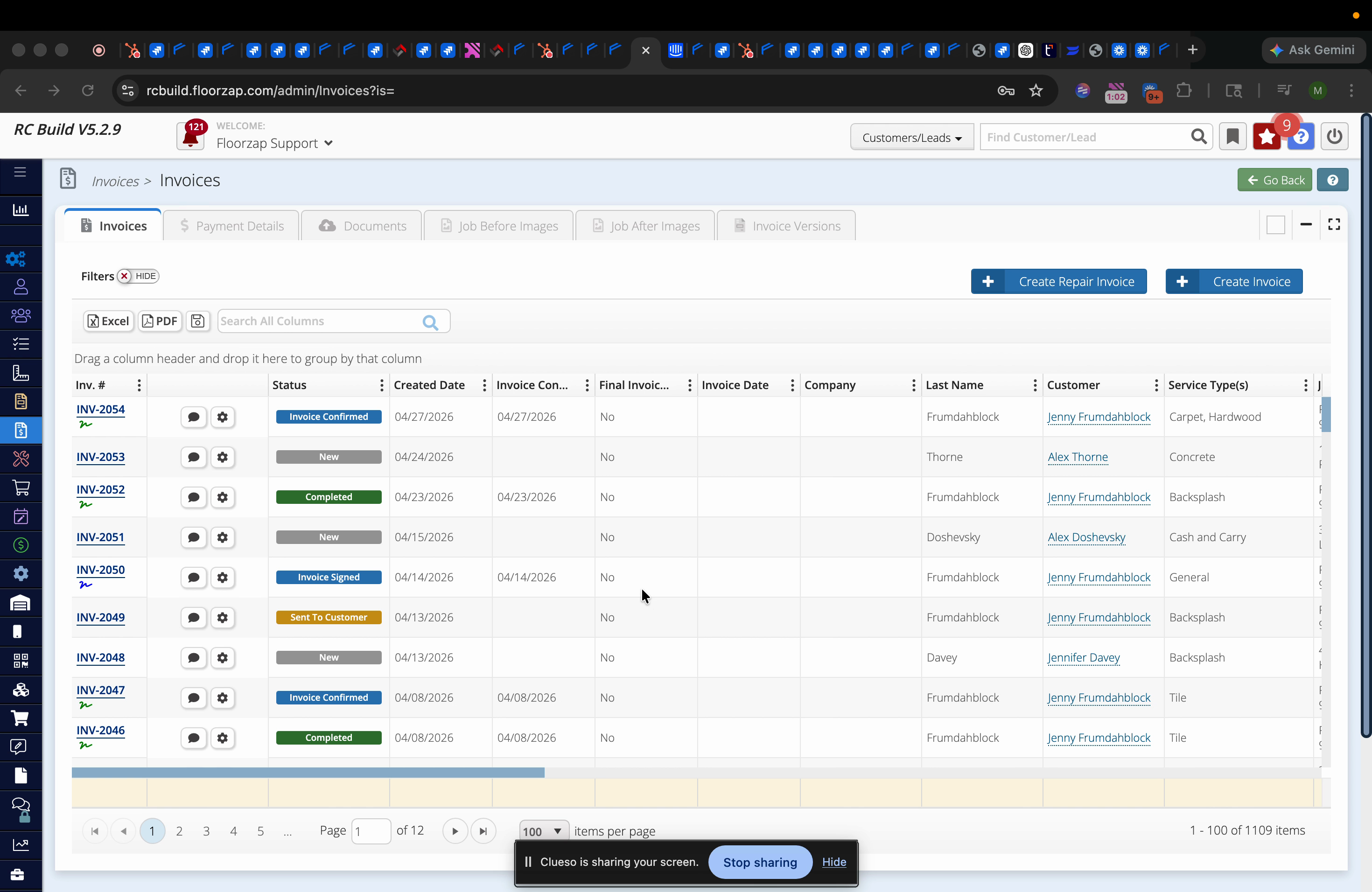
Step 5: Make the Change
Edit the accounting period settings or update the bill’s date, then try syncing again.
When you run into closed period errors in QuickBooks, check the error message, decide whether to update the period or the bill’s date, and use available resources for guidance. This keeps your bookkeeping and bill syncing process on track.