
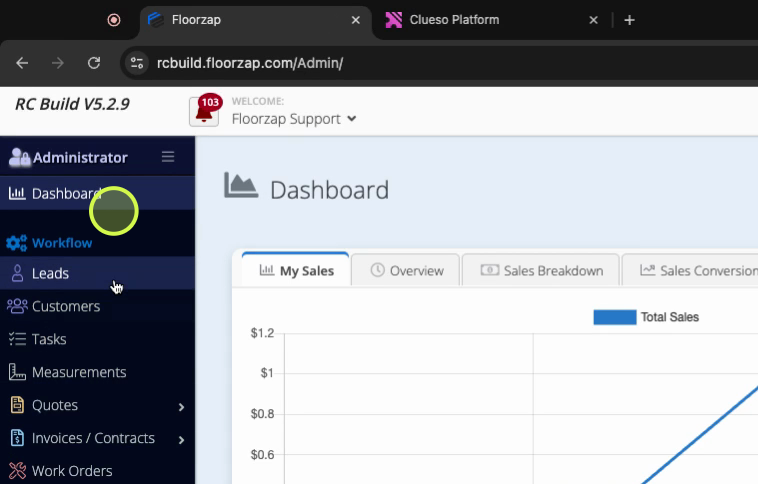
Step 1: Click Leads from the main menu.
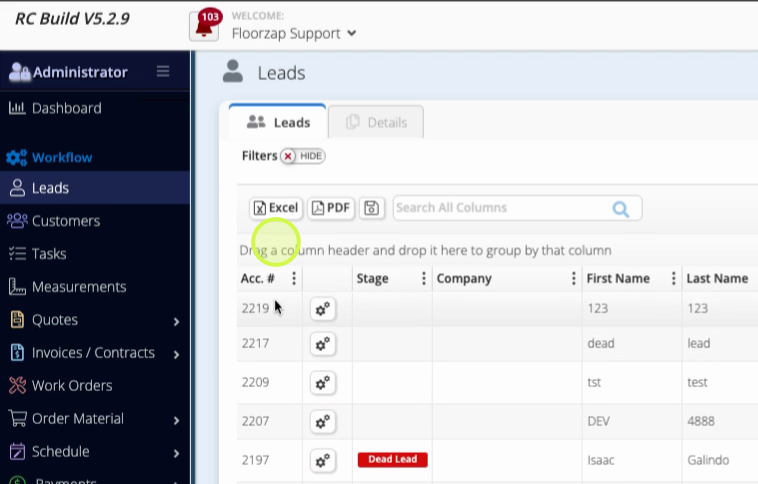
Step 2: Select the lead you want to work with.
Step 3: Go to the Details tab.
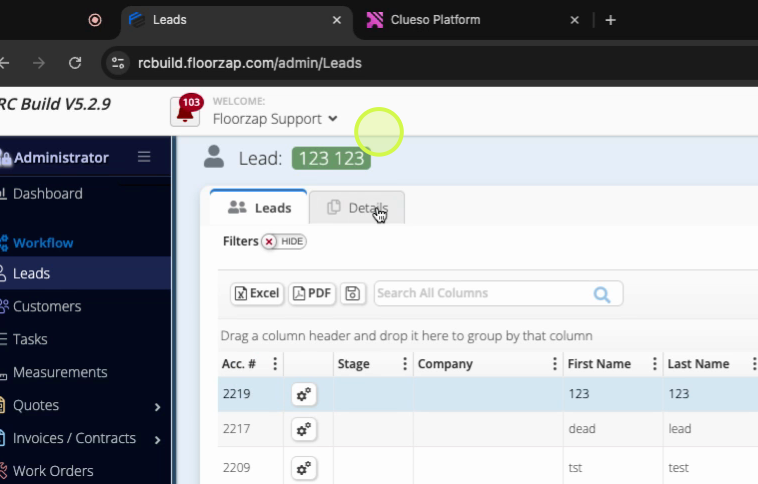
Step 4: In the Details page, click the Notes tab. It opens automatically.
Step 5: Click Add a Note.
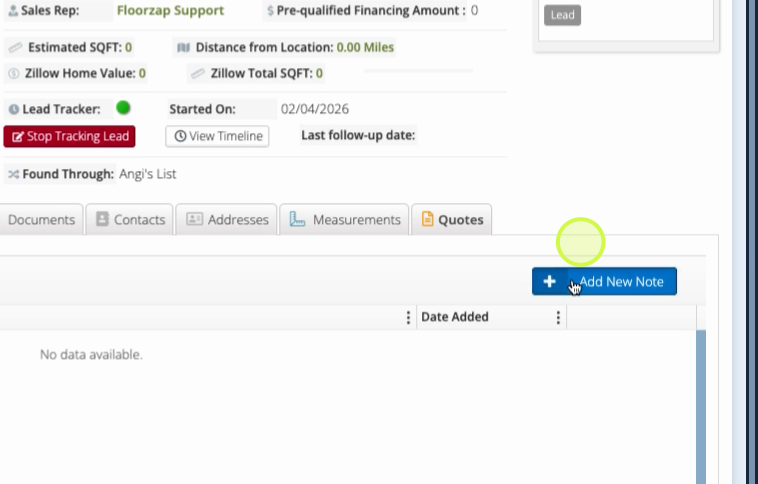
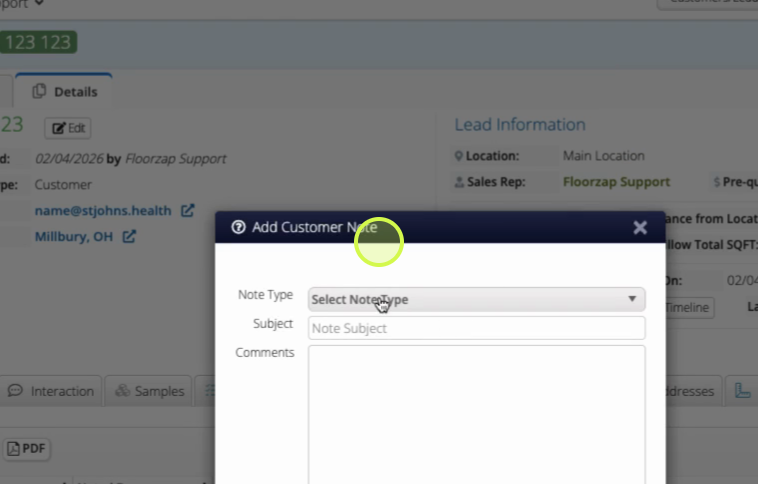
Step 6: Pick the note type from the dropdown.
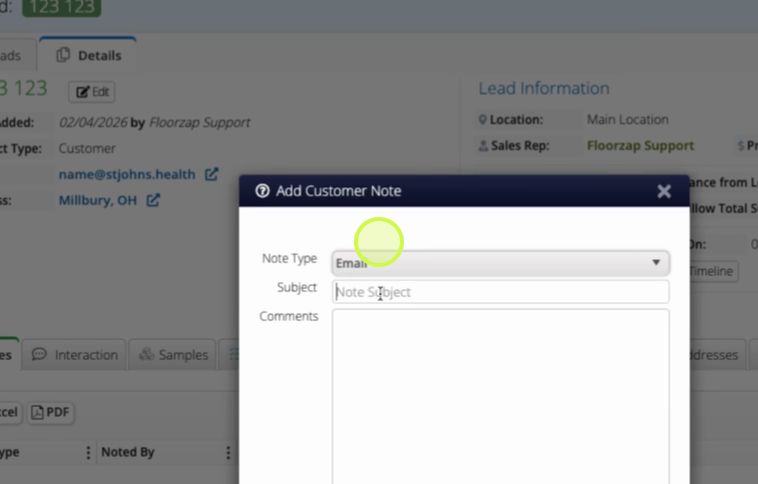
Step 7: Add a subject for your note.
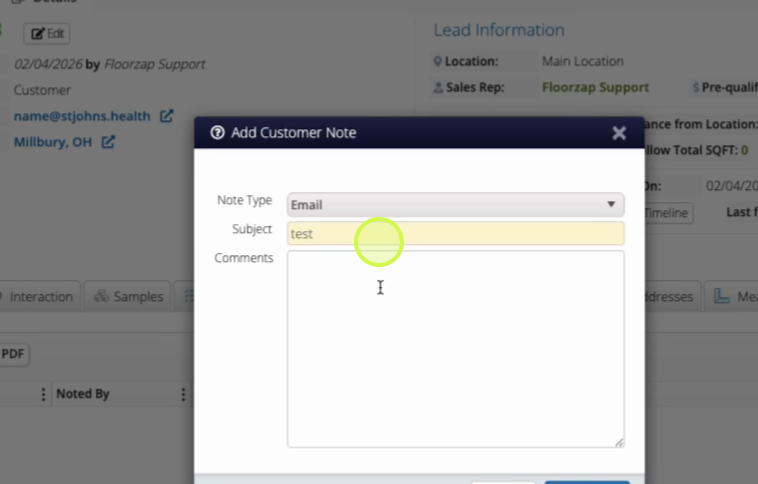
Step 8: Enter any additional information or details.
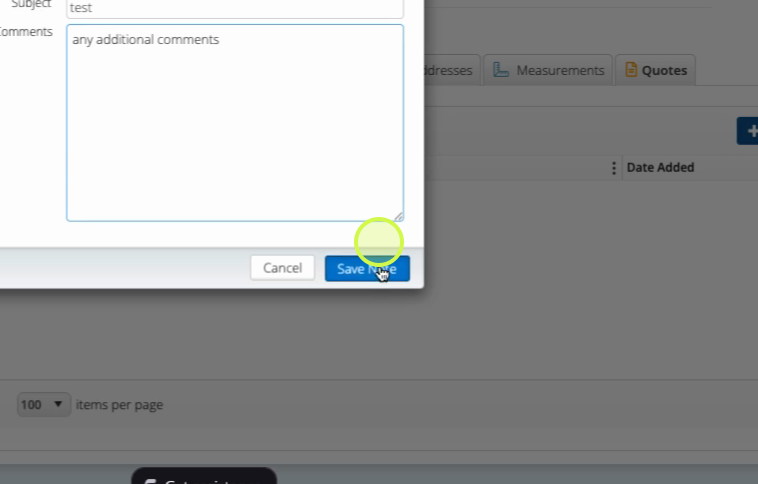
Step 9: Click Save to add the note.
Adding notes helps your team stay on top of conversations and updates for every lead. Use clear subjects and thorough details so anyone can quickly understand the context.