
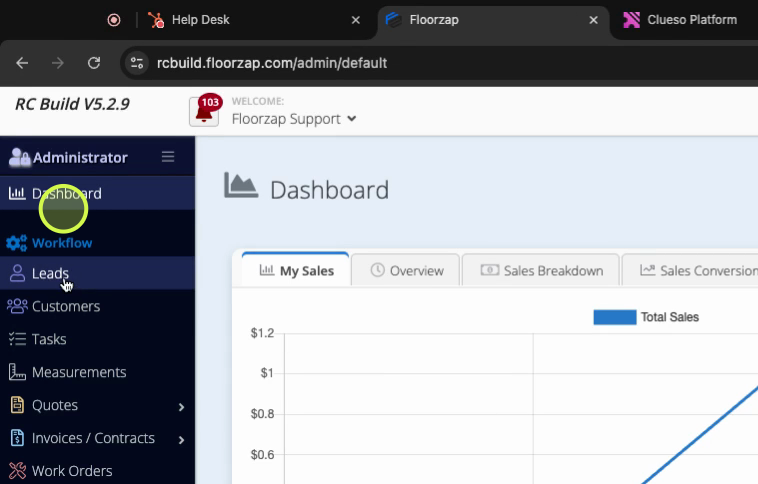
Step 1: Go to Leads and select the lead you want to update.
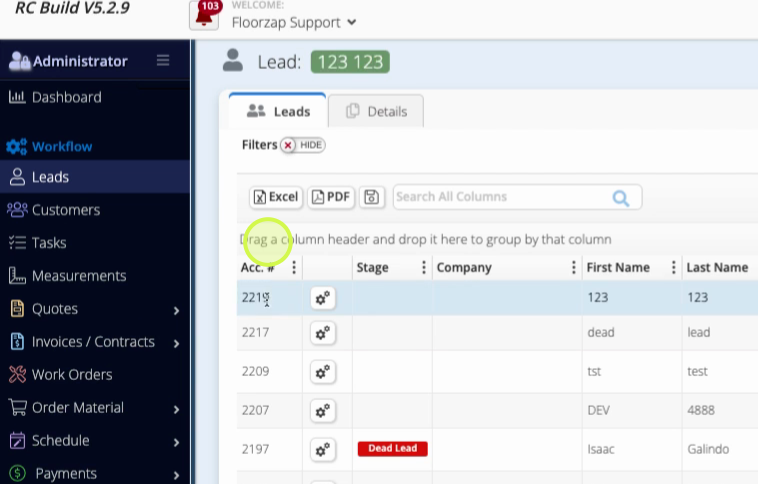
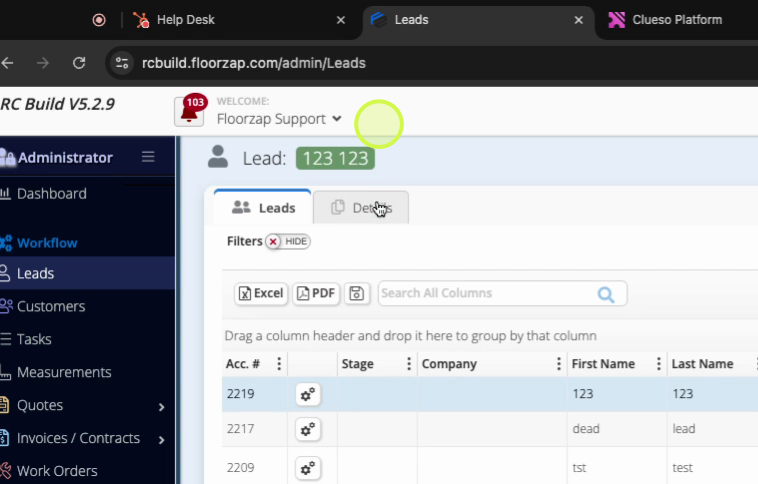
Step 2: Once you’ve highlighted the lead, click the Details tab.
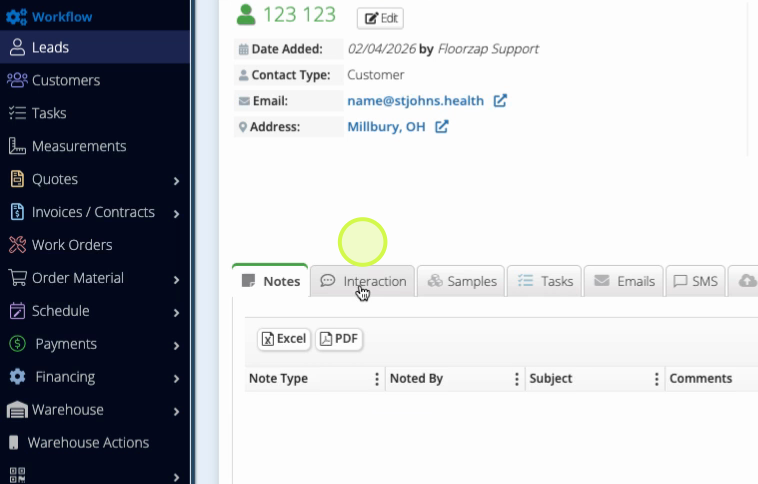
Step 3: Scroll to the bottom and click the Interactions tab.
Step 4: Click Add New Interaction.
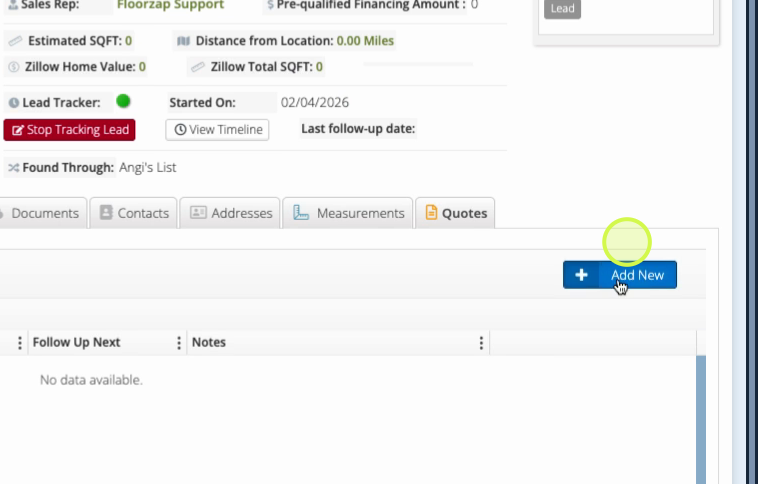
Step 5: Enter the date of the interaction.
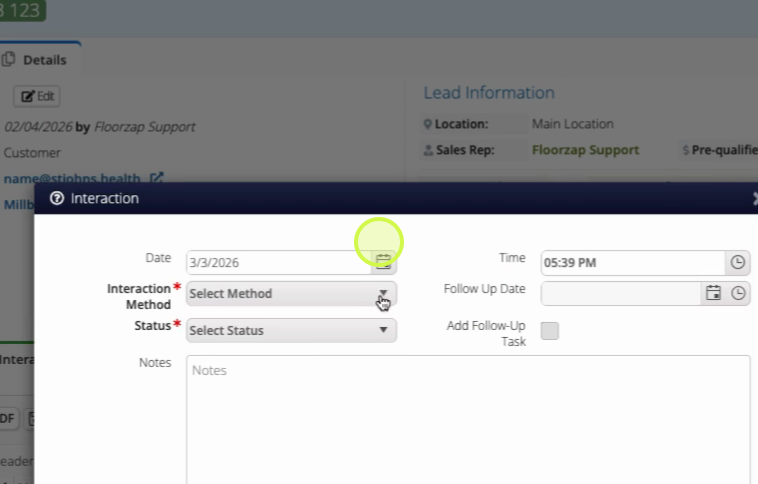
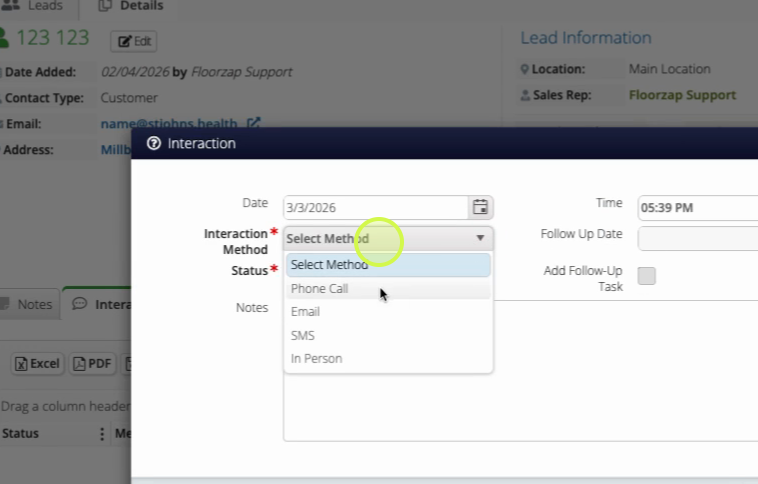
Step 6: Choose the interaction method (such as phone, email, or meeting).
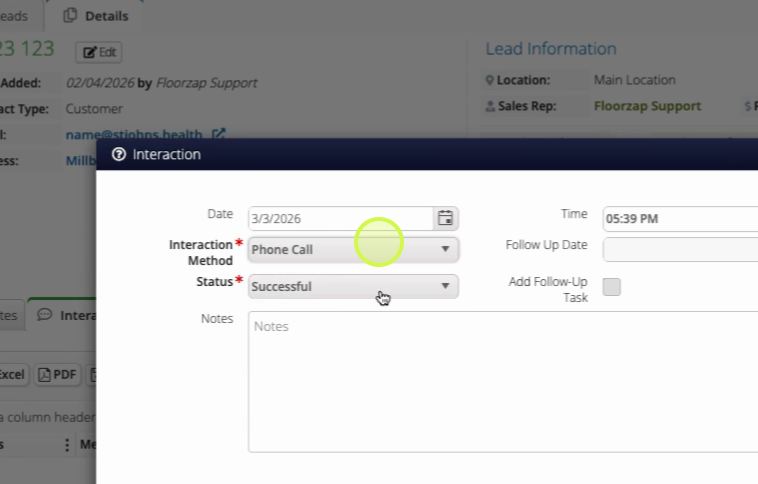
Step 7: Pick the status for this interaction.
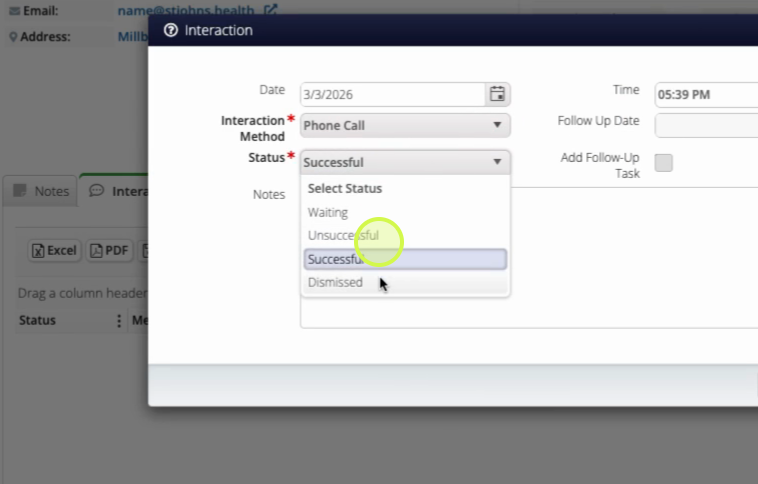
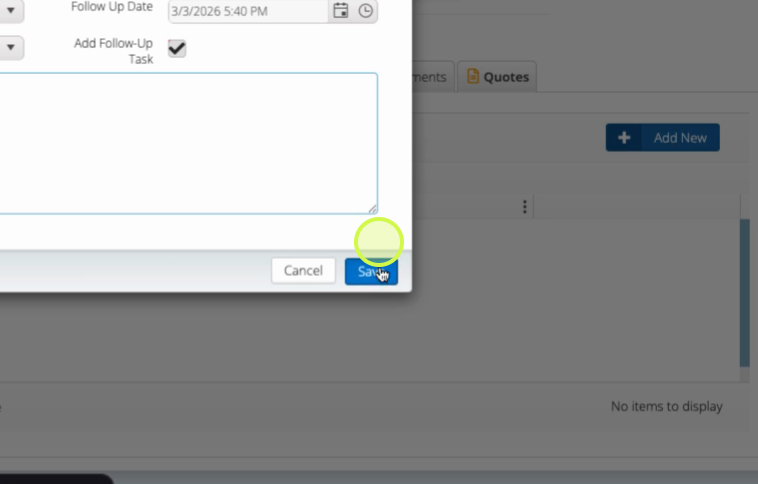
Step 8: Enter the time of the interaction and set a follow-up date if needed.
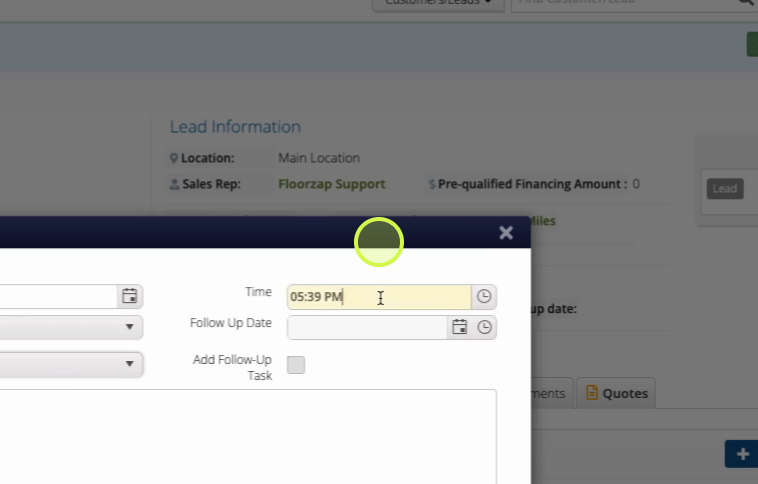
Step 9: Add any related tasks and include important notes.
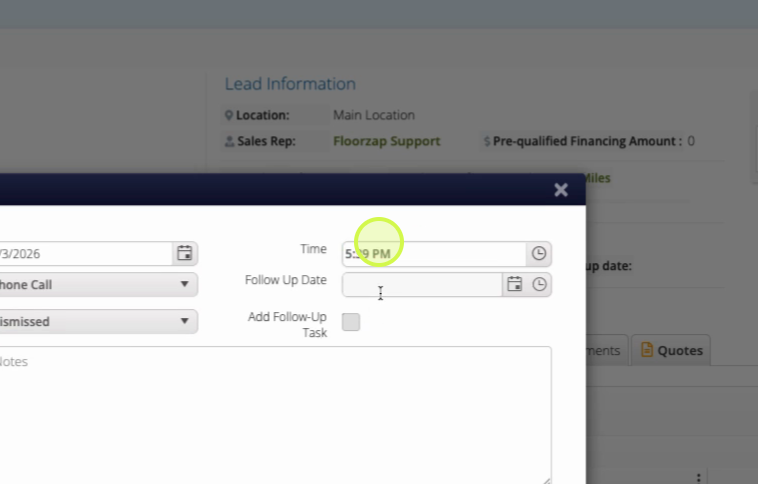
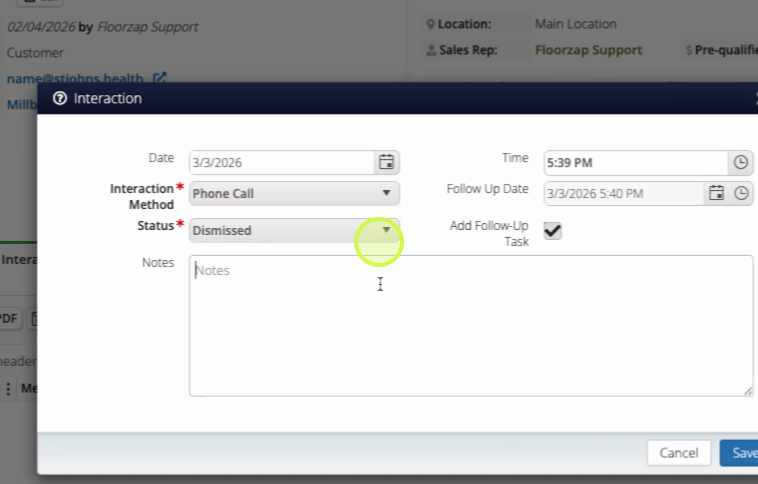
Step 10: Click Save.
Logging each interaction makes it easy to track your progress with leads. Consistent updates help your whole team stay aligned and ready for the next step.