
How to Manage Samples in Leads
Managing samples in Leads streamlines your workflow and keeps your product data organized. Follow these steps to efficiently add and track samples within the system.
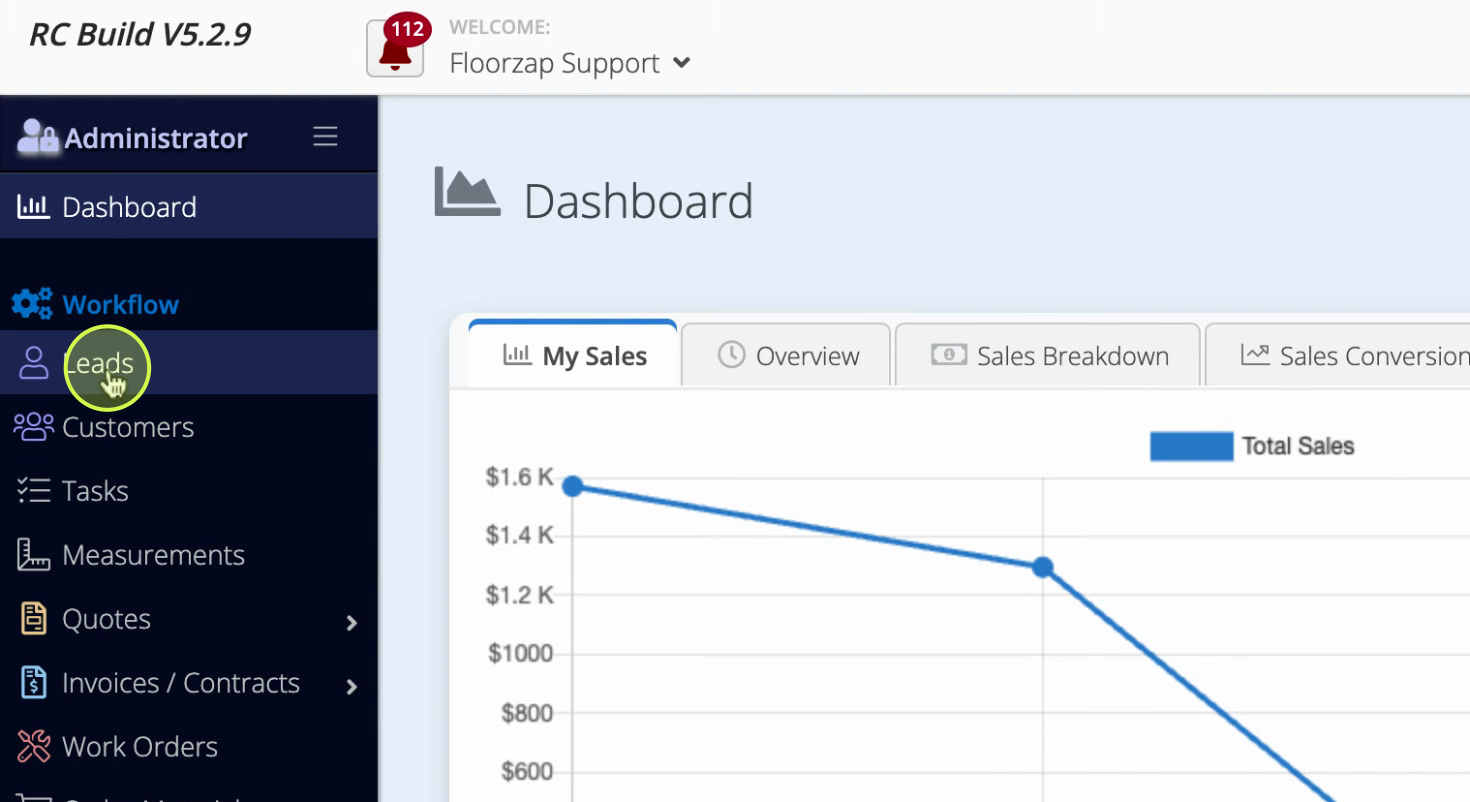
Step 1: From your dashboard, navigate to Leads.
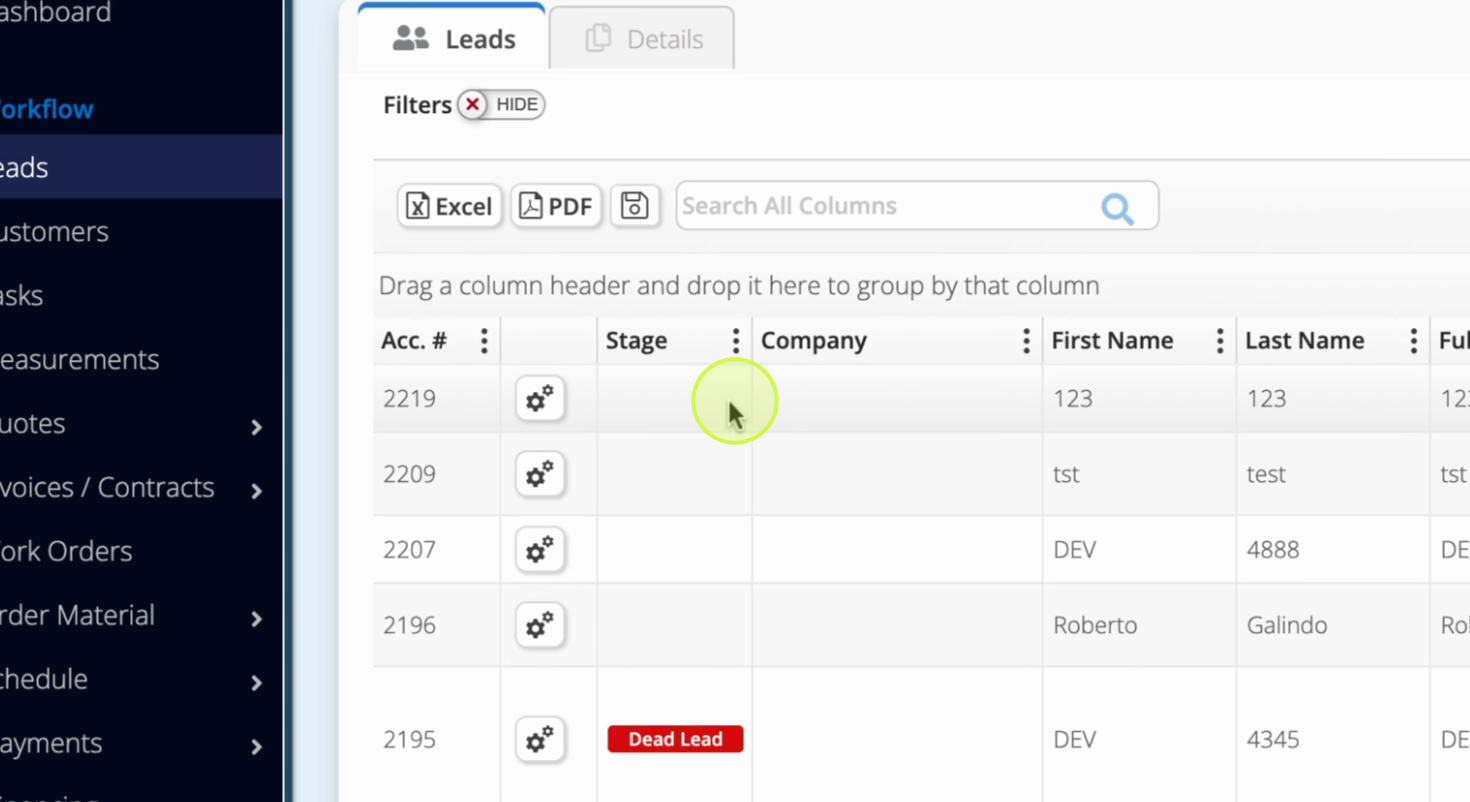
Step 2: Highlight the relevant lead.
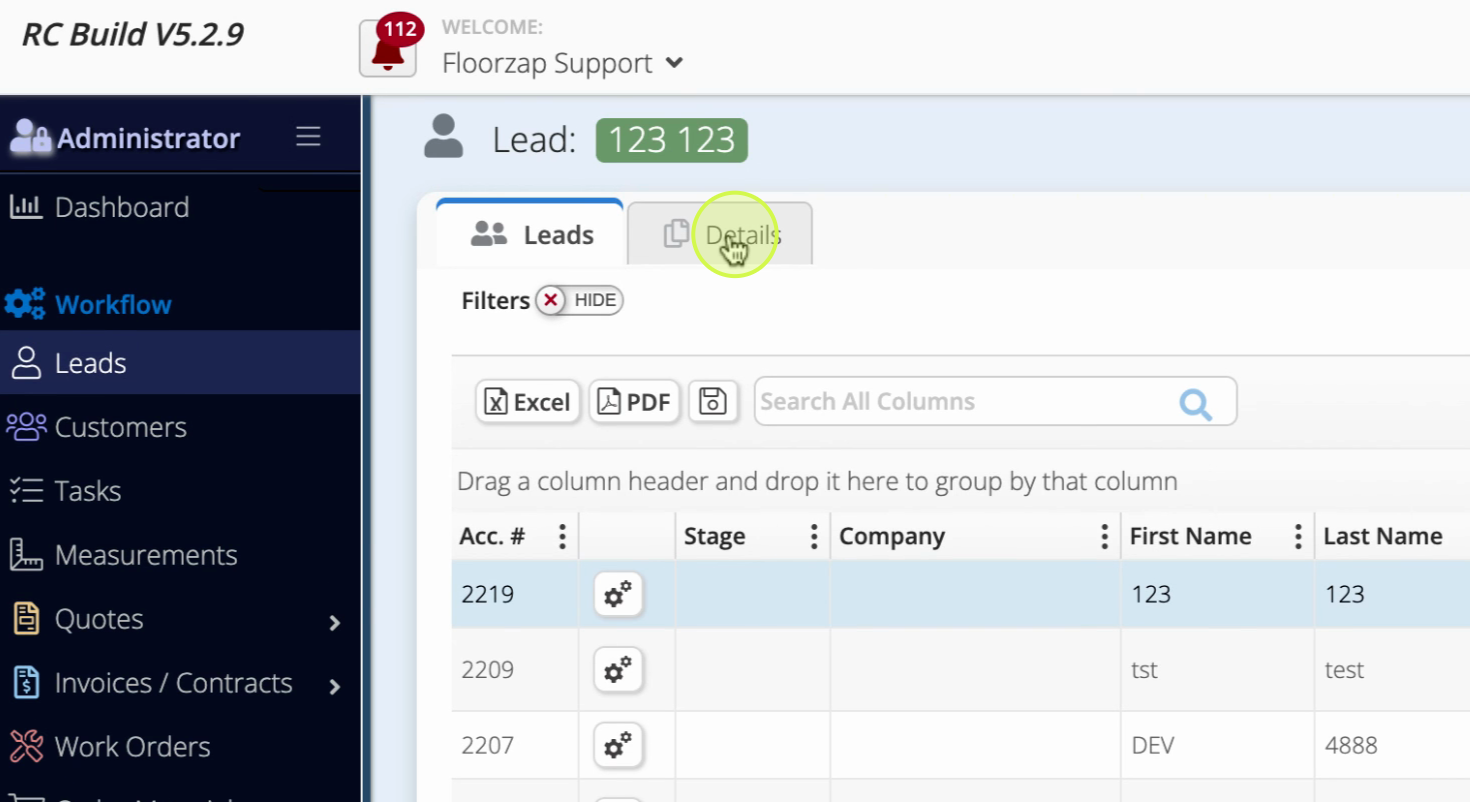
Step 3: Go to the Details tab.
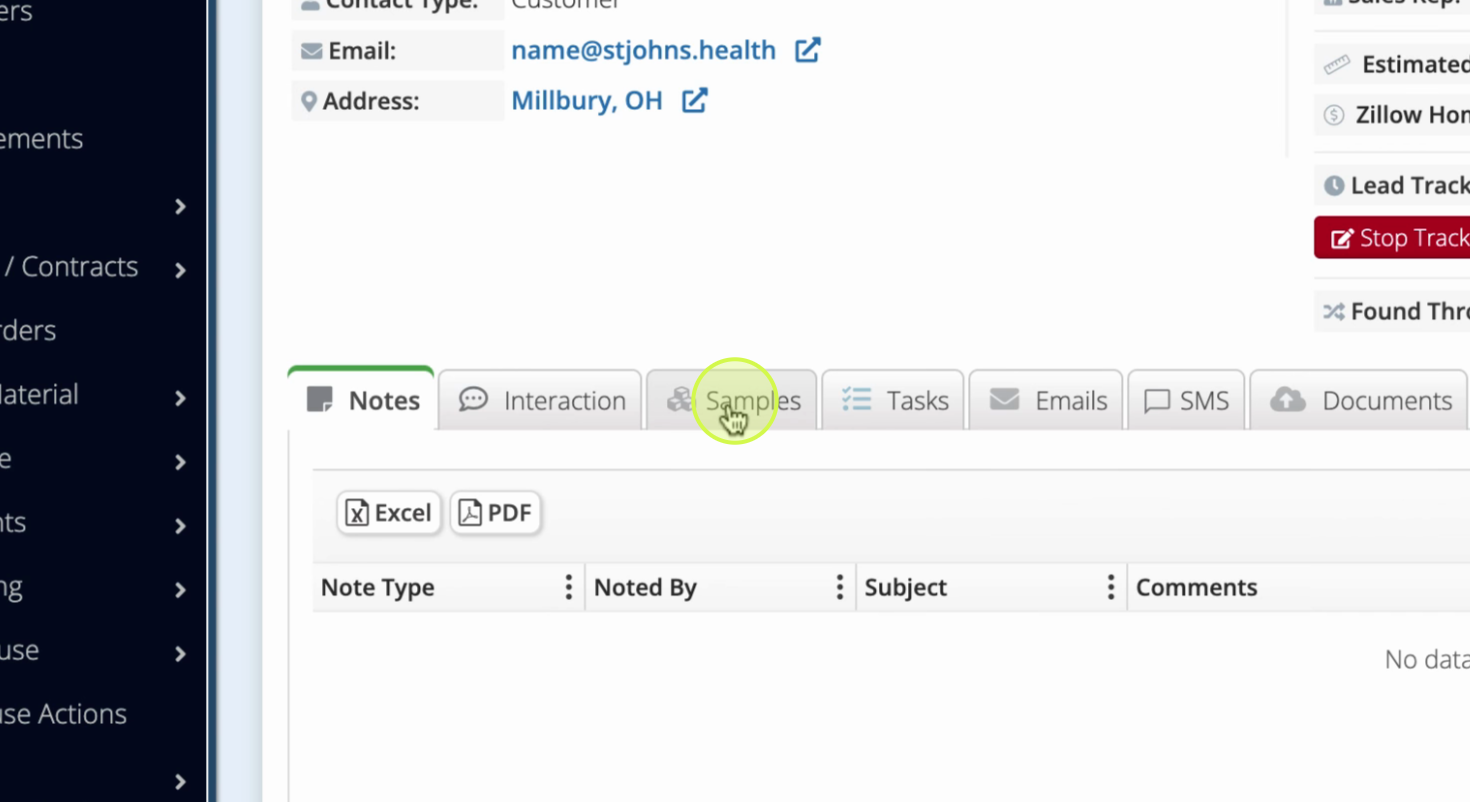
Step 4: Click on the Samples tab within the details view.
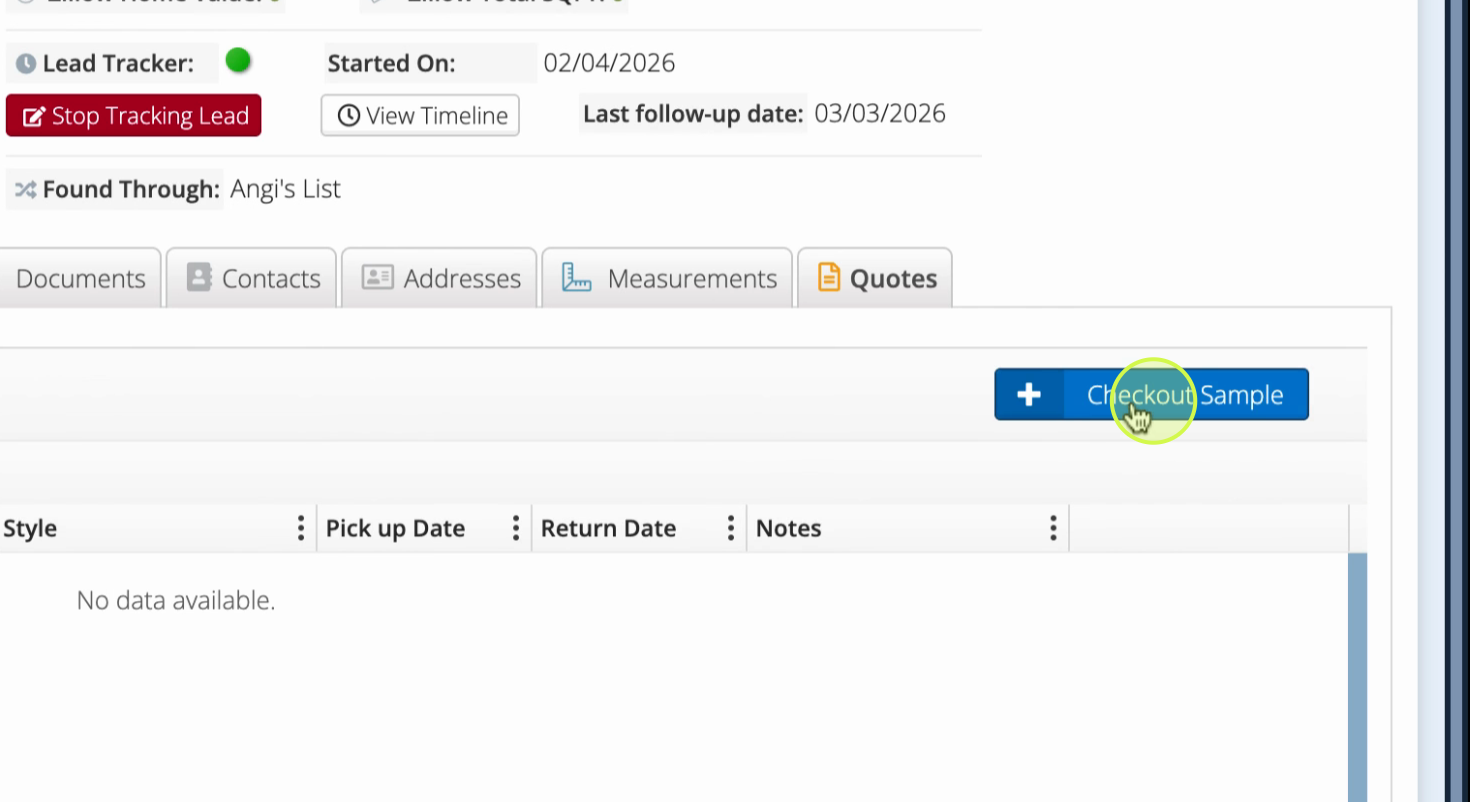
Step 5: Click Add Sample.
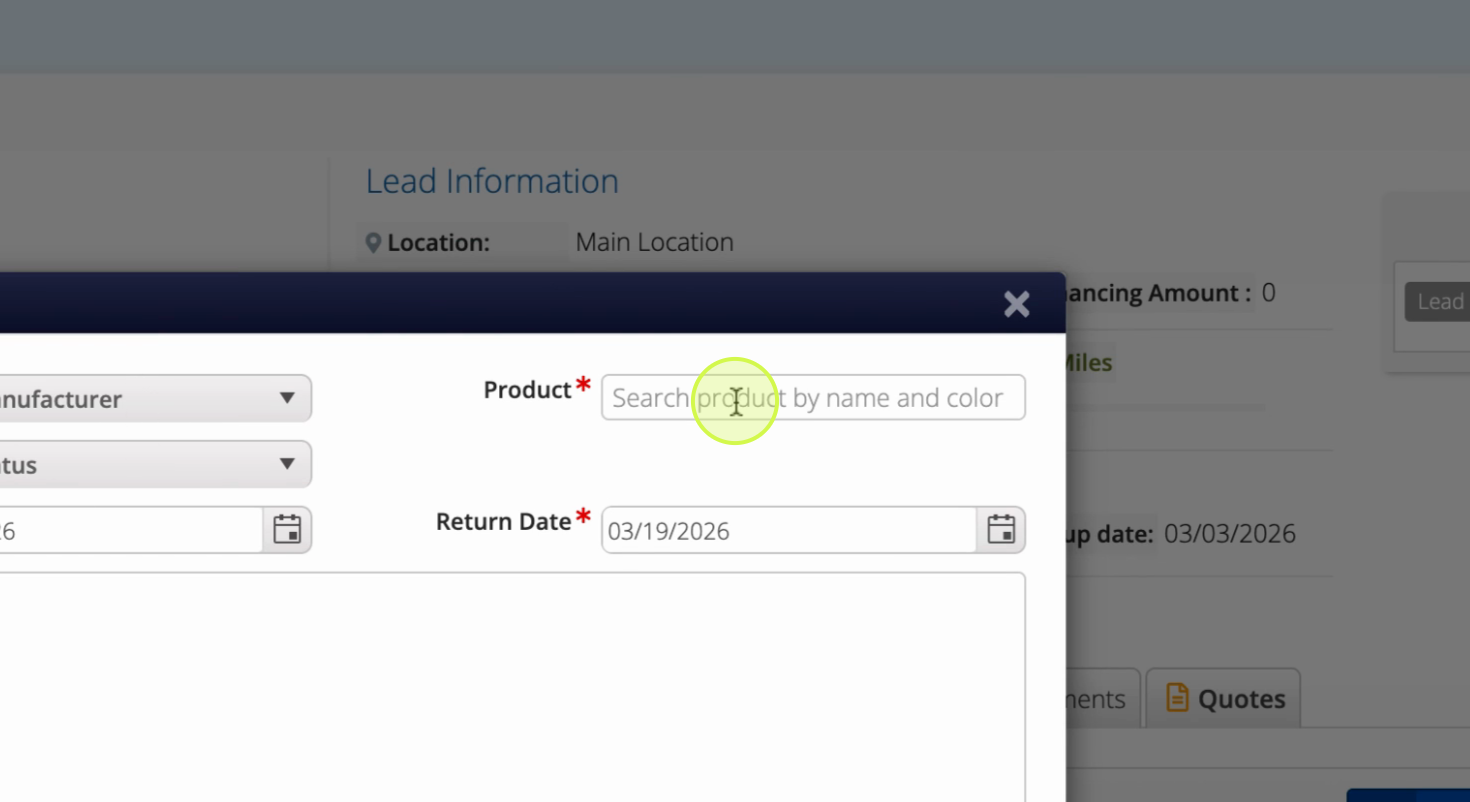
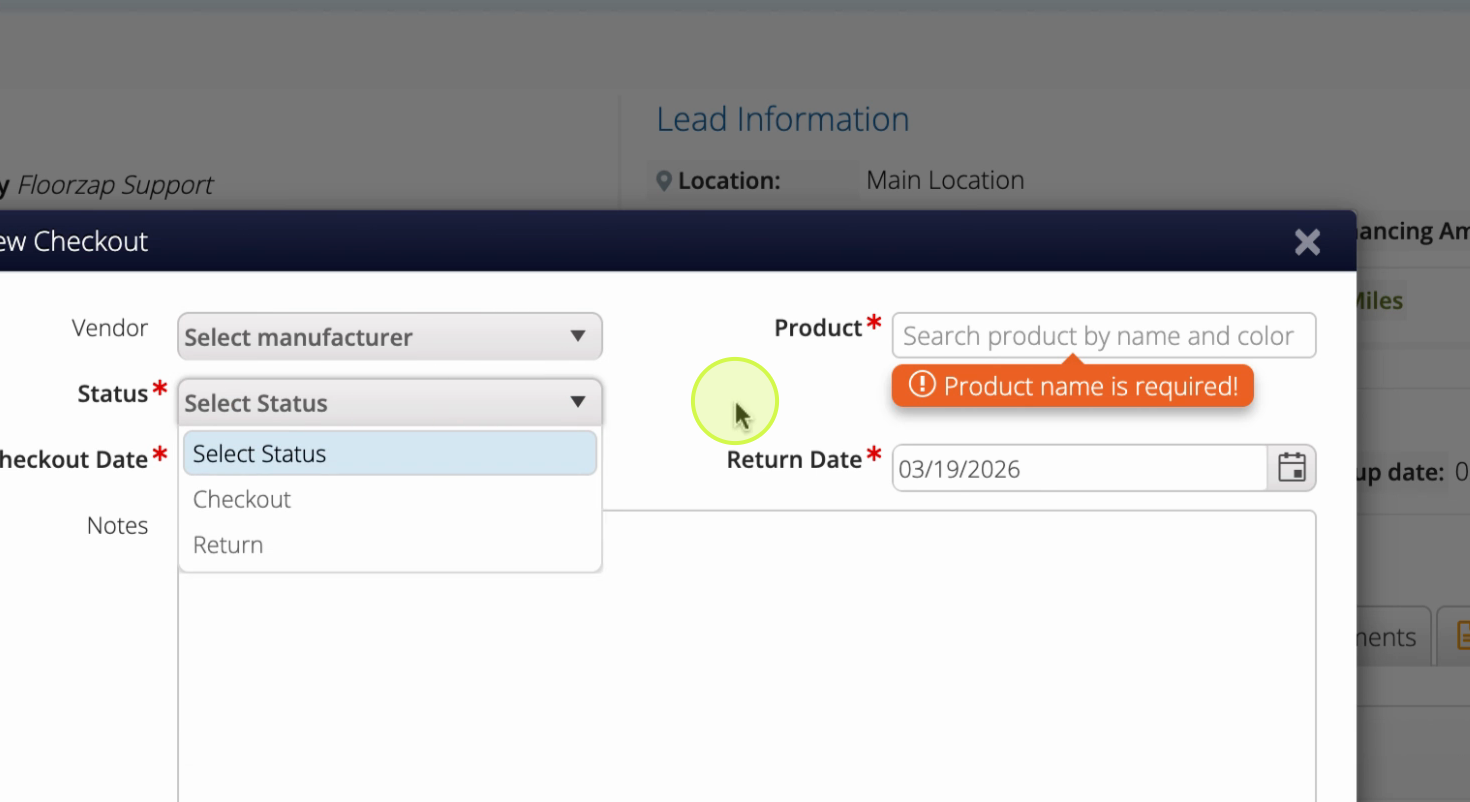
Step 6: Use the search to find a product by its name.
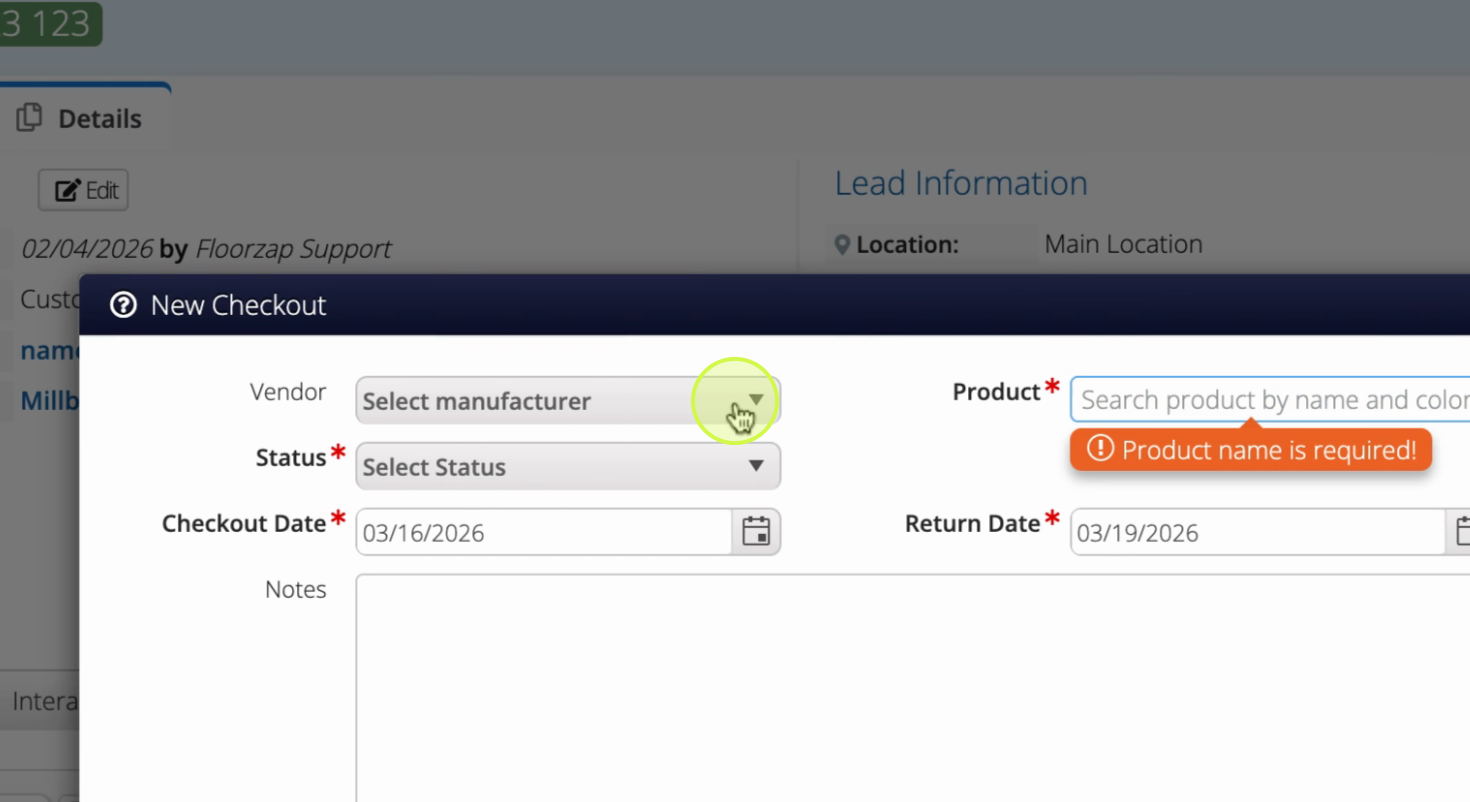
Step 7: Search by the manufacturer if needed.
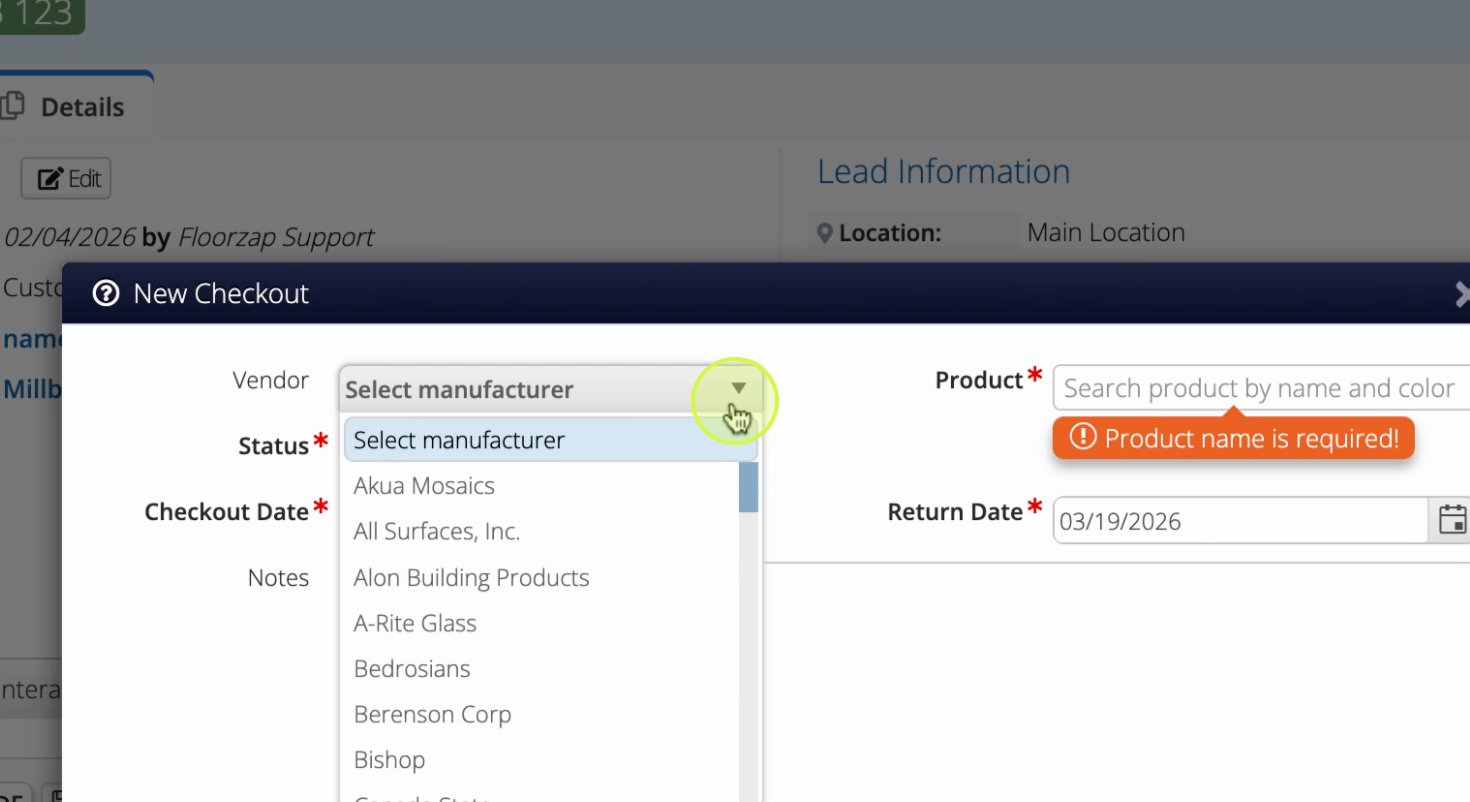
Step 8: Set the sample’s Status.
Step 9: Fill out any additional fields, such as notes.
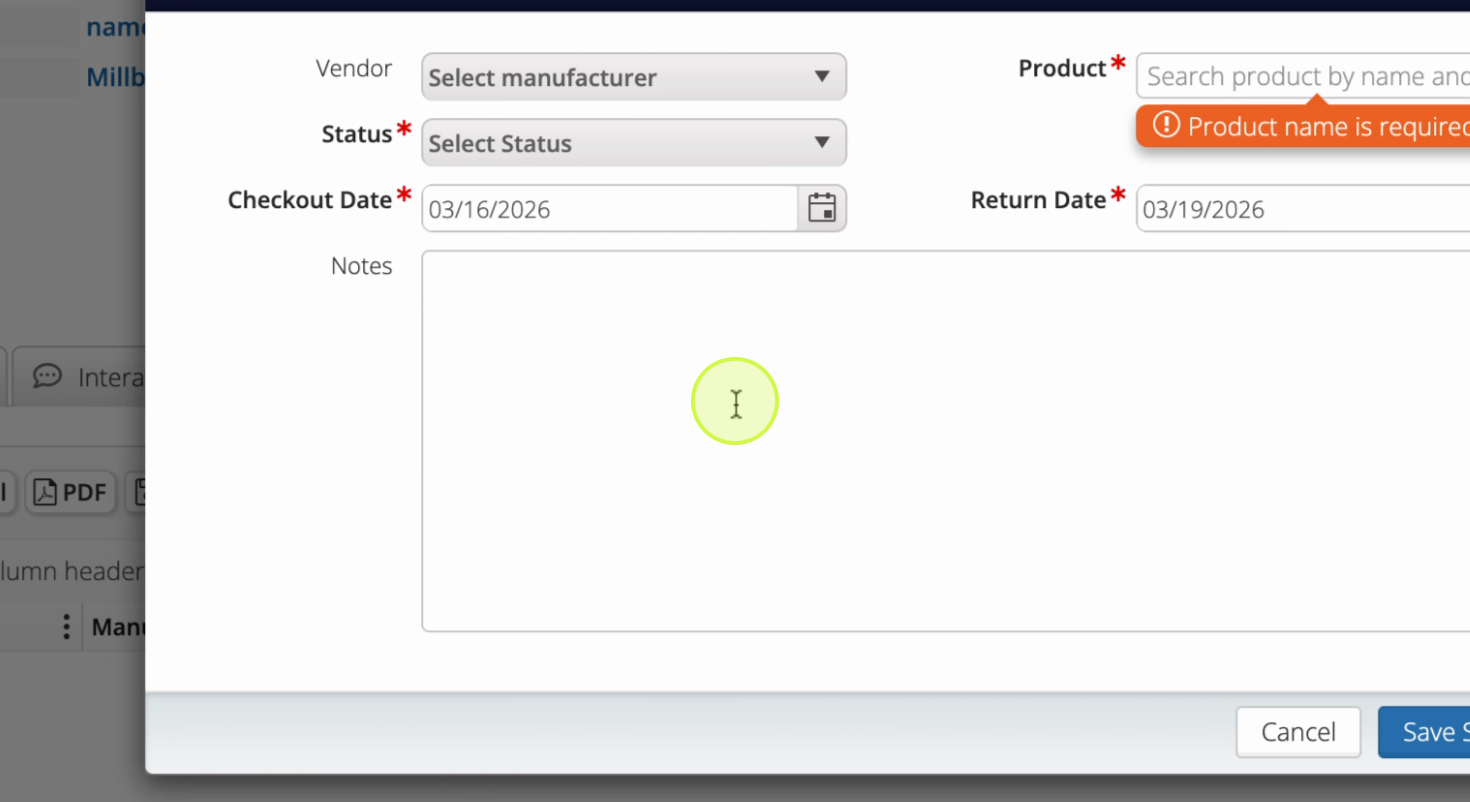
Step 10: Click Save Sample to finish adding the sample.
Adding and organizing samples in Leads ensures your product records are accurate and easy to access. Regularly updating the status and notes keeps your team informed and your pipeline moving smoothly.