
How to Import Invoice Changes to a Work Order—and Why Item Names Matter
When managing invoices and work orders, syncing updates between them keeps everything accurate. But missing essential details, like item names, can cause big headaches and block important actions. Here’s how to import changes from an invoice to a work order, plus why you always need to name your line items.
Step 1: Open your invoice and make any needed edits.
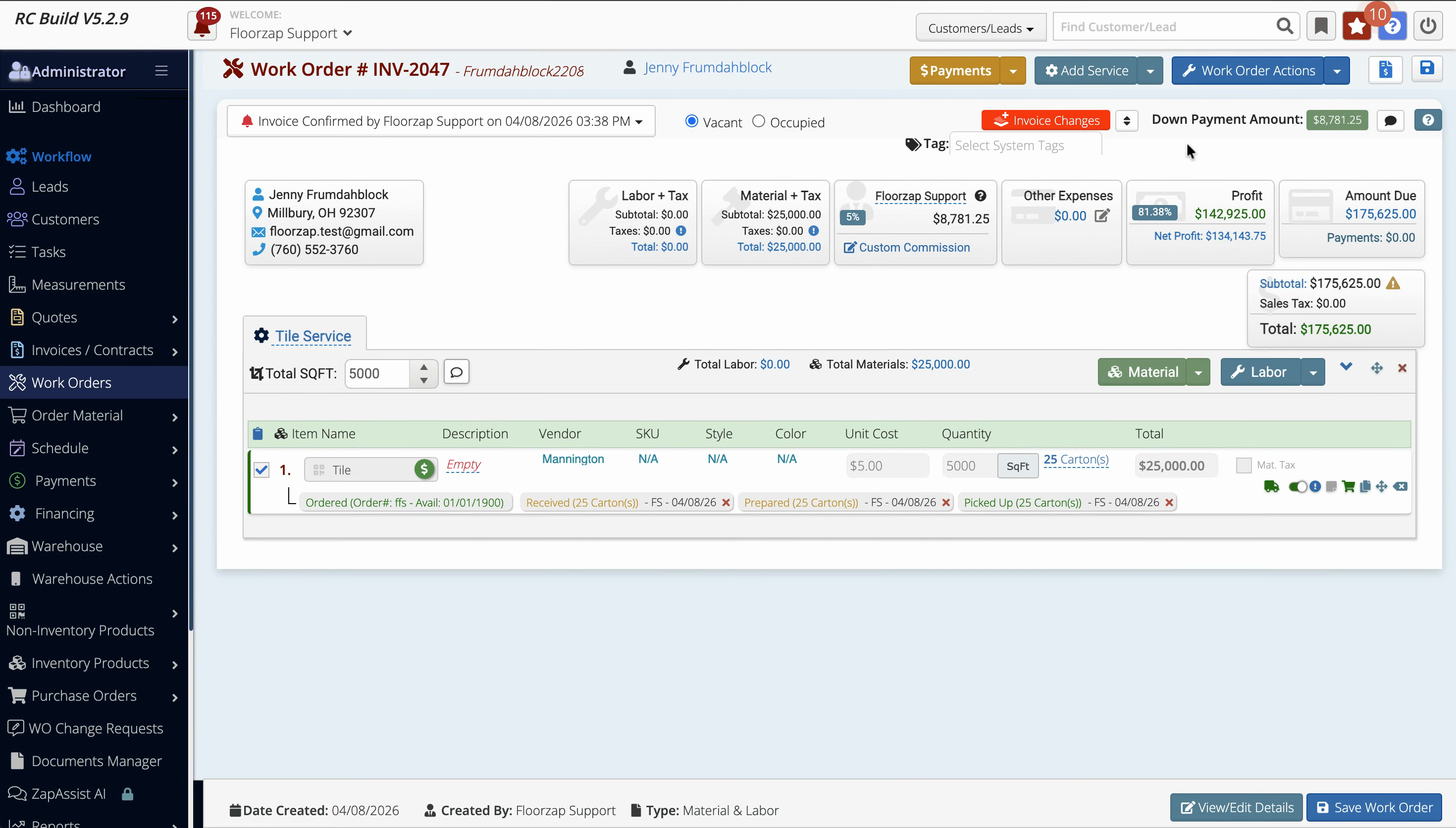
Step 2: Add new line items as needed—make sure each item has a clear, unique name.
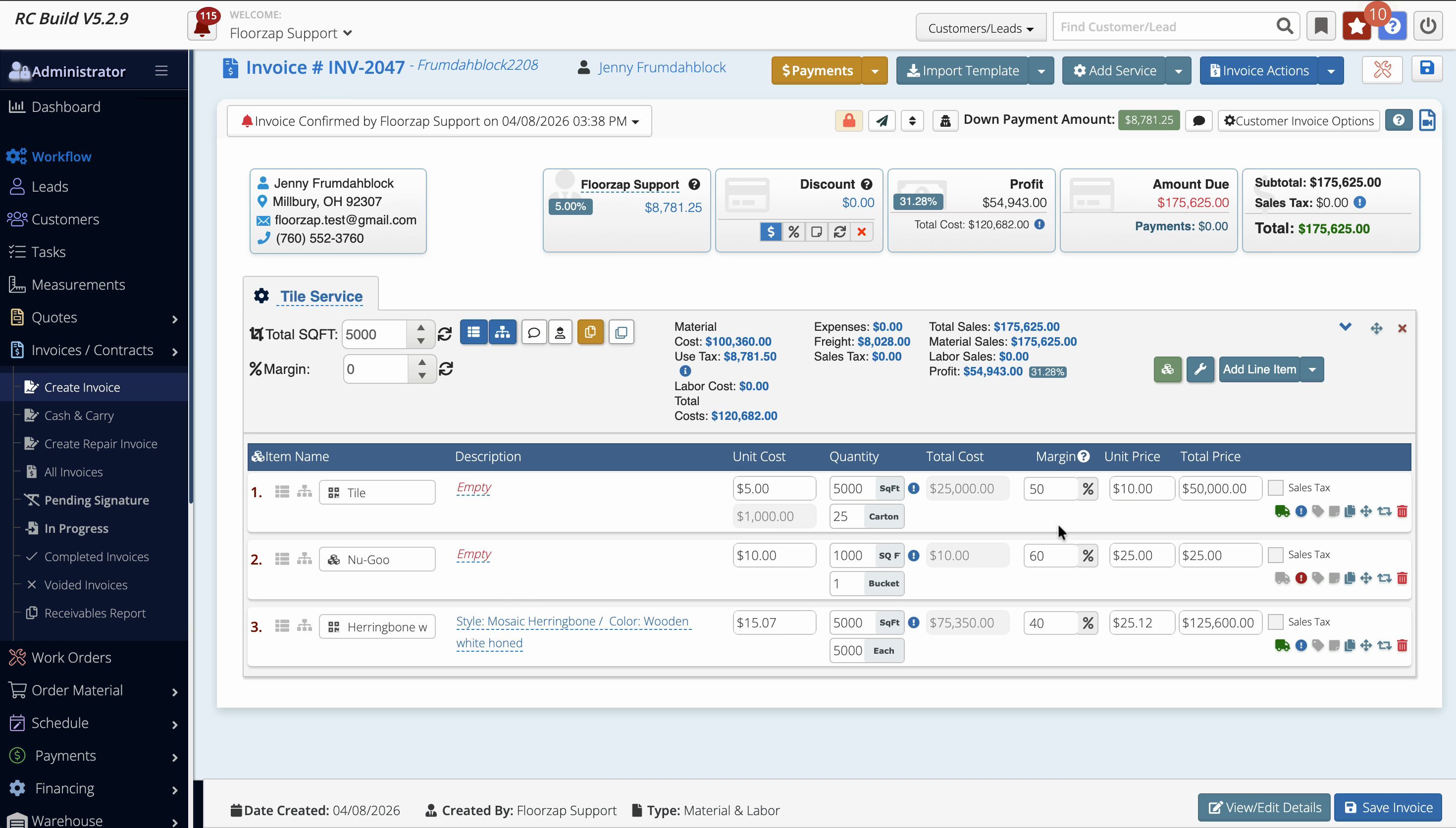
Step 3: Save the invoice after making your changes.
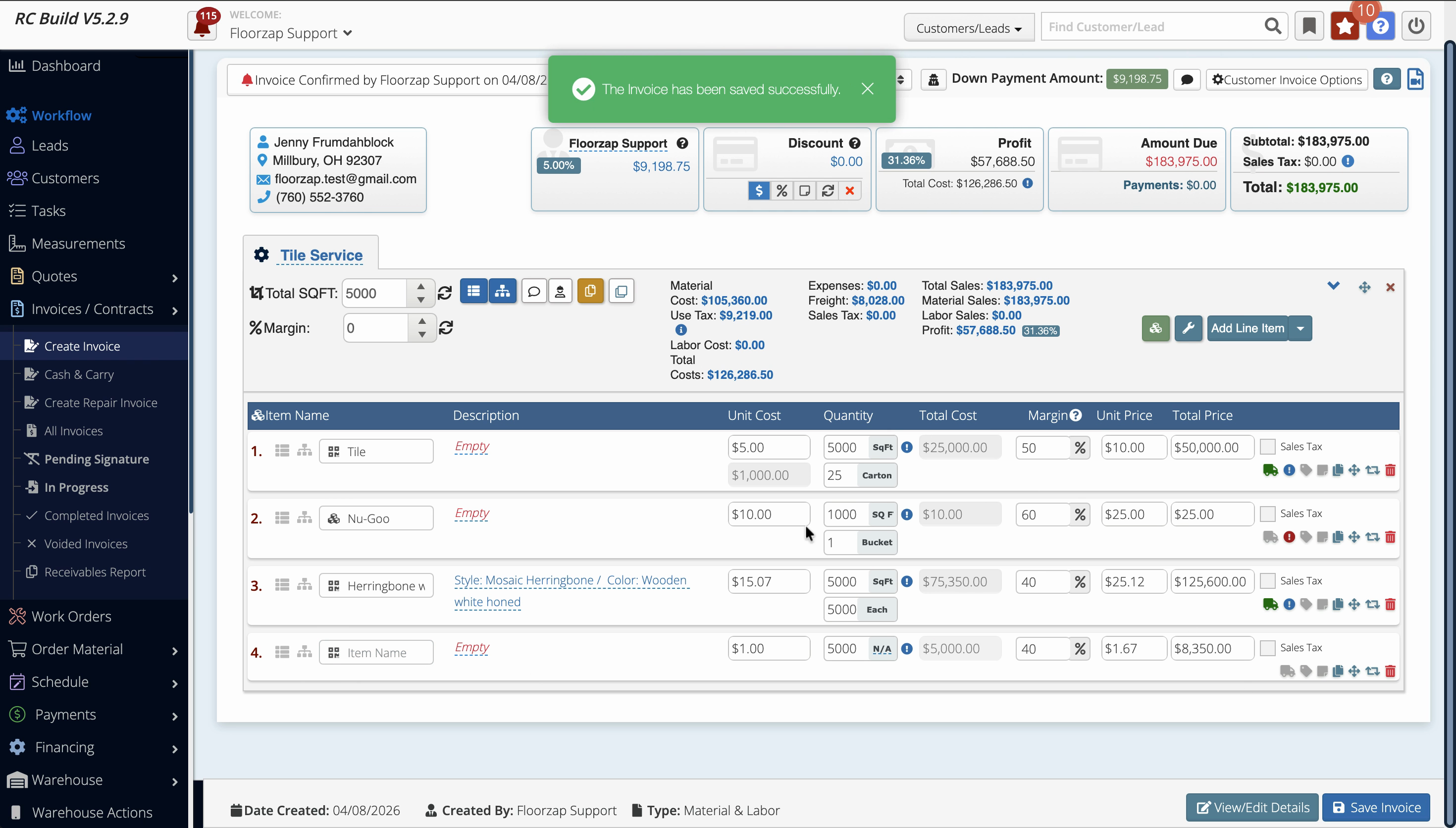
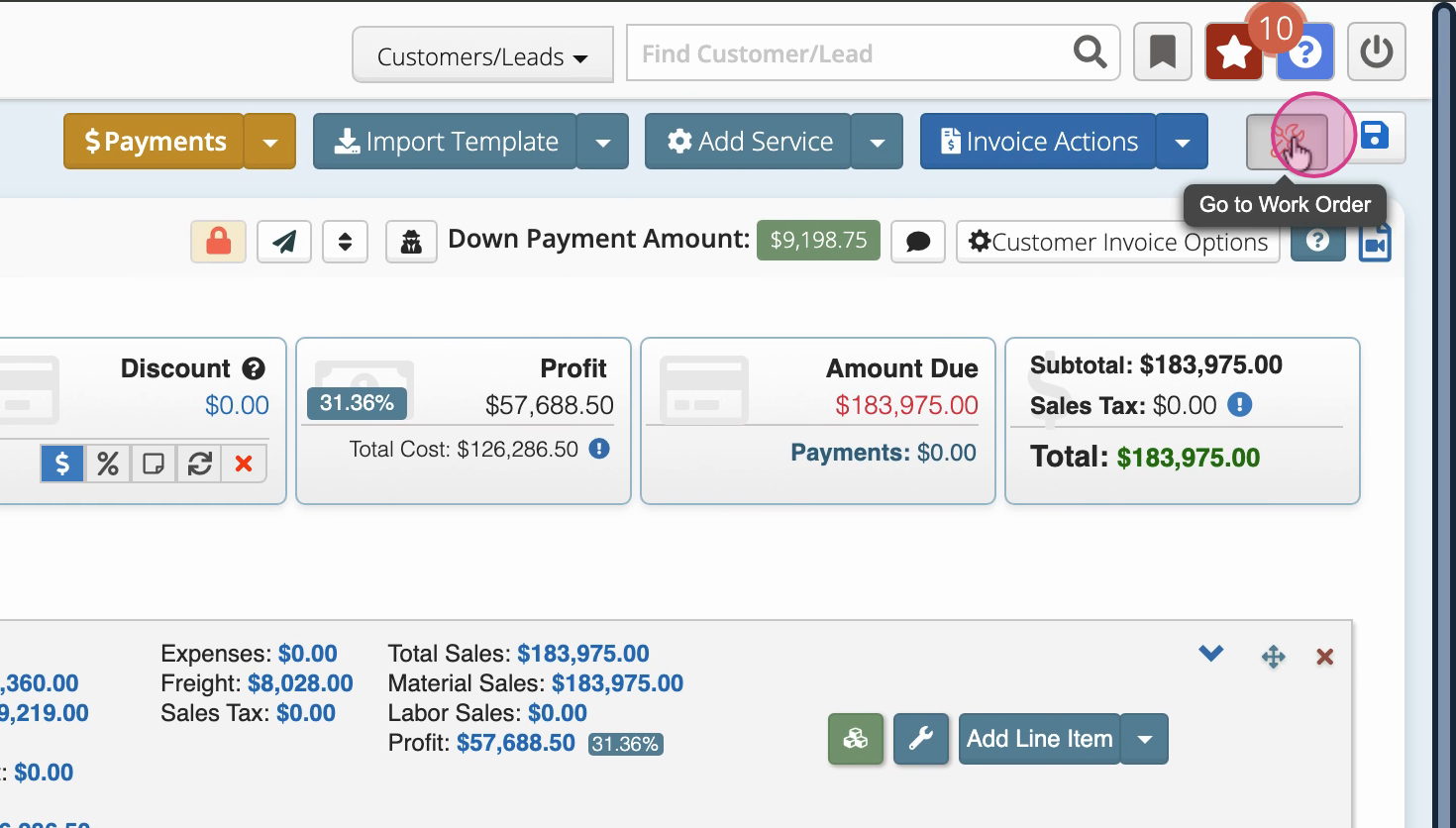
Step 4: Switch to the related work order.
Step 5: Click the red Invoice Changes button to start the import.
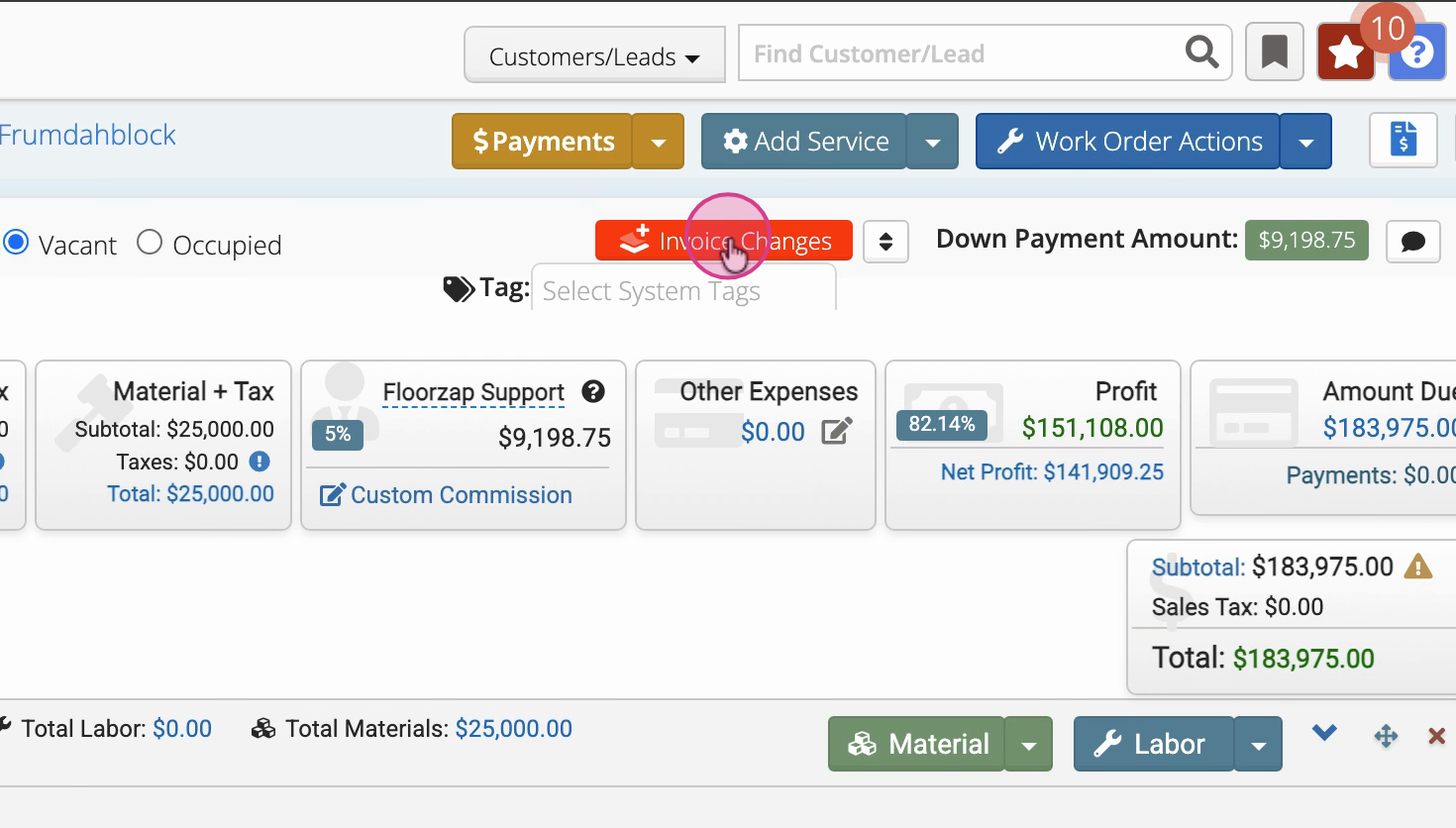
Step 6: Select the updates you want to sync and click Import.
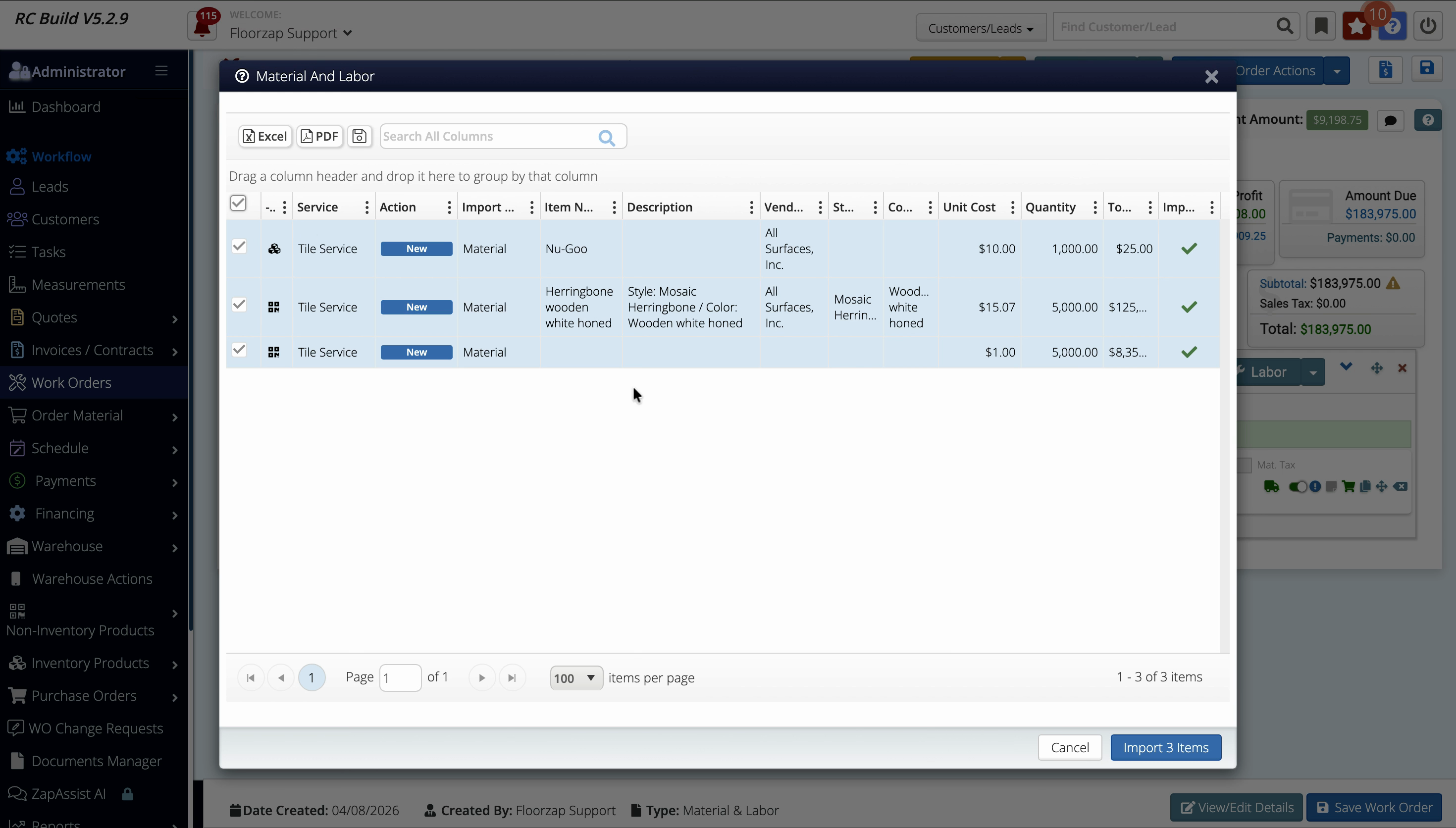
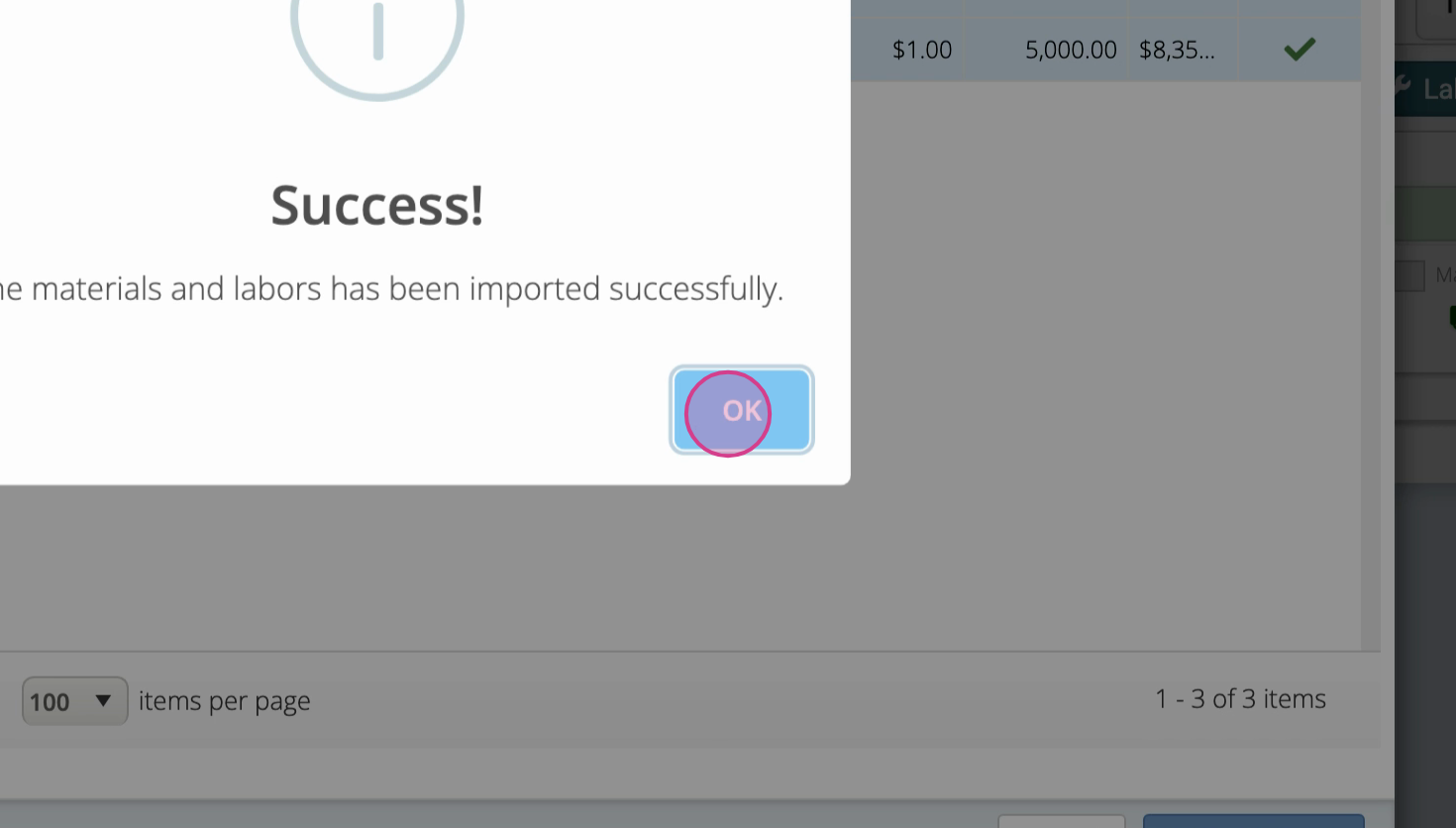
Step 7: Confirm the import. You'll see a message indicating materials and labor have transferred successfully.
Step 8: If any item names are missing, you’ll get an error—like “Item name is required”. Go back and add a name to each blank entry.
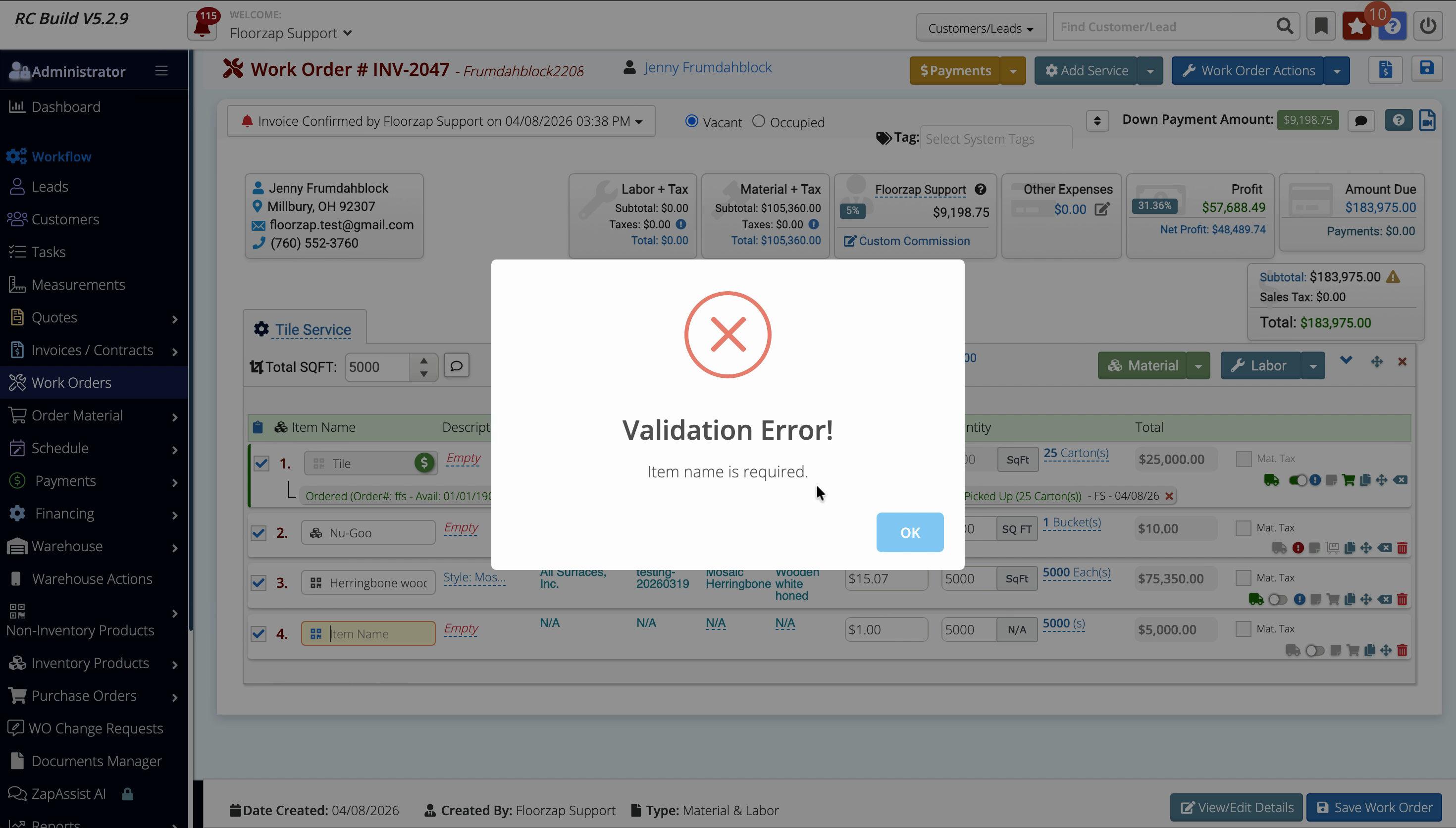
Step 9: Once every item has a name, re-save and re-import. Everything should process smoothly.
Having unnamed line items leads to validation errors and can prevent you from closing the work order, completing payments, or even moving the job to the next stage.
Step 10: Always double-check every line item for a name before importing changes.
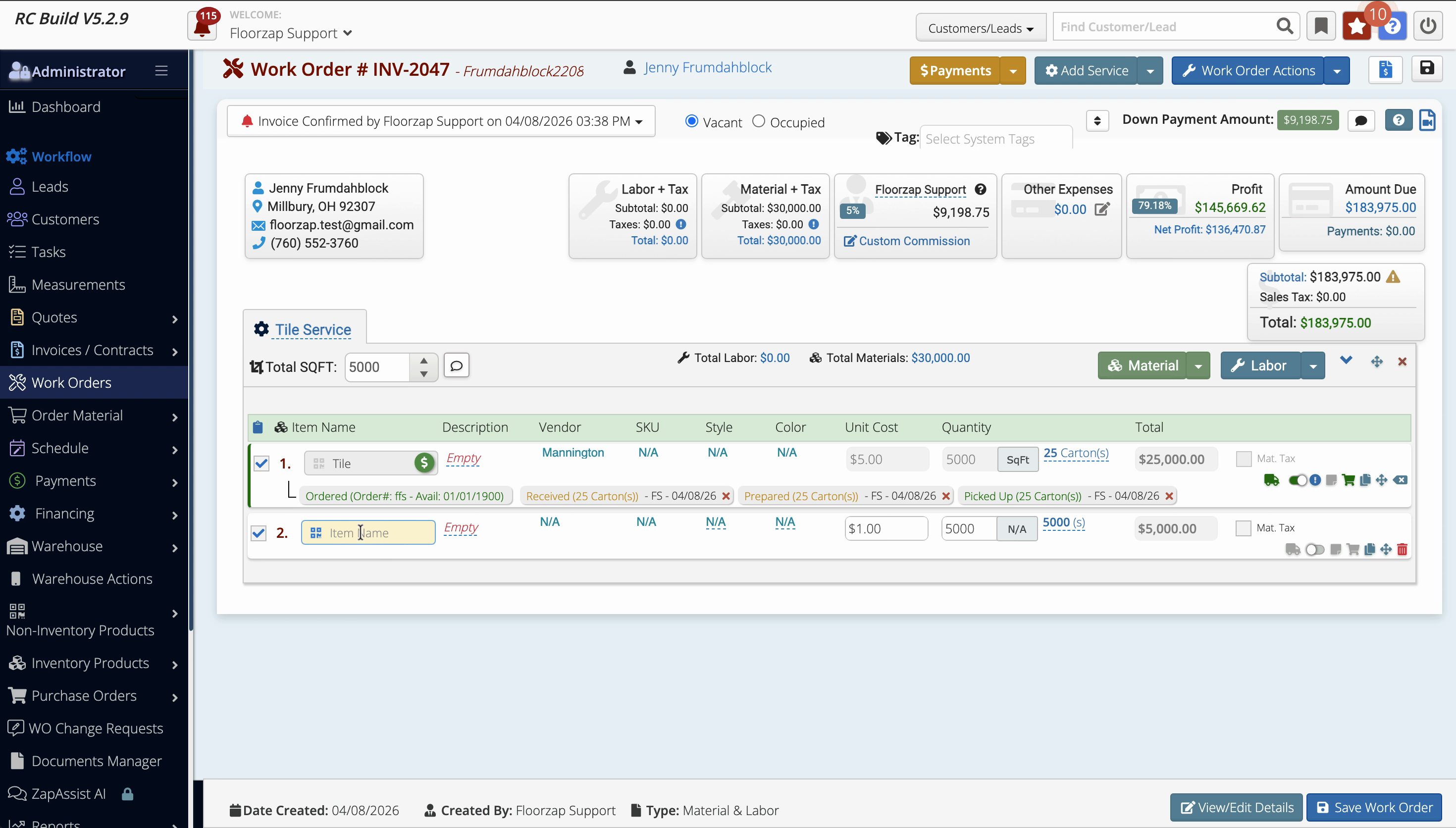
If you forget, you’ll run into problems like being unable to complete jobs or take payments.
What Else to Know About Invoice–Work Order Syncing
-
Imports only go from invoice to work order (one-way). If you edit an invoice, remember to sync those edits back to the work order using the red Invoice Changes button.
-
Every item—whether labor or material—must have a name for seamless operations.
-
Keeping your data tidy prevents headaches at job close-out, during audits, and when managing payments.
As long as you always name each item before importing changes, your work orders, invoices, and payments will stay in sync and error-free.