
How to View and Manage Survey Results in Floorzap
Keep track of your customer feedback by viewing and managing contractor survey results in Floorzap. Surveys help you gather insights and improve your services after work orders are completed.
Step 1: When a work order finishes, you’ll see a notification asking if you’d like to send the customary contractor survey.
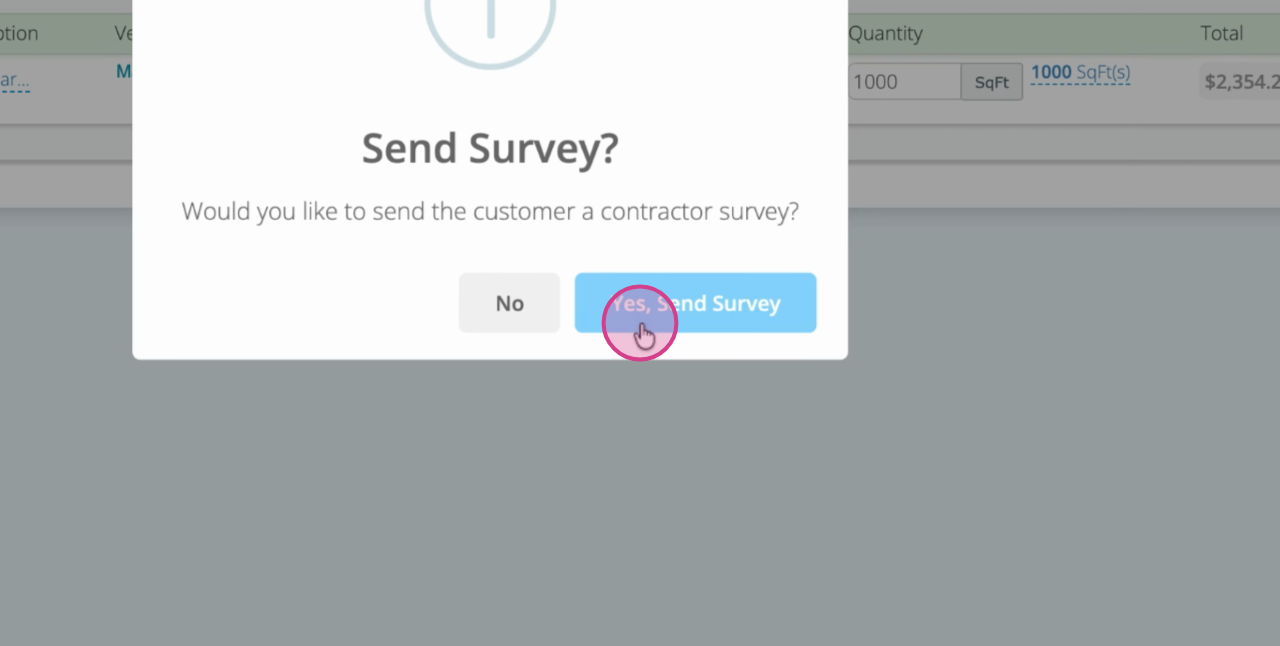
Step 2: Click Yes to send the survey via email to the customer. If you want to send it later, use the work order actions.
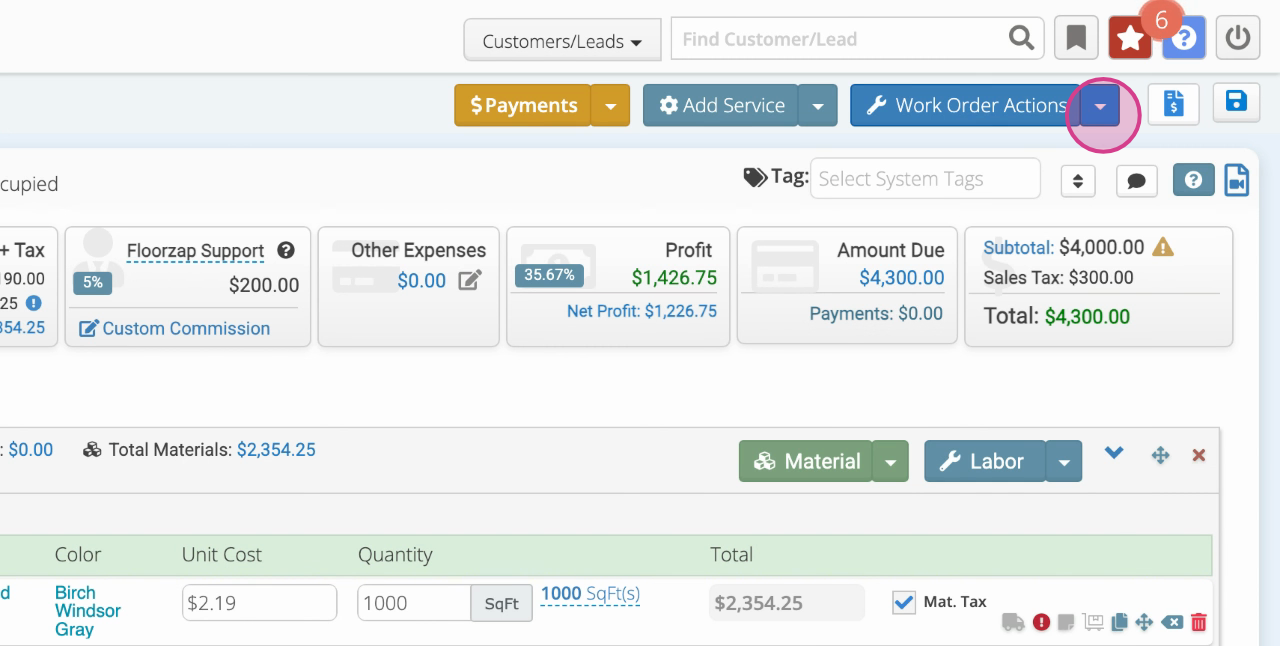
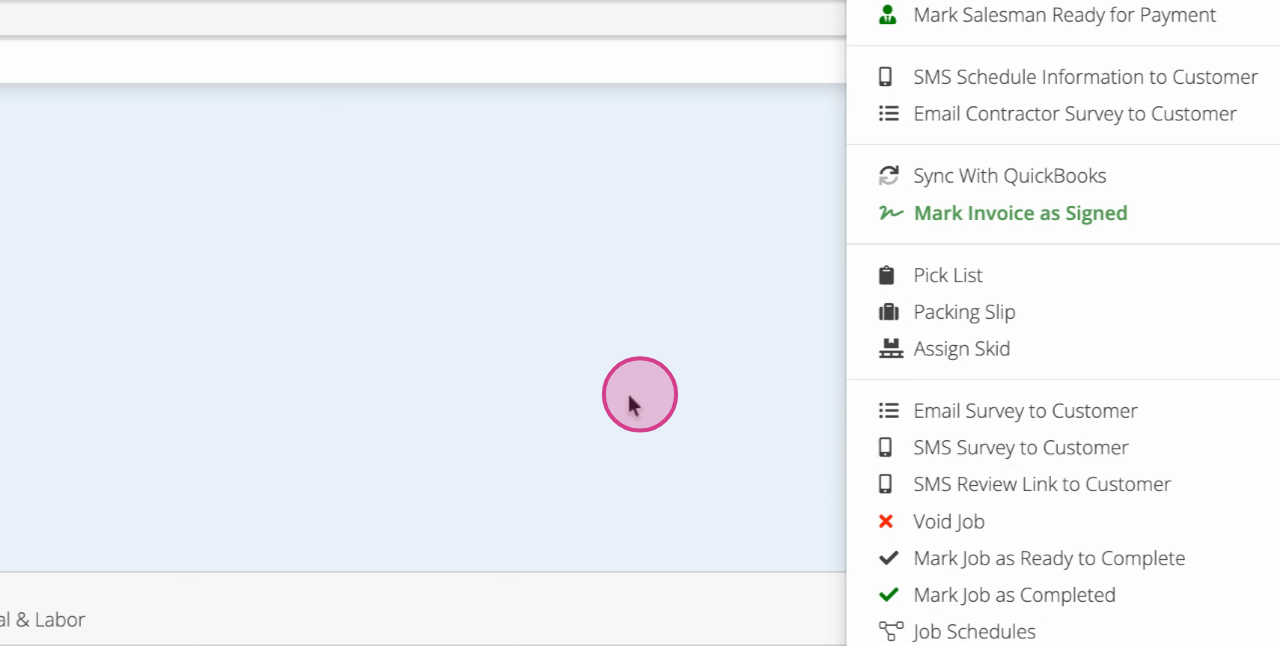
Step 3: Go to Work Order Actions and select either Email survey to customer or SMS survey to Customer.
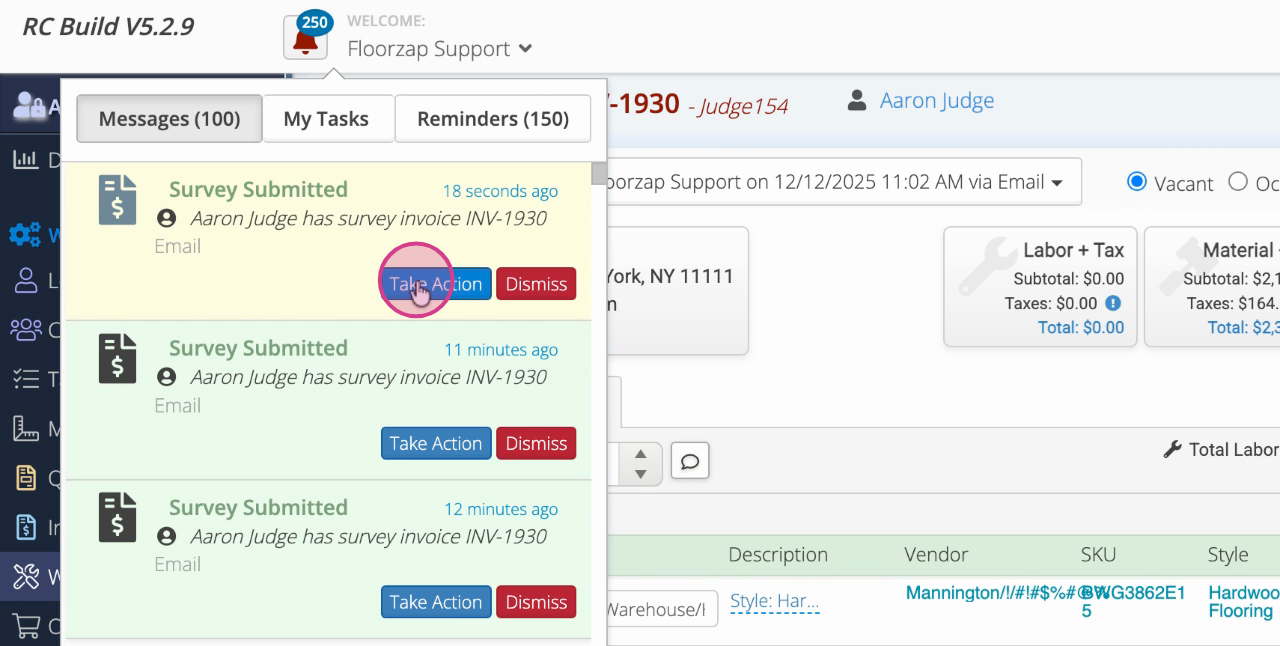
Step 4: After sending, you’ll get a notification in your Notification Center confirming the customer received the survey.
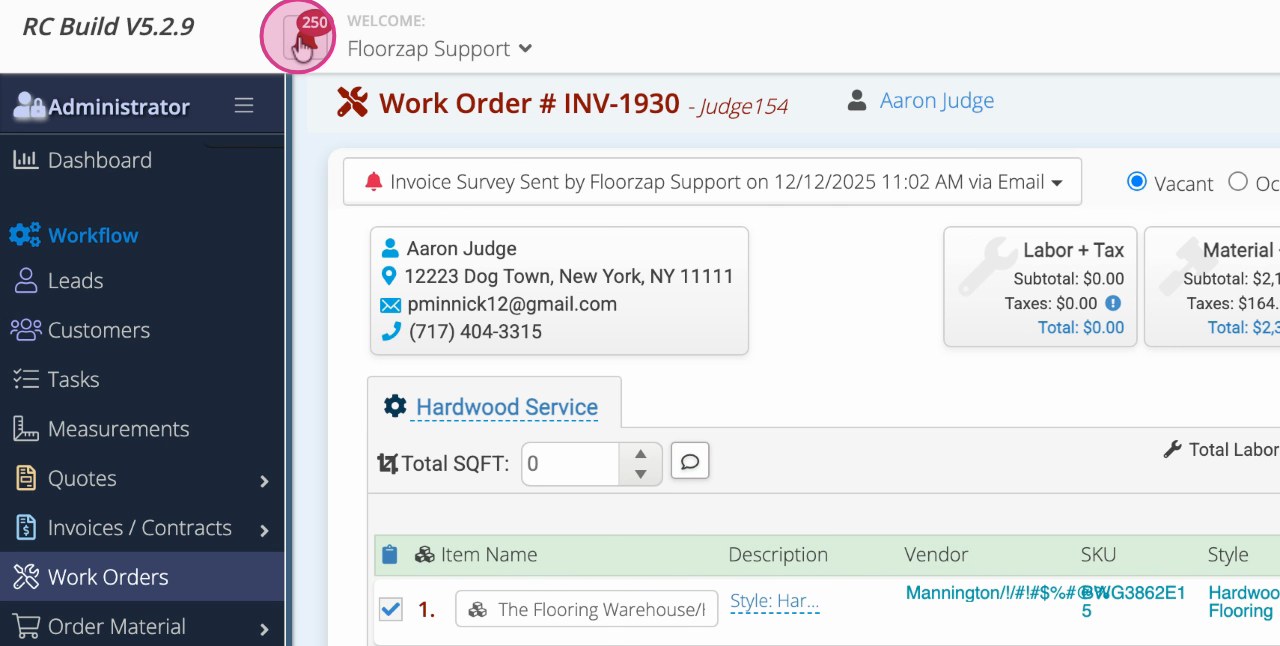
Step 5: Click Take action in the notification to go to the Marketing Follow Up page.
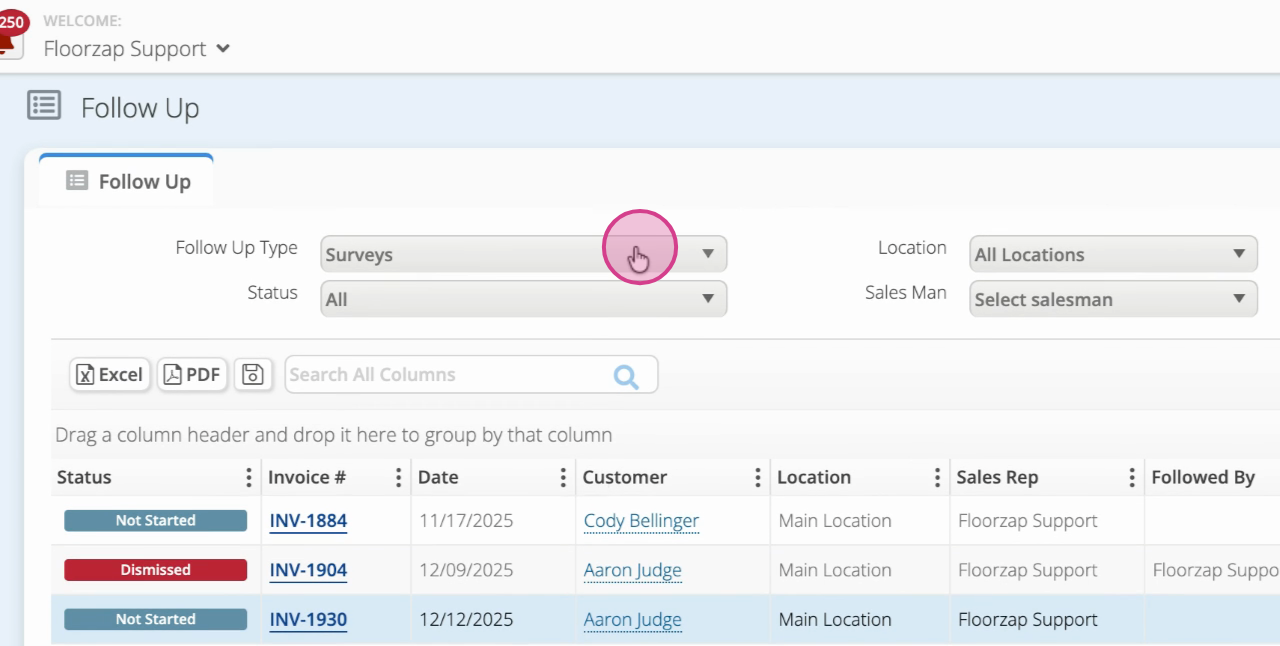
Step 6: On Marketing Follow Up, filter the Follow Up Type by Surveys to see all surveys you’ve sent out.
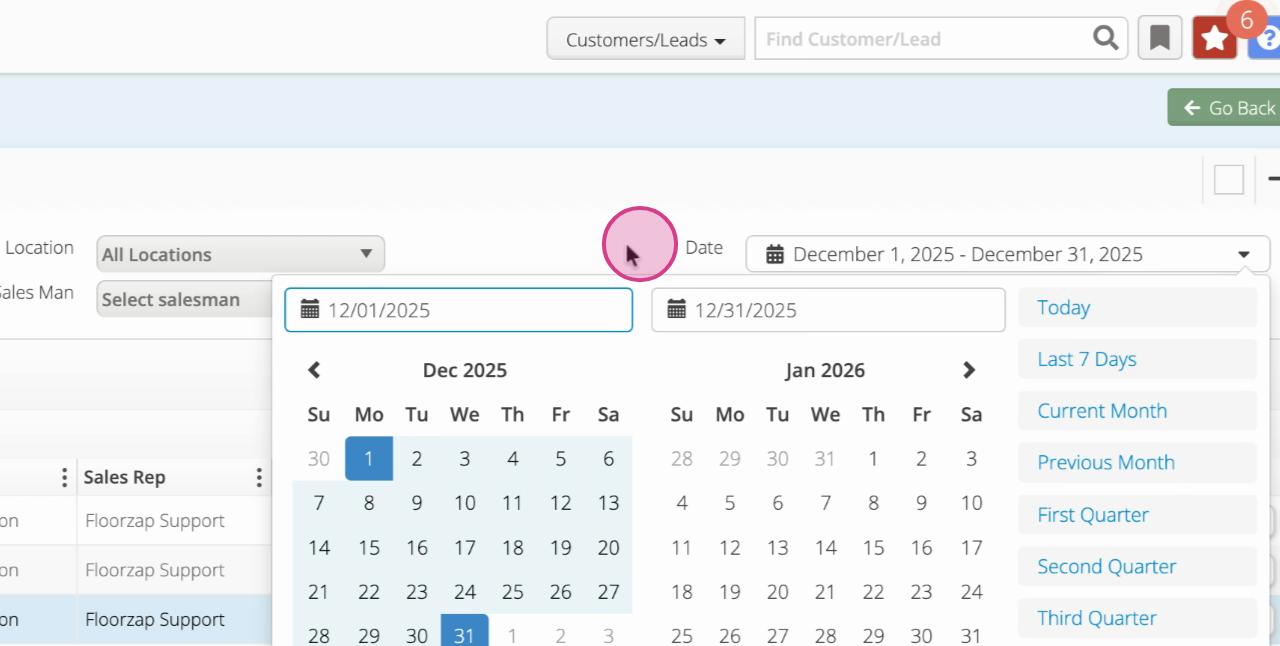
Step 7: Adjust the date range to view surveys sent within your chosen period.
Step 8: Check each survey’s status—this is set by you, not triggered by the customer completing the survey. We recommend completed, or dismissed.
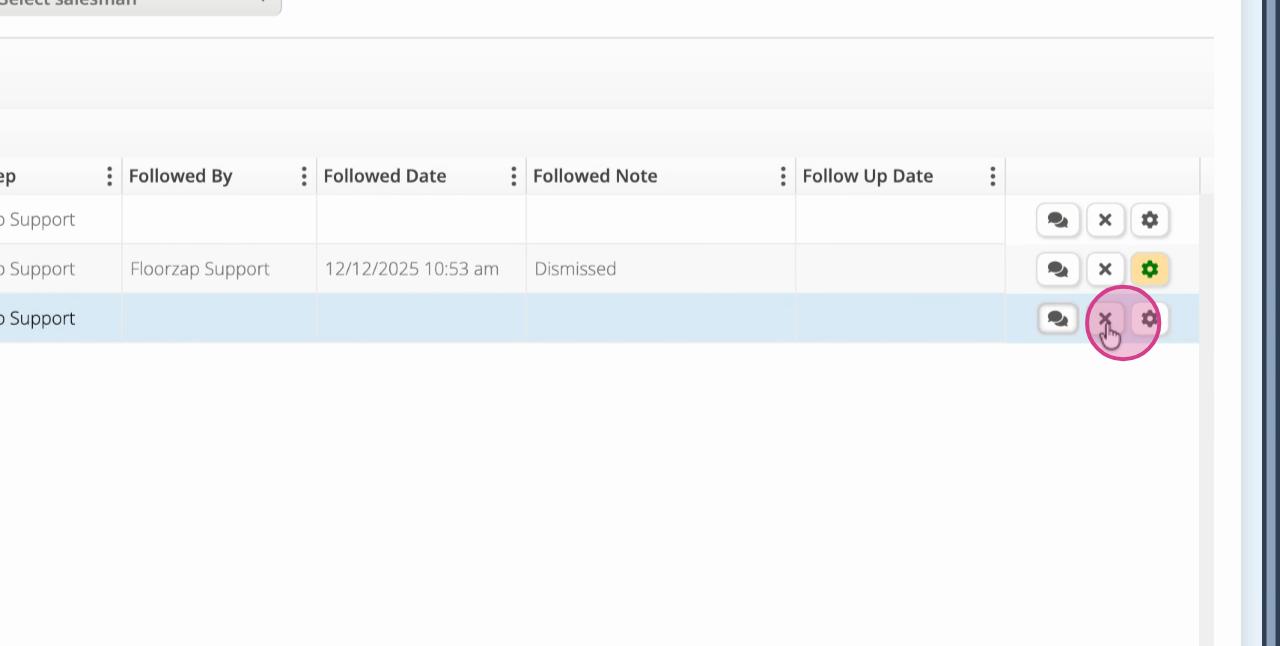
Step 9: To quickly dismiss a survey, click the X icon.
Step 10: Click the quote buttons to change the status of the survey. For surveys, use Completed or Dismissed as needed.
Step 11: When a customer submits their survey, you’ll receive a notification.
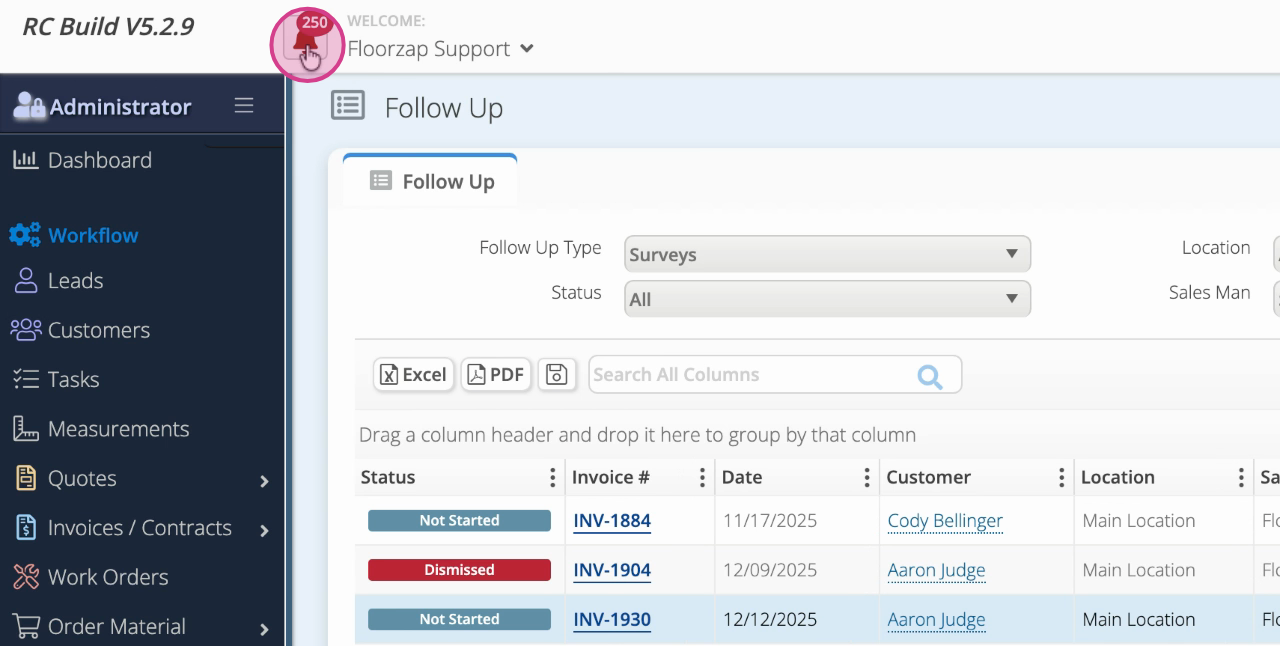
Step 12: Click Take action to go to the follow up page. The survey’s gear icon turns yellow.
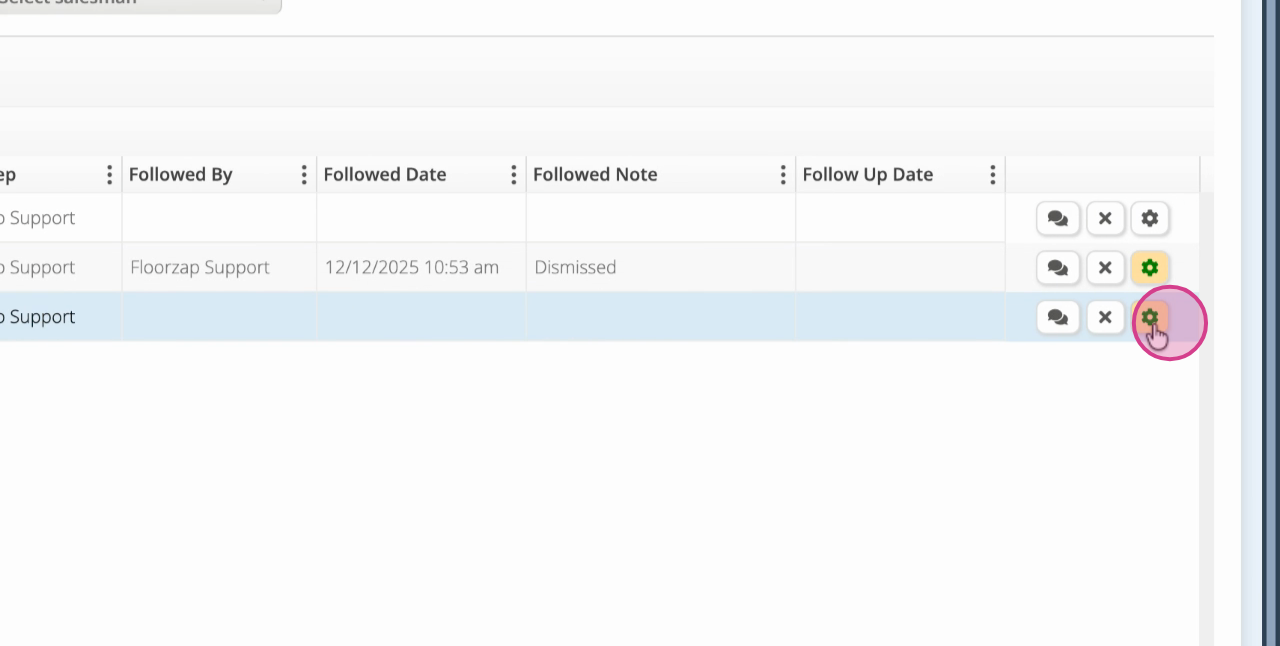
Step 13: Click the yellow gear icon to view the survey report.
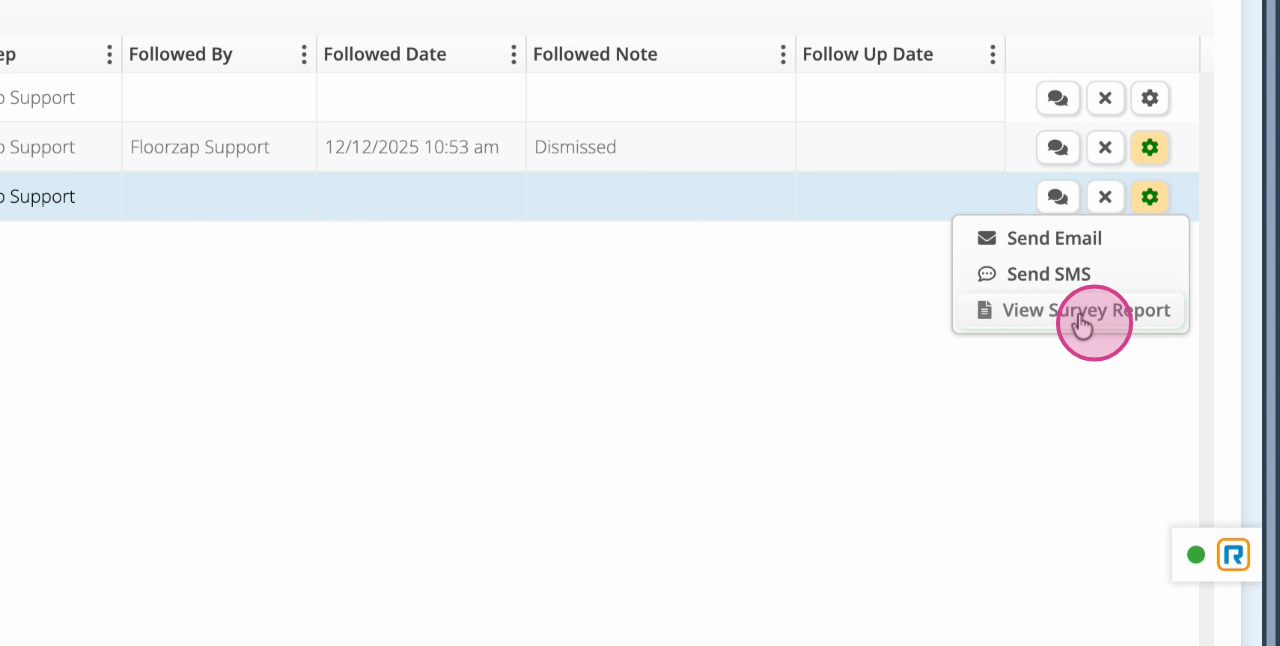
Step 14: Review the customer’s submitted feedback on the Survey Report.
Step 15: Return to the follow up page. If you receive particularly positive or negative feedback, or if you’d just like to follow up, send the customer an email or SMS directly from this page.
Step 16: Update the status to Completed (or your preferred status) and save your changes, including any time spent following up.
Step 17: Filter by Completed, Dismissed, In Progress, or Waiting to organize your survey reports. Most users stick with Completed and Dismissed for simplicity.
Floorzap's survey management helps you track customer satisfaction and keep your follow-up process organized. Use these features to stay responsive and continually improve your service.