
Syncing changes from an invoice to a work order ensures that both documents stay up to date as your project evolves. This process is especially useful when materials or quantities change after an invoice has been created. Follow these steps to keep your work order and invoice in sync for a smoother workflow.
Step 1: Open the invoice and review the existing products.
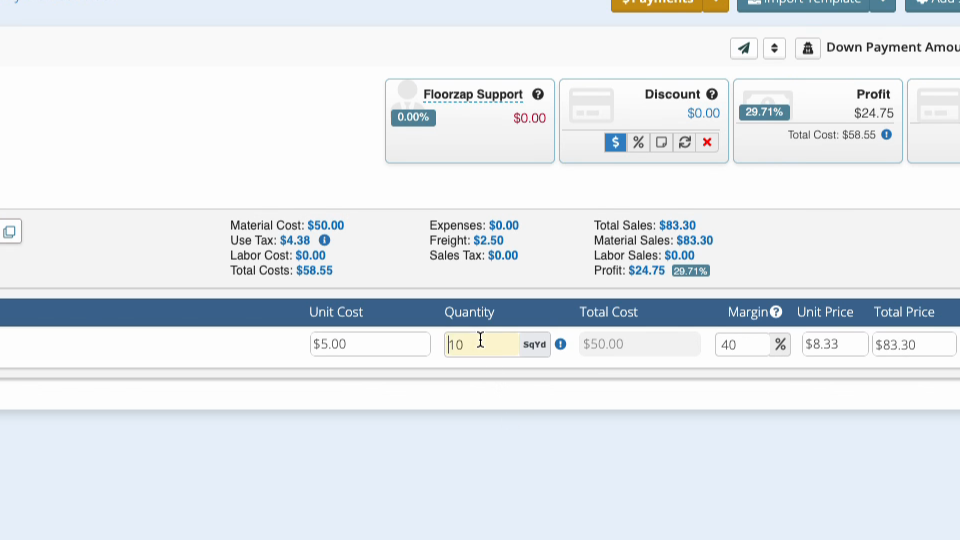
Step 2: If needed, you can change the quantity of an existing product or line item to reflect what’s needed.
Step 3: You can also add a new product(s) or line item(s) to the invoice to reflect what's needed.
Step 4: Whatever changes you make, just be sure to click Save to store your changes.

Step 5: Navigate to the associated work order.
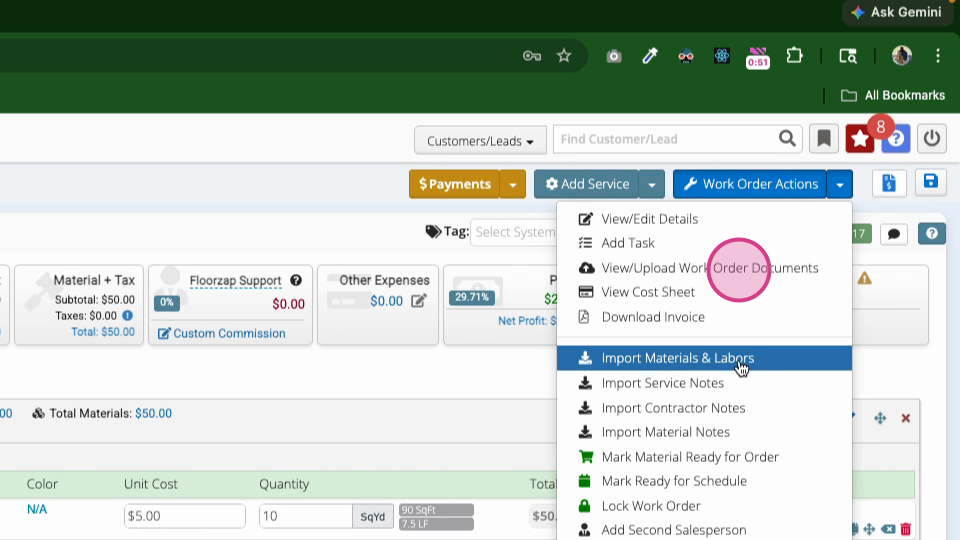
Step 6: Go to Work Order Actions and select Import Materials and Labors.
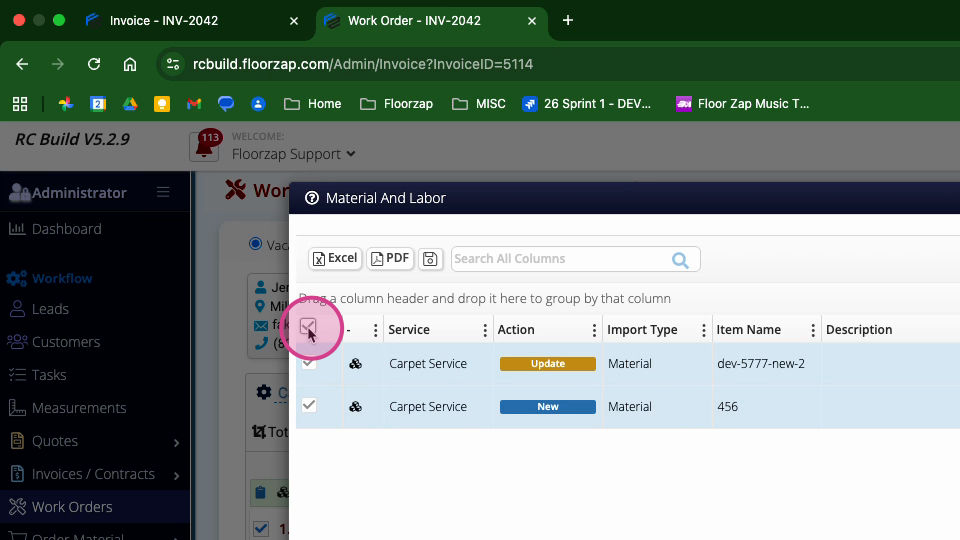
Step 7: Review the list of changes. Updated items will appear—new materials and any changes to existing ones.
Step 8: Select either All to import every change, or individually select items to import just specific updates.
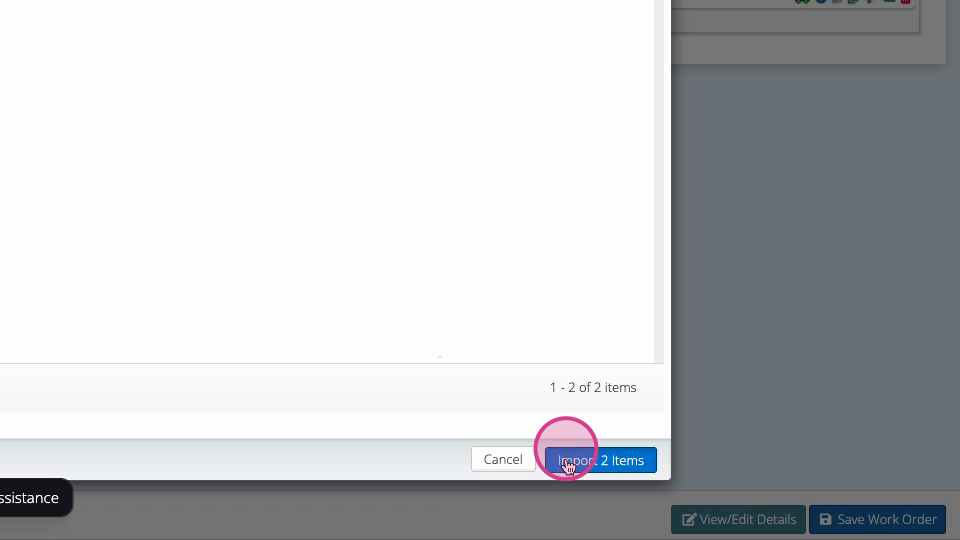
Step 9: Click Import Items to apply your changes to the work order.
Step 10: Wait for the work order to refresh and confirm the changes have been applied.
Step 11: Click Save on the work order to finalize your updates.

Syncing invoice changes into your work order keeps your project records accurate and up to date. Always save your work order after importing to ensure nothing gets missed. This simple process helps avoid confusion between estimates, invoices, and work orders throughout your project.