
How to Control Where Purchase Order Descriptions Appear in Your System
Make sure your purchase order descriptions show up exactly where you want them—on work orders, invoices, or not at all. By adjusting a simple setting, you can decide if the description pulls from the work order, the product list, or stays hidden. Here’s how to configure this feature for clear, consistent documentation.
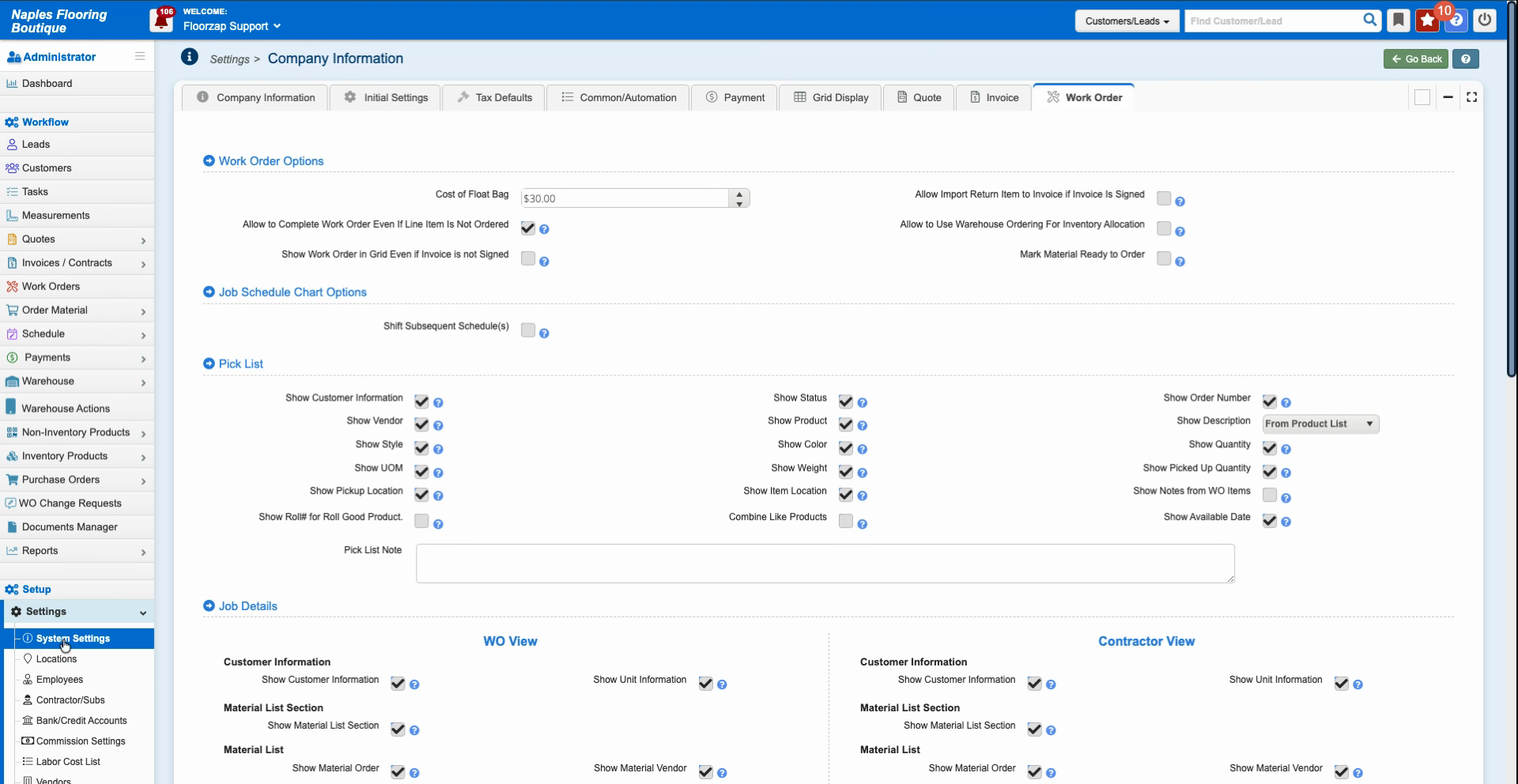
Step 1: Go to System Settings to start adjusting your preferences.
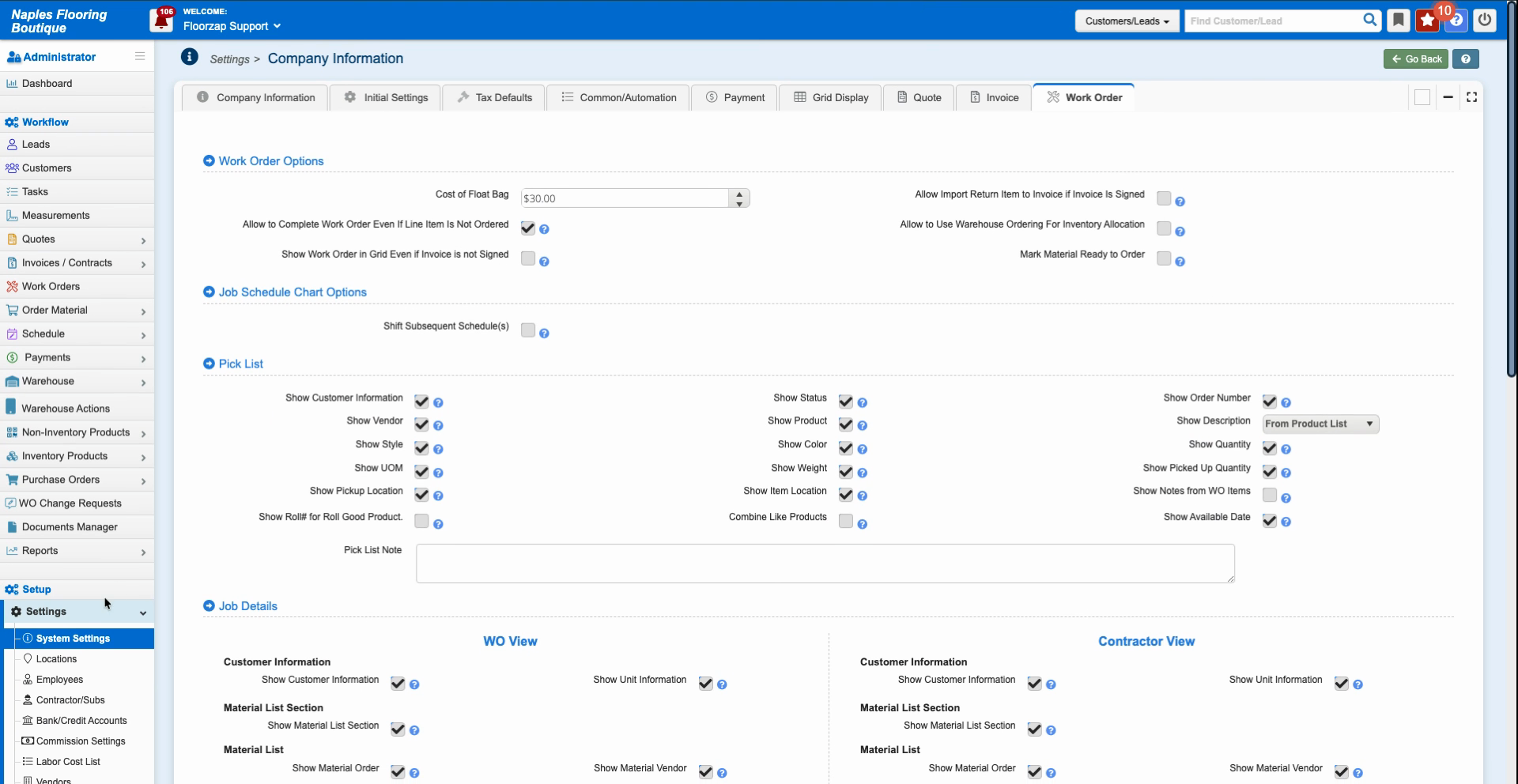
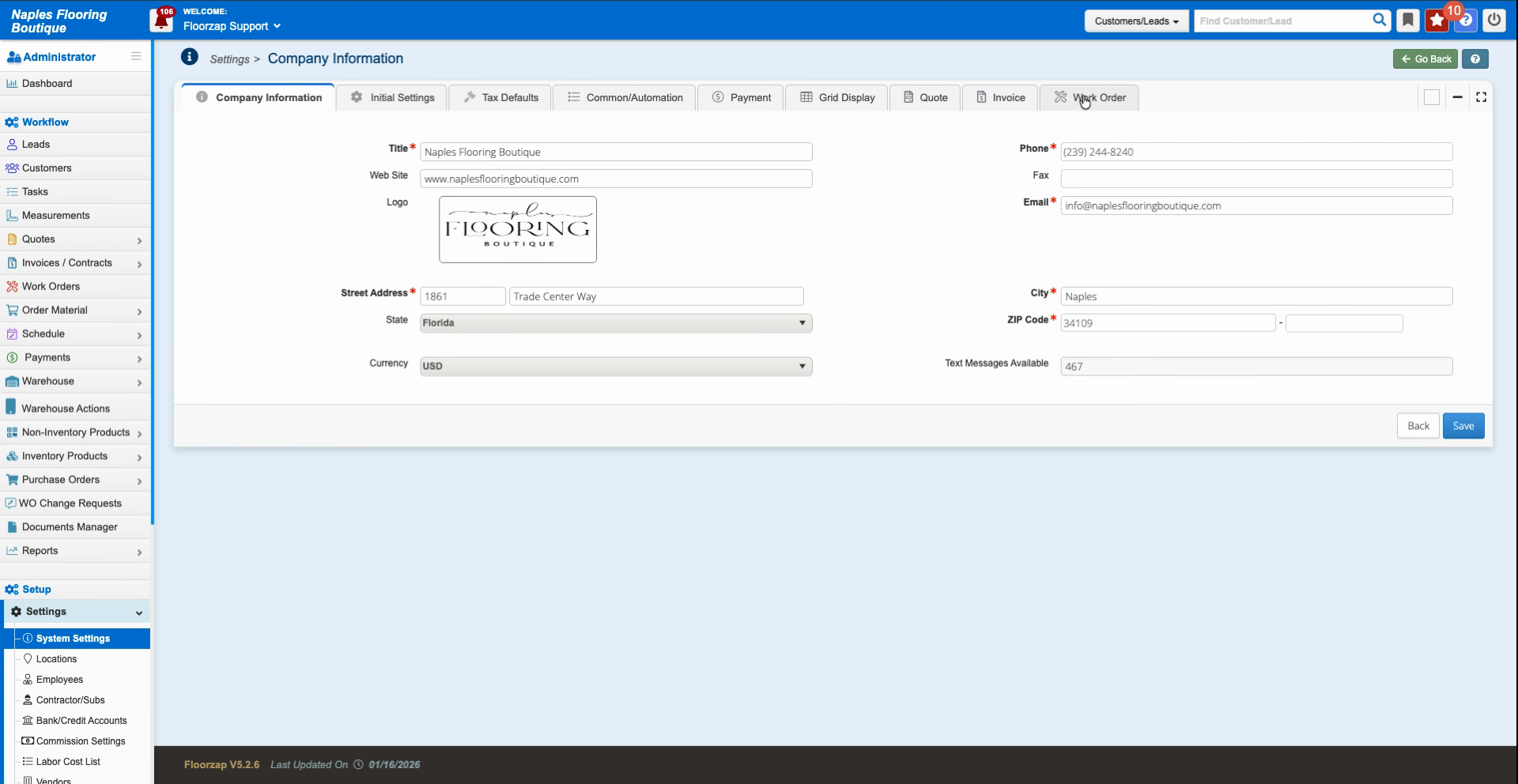
Step 2: Navigate to the Work Order section.
Step 3: Locate the description setting. You’ll see a box with three options:
- Show Description from Work Order
- Show Description from Product List
- Hidden (Completely Hidden)
Choose the option that fits how you want the description to appear on printed or viewable documents, such as the invoice or PO.
Step 4: Click Save to apply your changes.
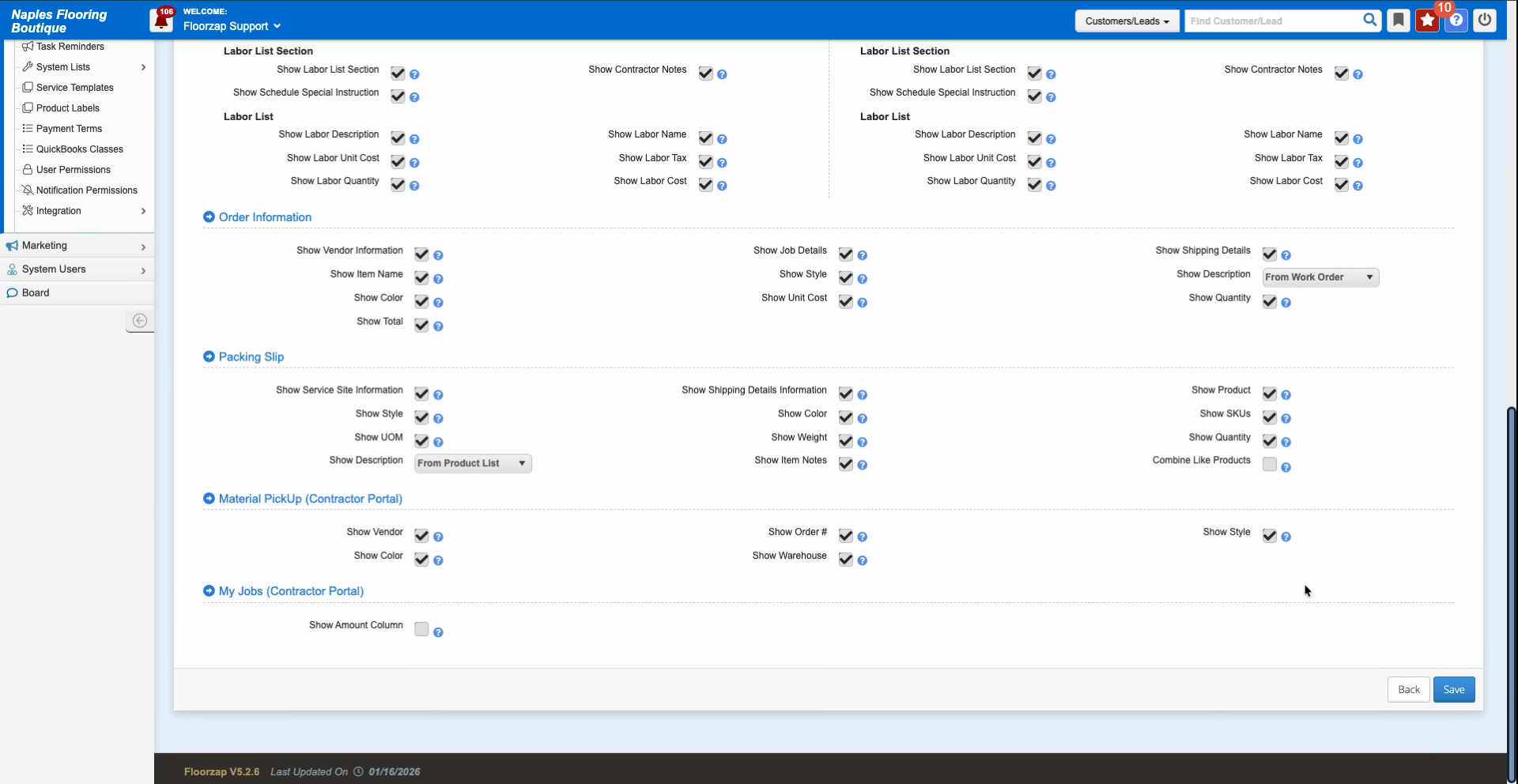
Once you’ve made your selection and saved, the description will pull from the source you’ve specified whenever you generate or view documents for your customers. This keeps your forms accurate and ensures everyone sees the right details every time.