
How to Change or Reschedule a Job Date
Rescheduling jobs is common when plans shift, work is delayed, or details change after a job’s been set. Here’s how to update the date or contractor details for a scheduled job, with clear steps for both main methods.
Change the Scheduled Date or Contractor for a Job
Tried to reschedule but the job doesn’t show up as available? That’s because it’s already assigned and considered “scheduled.” Here’s how to make changes.
Step 1: Locate the job you want to adjust in your system—look for the invoice or work order number (like 2029).
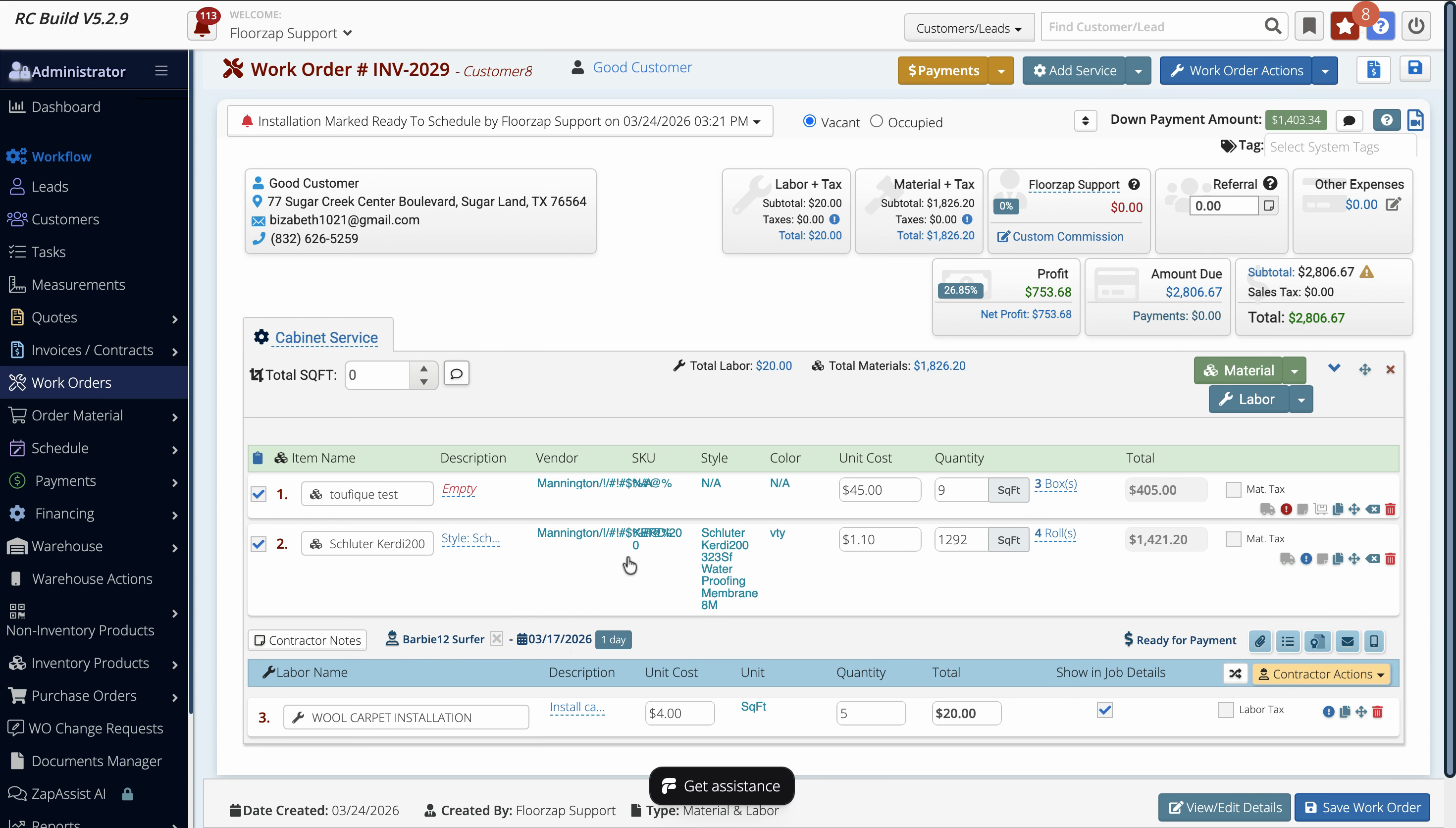
Step 2: If the job is marked Ready for Payment or Completed, you’ll need to stop the contractor’s payment status before editing.
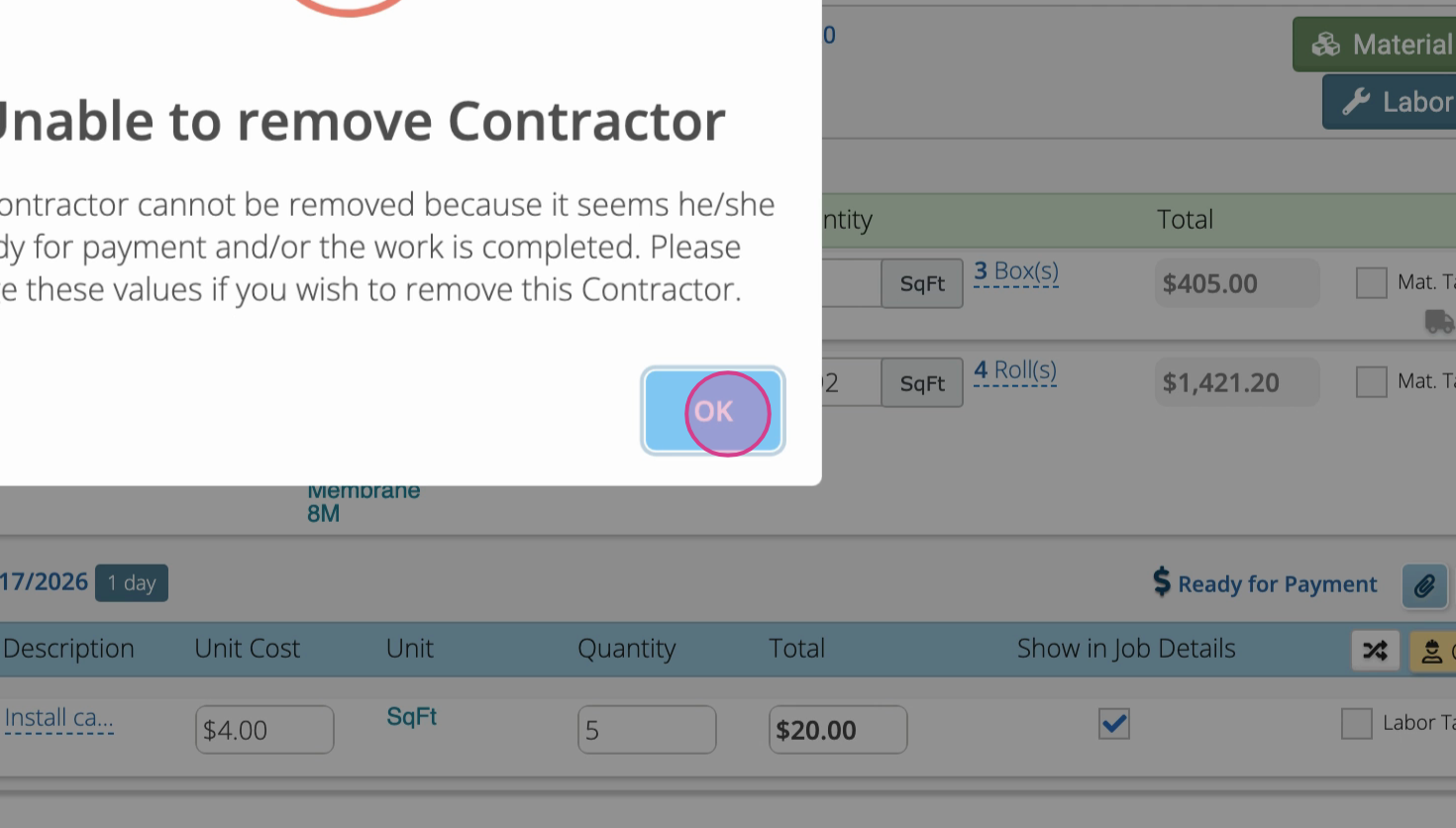
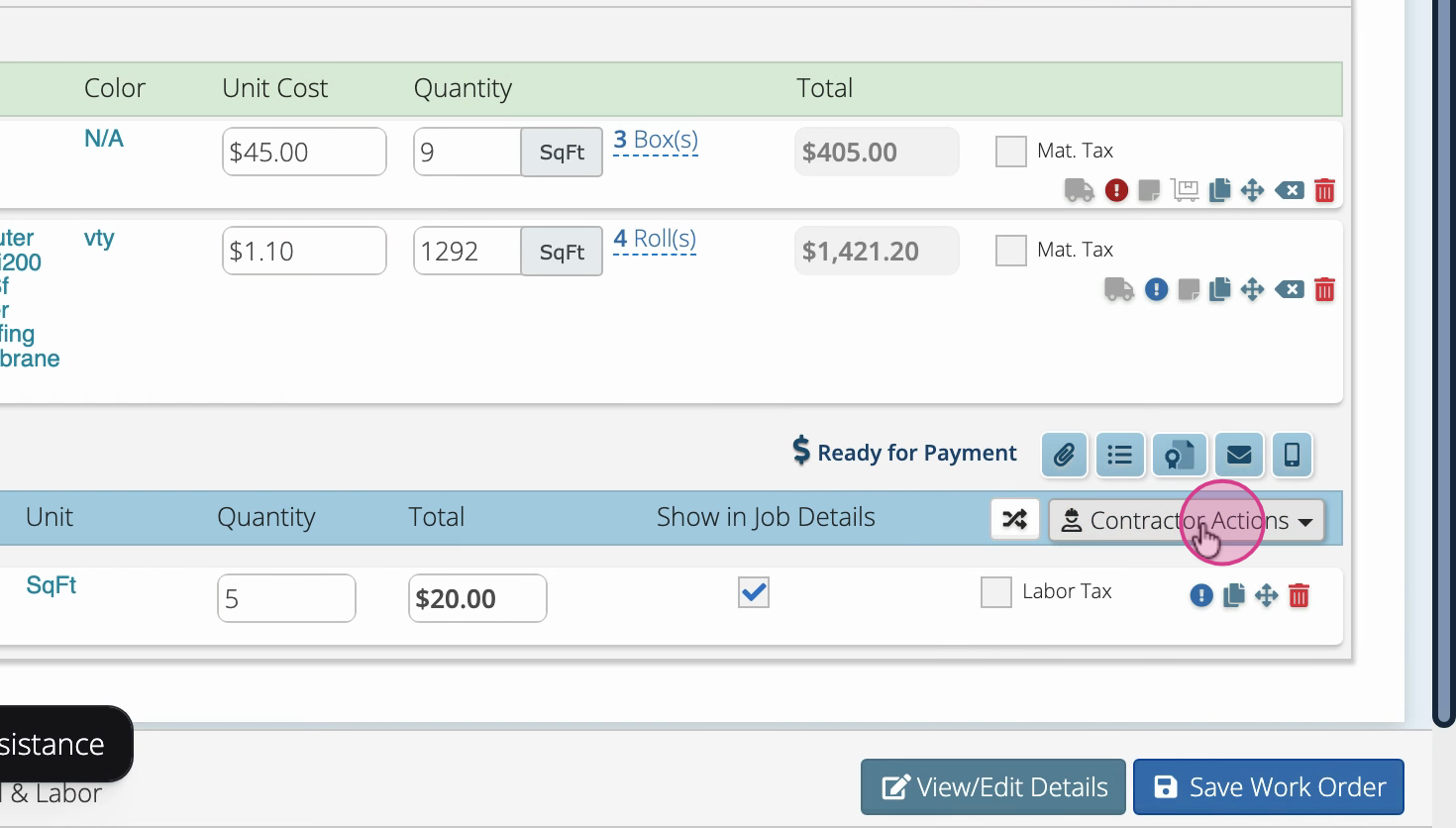
Step 3: Select Stop Contractor Payment to unlock editing.
Step 4: Once payment isn’t pending, remove the contractor from the job to also remove the scheduled date.
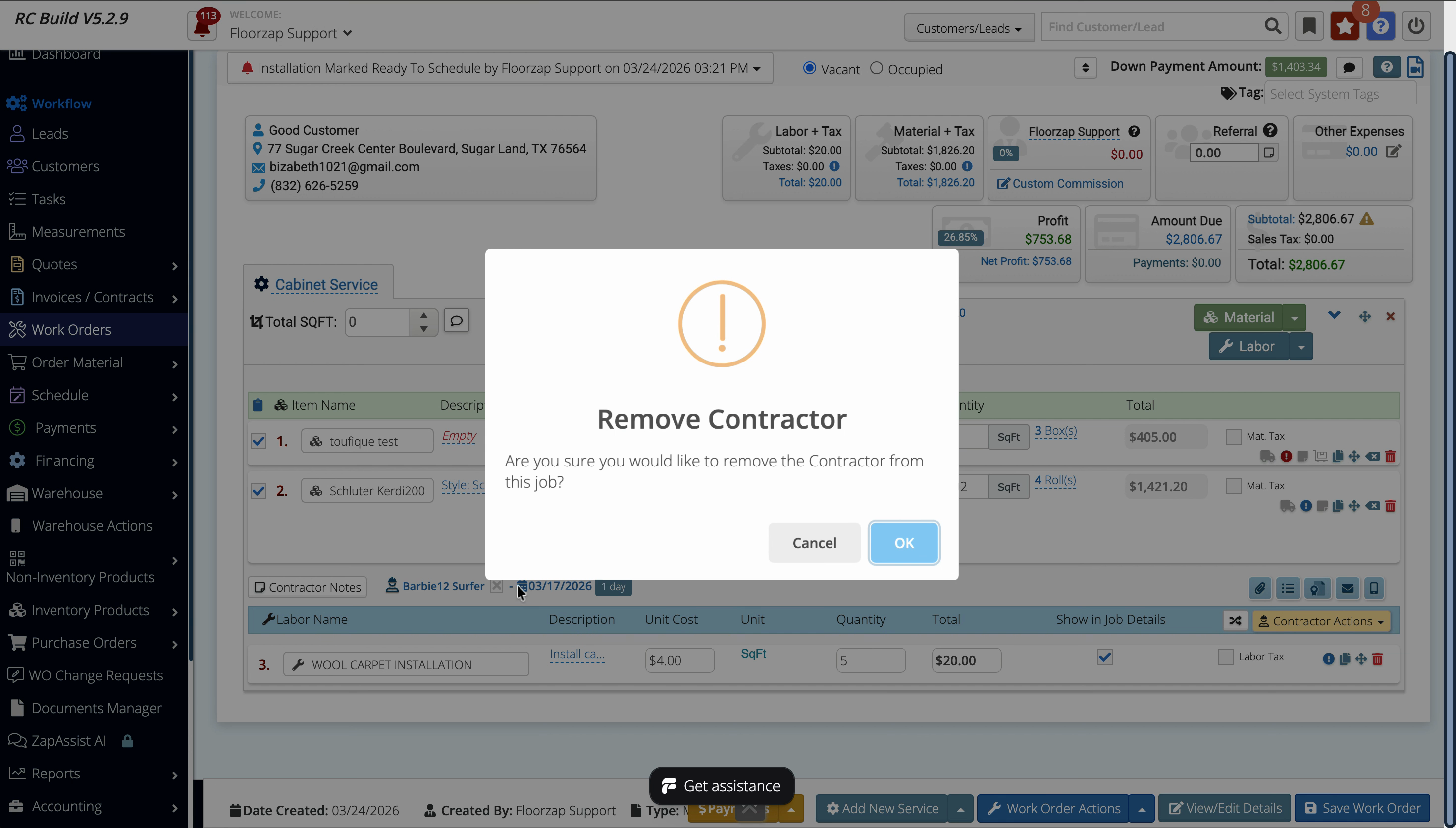
Step 5: Re-add the contractor by clicking Schedule or similar, then assigning the correct person. If their insurance is expired, you may get a warning—acknowledge or resolve as appropriate.
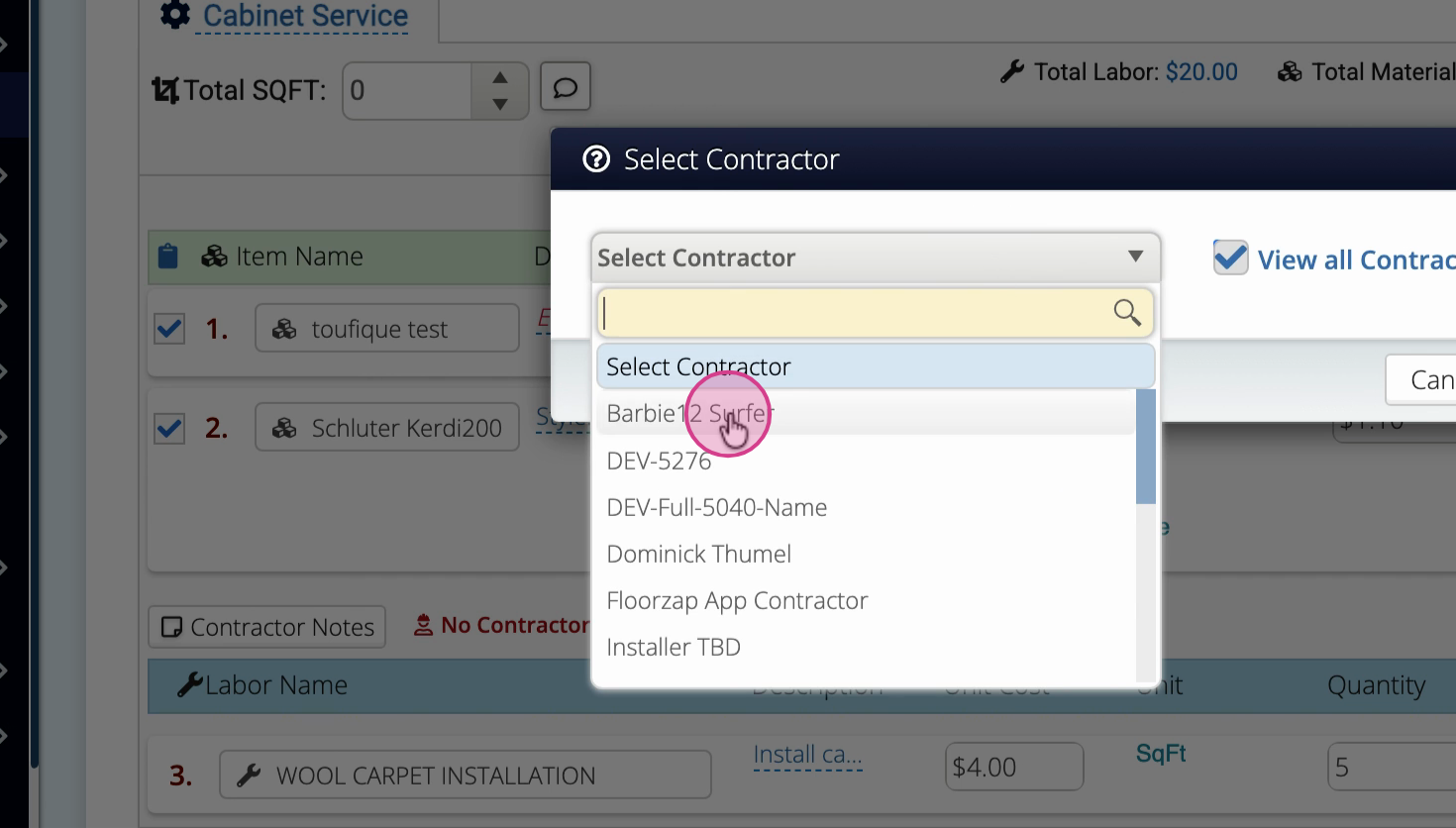
Step 6: Now you can reschedule the job by selecting a new date range—scheduling for single or multiple days as needed.
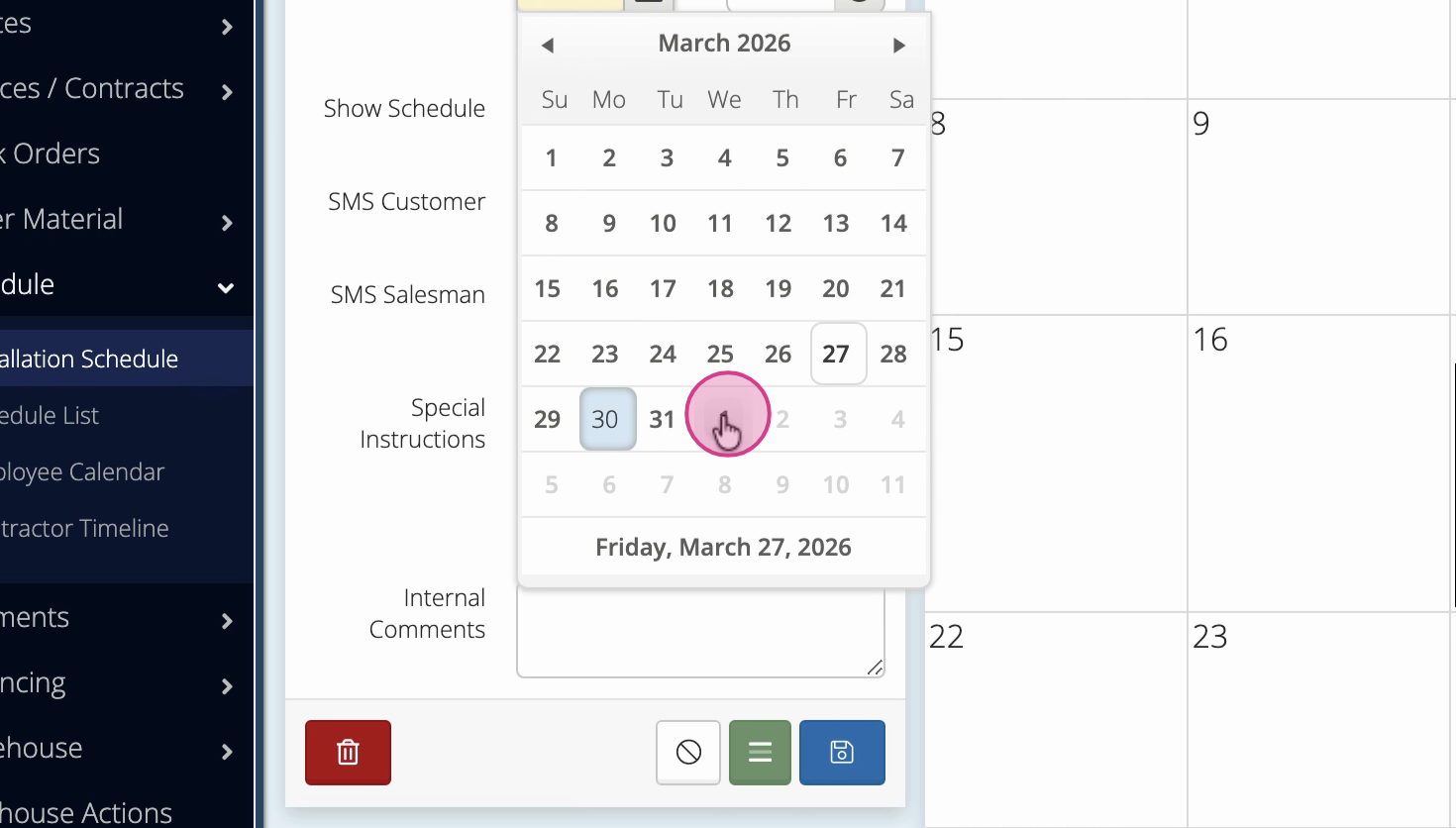
Step 7: Click Save to apply your changes.
Alternate Way: Edit the Date Directly
If you need to just move the date, not swap contractors, you can also adjust the scheduled date directly.
Step 1: Open the job in the main Schedule or Work Order view.
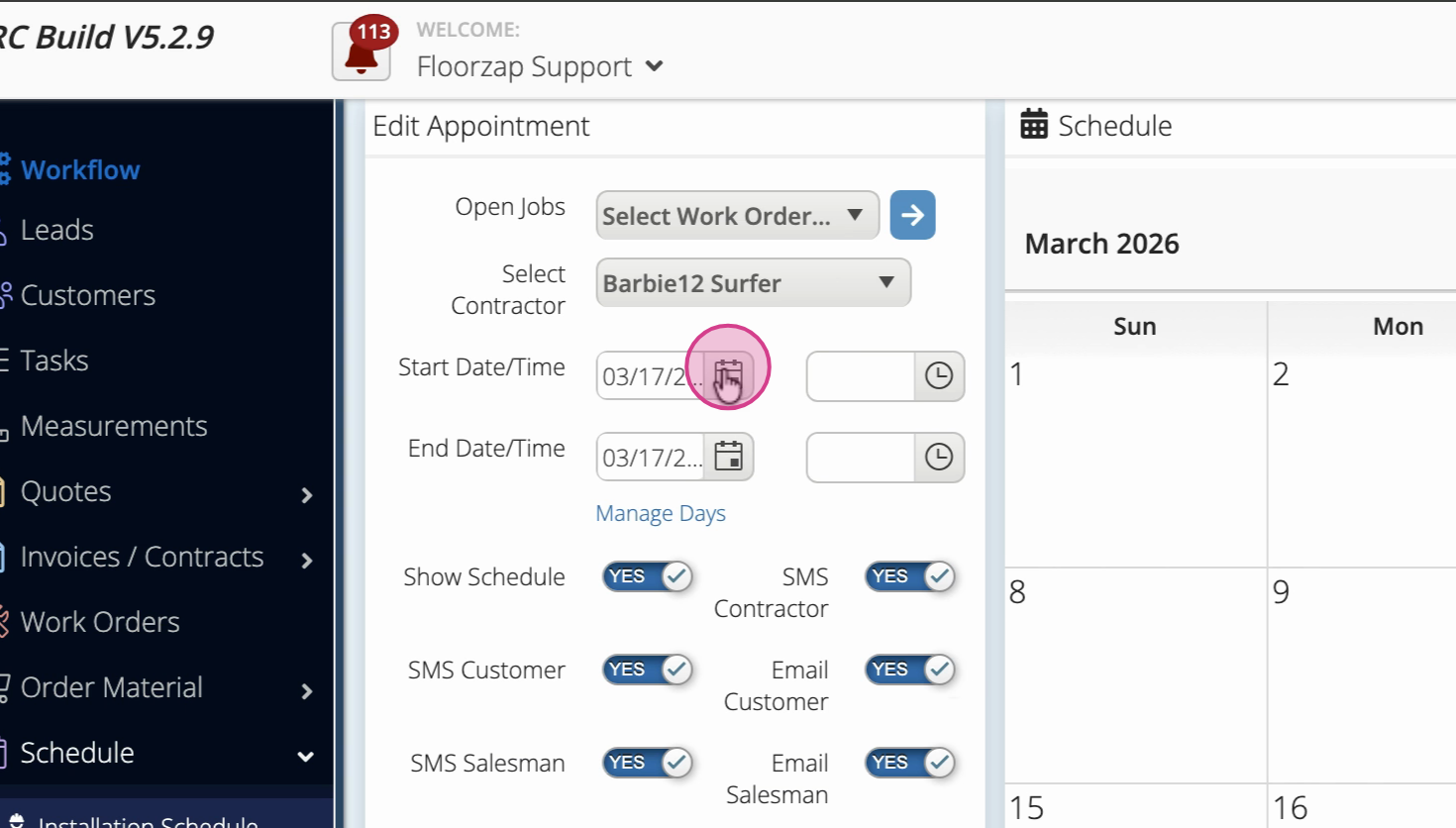
Step 2: Click the current date, then select your new date (e.g., moving it from the 17th to the 30th).
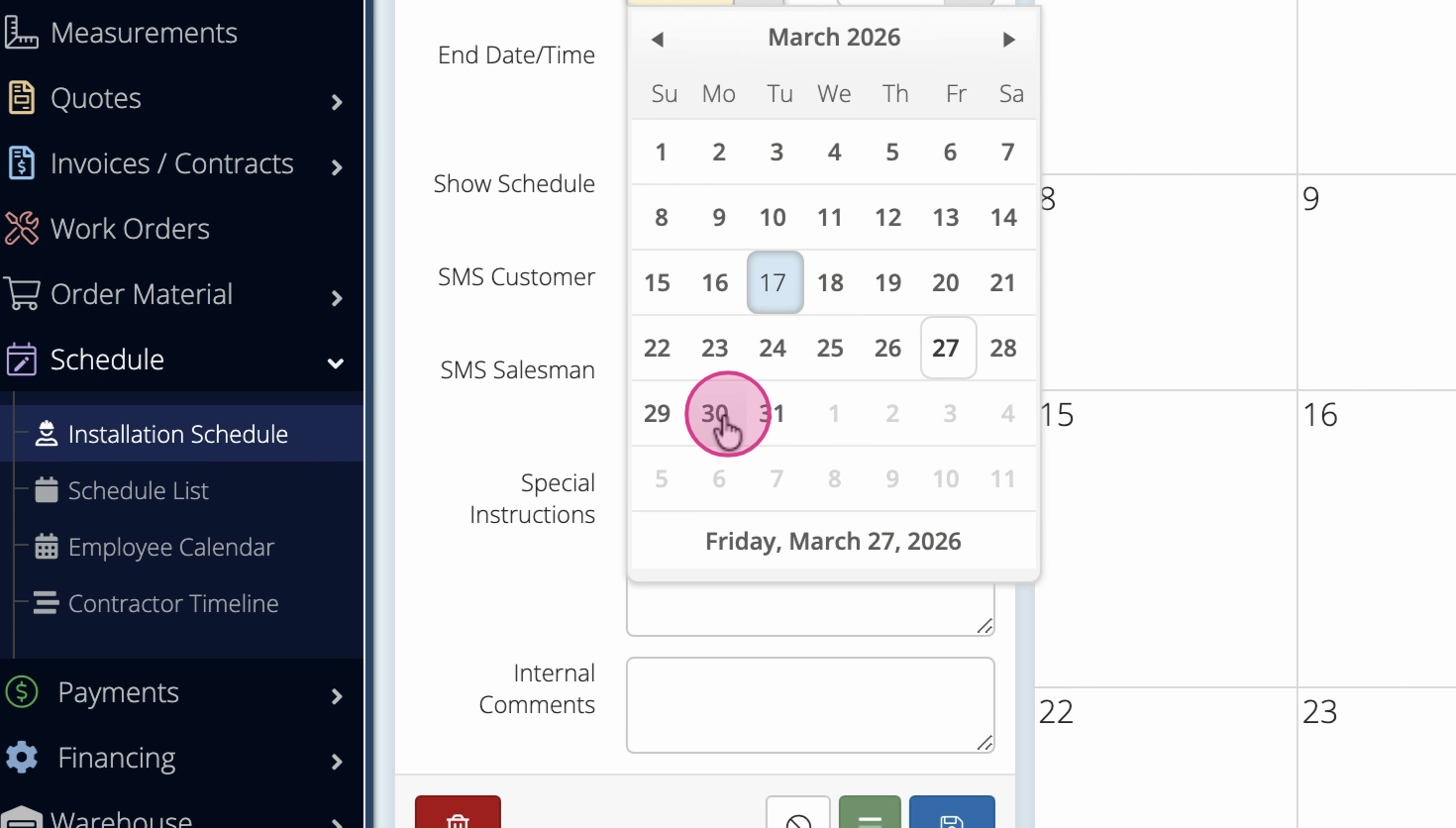
Step 3: Change the date range if scheduling across consecutive days.
Step 4: Hit Save to finalize.
What to Remember
-
If a job is locked due to payment or completion, stop contractor payment first.
-
Removing the contractor makes the job available for re-scheduling.
-
Edit the date directly if changing only the timing, not the people involved.
-
Double-check warnings about contractor insurance or other requirements.
Updating scheduled jobs is simple with these two flexible workflows. You’ll keep your calendar organized and ensure the right people show up on the right day.