
Importing Large Product Files: What to Expect and How to Avoid Errors
When importing products, trying to upload files with tens of thousands of items can cause your browser or system to crash. Here’s what happens with big imports — and how splitting your file helps everything run smoother.
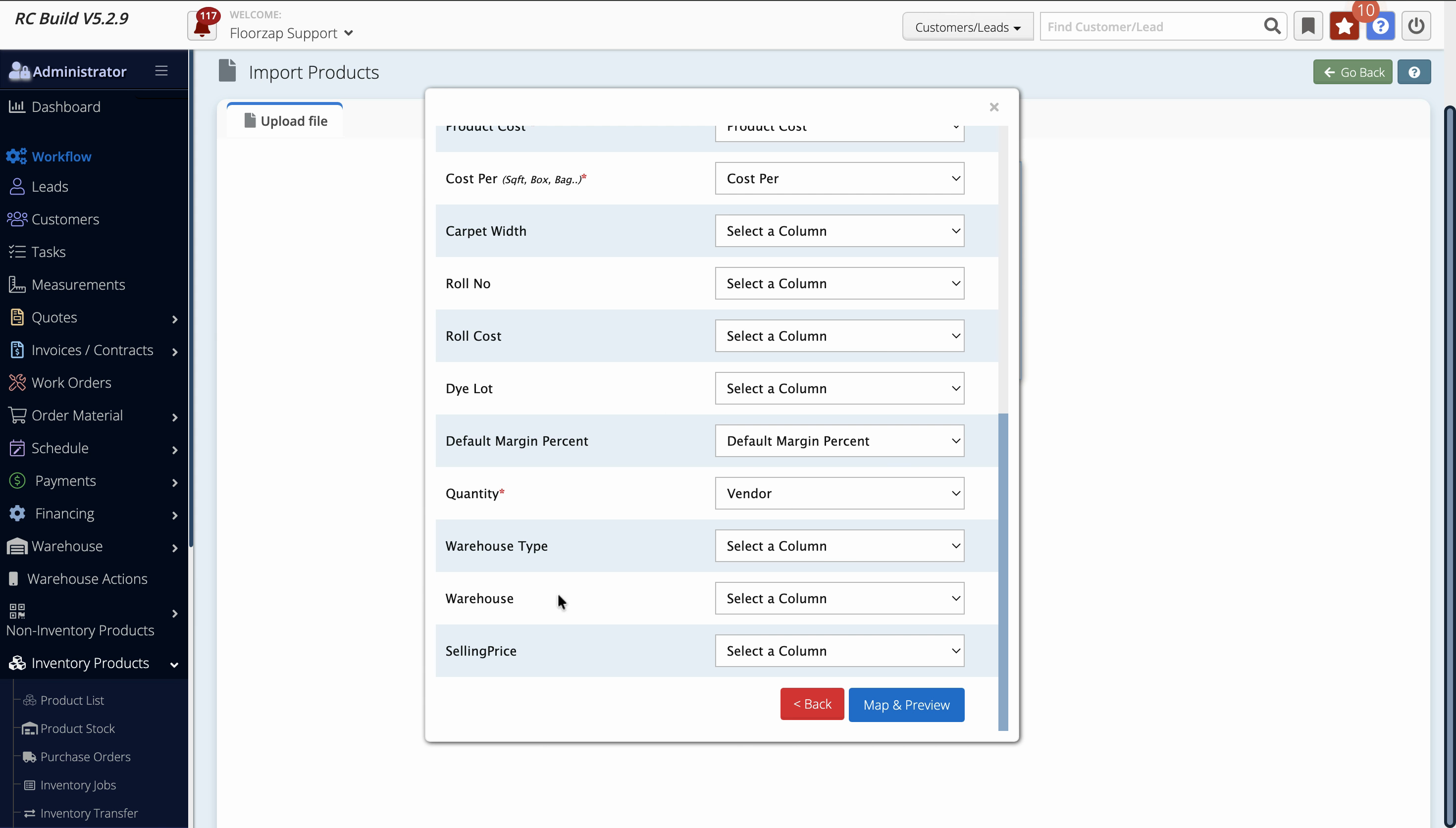
Step 1: Go to the Import products page.
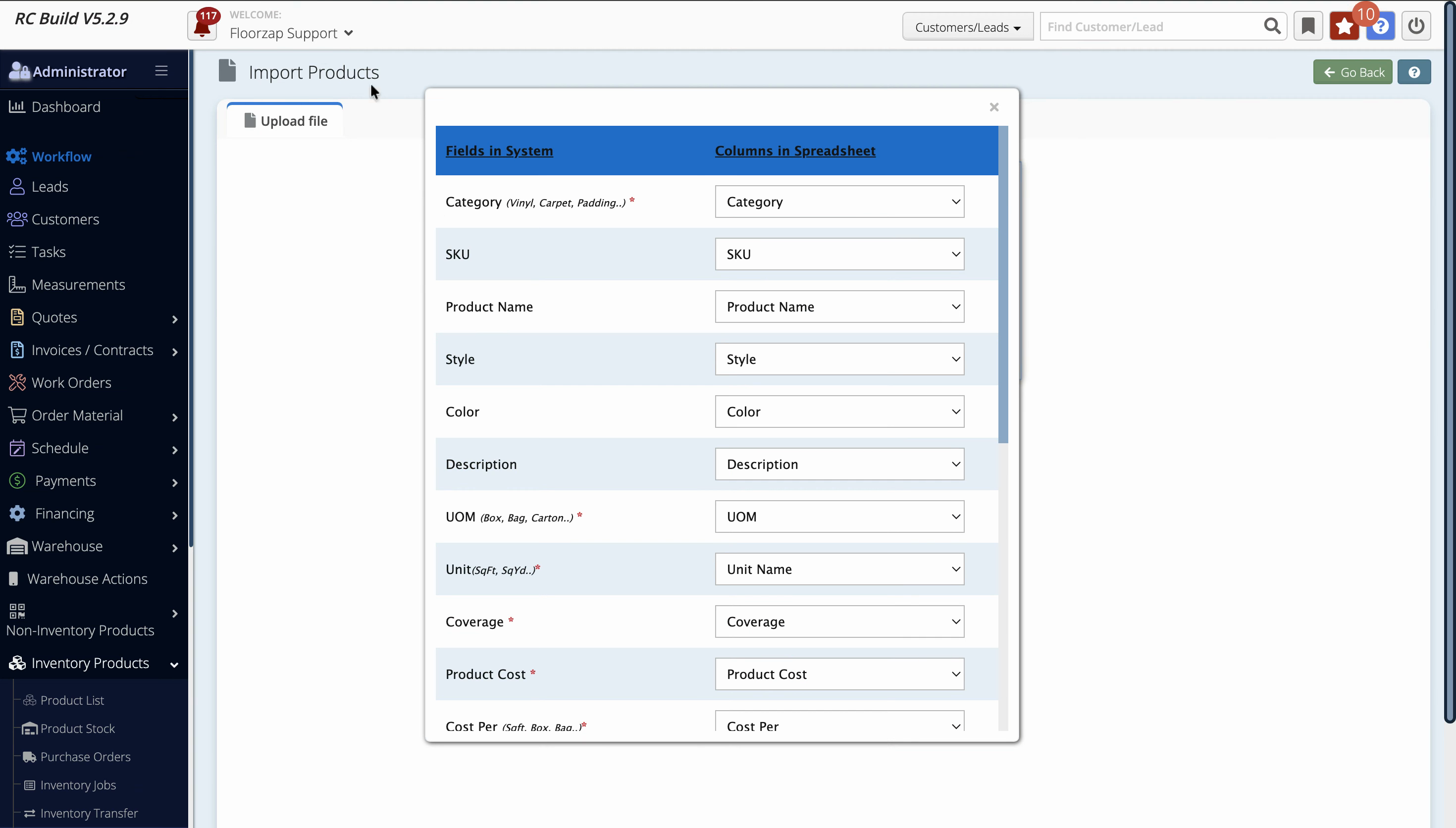
Step 2: Select or upload your product file.
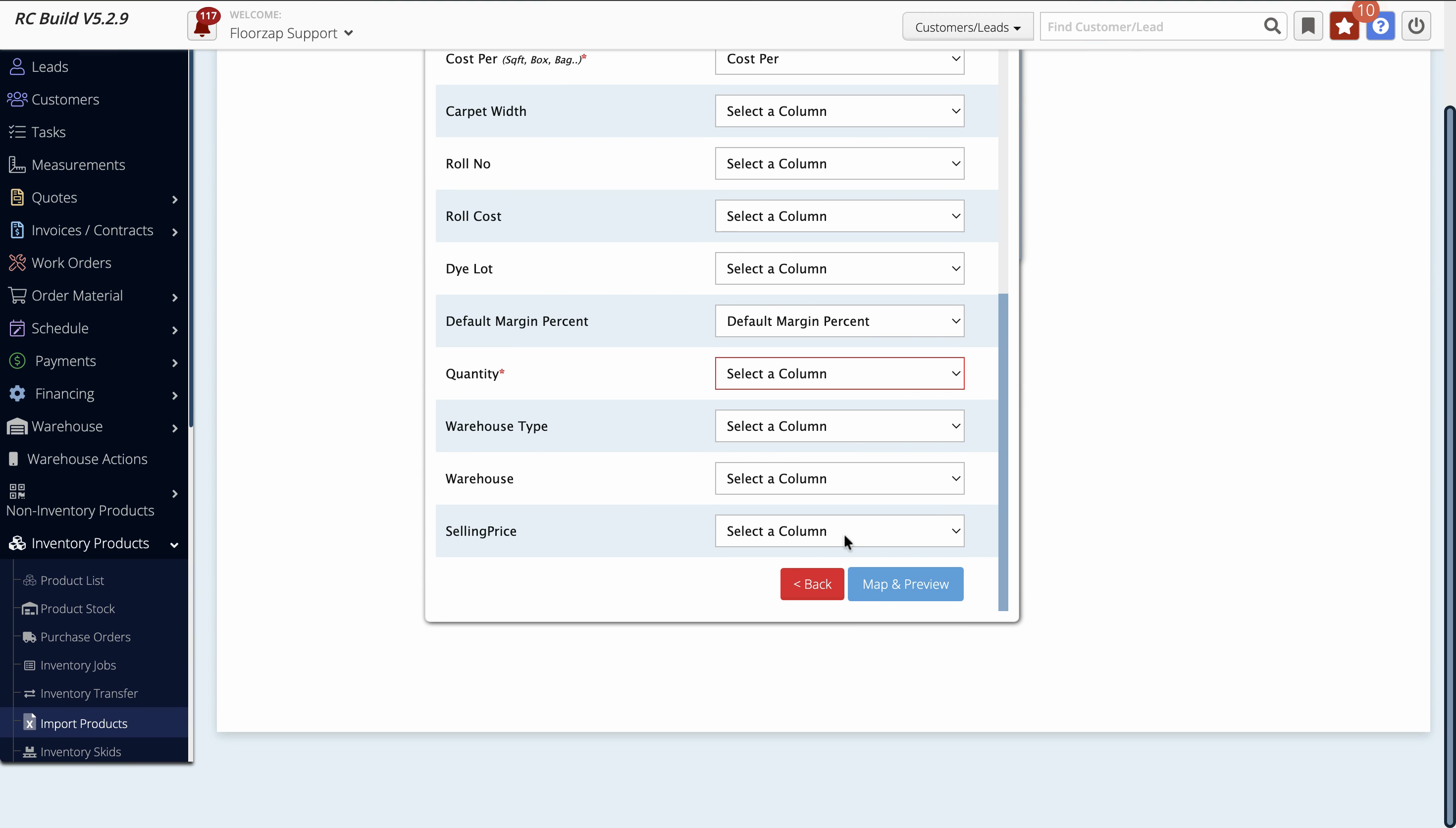
If your file contains too many items (for example, over 38,000), the import process can make the page freeze.
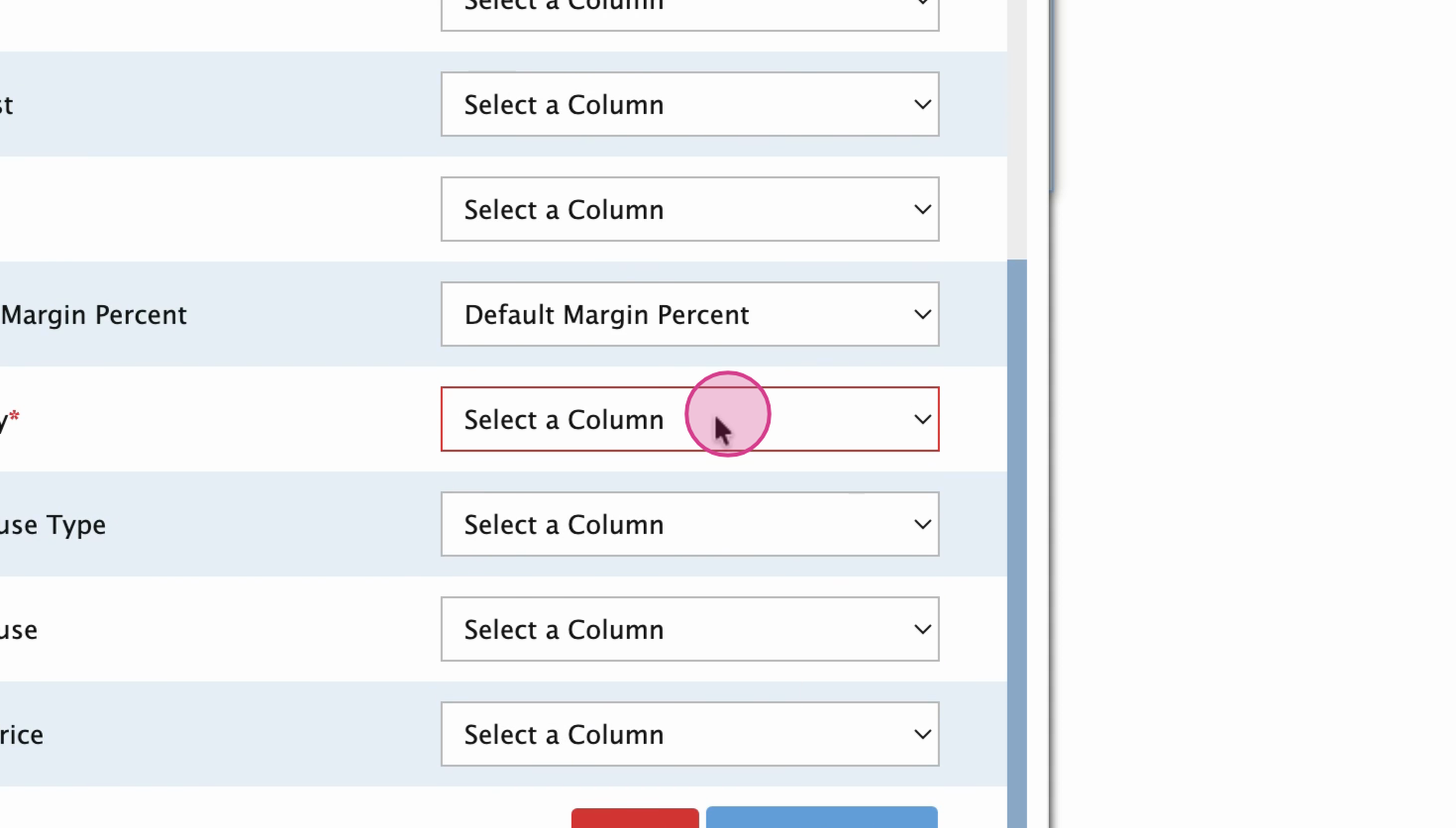
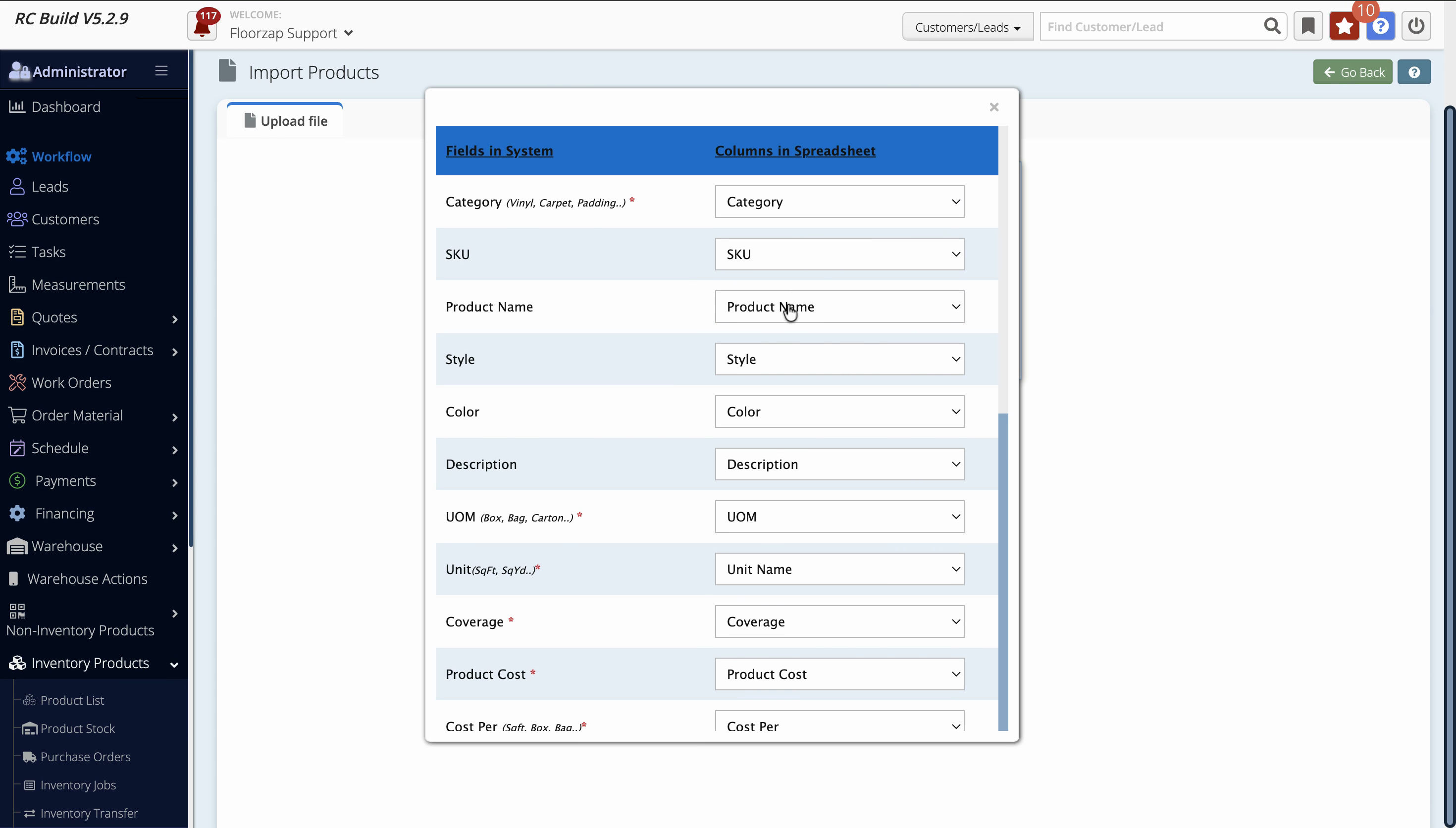
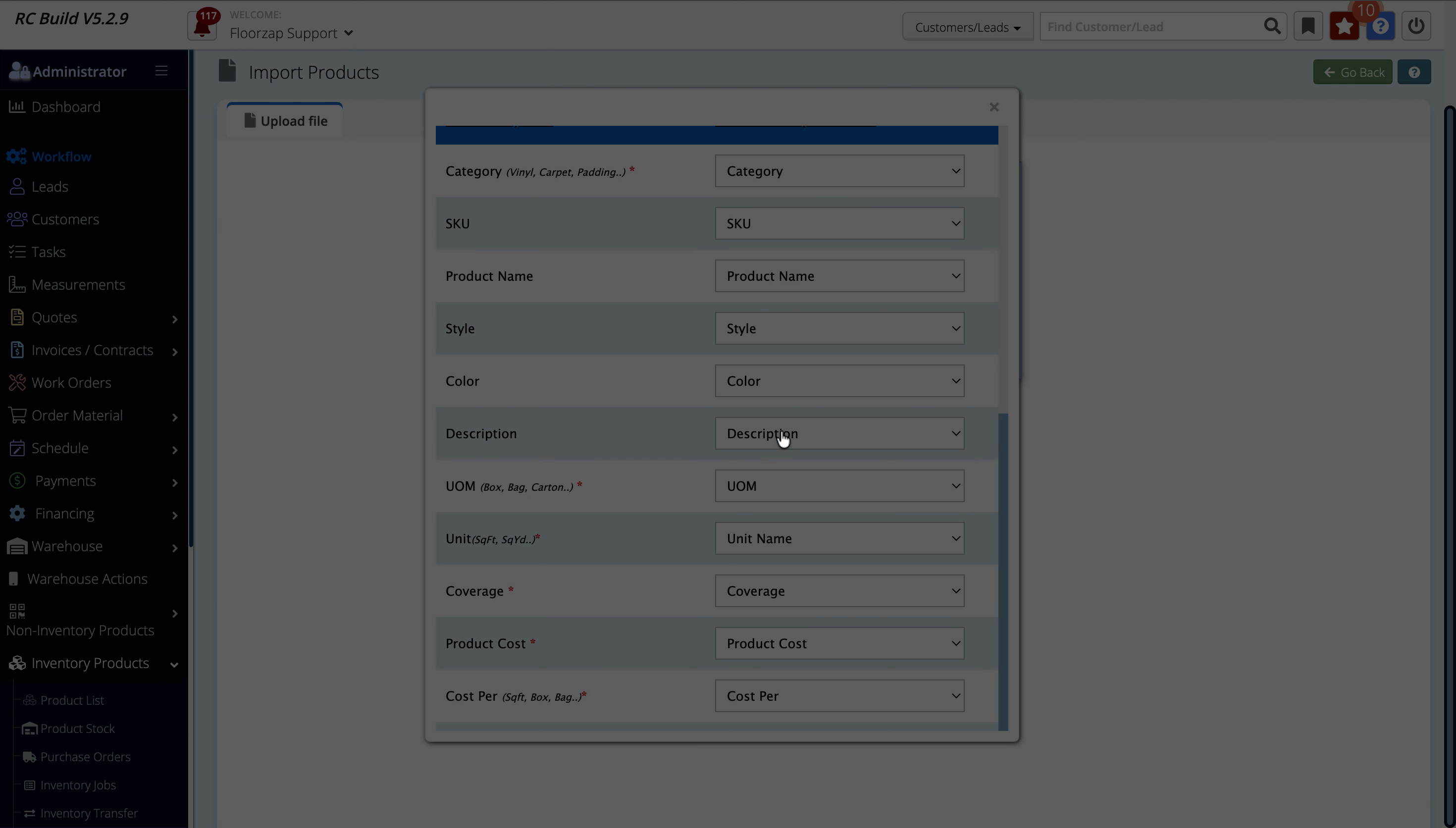
Step 3: Wait and watch for a page unresponsive error. Most browsers will display a pop-up warning when they can't process such a large file.
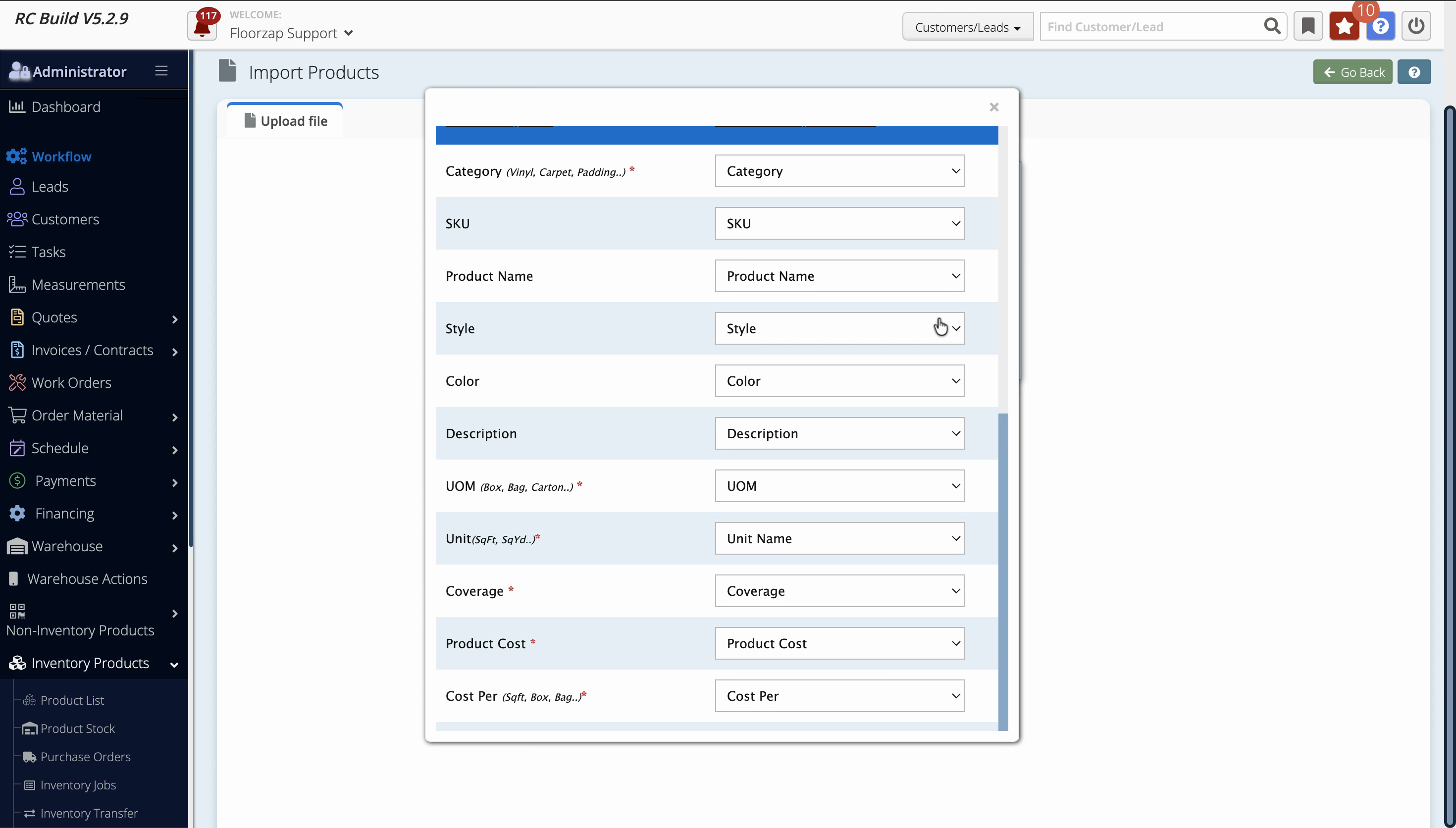
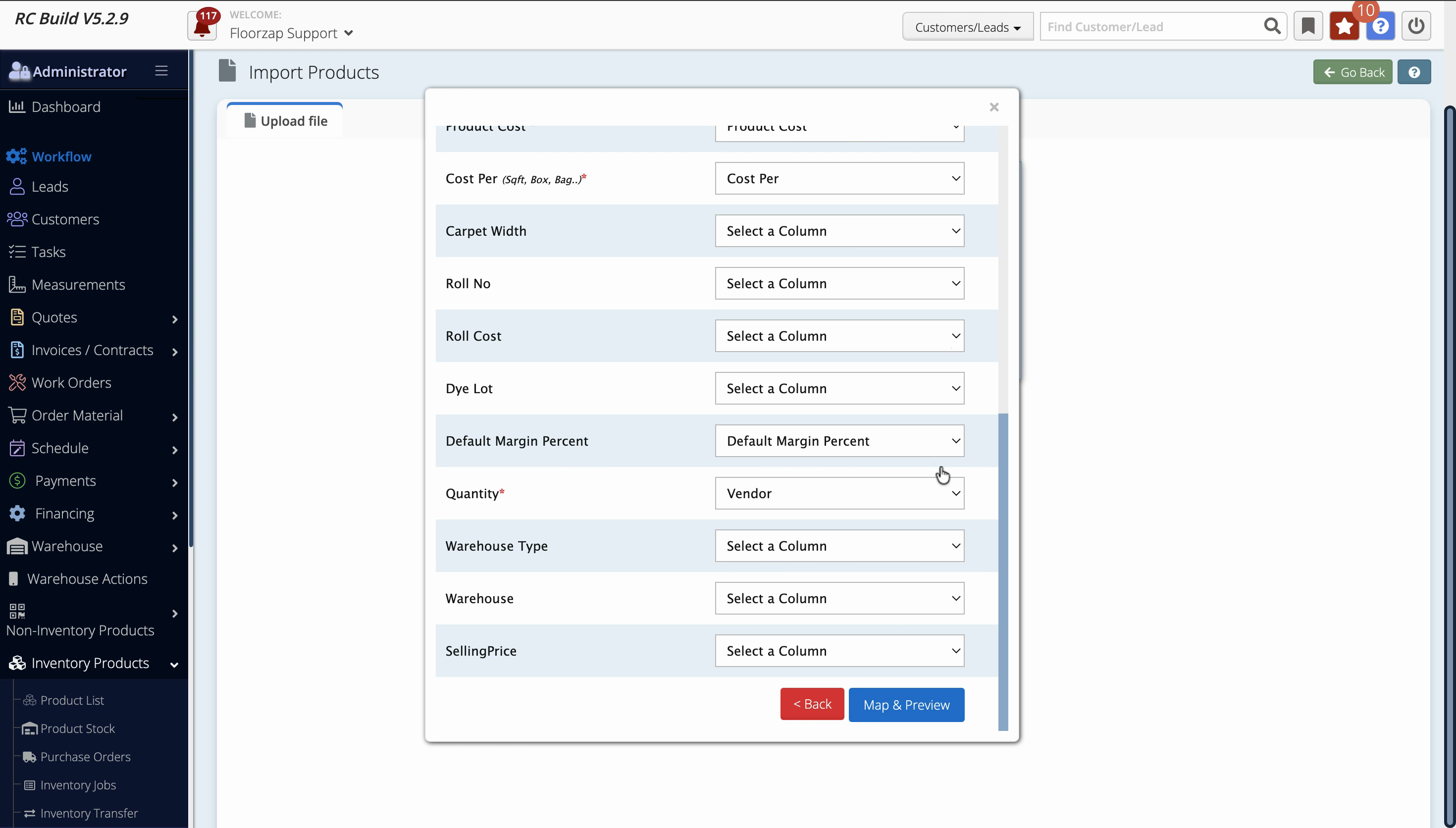
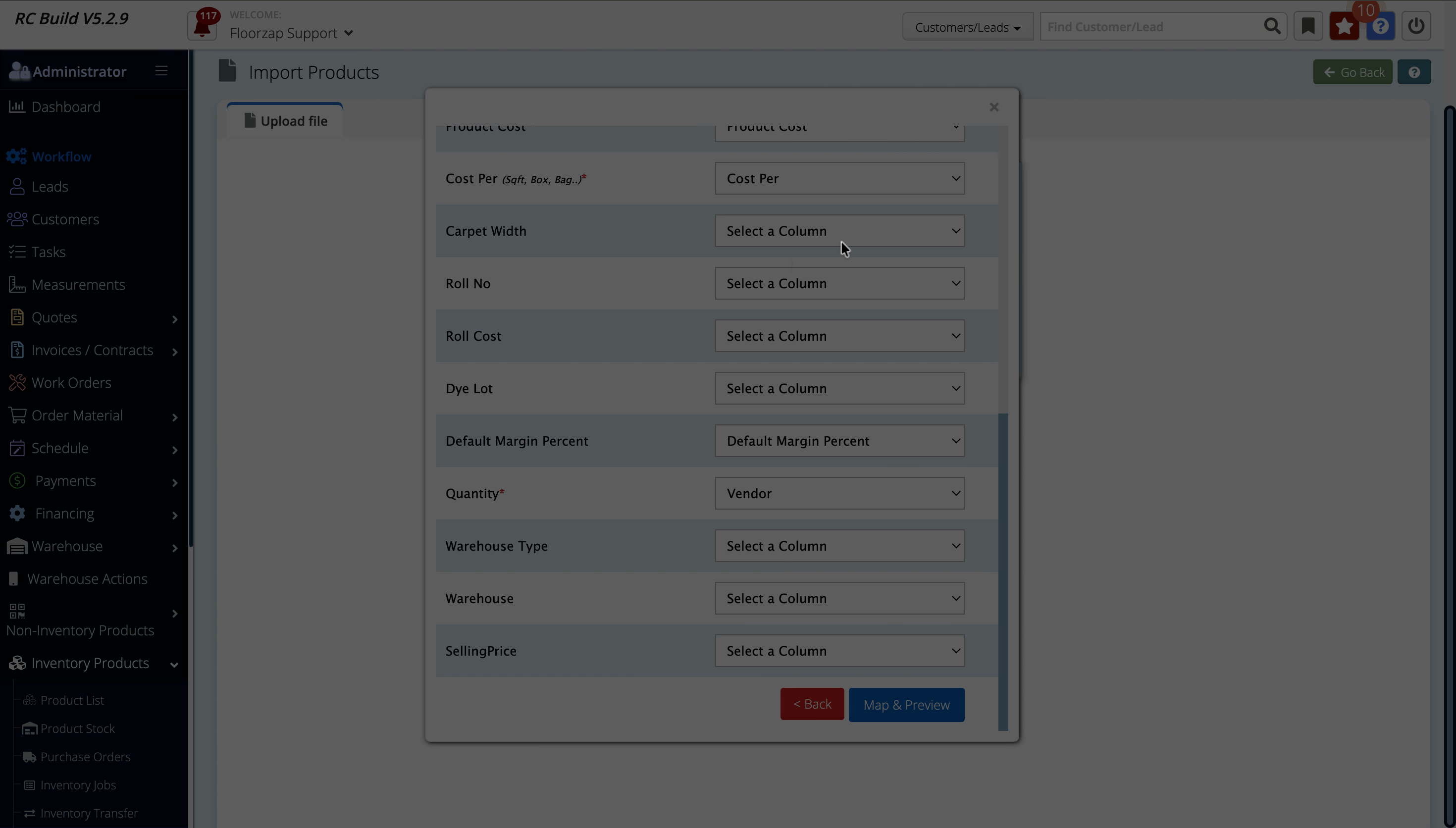
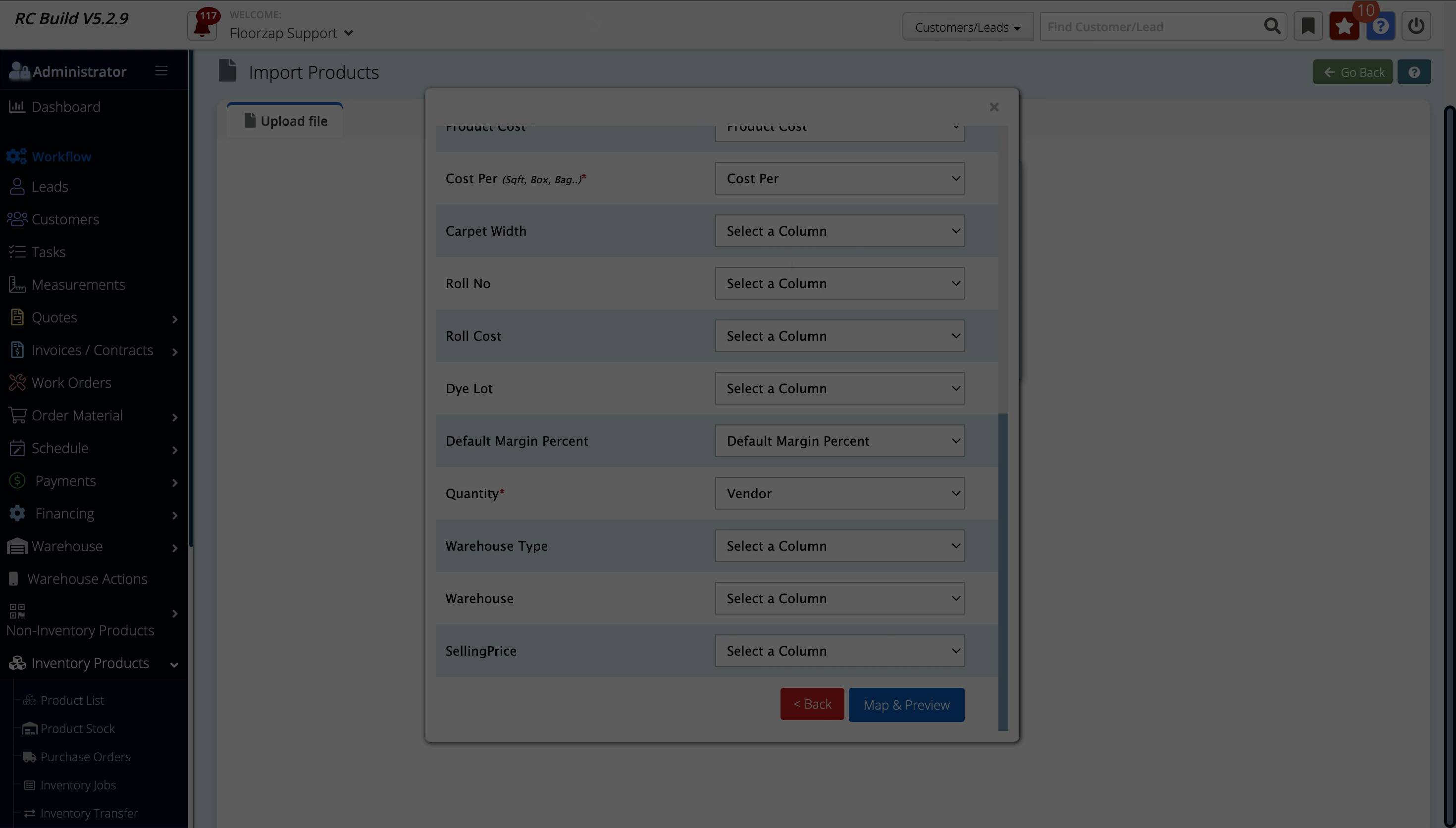
Step 4: If you see repeated page unresponsive errors (sometimes multiple pop-ups), your file is likely too large to import at once.
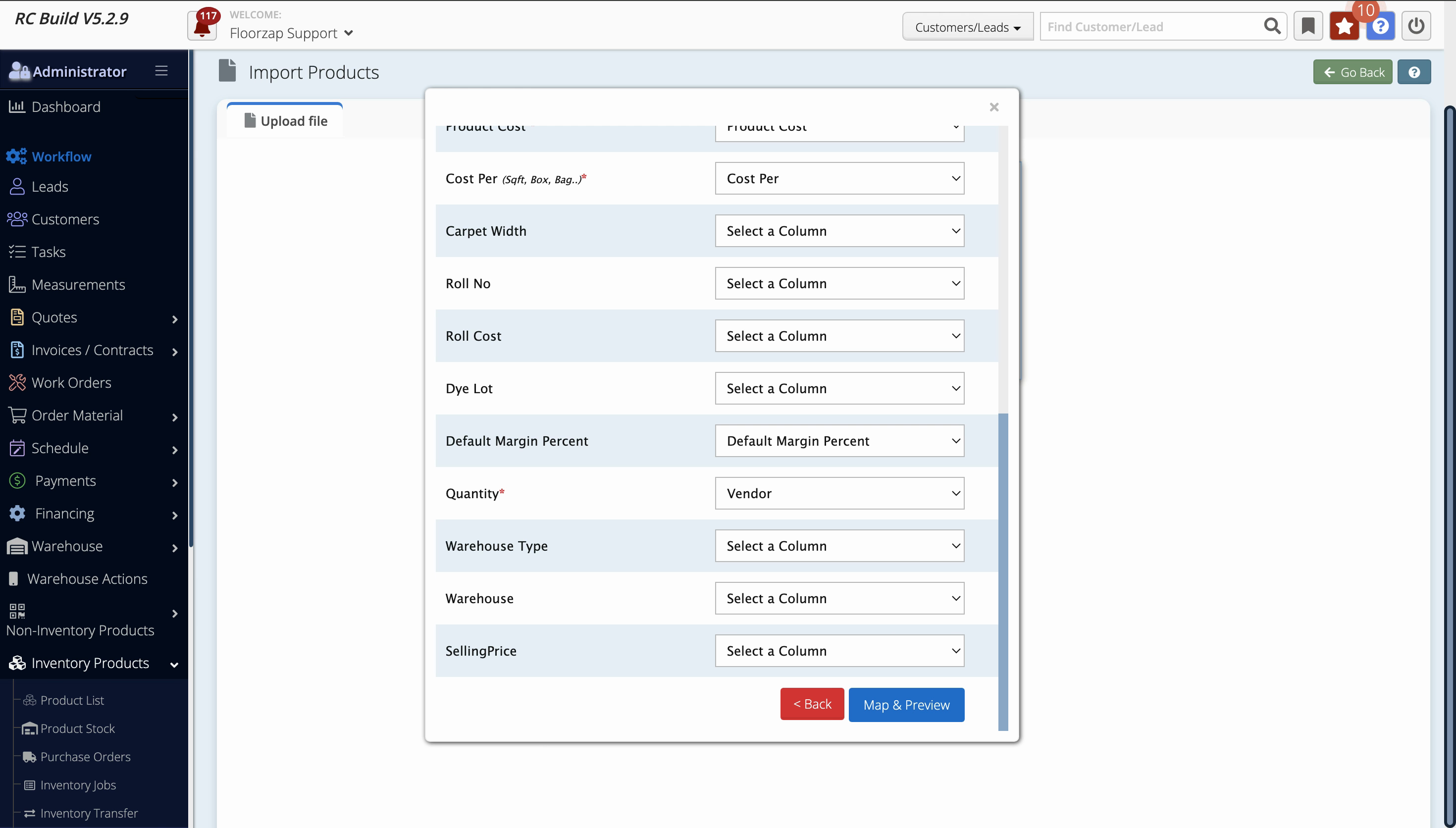
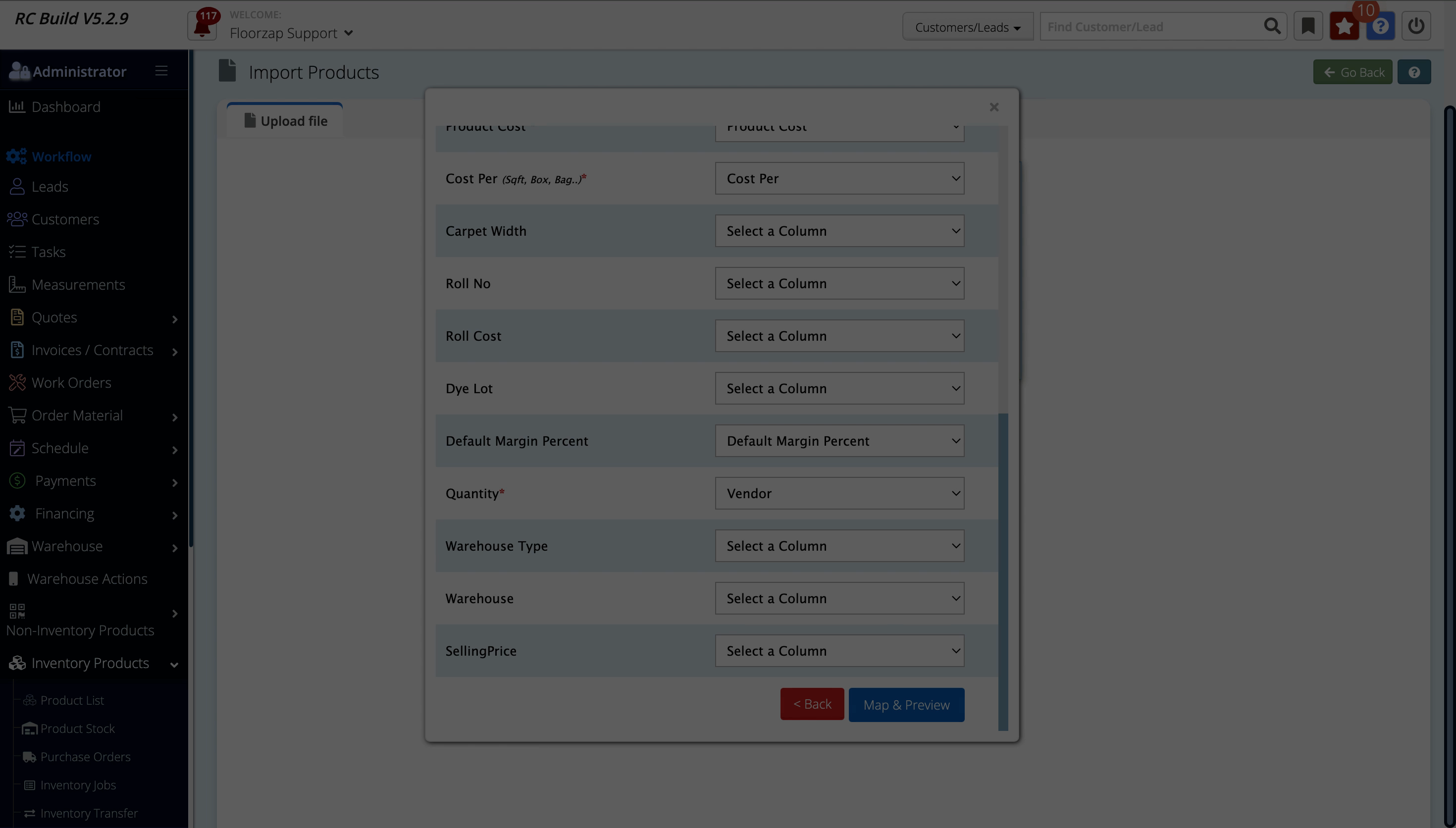
Step 5: Split your original product file into smaller chunks. Each smaller file should contain fewer items so the import runs more reliably. This way, you’ll avoid the constant page unresponsive errors and improve your chances of completing the import.
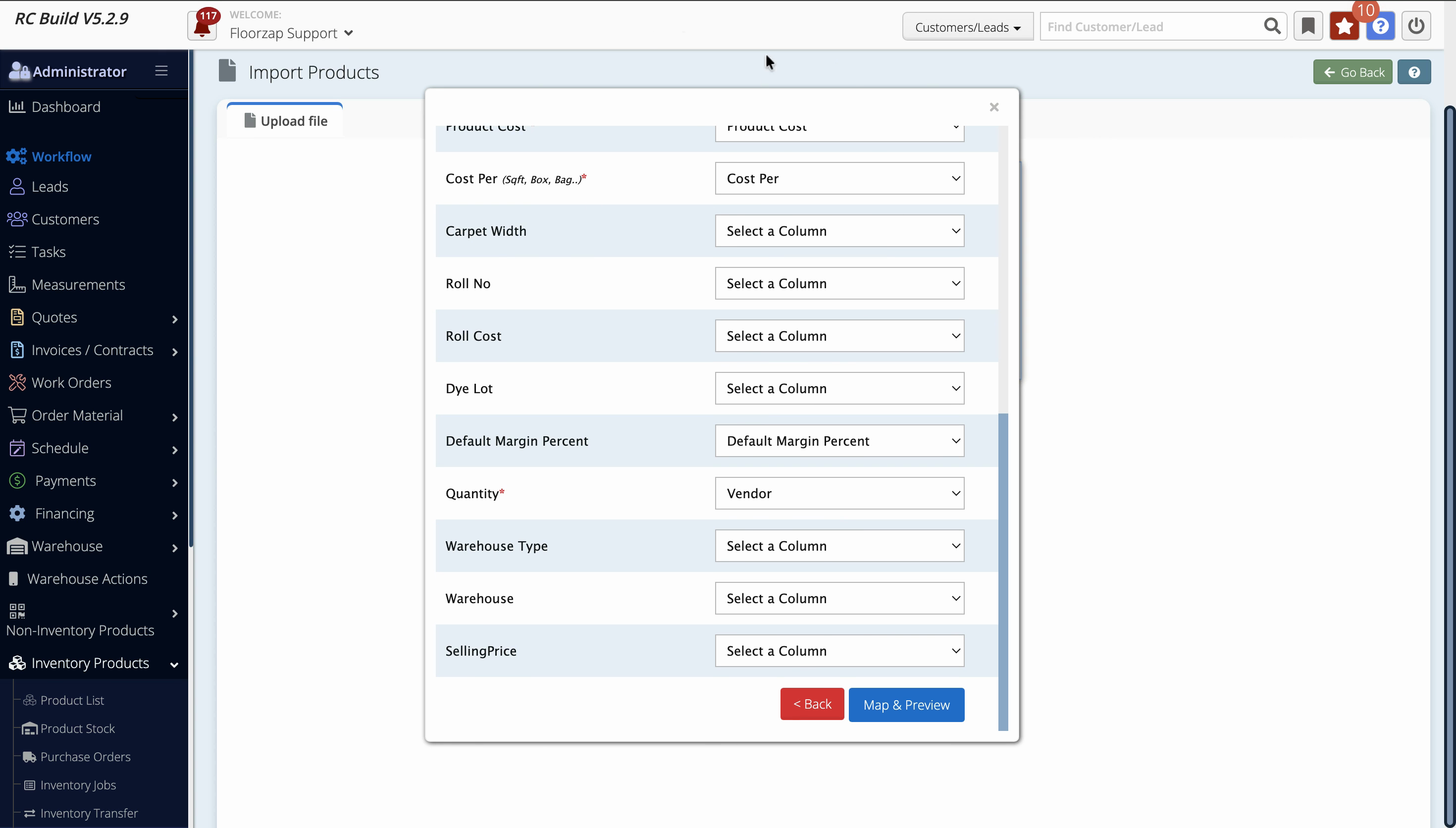
Trying to import massive product files in one go often leads to frustration and wasted time. Splitting large files into manageable sizes helps your import finish successfully and keeps your browser responsive.