
FloorZap can automatically send your customers an SMS with a review link after a job is completed — but this feature must be manually enabled before it will work. If your customers aren't receiving review link texts, this setting is the most likely cause. Once enabled, the SMS will send automatically and the record will appear in your Sent Messages report.
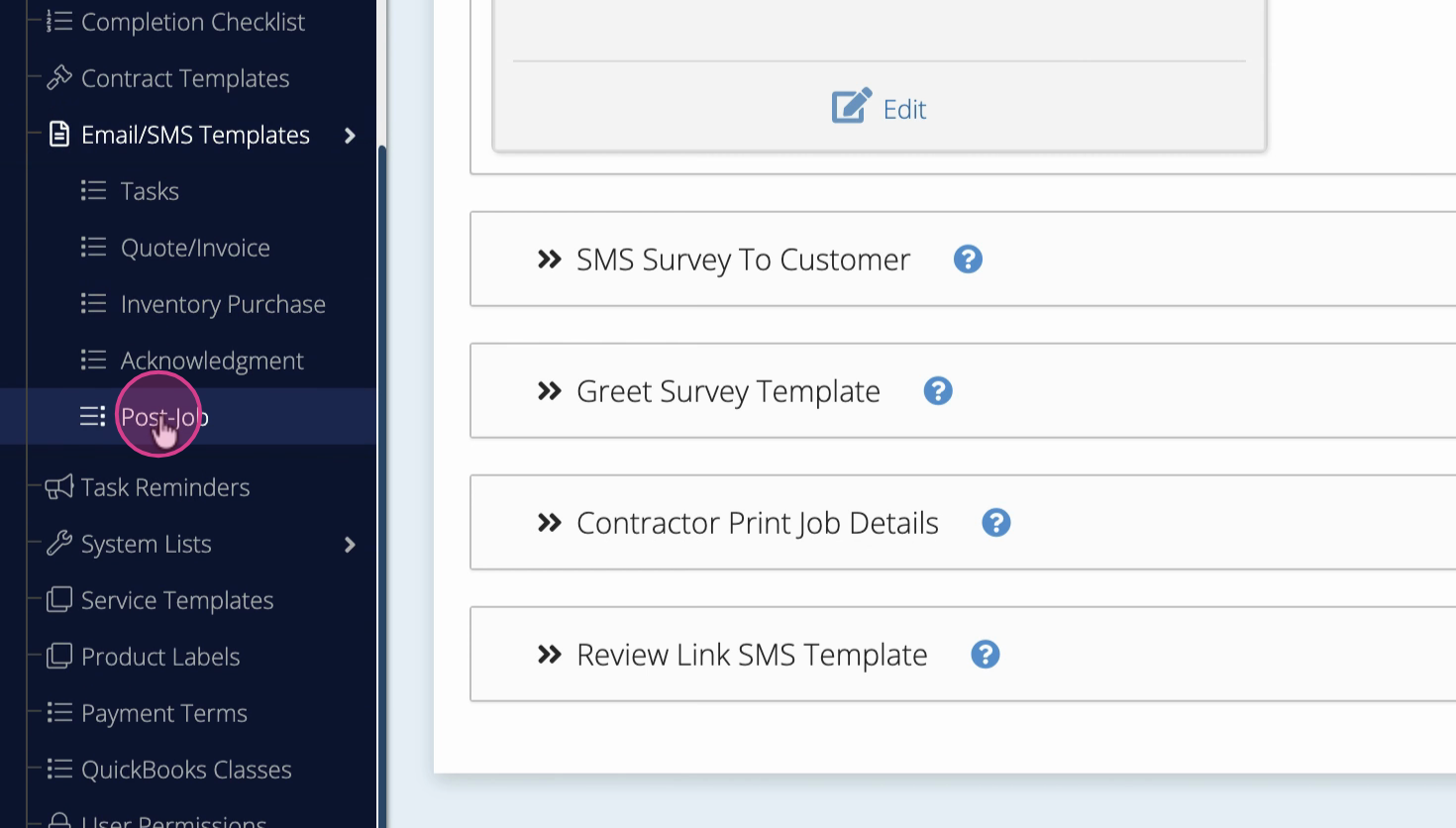
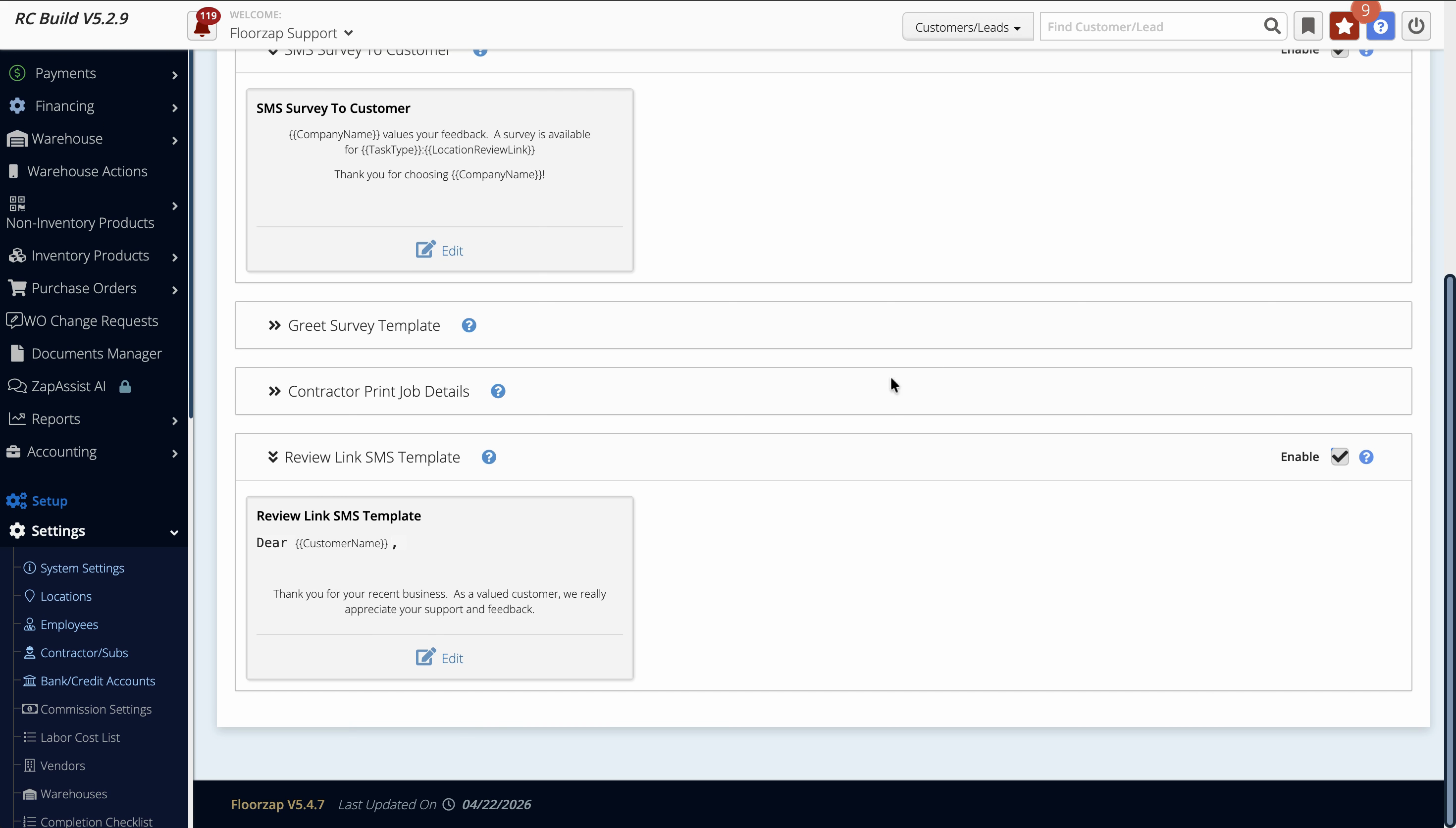
Steps: Settings > Email/SMS Template > Post Job > Review Link SMS Template > check Enable and save.
Customize and Enable Post Job Survey Templates
Quickly send your customers post-job surveys by setting up and enabling Email and SMS templates. This guide walks you through finding, editing, and making sure your survey messages are ready to send.
Step 1: Open Settings from your dashboard.
Step 2: Select Email and SMS templates.
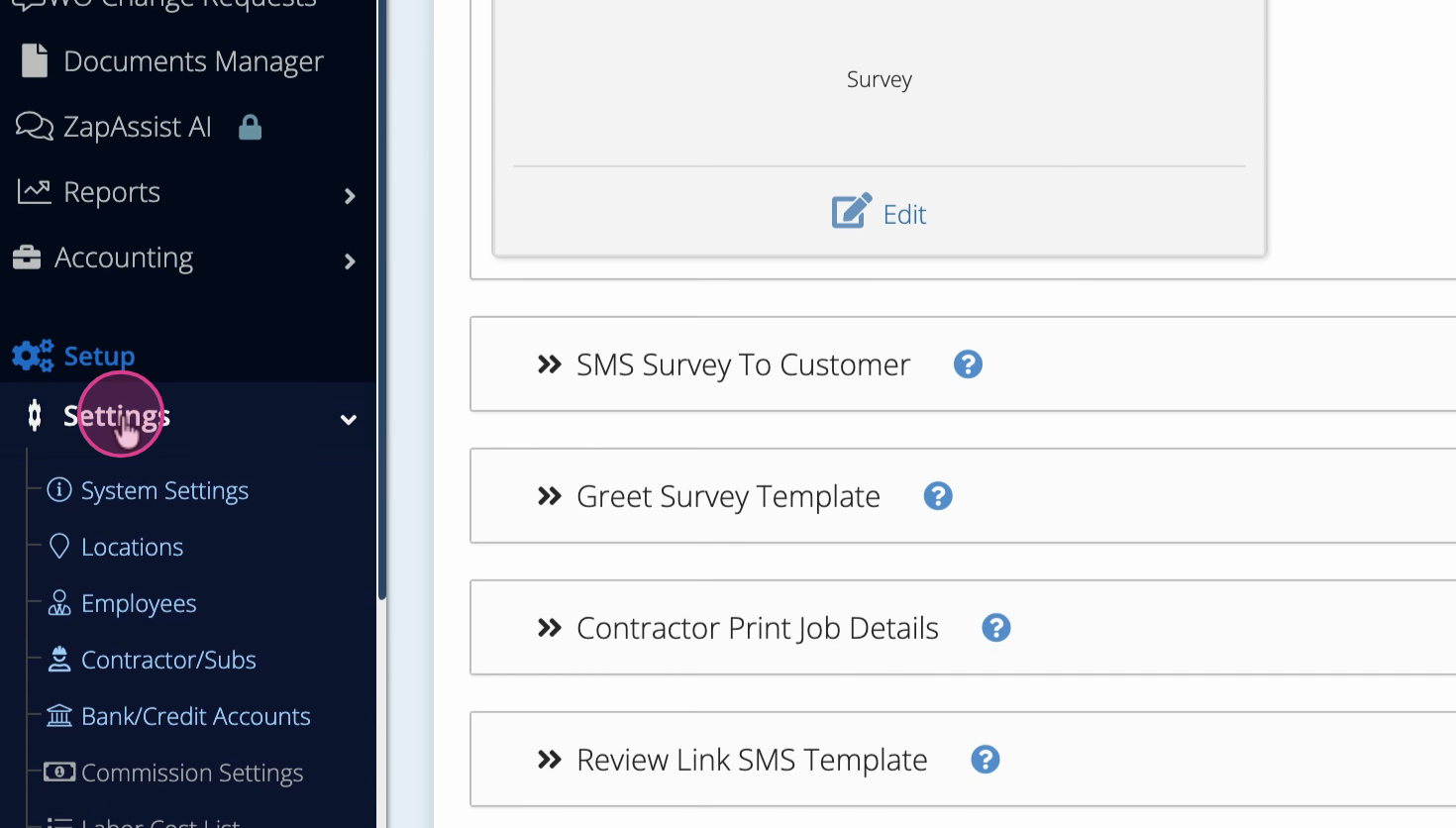
Step 3: Click Post Job under your templates list.
Step 4: In the Post Job survey email template section, check if the Enable box is selected. If not, surveys won’t send to customers.
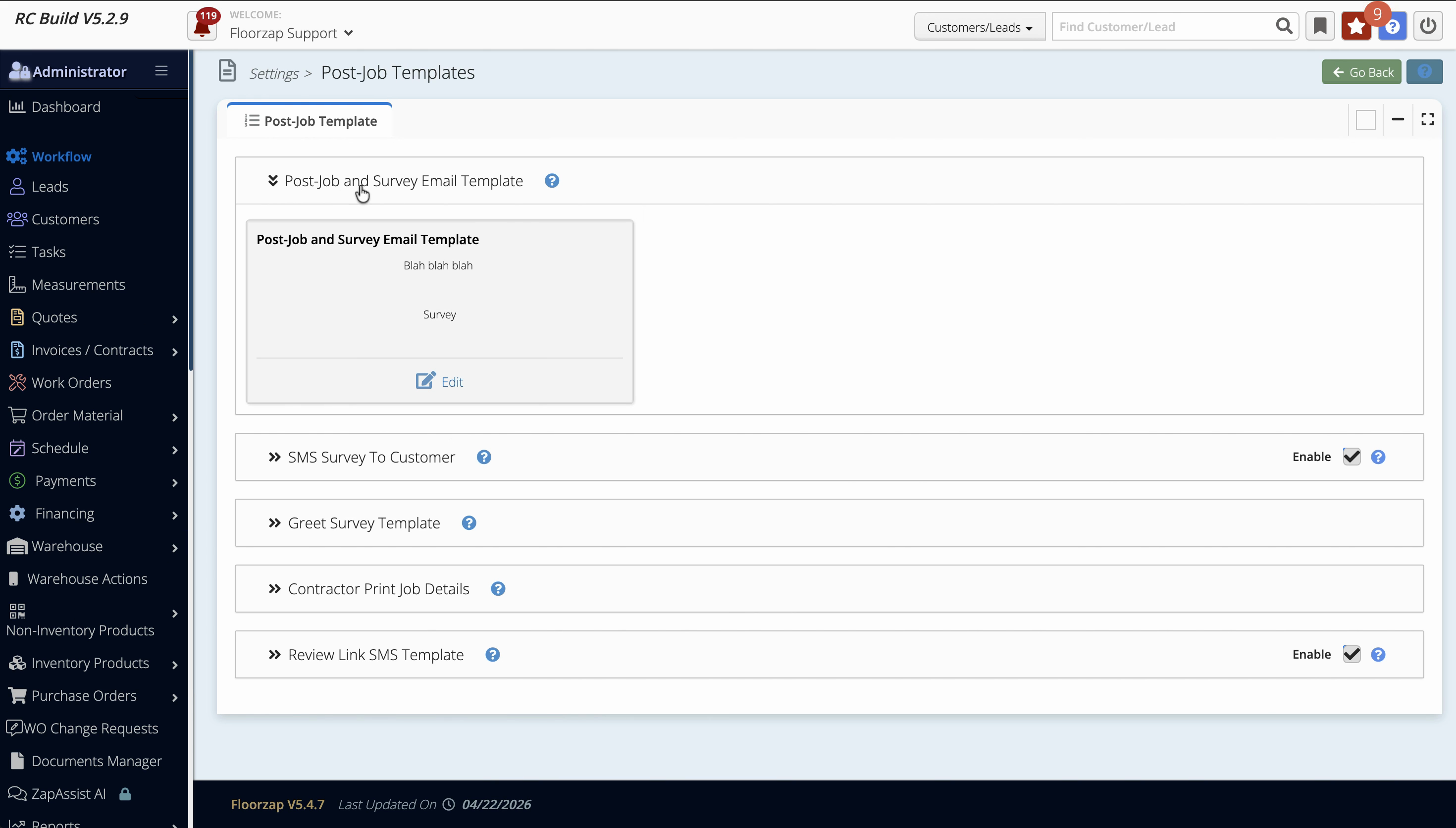
Step 5: To edit templates, use the corresponding edit buttons:
-
Click the edit box for the SMS review link.
-
Click the edit box for the SMS survey.
-
Click the edit box for the Post Job email survey template.
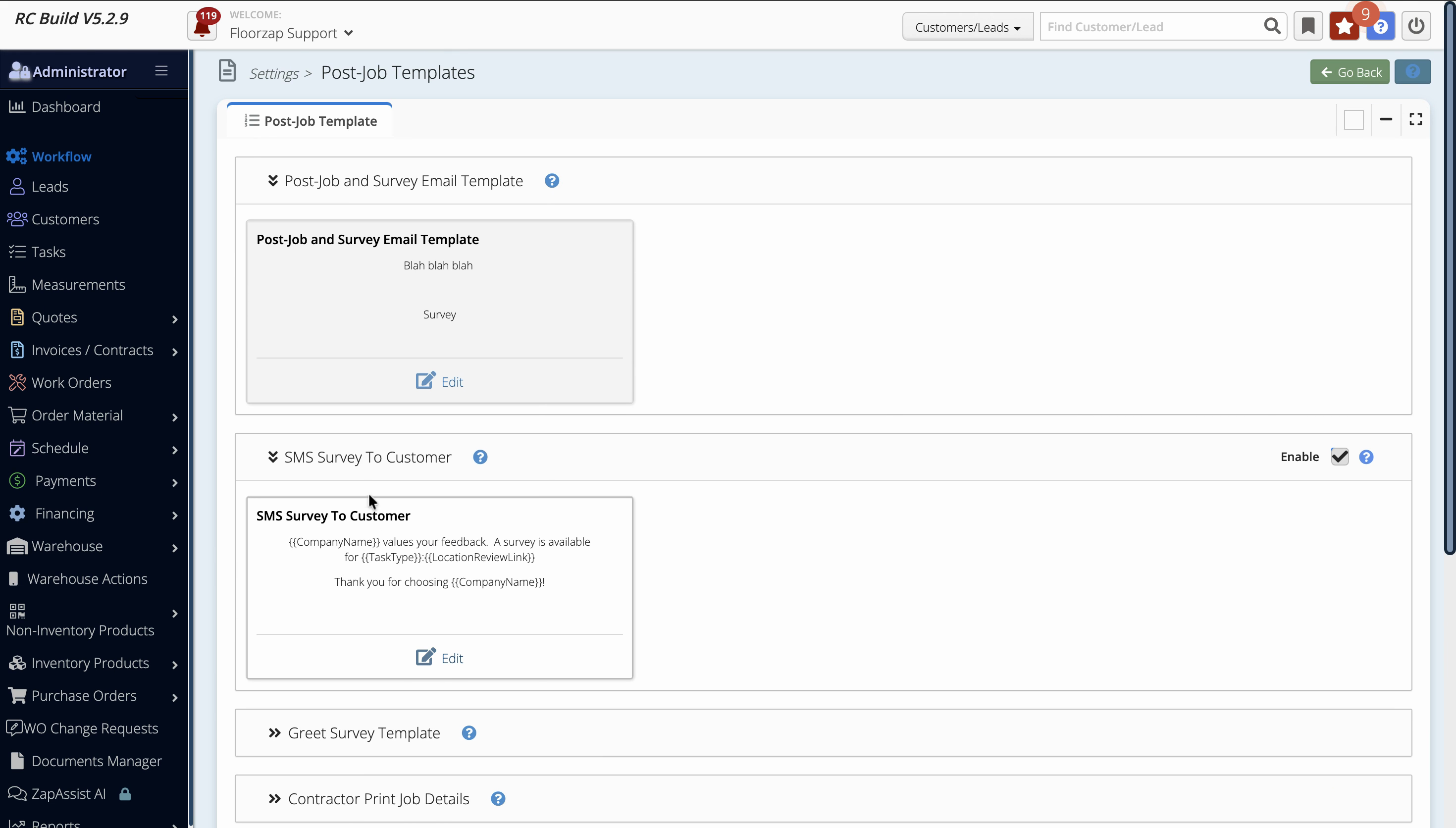
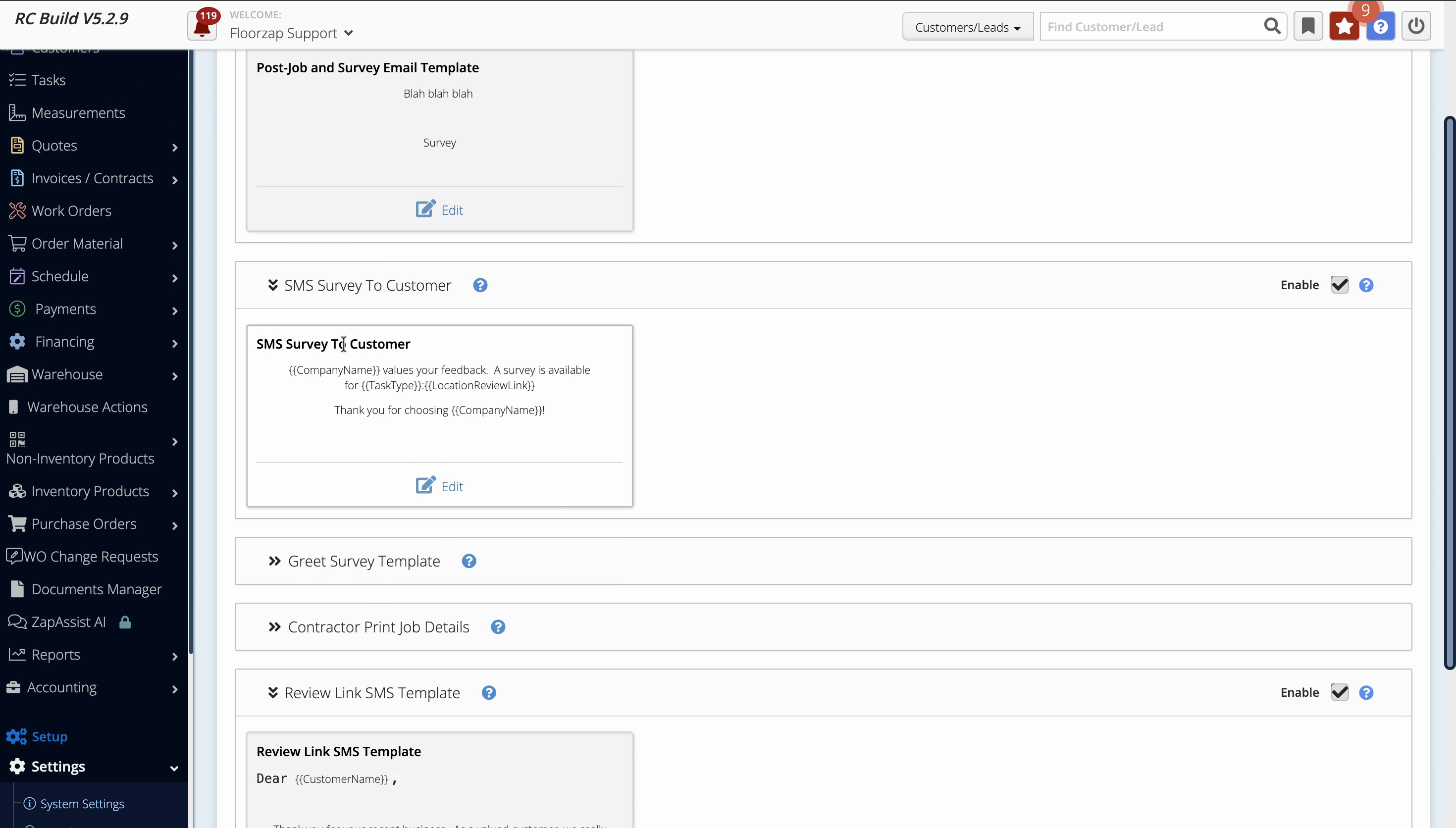
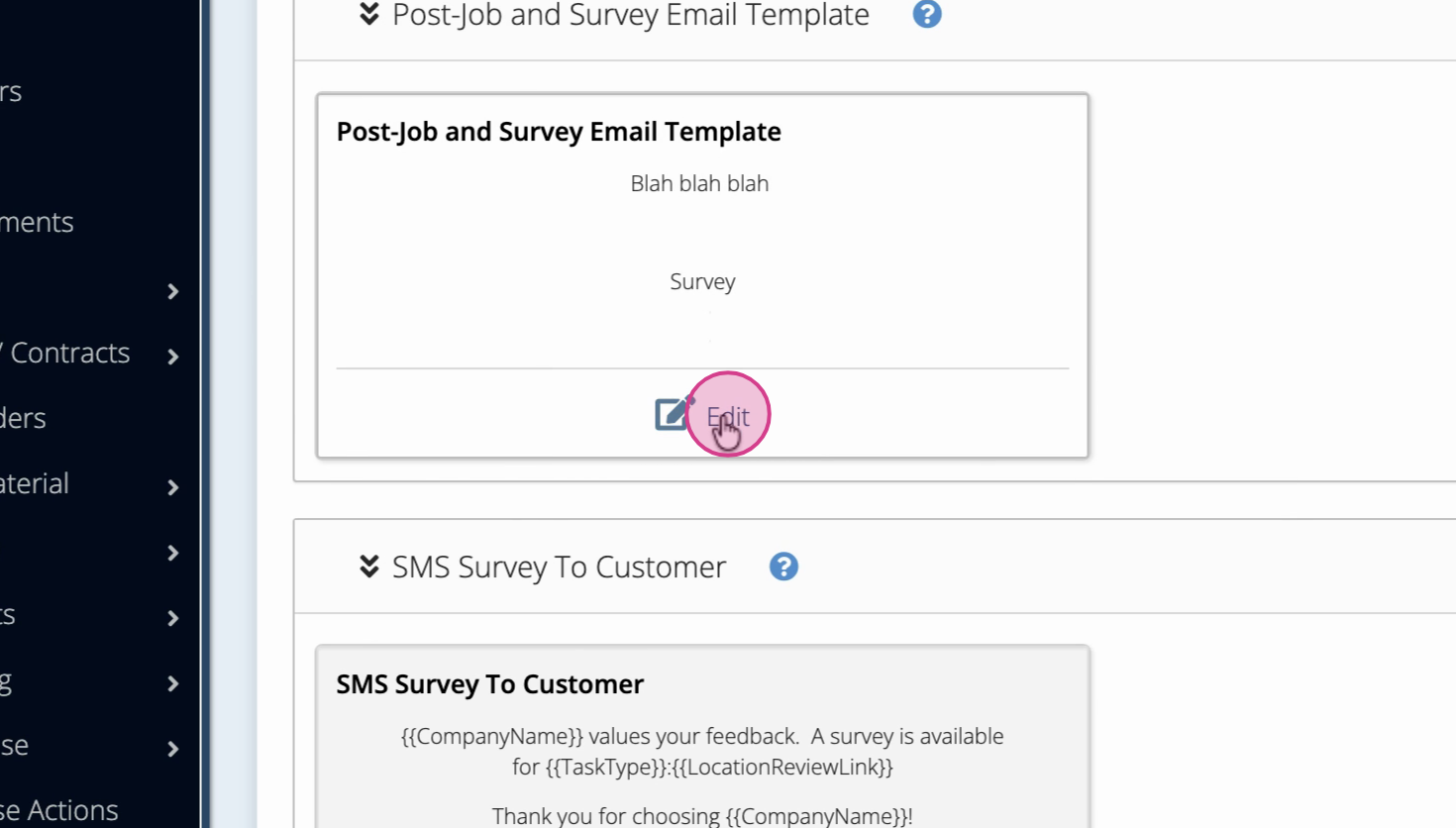
Step 6: Make changes to your templates as needed, then ensure the Enable box is checked for each method you want to use (SMS or email).
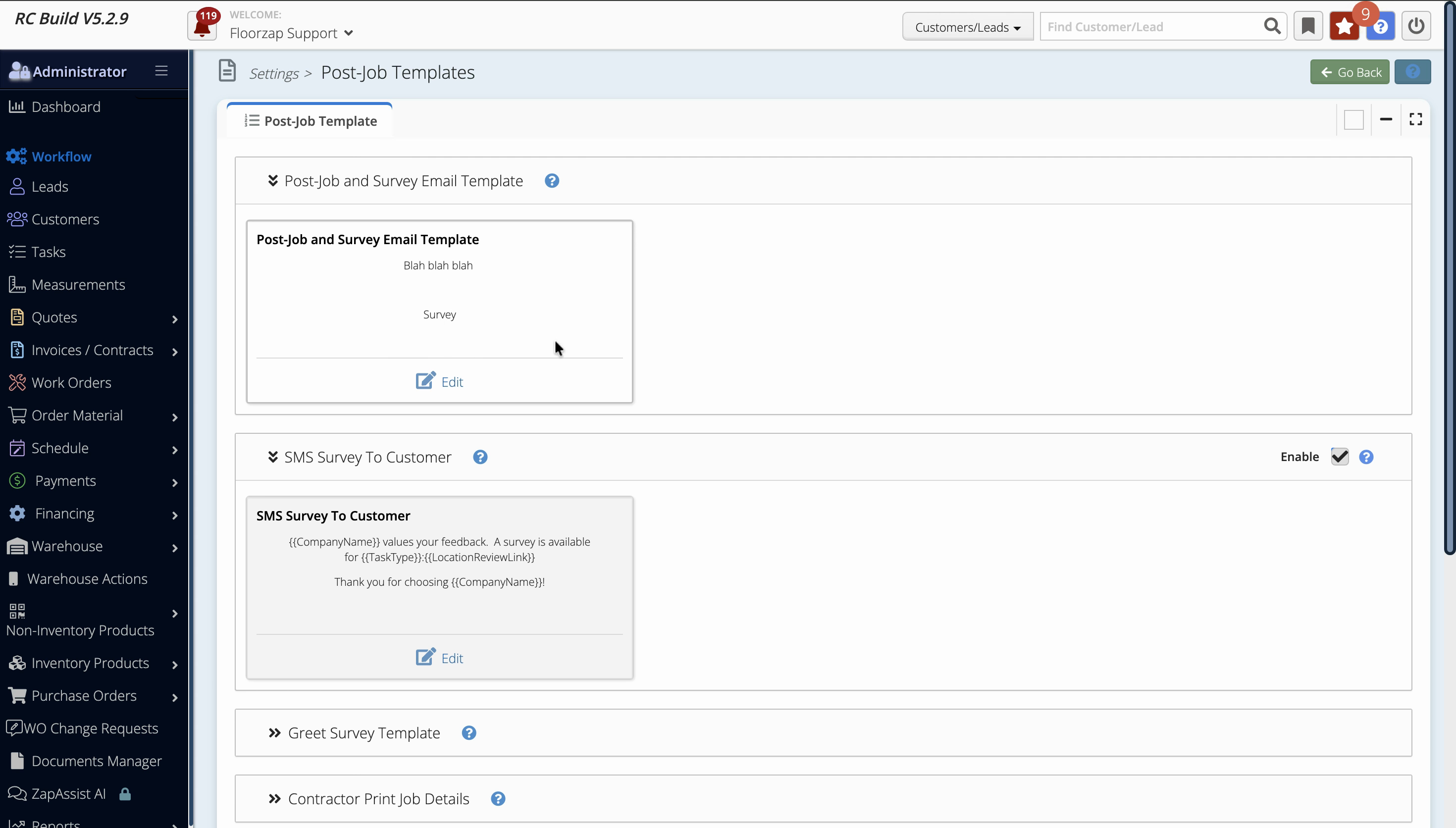
Step 7: Explore other available templates and update them as needed by clicking their edit boxes.
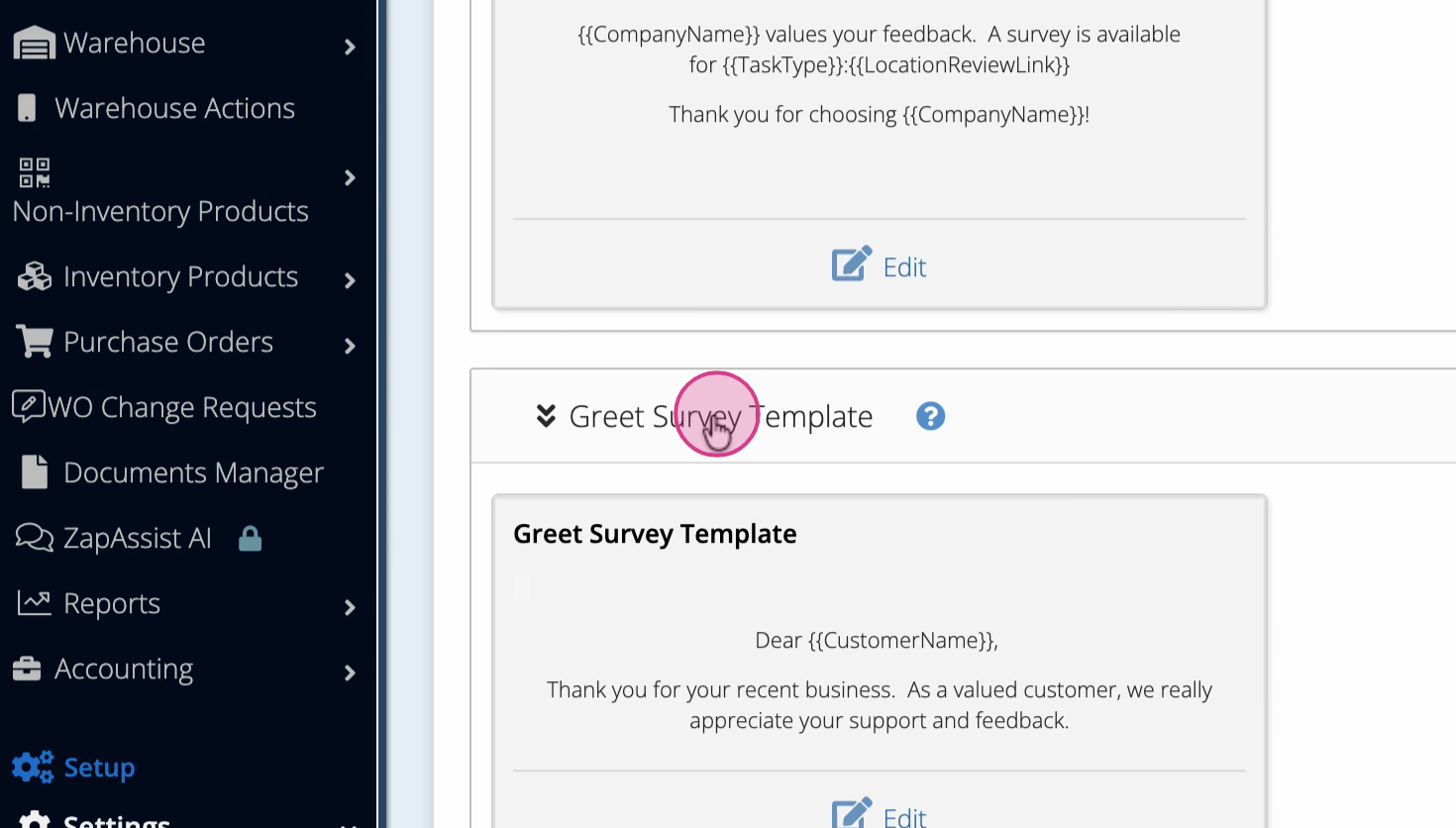
Step 8: Confirm all relevant templates are enabled so your post-job surveys reach customers by your chosen method.
Enabling and customizing your survey templates ensures you consistently collect feedback via SMS or email after each job. Take a moment to review your message content and keep those Enable boxes checked so nothing slips through the cracks!