
How to Manage Calendar Event Permissions for Employees
Learn how to grant or restrict access so that users can view different employees' calendar events. Adjusting these permissions ensures only the right users can see and manage schedules across your organization.
Step 1: Open Settings and choose User Permissions.
Step 2: Decide how you want to manage permissions: by Role or by User. For individual user settings, go to Permissions by User.
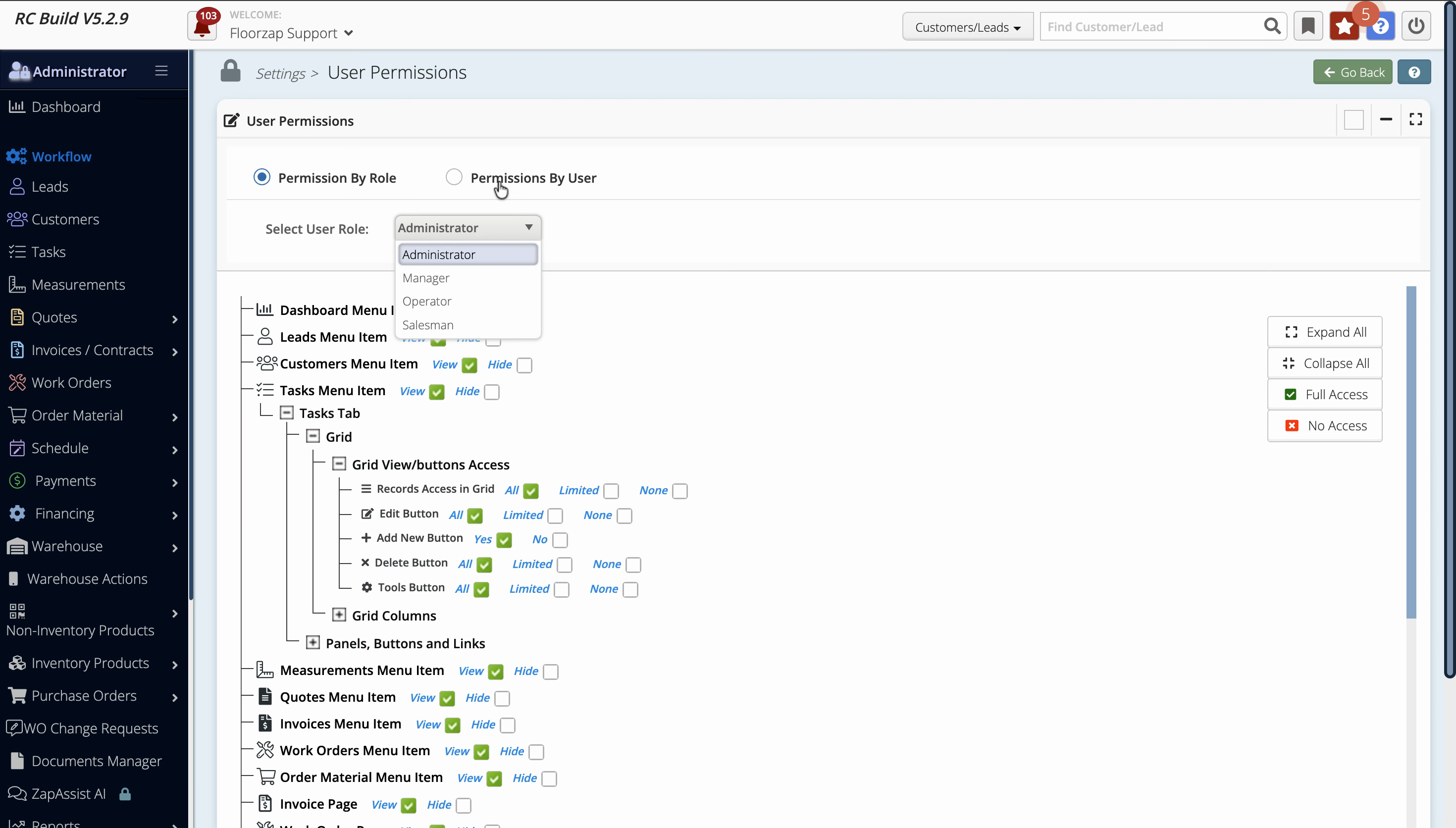
Step 3: Pick a user to update their settings. For example, select the user with a manager role.
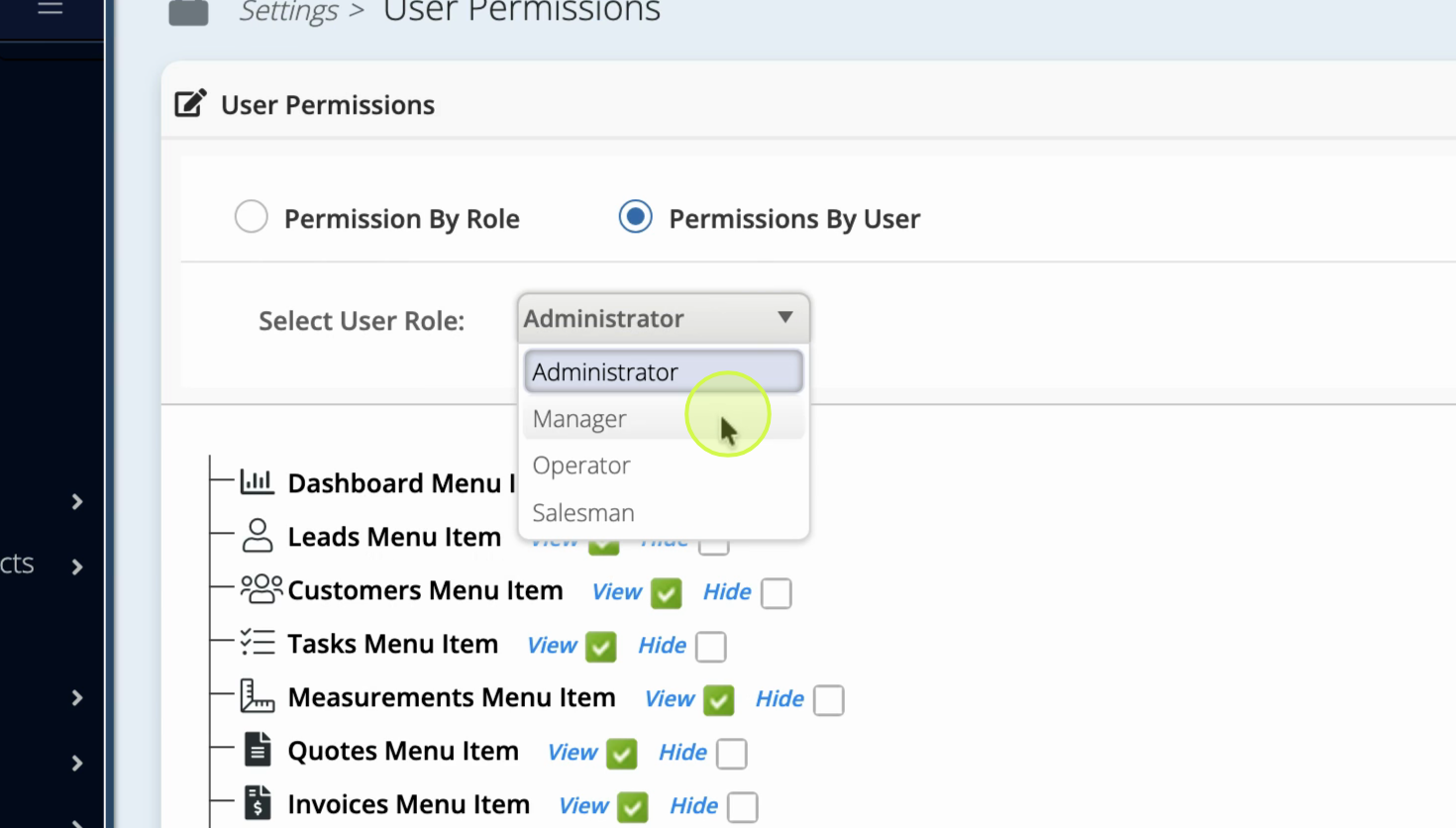
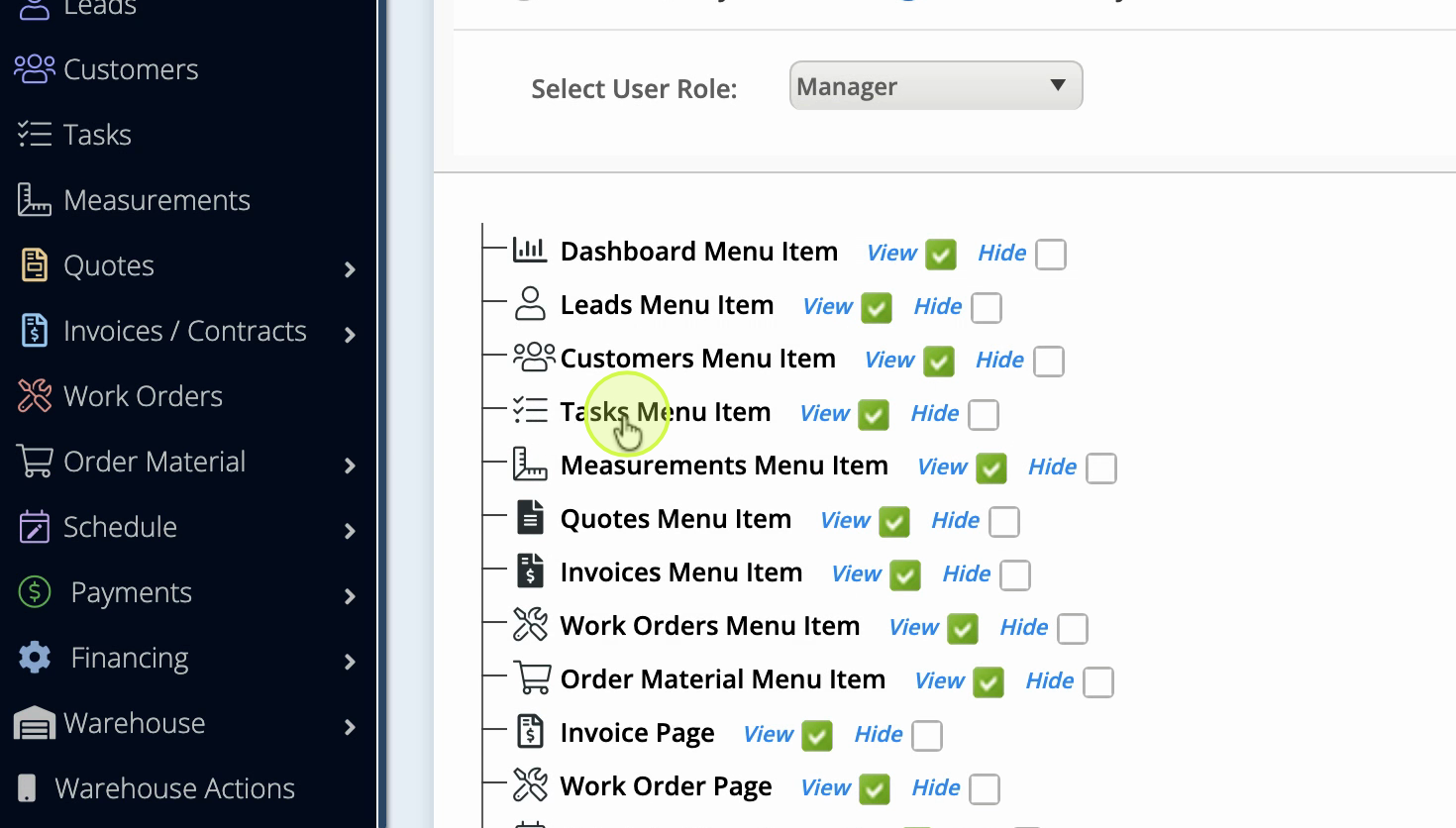
Step 4: Navigate to the Tasks menu.
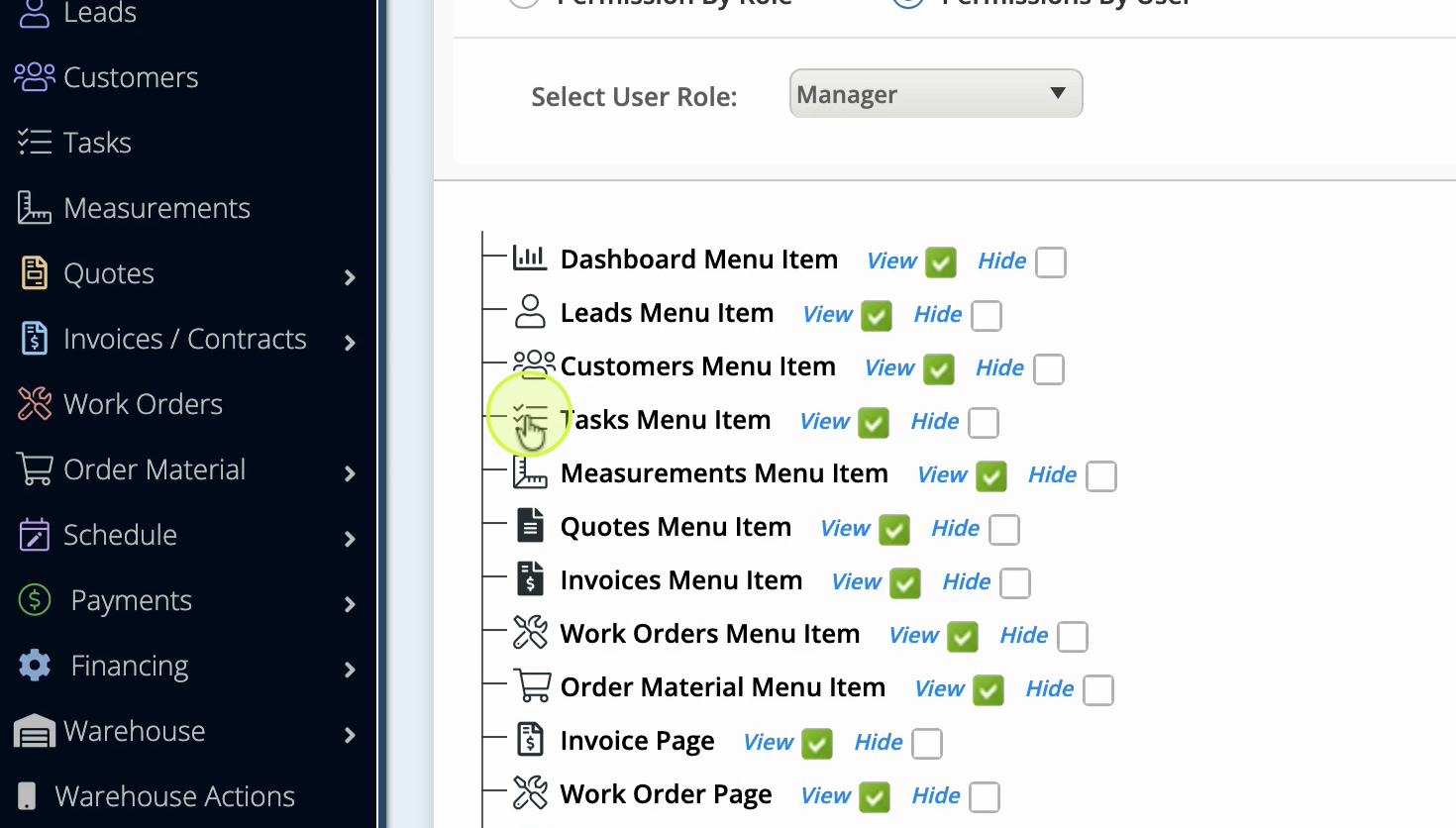
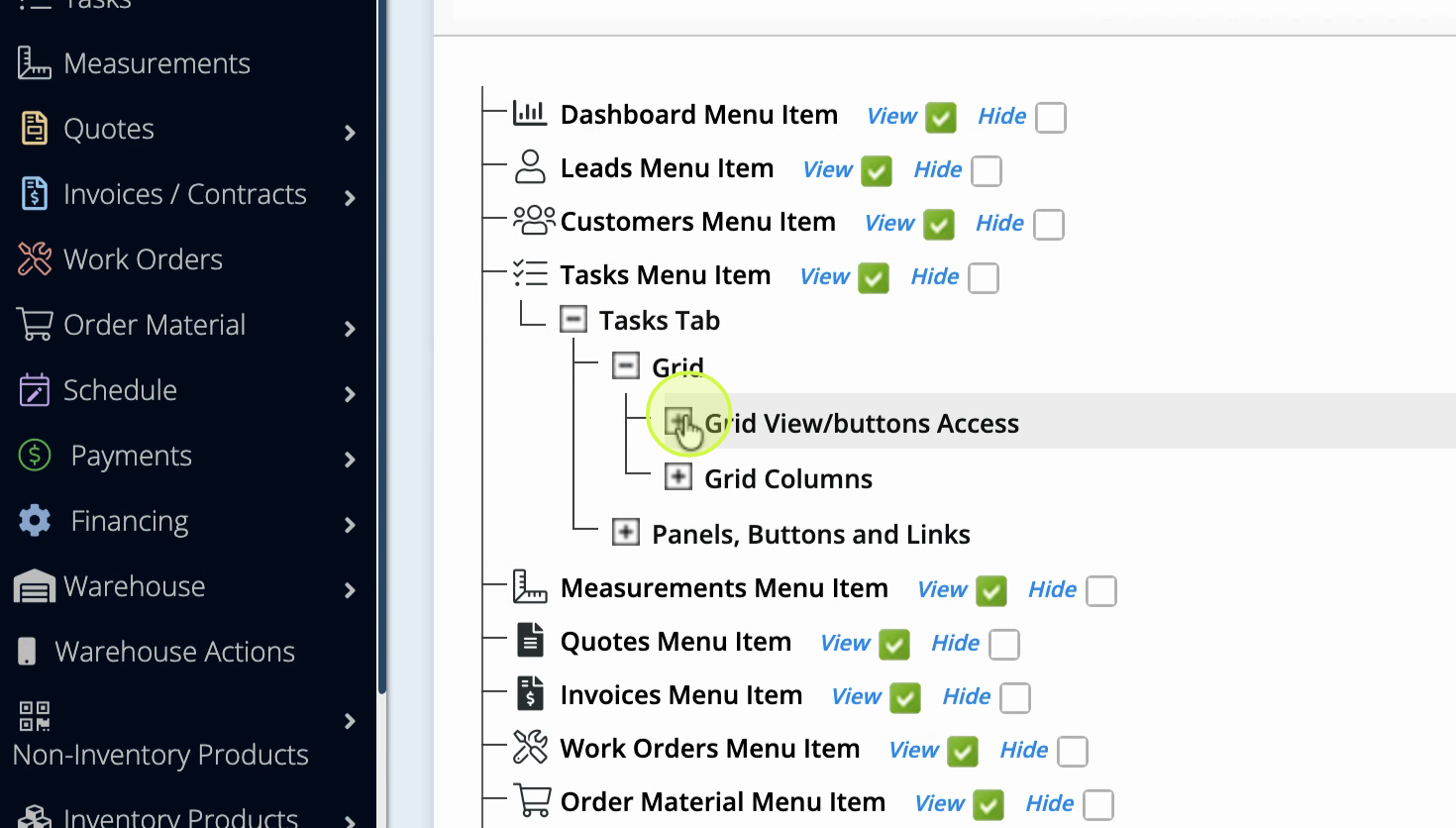
Step 5: Click on the Tasks tab and look for the Grid section.
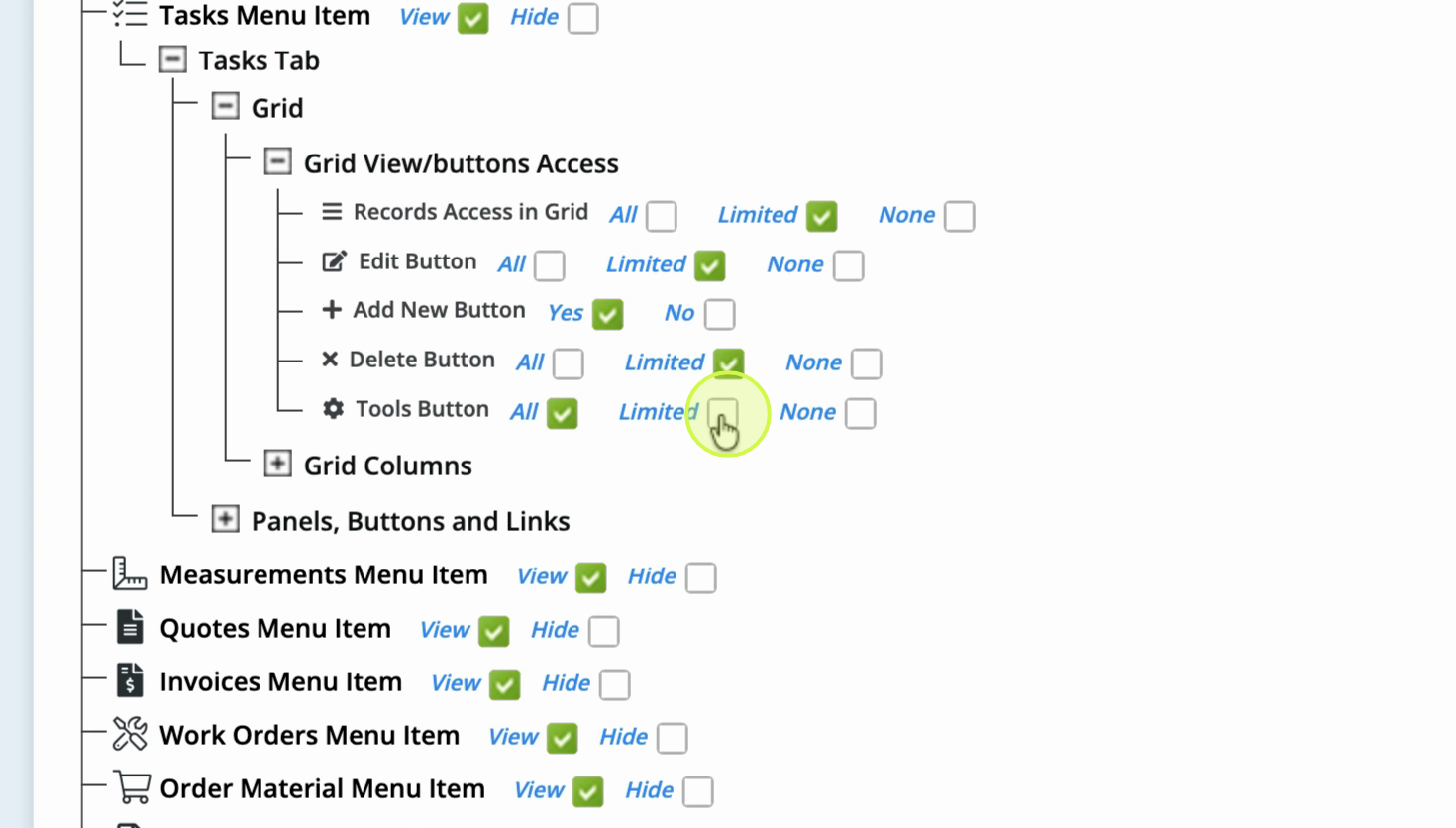
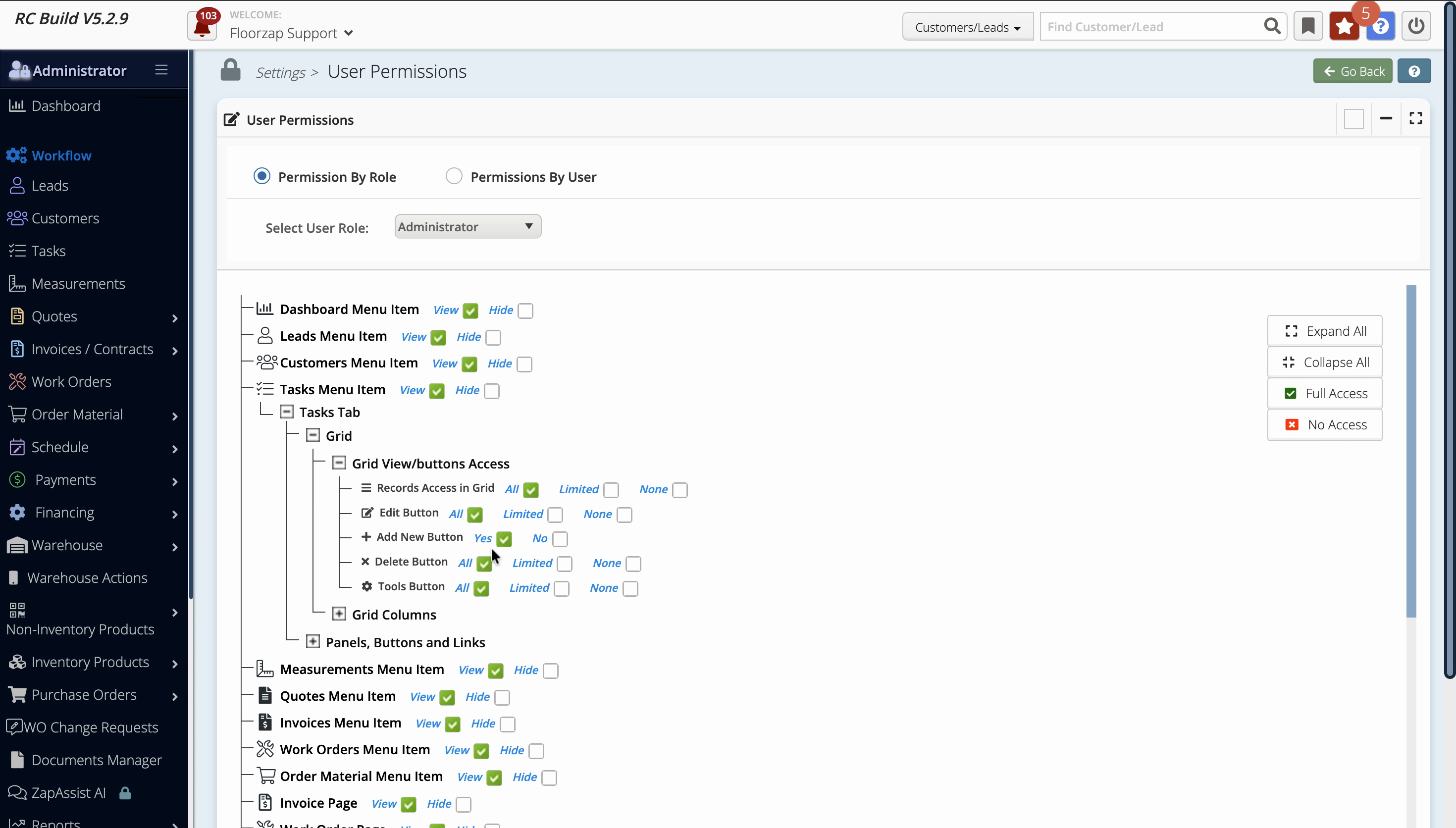
Step 6: Review the access settings for the Grid and Edit buttons. If these are set to “limited view,” the user won't see other employees' tasks or calendar events on the schedule.
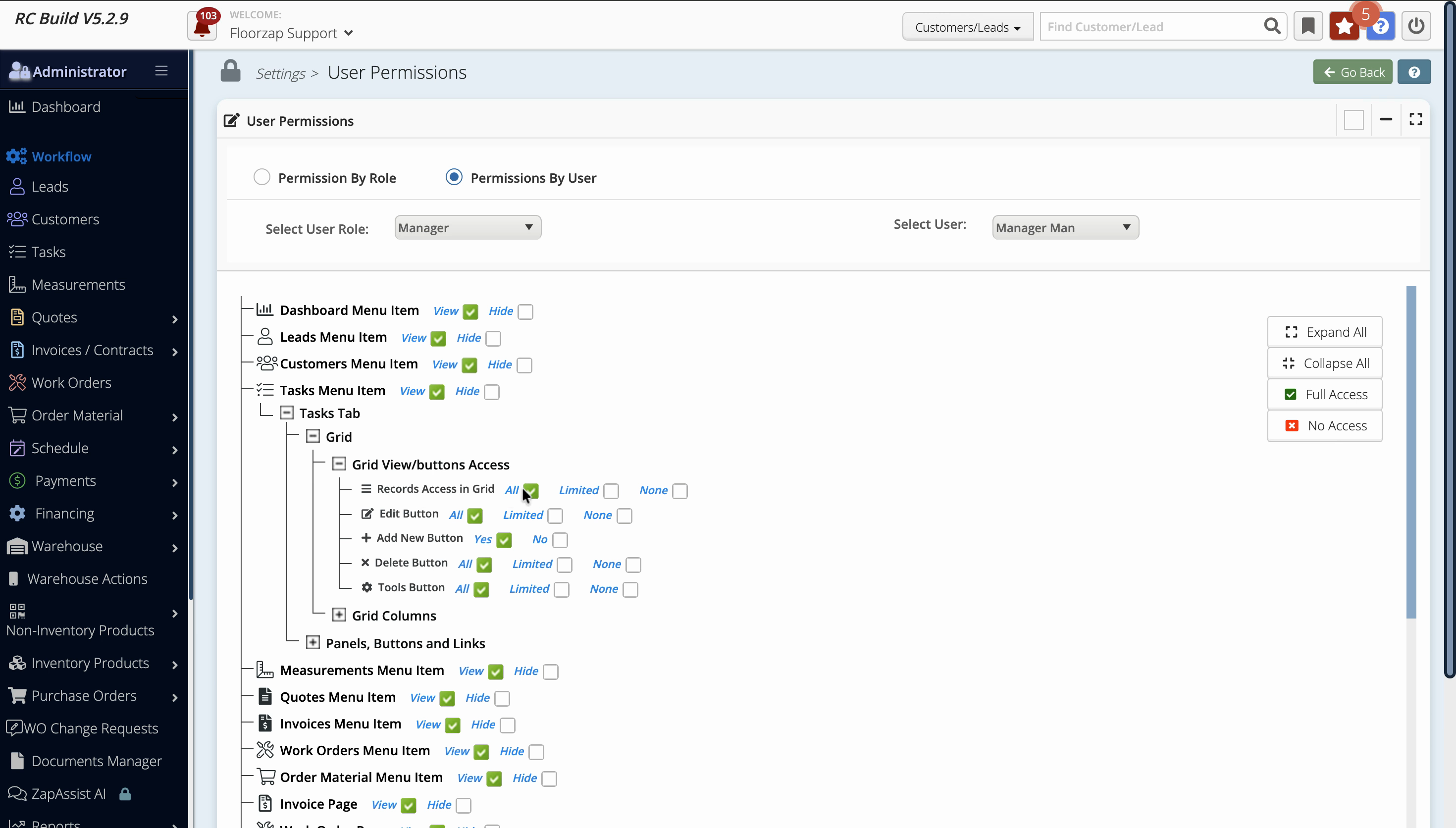
Step 7: To restrict access, check the options marked “limited.” To grant full access, make sure none of these options are limited.
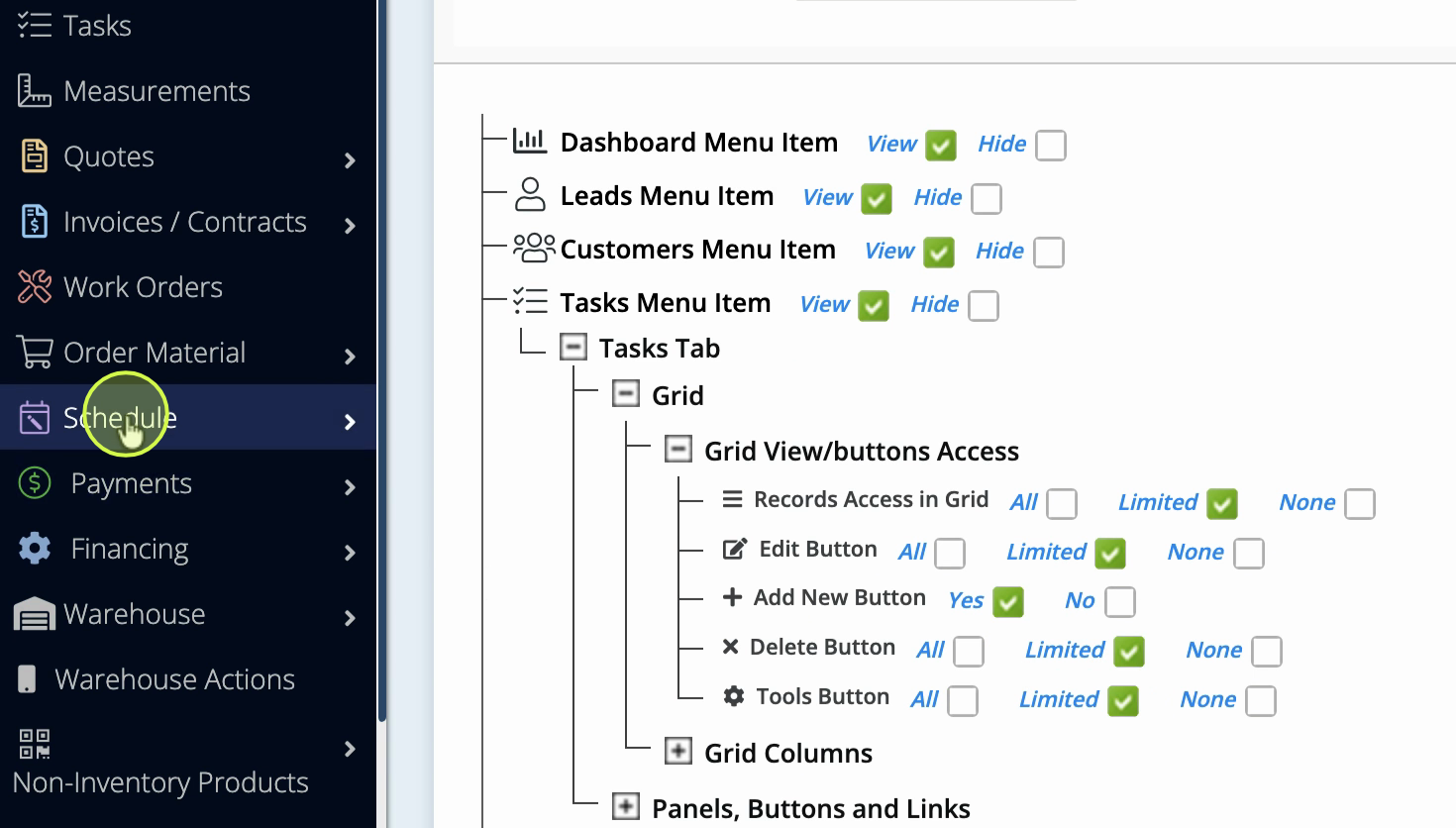
Step 8: Visit the Employee Calendar section to confirm which events the user can see.
Step 9: If you need to change settings, head back to Settings > User Permissions, and update the relevant options. Don’t forget to click Save to keep your changes.
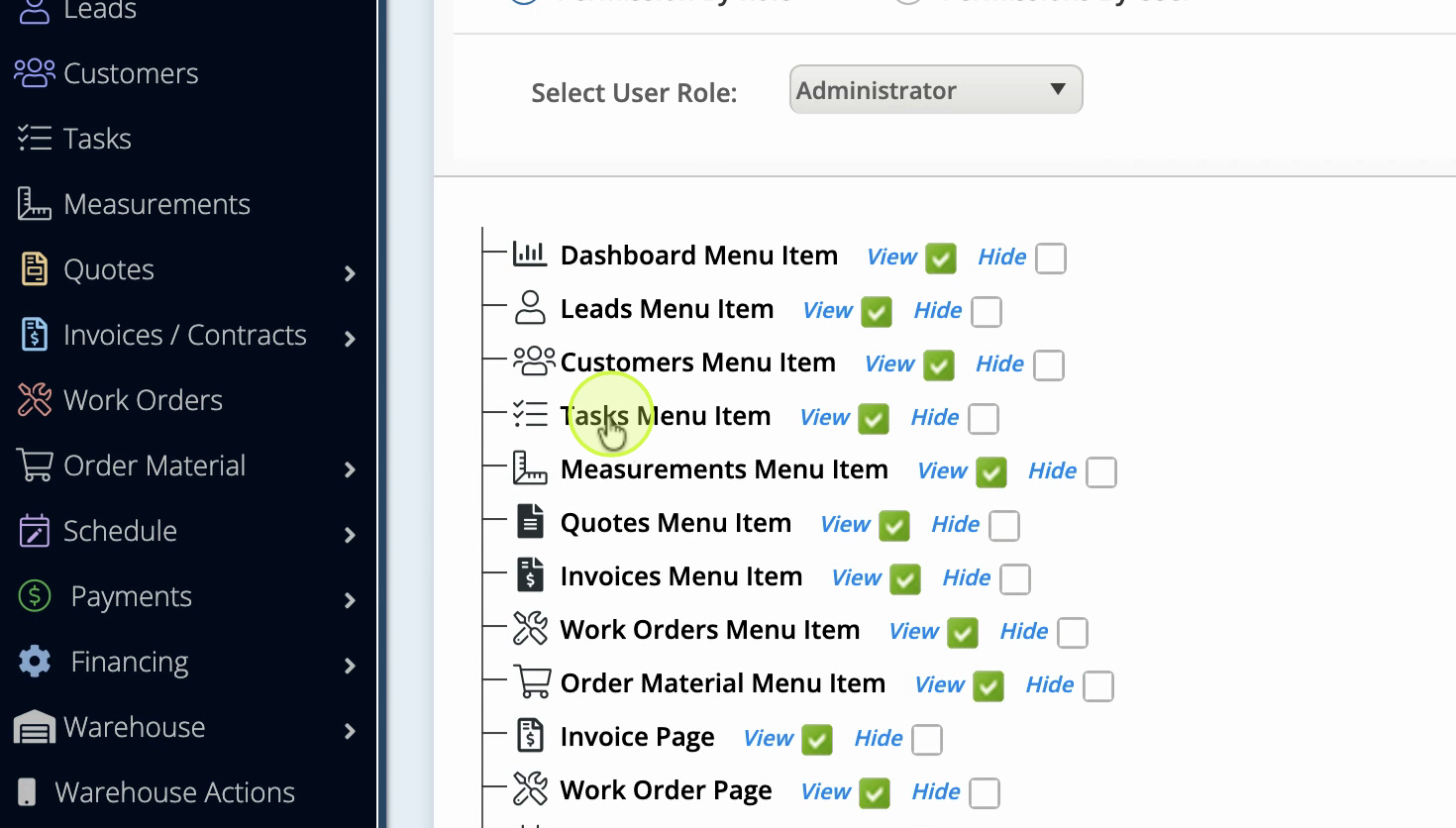
Set up permissions thoughtfully so only authorized users see sensitive scheduling information. Adjust these controls whenever you onboard new team members or update existing roles.