
How do I filter the Money In Dashboard?
There are several different filters you can adjust:
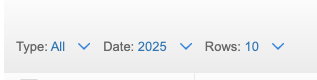
What is the "Date" filter?
The Date filter allows you to filter to see transactions from a certain timeframe. These include:
- Current Year - All transactions from the current year
- Past Year - All transactions from the past year
- Custom Range - All transactions from the custom timeframe that you set
What is the 'Type' filter?
The Type filter allows you to filter by the various income types, including:
- All - All transactions except the ones that have been deleted
- New - All untagged transactions
- Business - All transactions that have been tagged as Business
- Personal - All transactions that have been tagged as Personal
- Archived - All transactions that have been deleted
- Refunds - Transactions that have been tracked as an Income Refund
- Equity - All transactions that have been tagged to an equity account
- Liabilities - All transactions that have been tagged to a liability account
- Other Income - All transactions that have been tagged to other income account
- Invoice Payments - All transactions that have been linked to an invoice as Invoice Payments.
- Bank Transfers - All transactions that are bank transfers (i.e. transfer between 2 accounts, credit card payment, etc)
- Suspense - All transactions that have been tagged to the suspense account
What is the 'Rows' filter?
The Rows filter allows you to choose how many rows are displayed on each page. You can select from default values between 5 and 50.
How do I search the Money In Dashboard?
Each dashboard has a search bar that you can use to do basic searches. In the Money In Dashboard, you can search by any of the following:
- Vendor
- Amount
- Business name
- Category
Is there an advanced search?
Yes, the advanced search allows you to narrow your search by Date Range, Status, Vendor, Amount Range, Category, Type, Transaction Name, Account Number, Business, Client, and Notes. This is a helpful tool to find specific transactions that you may be looking for.
To use the Advanced Search Feature:
- Navigate to the section Accounting > Transactions > Money In
- Click the drop-down arrow in the search bar
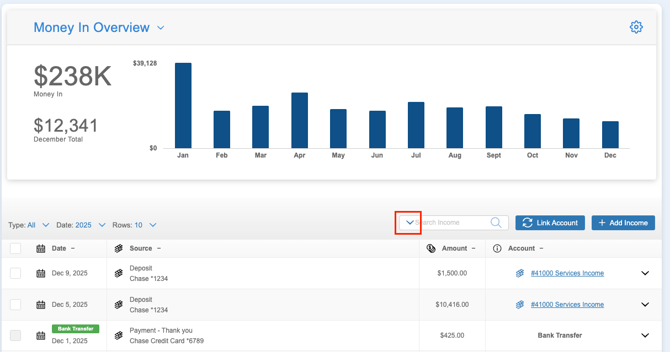
- Enter all the filters and search criteria you want to apply
- Click the ‘Search’ button at the bottom
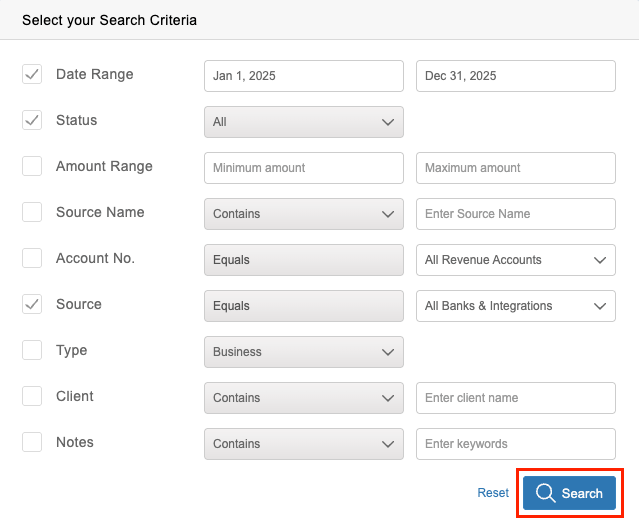
If you need to reset the search criteria, just hit the ‘Reset’ button within the Advanced Search pop up.
How do I edit transactions in the Money In Dashboard?
If needed, you can easily edit your transactions at any time. To edit a transaction:
- Navigate to the section Accounting > Transactions > Money In
- Click on the transaction that you wish to edit
- Make your changes
- Click ‘Save Details’
Can I bulk edit transactions in the Money In Dashboard?
While you can easily tag your transactions one-by-one, there may be times when you want to categorize/edit multiple transactions at once, making it faster and easier to categorize your finances.
The Speed Tagging feature allows you to select multiple transactions in order to tag them all the same way at once.
To use the Speed Tagging feature:
- Navigate to the section Accounting > Transactions > Money In
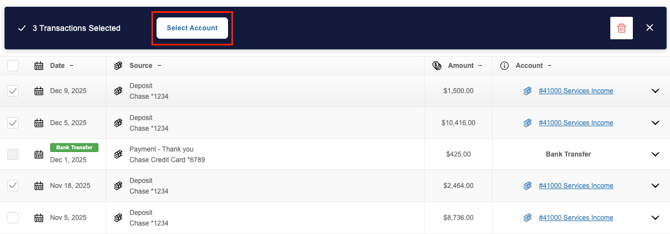
- Select the checkboxes next to each transaction you’d like to tag the same way, or click the checkbox at the top to select all on that page (note that you can change the Rows filter to select more transactions at once)
- At the top, click ‘Select Account’ and select the category/account the selected transactions should be tagged to
How do I delete a transaction in the Money In Dashboard?
If there are transactions that you don’t wish to track, you can delete them. Any transactions that you delete are not permanently deleted; rather they are moved to the Archived section of the Money In Dashboard. This ensures that you can easily restore a transaction at any time if you delete a transaction accidentally. However, archived transactions are not reflected in your reports, totals, or tax estimates.
To delete a single transaction:
- Navigate to the section Accounting > Transactions > Money In
- Locate and click on the transaction you wish to delete
- Click the ‘Delete’ button
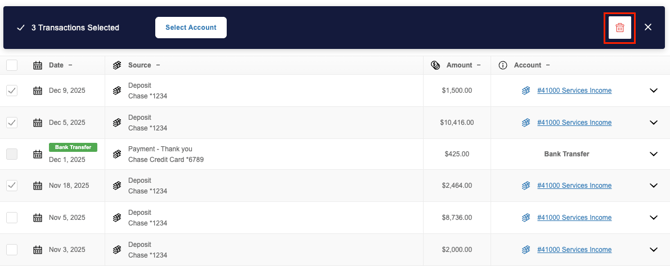
To delete multiple transactions at once:
- Navigate to the section Accounting > Transactions > Money In
- Select the checkbox next to each transaction that you wish to delete or use the select-all option at the top
- Click the trash icon at the top
How do I restore a deleted transaction in the Money In Dashboard?
- Navigate to the section Accounting > Transactions > Money In
- Change the Type filter to ‘Archived’
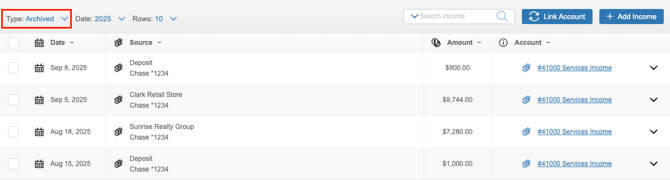
- Locate and click on the transaction that you wish to restore
- Click the ‘Restore’ button
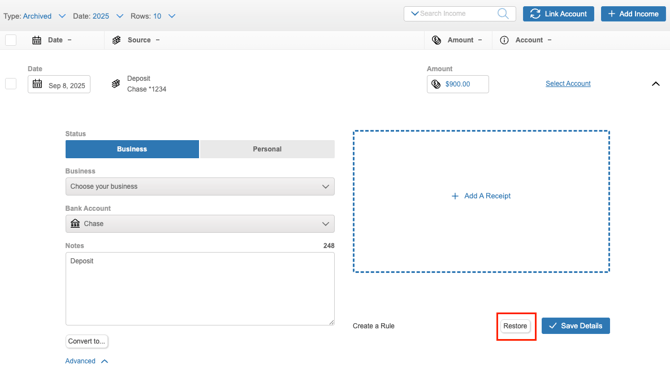
Once restored, the transaction will be moved back to the active view of the Money In Dashboard and will be reflected on your reports/totals.