
The Journal can be used to view all of the underlying entries that make up the totals in the accounting reports and Chart of Accounts. Since it is a robust record that includes an entry for each change that is made to a transaction, it may be more helpful to use the GL, which summarizes the Journal.
If you want to use the Journal to understand your financials, there are a few key things to know:
- Each Entry will indicate one of the following
- Expense - Indicates the transaction associated with the journal entry is an expense tracked in the Money Out Dashboard
- Income - Indicates the transaction associated with the journal entry is an income tracked in the Money In Dashboard
- Tax Payment - Indicates the transaction associated with the journal entry is a tax payment that was tagged in the Money Out Dashboard or entered in the Tax Dashboard
- Transfer - Indicates the transaction associated with the journal entry is a Bank Transfer that was tracked in the Money Out Dashboard or Money In Dashboard
- Manual - Indicates the entry is a manual journal entry that was entered directly in the Journal
- You can use the filters to filter by GL Account, Date, or the number of Rows displayed.
- You can use the Search or Advanced Search to view certain journal entries by date range, transaction name, account, debit amount, or credit amount.
- By clicking on a journal entry, you can view the transaction it's associated with or the manual journal entry that was entered and make changes to it as needed.
Are journal entries created automatically?
Yes, journal entries are automatically generated for transactions tracked in the Transaction Dashboard. When those transactions are updated, additional journal entries are automatically created to reflect the changes.
What is a manual journal entry?
A manual journal entry records transactions that were not automatically pulled in from a linked bank or credit card account, imported via CSV Import, or manually entered in the Transaction Dashboard. They are typically used for items that are not income or expense transactions and that did not originate from a bank or credit card account, such as depreciation or year-end closings.
How do I add a manual journal entry?
To add a manual entry:
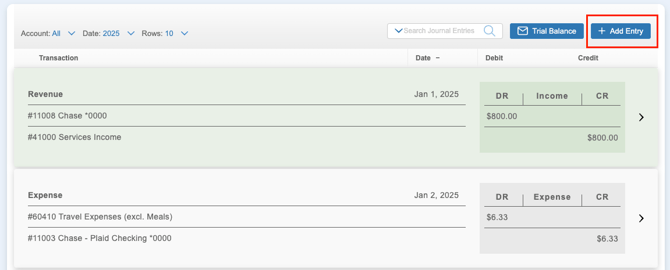
- Navigate to the section Accounting > Journal
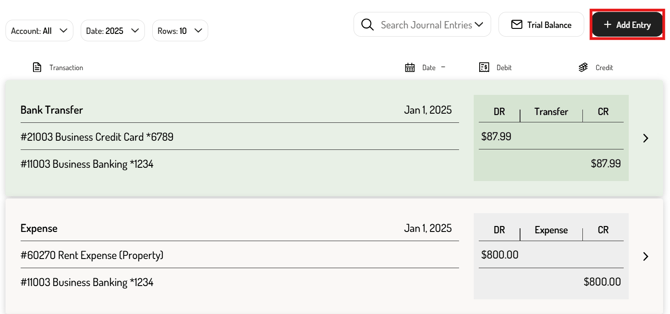
- Click ‘+ Add Entry’ button
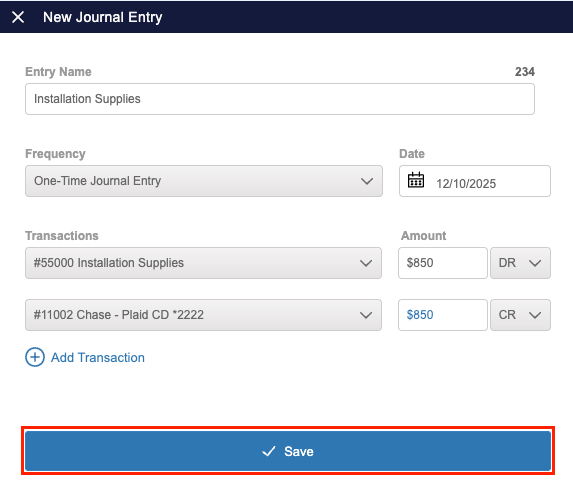
- Enter the entry details
- Click ‘Save’
How do I delete a journal entry?
- Navigate to the section Accounting > Journal
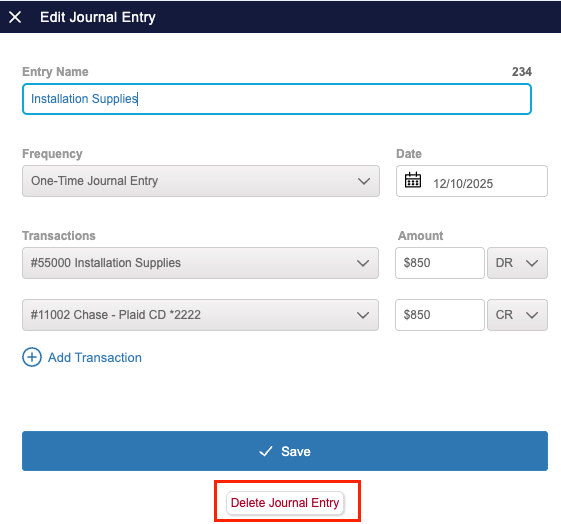
- Click on the manual journal entry
- In the expanded view, click ‘Delete Journal Entry’ (this will permanently delete this manual journal entry)
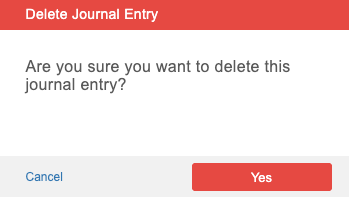
- Click ‘Yes’ to confirm that you want to delete this journal entry
Note: These steps only apply to manual journal entries. To edit a journal entry linked to a transaction tracked in the Transaction Dashboard, edit the transaction directly.
How do I edit a manual journal entry?
- Click on the journal entry to open it.
- If it’s linked to a Transaction Dashboard item, you’ll see the original transaction details.
- If it’s a manual entry, you’ll see the details you originally entered and can edit them as needed.
How do I search the Journal?
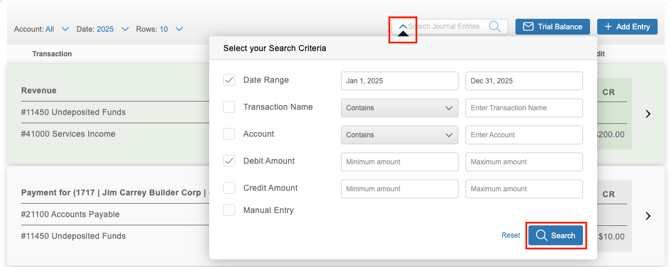
You can use the search bar on the Journal to find specific journal entries or the Advanced Search (arrow icon on the search bar) which allows you to filter by:
- Date Range
- Transaction Name
- Account
- Debit Amount
- Credit Amount
- Whether it's a Manual Entry or not
What are recurring journal entries?
Recurring journal entries are automatically generated on a set schedule for items that do not flow through your linked accounts, such as monthly depreciation or other routine adjustments.
How do I create a recurring journal entry?
- Navigate to the section Accounting > Journal
- Click ‘+ Add Entry’ button
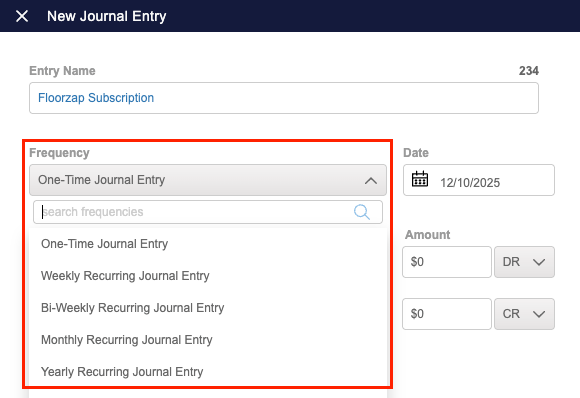
- Choose the frequency of the journal entry
- Enter the details
- Click ‘Save’
How do I edit a recurring journal entry?
- Navigate to the section Accounting > Journal
- Click on the journal entry that you want to edit
- Change any necessary fields
- Click ‘Save’
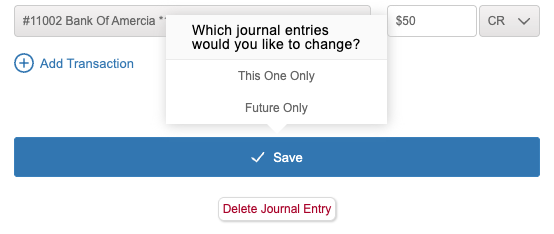
- Choose whether to apply changes to just this entry or to all future entries
How do I end a recurring journal entry?
- Navigate to the section Accounting > Journal
- Click on the most recent occurrence of the occurrence for the recurring journal entry that you want to end
- Change the Frequency field to ‘One-Time Journal Entry’
- Click ‘Save’