Are Bank Transfers detected automatically?
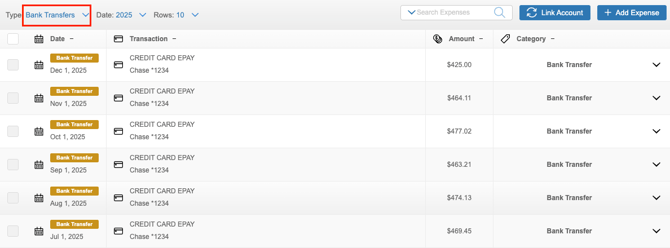
Bank Transfers will generally be automatically tagged and matched with the corresponding Bank Transfer if you have the account that matches the other side of the Bank Transfer linked, e.g. you linked both your credit card and the bank account that you use to pay off your credit card. Transfers that are detected between your linked accounts will automatically reflect a ‘Bank Transfer’ label. If needed, you can manually change any income or expense transaction to a Bank Transfer.
What happens if the Bank Transfer isn't automatically detected?
If the corresponding Bank Transfer isn't detected, you'll be prompted to confirm whether or not the detected transaction is indeed a Bank Transfer.
If you select the ‘Bank Transfer’ button, you'll be prompted to set the corresponding To or From account.
If you select the ‘Not Bank Transfer’ button, you'll be prompted to convert the transaction to a normal income or expense transaction.
Can I convert a normal transaction to a Bank Transfer?
If needed, you can manually convert an income or expense transaction to a Bank Transfer.
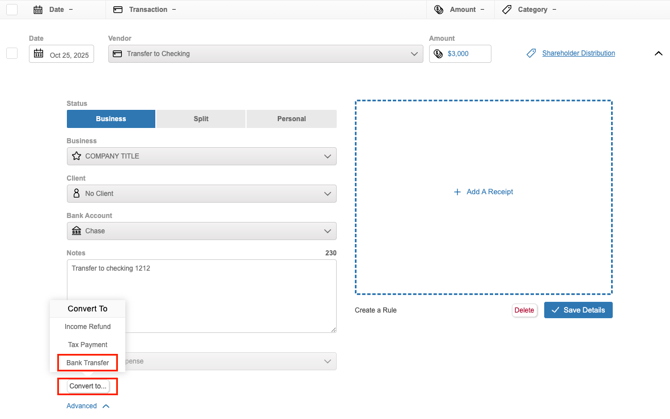
- Click on the transaction to expand it
- Click ‘Convert to…’
- Choose ‘Bank Transfer’
- Select the corresponding ‘From and To Accounts’
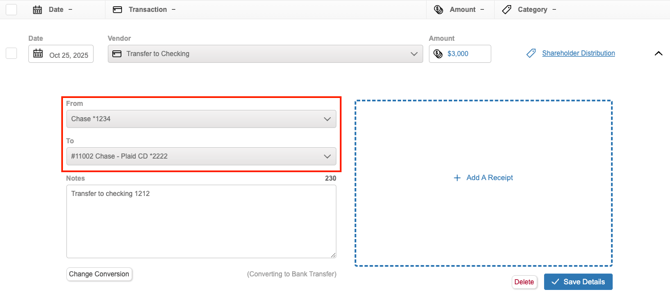
- If applicable, select the corresponding Bank Transfer
- Click ‘Save Details’
After saving your changes, the income or expense transaction will be converted to a Bank Transfer. Converting the transaction to a Bank Transfer will automatically create a General Ledger entry and add the ‘Bank Transfer’ label to the transaction.

Additionally, if you select a corresponding Bank Transfer, it will automatically be tagged as a Bank Transfer.
Can I convert a Bank Transfer back to a normal transaction?
You can convert any Bank Transfer (transfers that are pulled in automatically from your bank account, or transactions that you accidentally marked as Bank Transfers) to a normal transaction.
- Navigate to the section Accounting > Transactions > Money In or Money Out
- Click on the specific Bank Transfer to expand its details
- Select ‘Convert to…’
- Select ‘Income’ or ‘Expense’
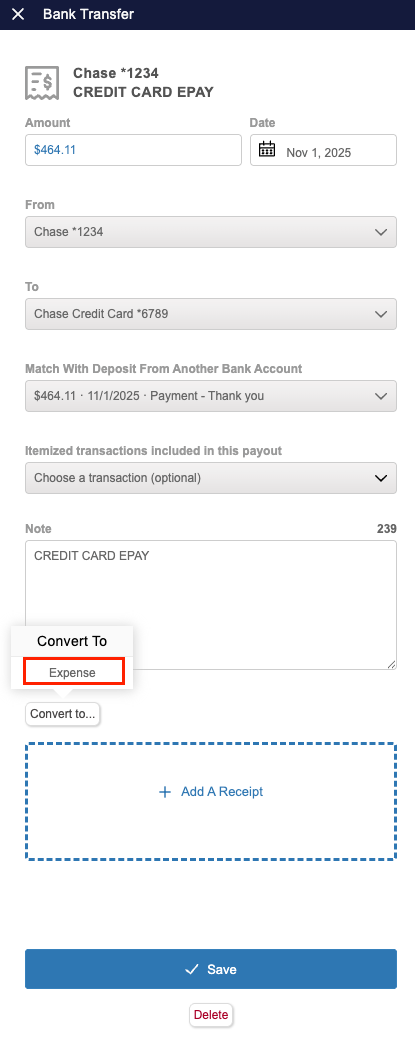
- Click ‘Save Details’
How do I link two corresponding Bank Transfers?
Typically, if both accounts involved in the Bank Transfer are linked, the Bank Transfers will be detected and automatically matched with the corresponding Bank Transfer. If your Bank Transfer is automatically matched, you're able to connect them manually.
To do so, navigate to the Bank Transfer, click the ‘Match With Deposit From Another Bank Account’ field, then select the corresponding Bank Transfer from the drop-down.
How do I view my Bank Transfers?
If you want to view your Bank Transfers, you can filter the Money Out Dashboard or Money In Dashboard to show only Bank Transfers. To do so, click the Type filter, then select Bank Transfers.