
Changing an income transaction from your linked account to an Expense Refund
If an expense refund isn’t automatically detected, it will pull into the Money In Dashboard since it’s a deposit. If you need to change an income transaction to an expense refund, you can follow these steps:
- Navigate to the section Accounting > Transactions > Money In
- Click on the income transaction that you want to mark as an expense refund
- Click ‘Convert to…’
- Choose ‘Expense Refund’
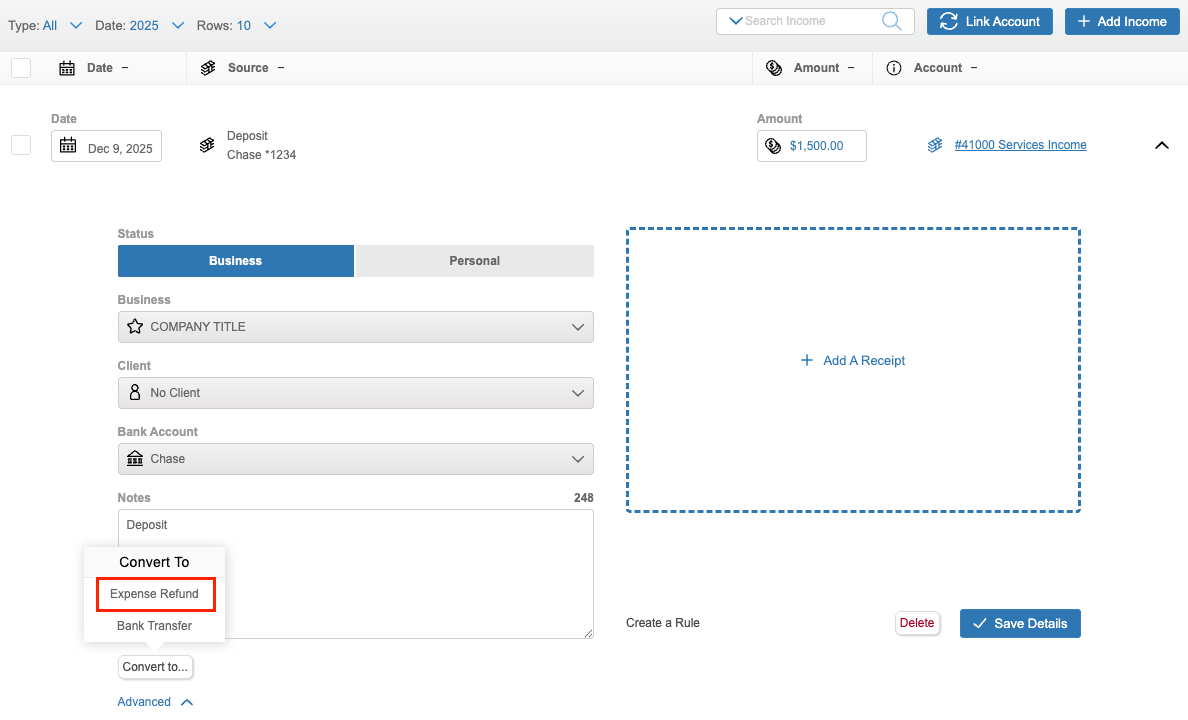
- Select ‘Save Details’
The income transaction will move to the Money Out Dashboard as a refund where you can tag and categorize it just as you would your regular expenses. If you need to add any notes or want to make any edits to the expense refund, you can do so by clicking on it.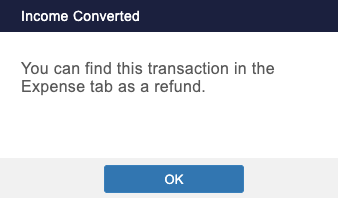
After being tagged, your expense refunds will be reflected in the totals in the Money Out Dashboard and Expense Reports as a positive amount.
Manually entering Expense Refunds
If you aren’t automatically tracking an account, you can still add expense refunds to keep accurate records of your spending. To do so:
- Navigate to the section Accounting > Transactions > Money Out
- Click the ‘+Add Expense’ button
- Enter the details about your refund
- Select ‘Convert to…’
- Choose ‘Expense Refund’
- Click the ‘Save’ button
Now this transaction, will show as a ‘Refund’ on the Money Out Dashboard
To change an Expense Refund to an income transaction:
If you accidentally track an expense as a refund, you can revert it back at any time. To do so:
- Navigate to the section Accounting > Transactions > Money Out
- Select the ‘Refund’ transaction (you can change the Type filter to ‘Refunds’ to make it easier to find)
- Click ‘Convert to…’
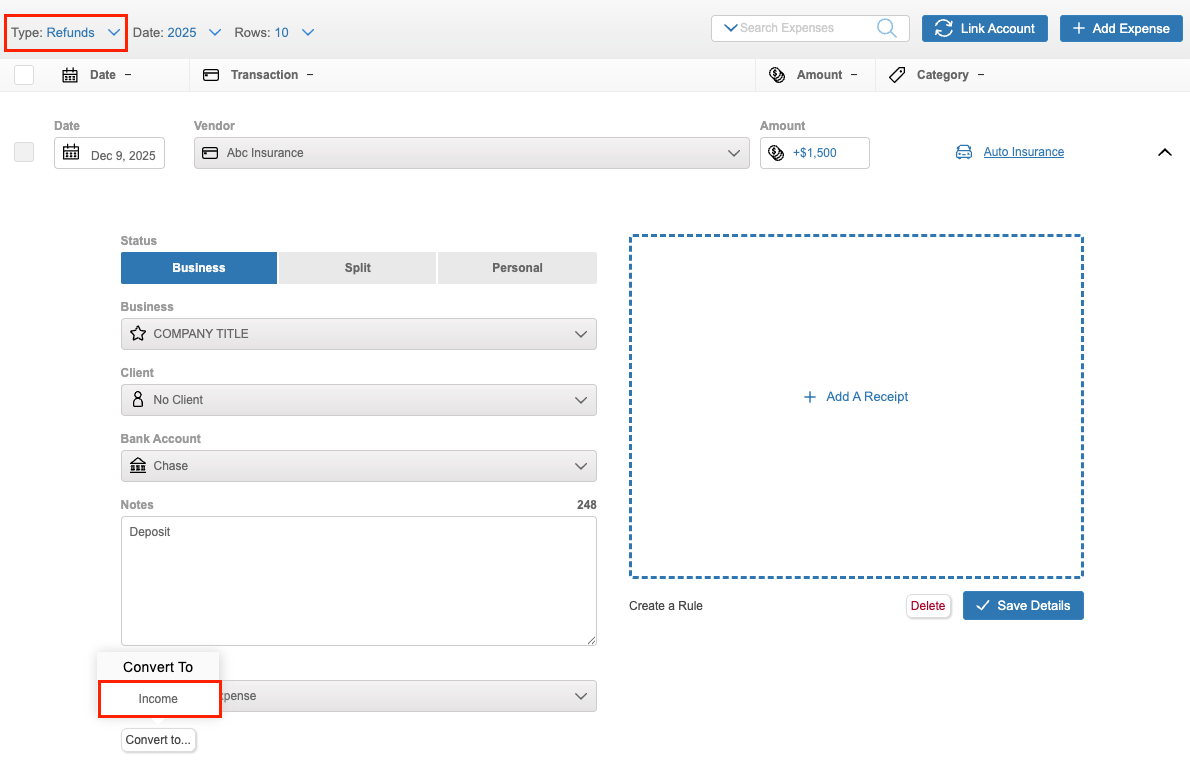
- Select ‘Income’
- Click ‘Save Details’
Your expense refund will be converted to an income transaction, and you will be able to find it in the Money In Dashboard.