
Converting an expense to an Income Refund
Since money you return to your clients is a withdrawal, it will pull in as an expense. When this happens, you can convert the expense to an income refund. This will convert the transaction to the Money Dashboard where it will have a ‘Refund’ label and show as a negative amount. To do this:
- Navigate to the section Accounting > Transactions > Money Out
- Click on the expense you want to convert to an Income Refund
- Click ‘Convert to…’
- Choose ‘Income Refund’
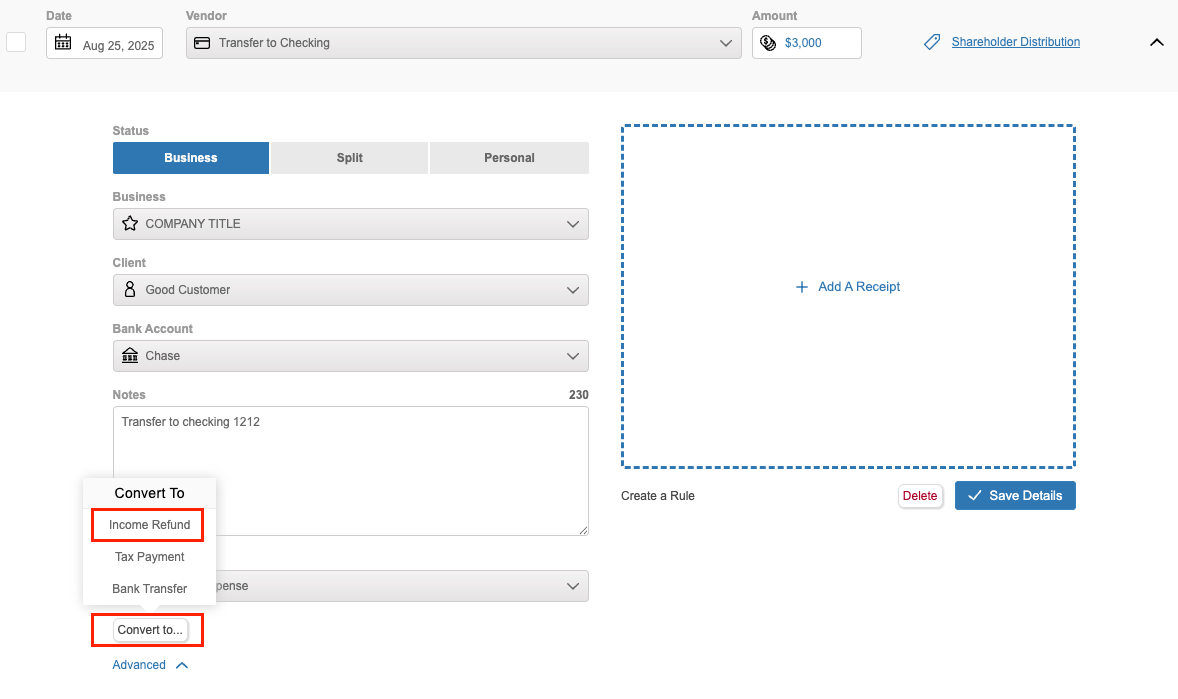
- Click ‘Save Details'
The transaction will be moved to the Money In Dashboard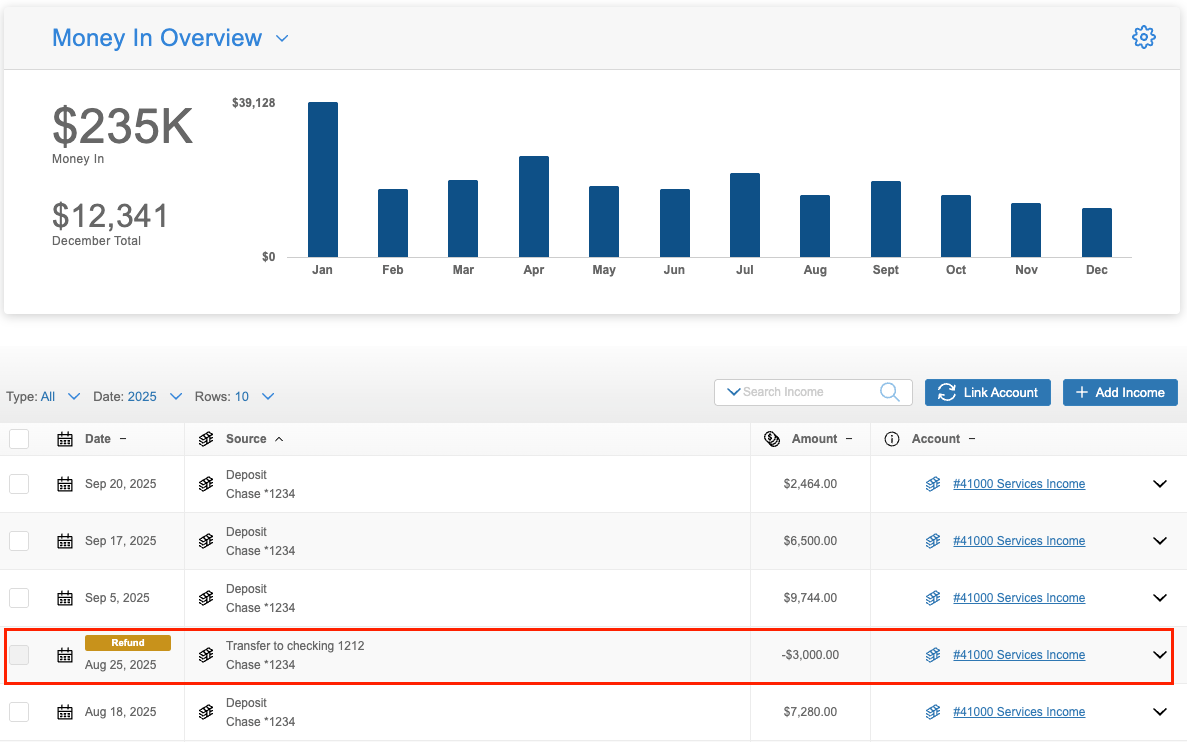
Reverting an Income Refund to an expense
If you accidentally convert an expense to an income refund, you can revert it back at any time. To do so:
- Click on the transaction in the Money In Dashboard to expand the details
- Select ‘Convert to…’
- Choose ‘Expense’
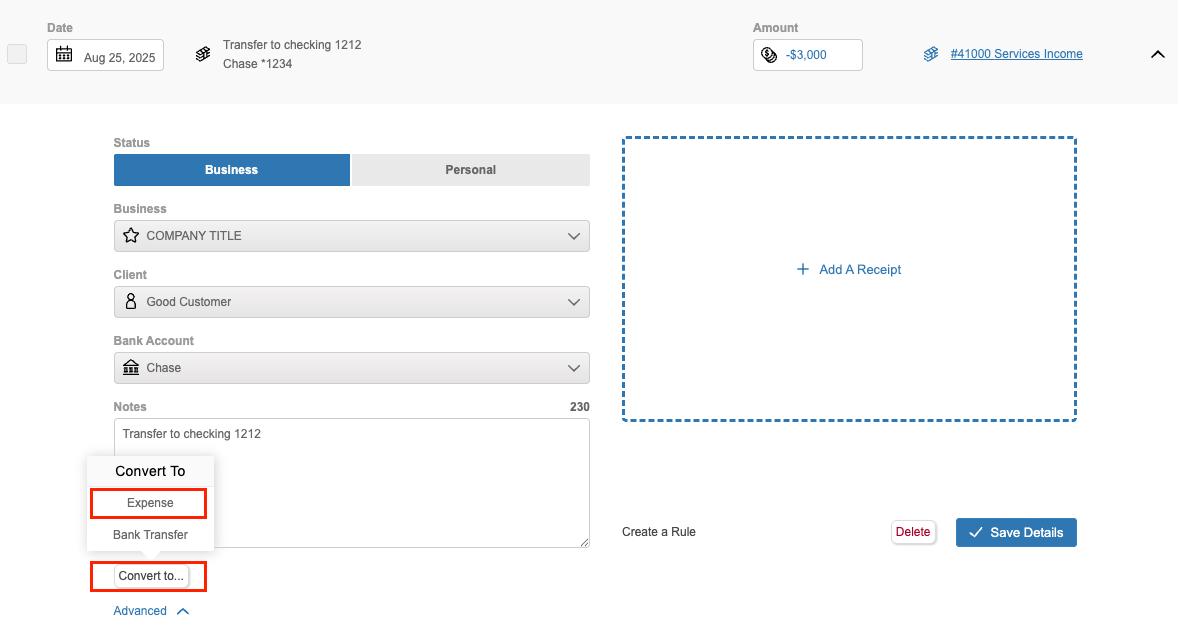
- Click ‘Save Details’
The transaction will be moved back to the Money Out Dashboard.
Manually creating an Income Refund
If you aren’t automatically tracking an account, you can still add Income Refunds to keep accurate records of your spending. To manually enter an Income Refund:
- Navigate to the section Accounting > Transactions > Money In
- Click ‘+ Add Income’
- Enter the necessary Income Refund details (Source, Amount, Business, Bank Account, etc.)
- Click ‘Convert to…’
- Select ‘Income Refund’
- Click ‘Save Details'