
- Navigate to the section Accounting > Transactions > Money In or Money Out
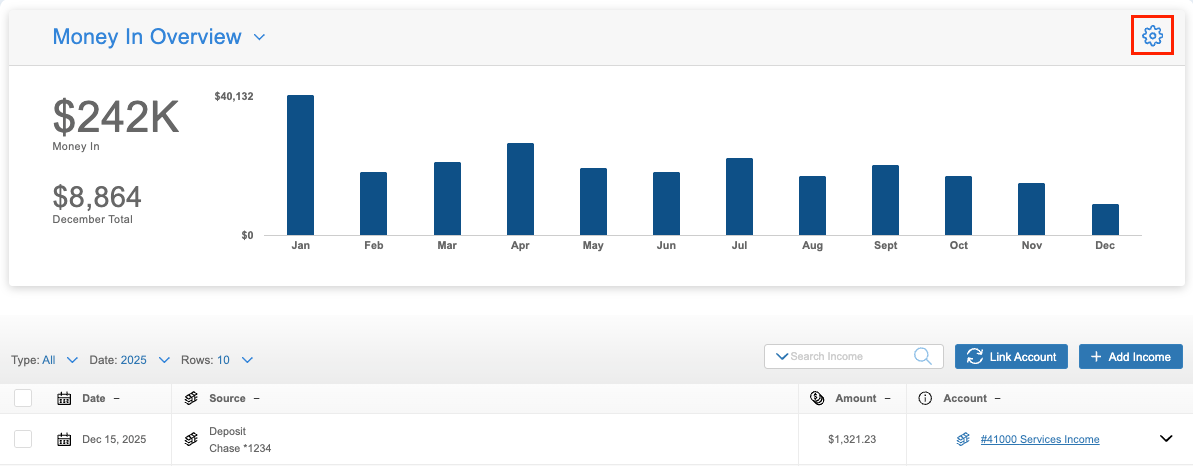
- Click the gear icon
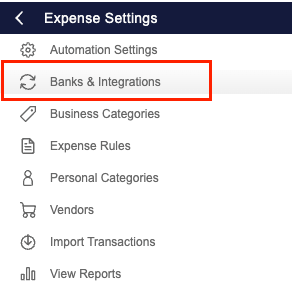
- Select ‘Banks & Integrations'
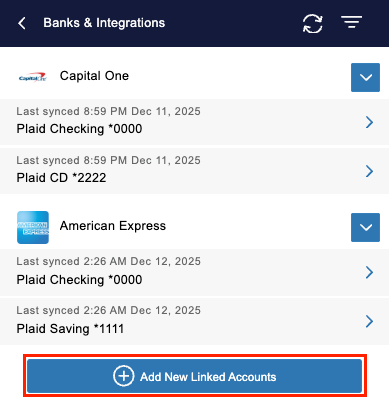
- Click ‘+Add New Linked Accounts’
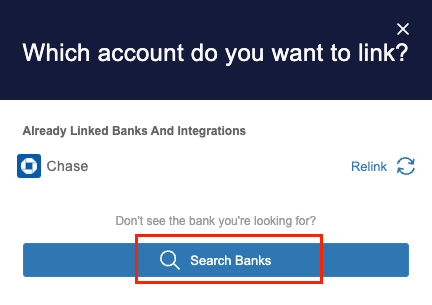
- Select ‘Search Banks’ at the bottom
- Search for your financial institution
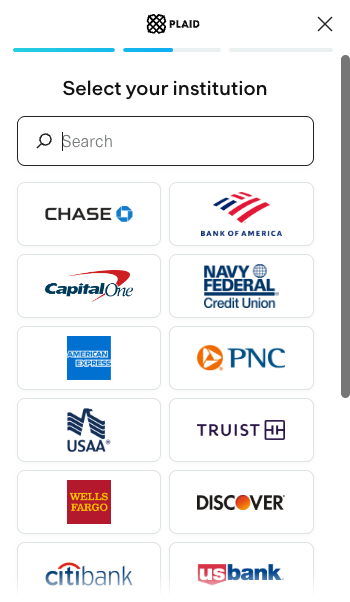
- Follow the prompts to complete linking your accounts
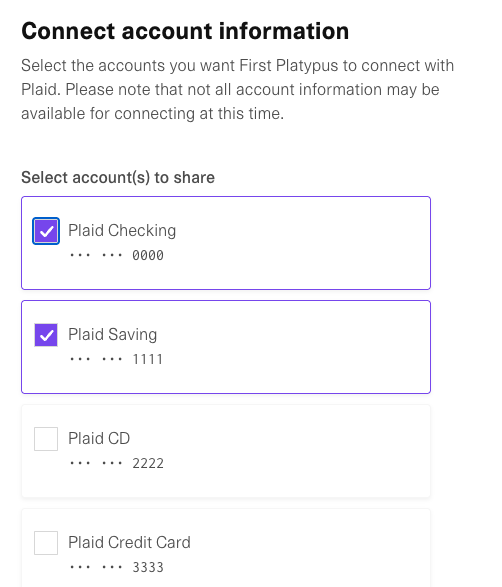
- Accounts toggled on will sync both deposits and withdrawals
Are there limits on how many accounts I can link?
You can link as many bank accounts, credit cards, debit cards, and sub-accounts as you like, across multiple financial institutions. However, you cannot link multiple logins for the same institution.
What types of accounts can I link?
Most account types are supported, including:
- Checking accounts
- Savings accounts
- Credit cards
- Prepaid accounts
- Lines of credit
- Rewards accounts
Currently unsupported account types include:
- Money market accounts
- Brokerage accounts
- Investment accounts
- Trust accounts
- Loan accounts
Since they can't be linked, unsupported accounts must be tracked using alternative methods like CSV import or manual entry. If you attempt to link a bank account that is not currently a supported account type, then you will receive a notification that it cannot be synced. However, they will still reflect on the Banks & Integrations screen, labeled as ‘Unsupported Account Type’.
How quickly will transactions appear after linking?
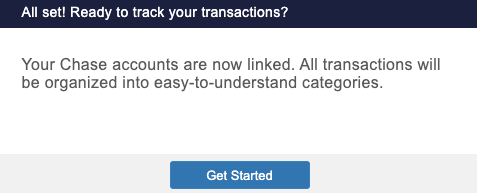
Transactions typically appear within minutes of linking your account.