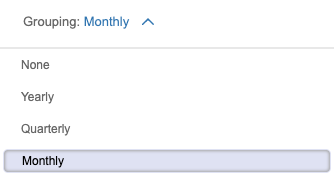
By default, the Balance Sheet will show the data for the current year-to-date, grouped by month. You can edit the filters to adjust the timeframe and grouping as needed

How do I customize the timeframe of the Balance Sheet?
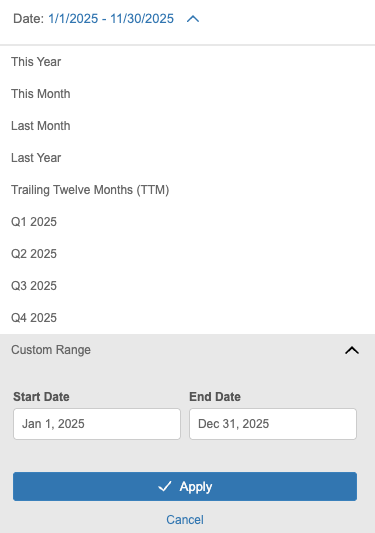
By clicking the 'Date' filter, you can select a default timeframe such as 'This Year', 'This Month', 'Last Month', 'Last Year', 'Trailing Twelve Months', or a specific quarter. Alternatively, you can set your own custom range by setting the start and end date of the report.
Can I create a Balance Sheet for a specific timeframe?
Balance Sheets cannot be created for a specific timeframe since they are used to show a snapshot of your business's assets, liabilities, and equity at a specific moment in time, rather than showing transaction totals for a specific timeframe. When you view the Balance Sheet, it will reflect all of the data you’ve tracked as of the end date that you’ve specified.
If you would like to see your income or expenses for a certain timeframe, you can export your income or expense reports.
How do I use the Balance Sheet to compare different periods?
Using the 'Grouping' filter allows you to compare your data across different periods. Simply select one of the filters to customize the period that is being compared.
- None - No multi-period comparison
- Yearly - Year-over-year comparison for the selected date range
- Quarterly - Quarter-over-quarter comparison for the selected date range
- Monthly - Month-over-month comparison for the selected date range