
Can I bulk edit transactions in the Transactions Dashboard?
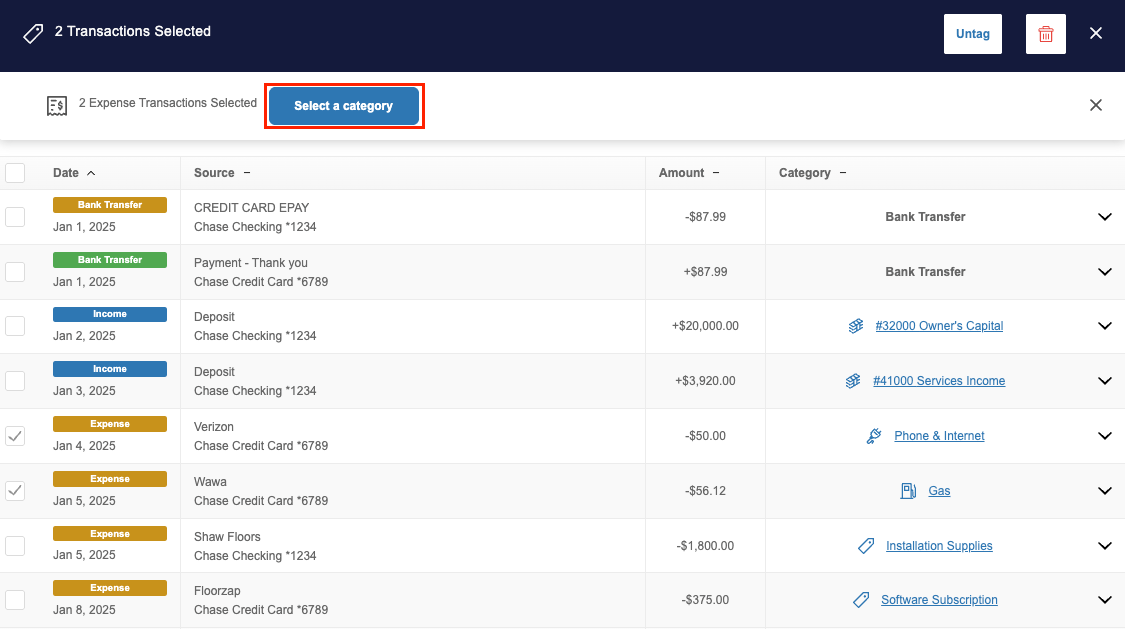
- Navigate to the section Accounting > Transactions > All Transactions
- Select the checkboxes next to each transaction you’d like to tag the same way, or click the checkbox at the top to select all on the page
- At the top, click ‘Select a Category’ or ‘Select Account’ and select the category or account the selected transactions should be tagged to
Can I delete transactions?
Yes, if there are transactions that you don’t wish to track, you can delete them. Any transactions that you delete are not permanently deleted; rather they are moved to the Archived section of the Transactions Dashboard. This ensures that you can easily restore a transaction at any time if you delete a transaction accidentally. However, archived transactions are not reflected in your reports, totals, or tax estimates.
How do I delete a transaction in the Transactions Dashboard
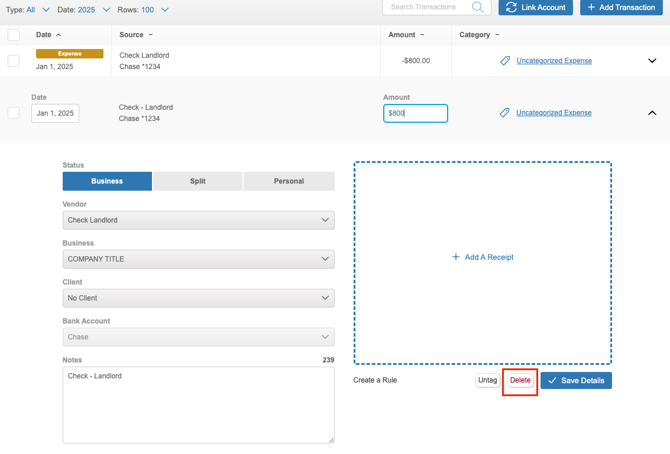
To delete a single transaction:
- Navigate to the section Accounting > Transactions > All Transactions
- Locate and click on the transaction you wish to delete
- Click the ‘Delete’ button
To delete multiple transactions at once:
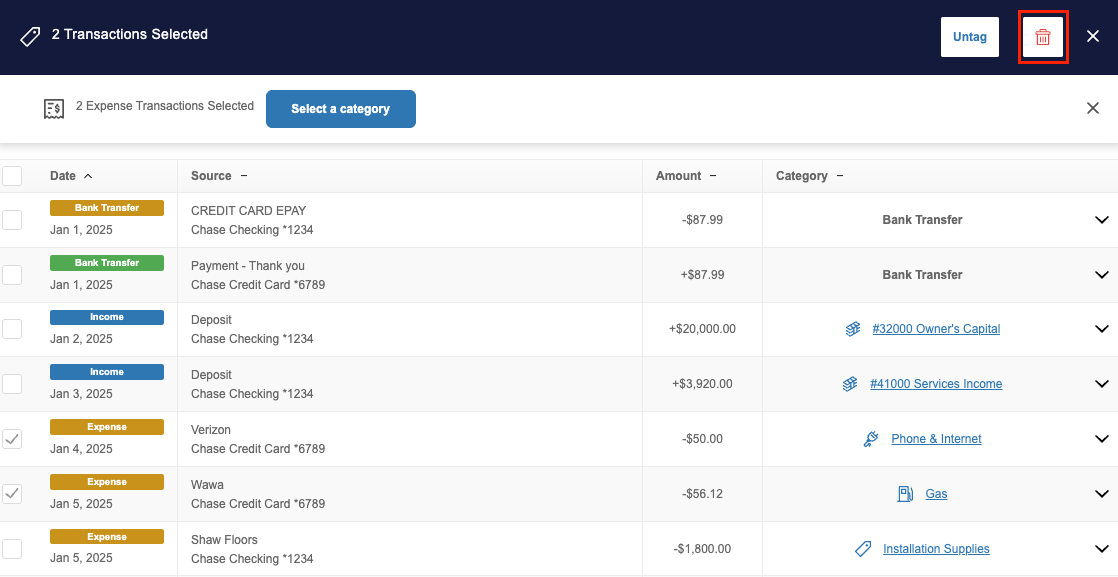
- Navigate to the section Accounting > Transactions > All Transactions
- Select the checkbox next to each transaction that you wish to delete or use the select-all option at the top
- Click the trash icon at the top
How do I restore a deleted transaction in the Transactions Dashboard?
- Navigate to the section Accounting > Transactions > All Transactions
- Change the Type filter to ‘Archived’
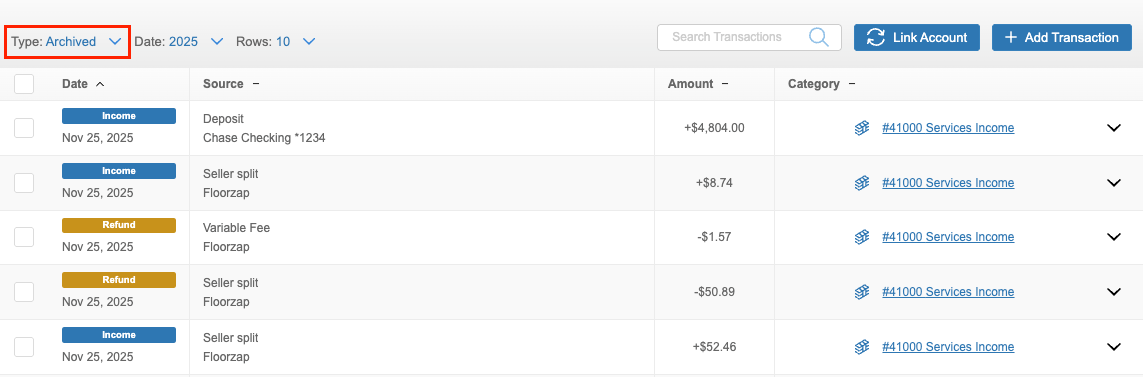
- Locate and click on the transaction that you wish to restore
- To restore multiple transactions at once, click on the box to select each transaction
- Click the ‘Restore’ button
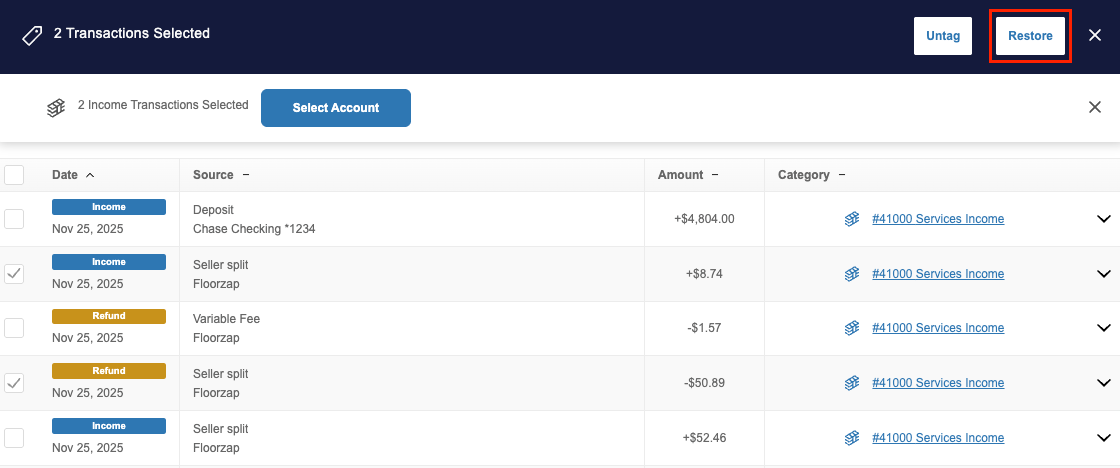
Once restored, the transaction will be moved back to the active view of the Transactions Dashboard.