
Before You Begin
You must be an active user within your organization’s Merchant Portal to receive email notifications. If you do not have access, please contact your account administrator.
-
Log in to your Merchant Portal using your credentials
-
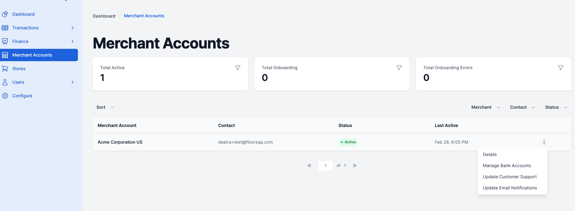
From the left-hand navigation menu, click Merchant Accounts and select the appropriate merchant account.
-
Locate the Last Active section for the merchant account.
-
Click the three vertical dots (⋮) beneath the Last Active section.
-
Select Update Email Notifications from the dropdown menu.
-
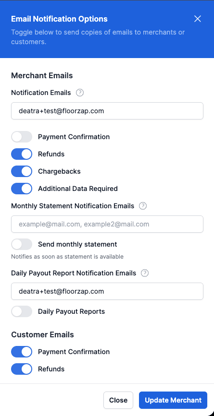
Review the available email notification types displayed on the screen.
-
Enable the notifications you would like to receive and enter the appropriate email address(es) for each notification type.
-
You may enter multiple email addresses if needed.
-
Click Update Merchant to save your changes. Your updates will not be saved if this step is skipped.
Important Reminder
Only grant notifications to appropriate team members within your organization. Limiting access to sensitive account alerts helps maintain privacy and security.