
How to Enable and Override Credit Card Surcharging for Invoices
Surcharging lets you recover credit card processing costs by adding a 3% fee to applicable card payments. Here’s how to enable surcharging for your whole system, and override it for individual invoices when needed.
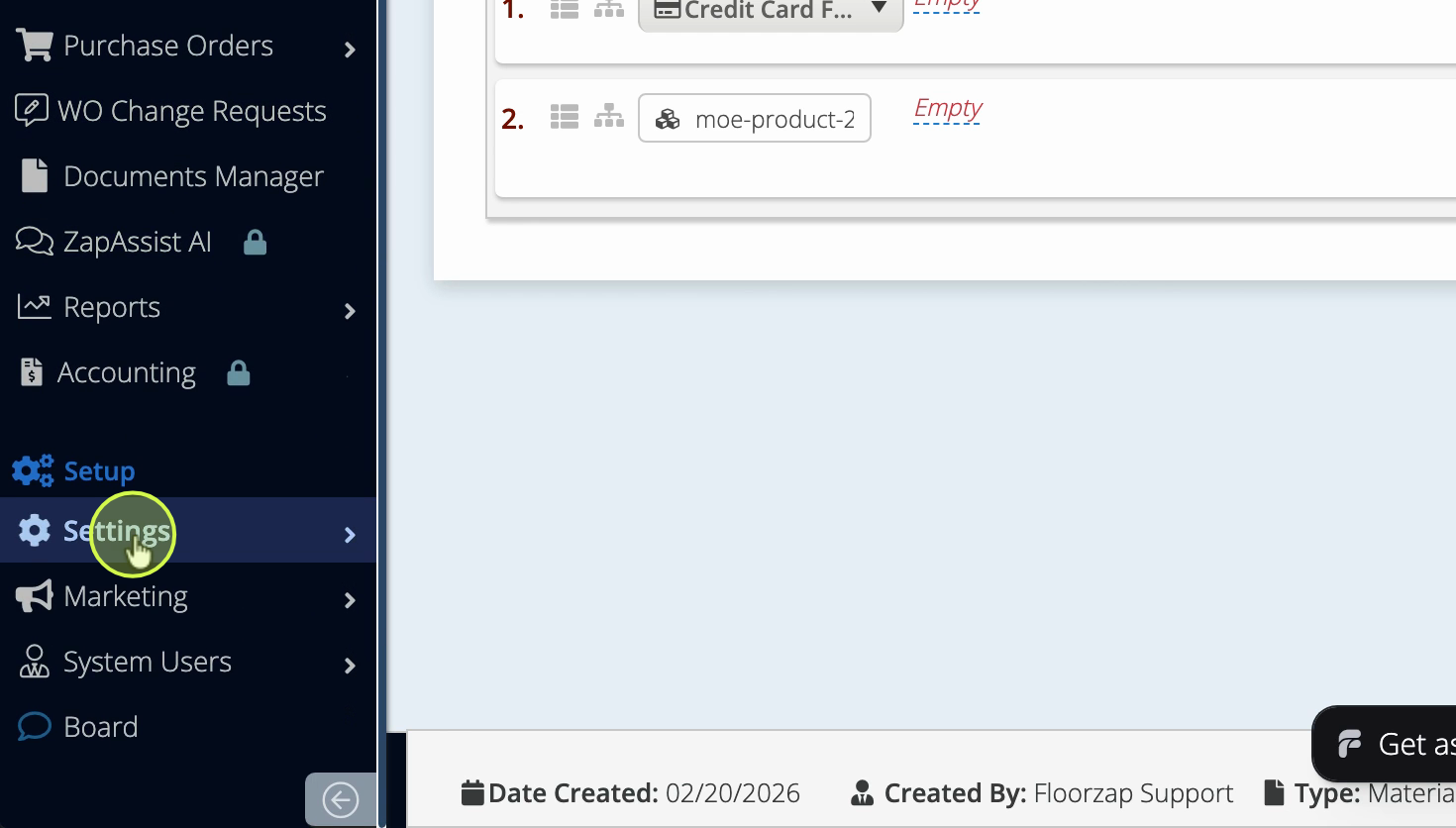
Step 1: Click Settings in your main menu.
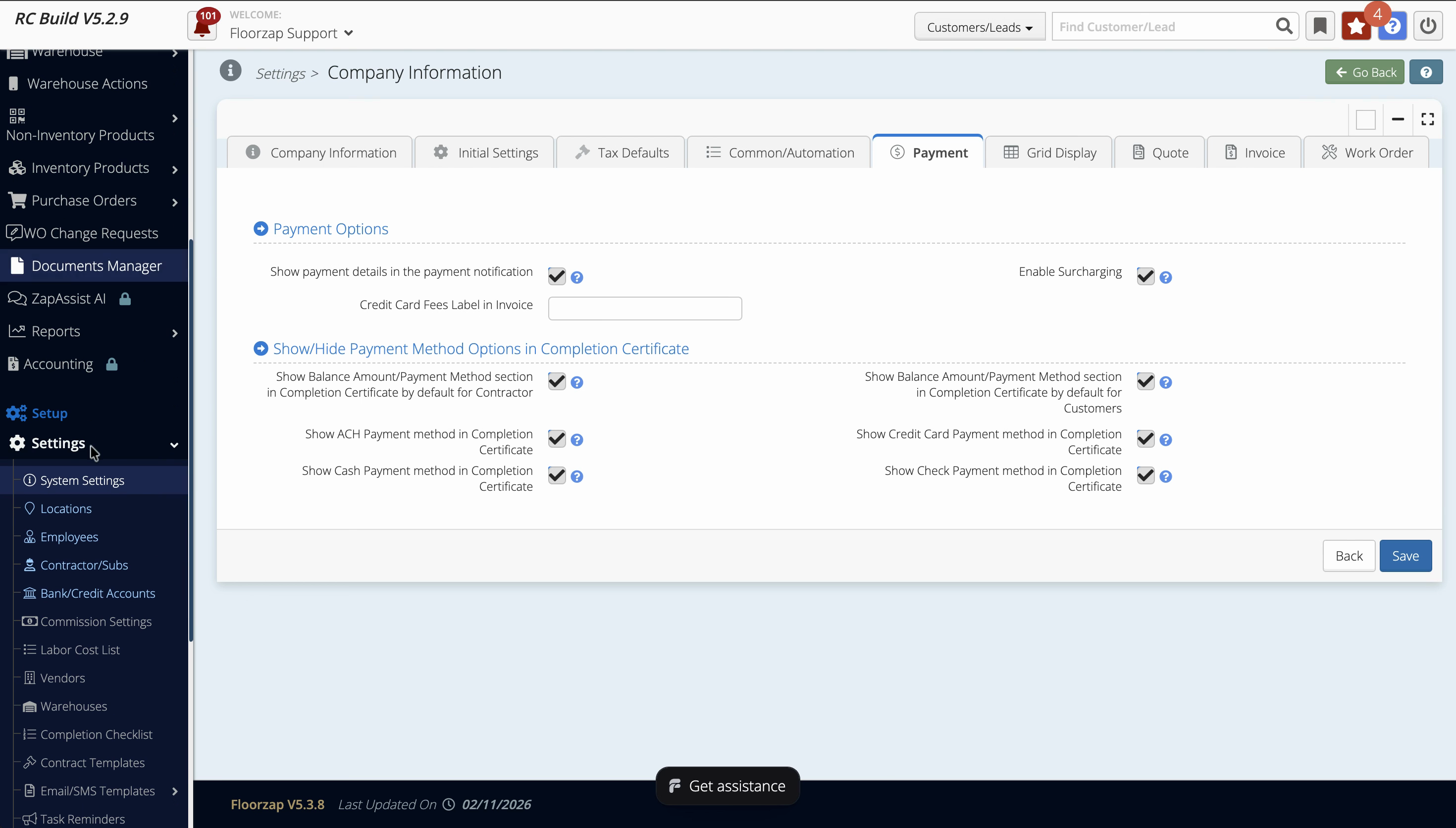
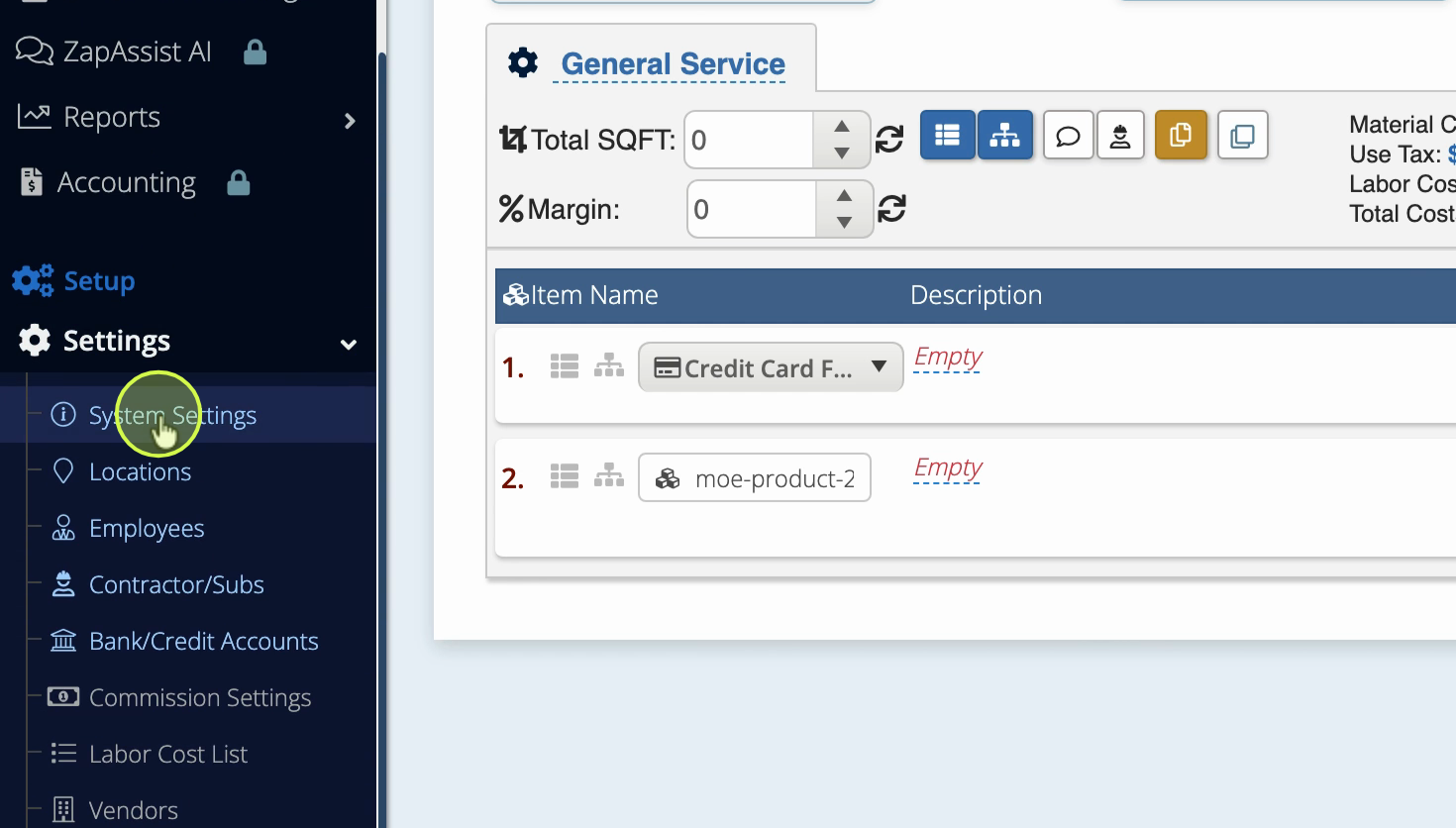
Step 2: Open System Settings, then select the Payment tab.
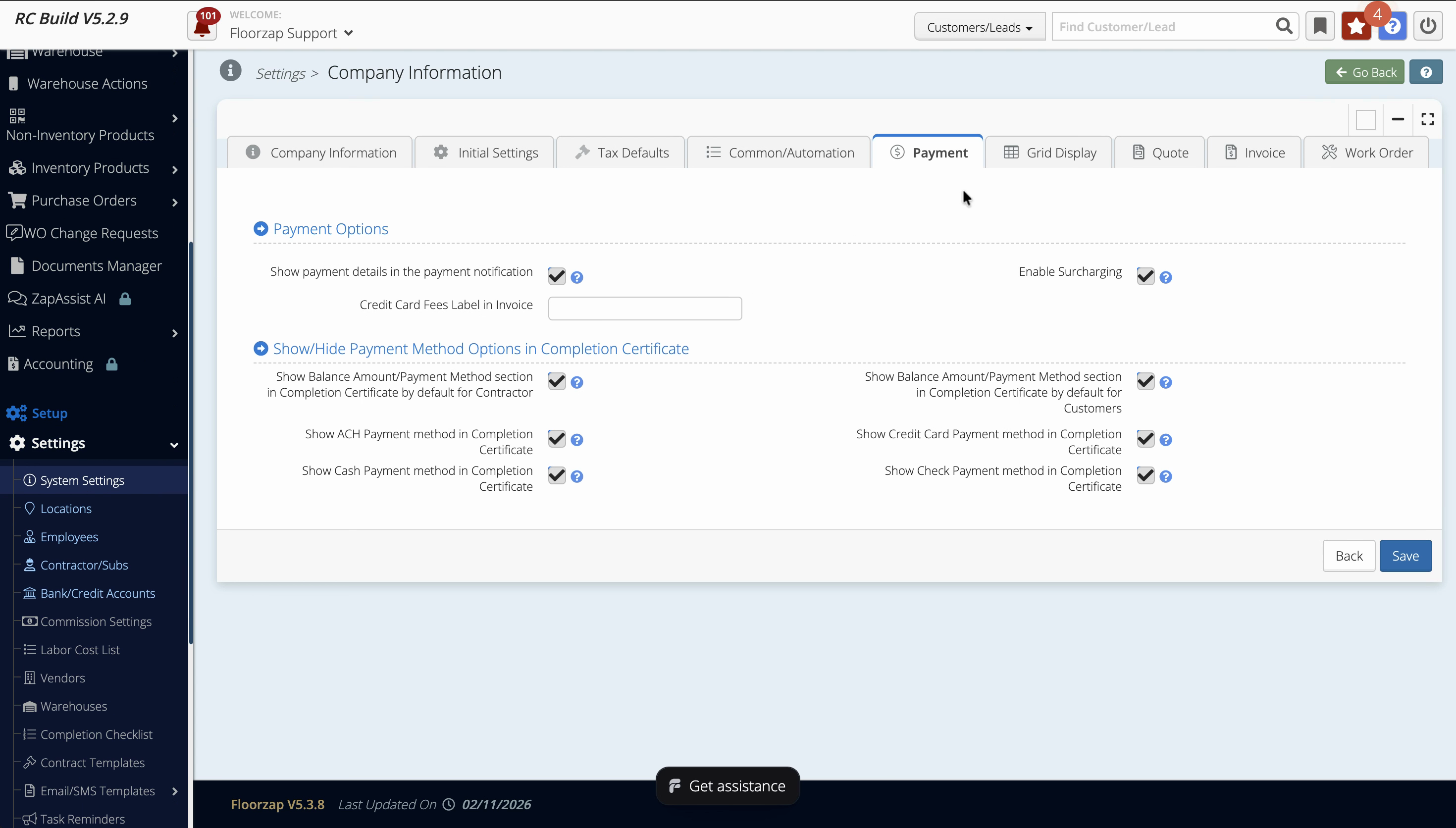
Step 3: Turn on Enable Surcharging. The system will add a 3% fee to all credit card transactions, except in Connecticut, Maine, Massachusetts, and Oklahoma. Debit card surcharging isn’t allowed, so those won’t be affected.
Now, every credit card payment has the fee applied by default—unless you turn it off for a specific invoice.
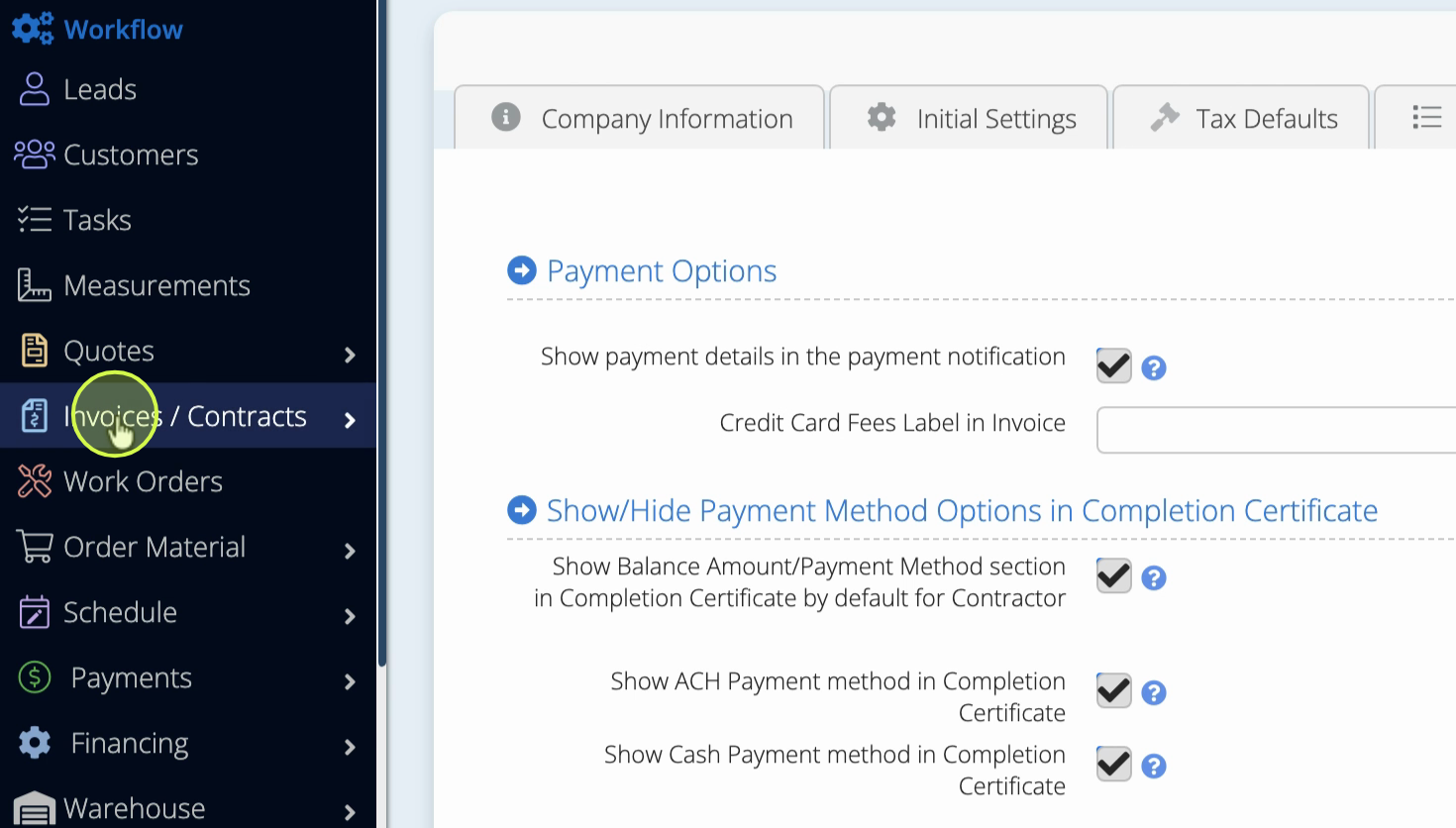
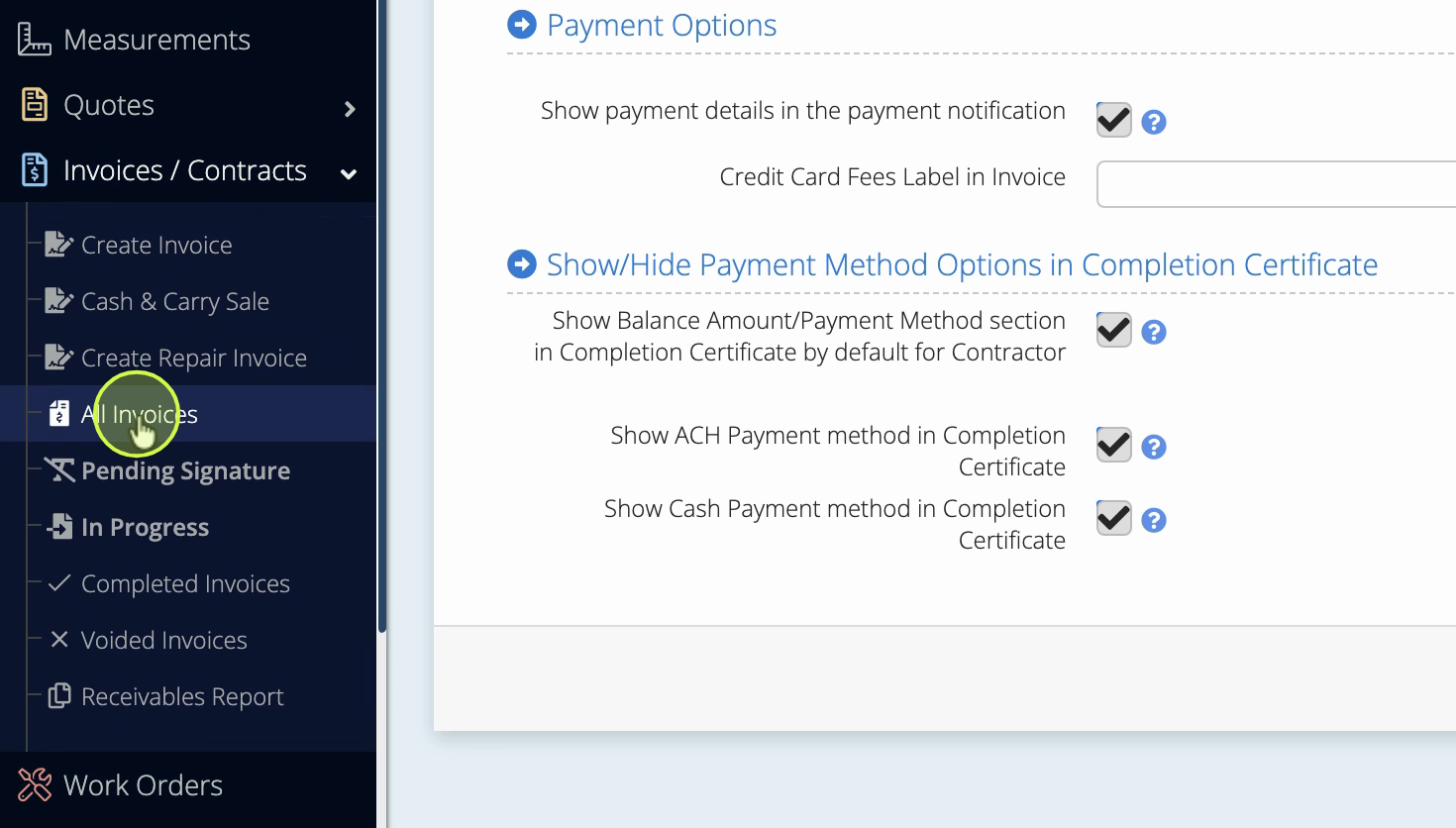
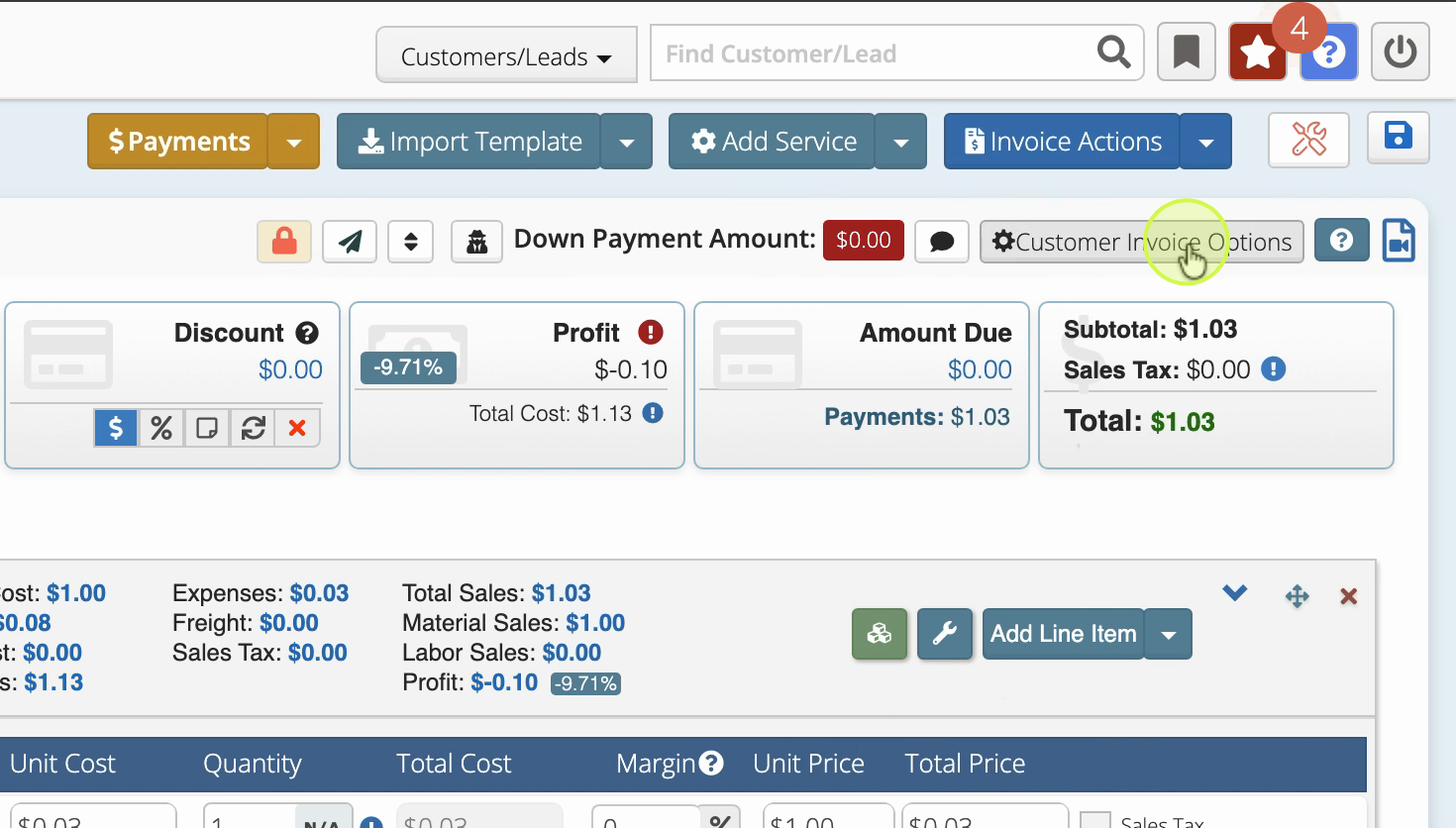
Step 4: To override surcharging for a particular customer, open their invoice.
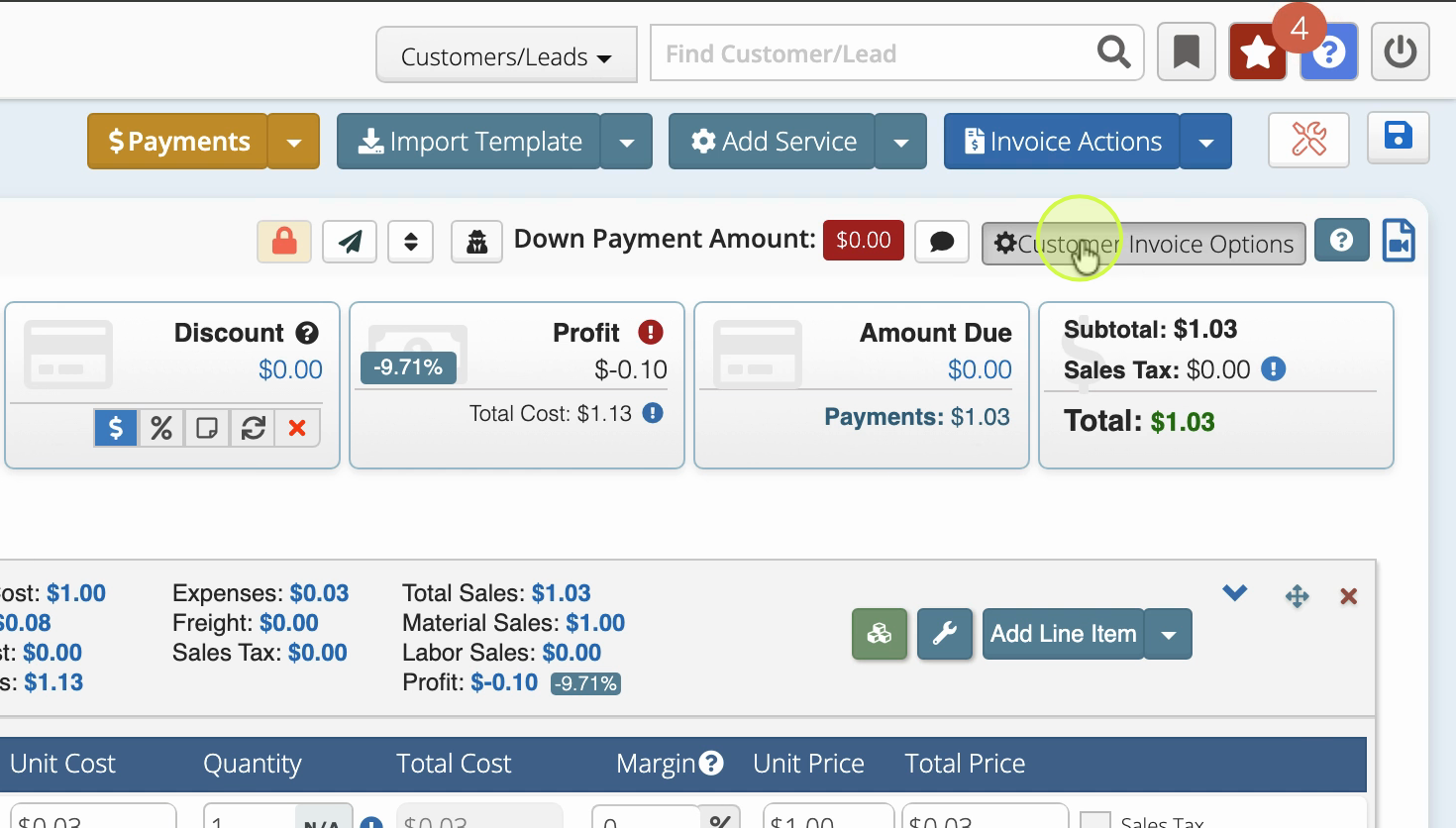
Step 5: Find the Apply Credit Card Fees option. Uncheck this box to remove the surcharge for this invoice.
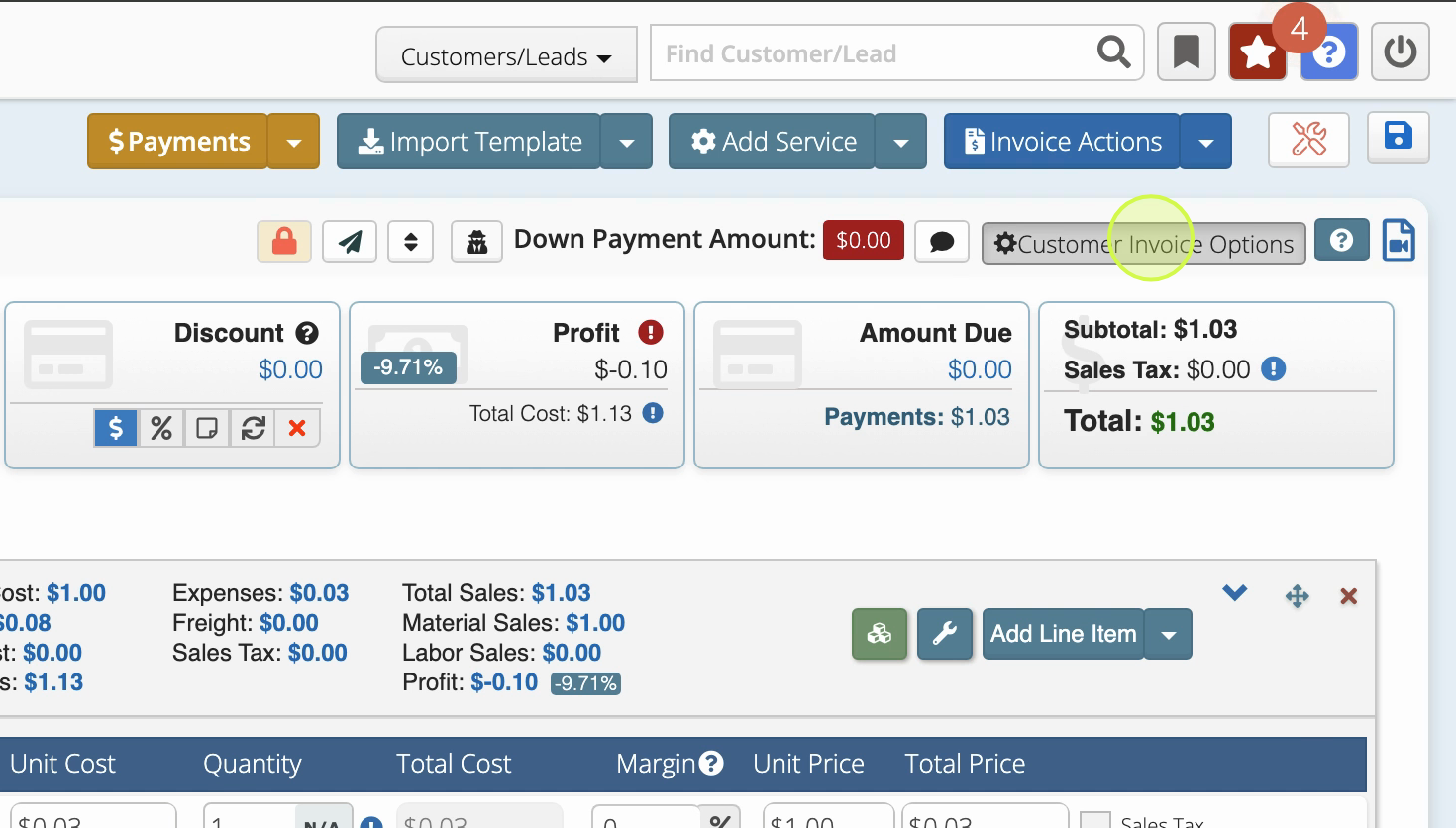
If the invoice is already paid, changing this won’t have any effect.
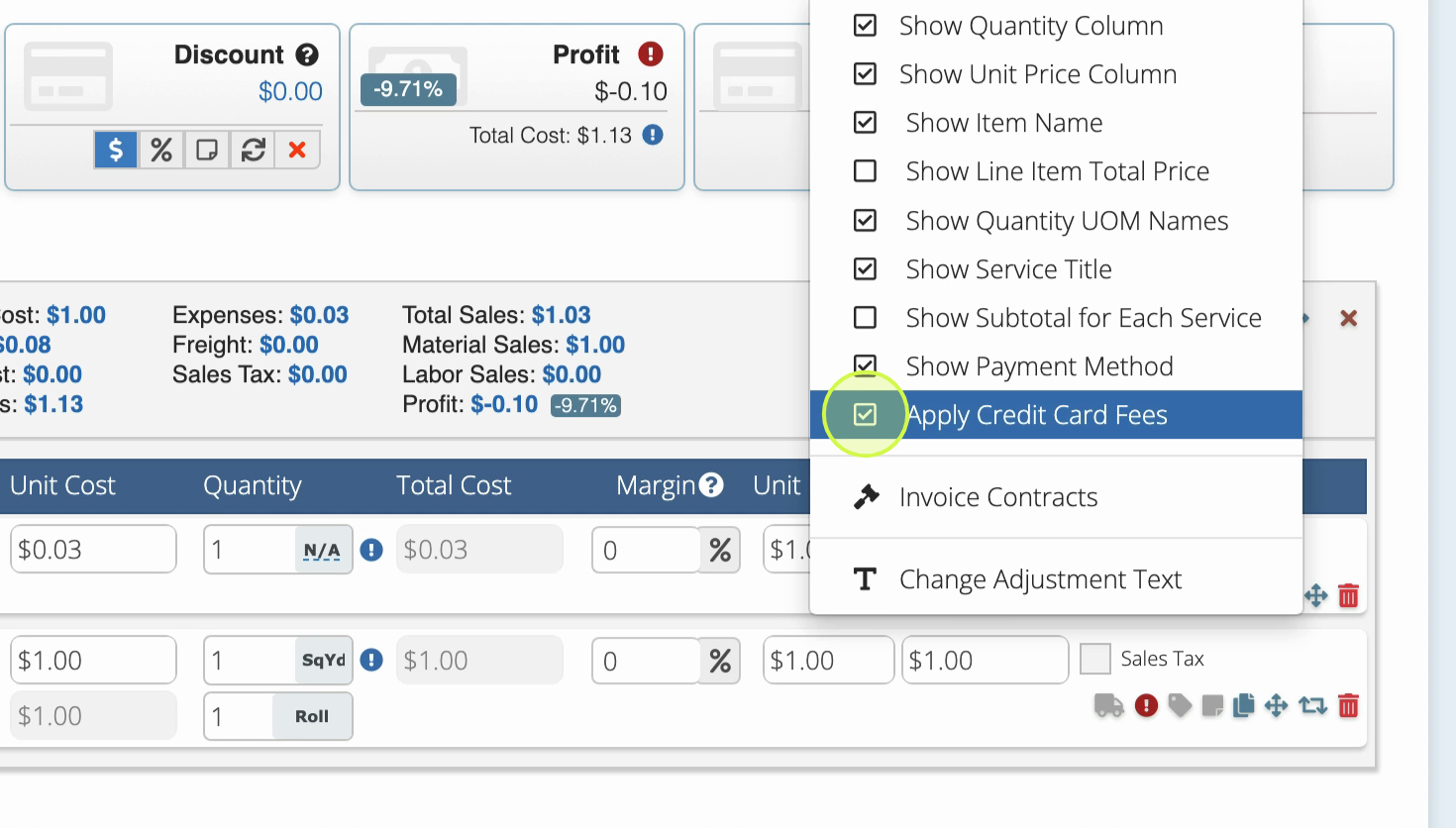
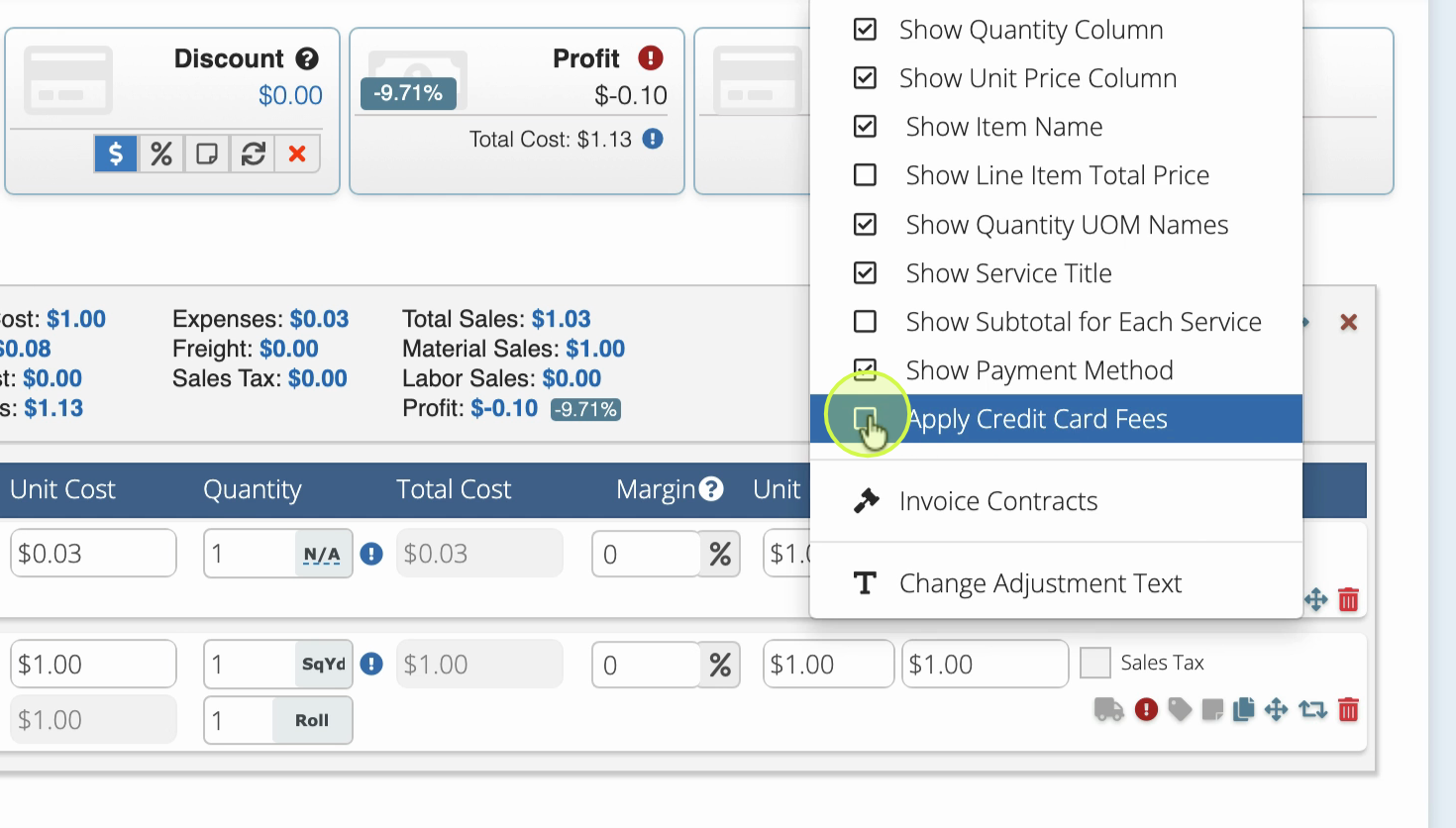
Step 6: Make sure Apply Credit Card Fees is unchecked before sending the invoice. The 3% fee won’t be added, and it won’t appear as a line item.
You can override the global surcharging setting for any invoice — just uncheck Apply Credit Card Fees when you want to waive the fee.
Surcharging helps cover payment processing costs, but exceptions are easy to manage. Use the invoice-level option anytime you want to make a different call for a specific customer.