
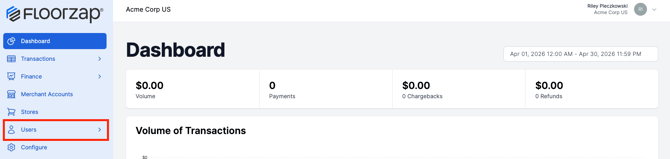
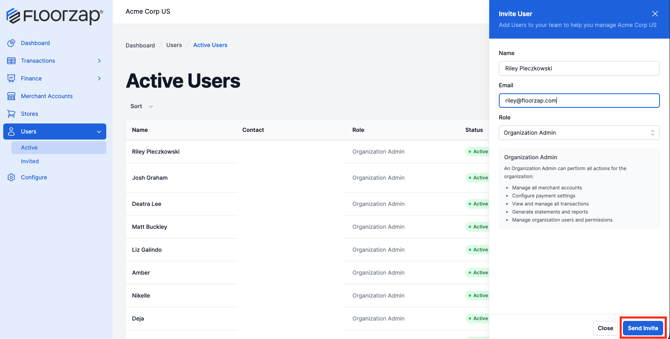
Step 1 - From your main screen, select Users.
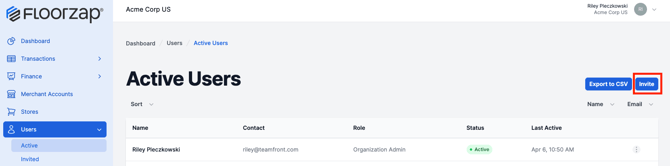
Step 2 - Select the Invite button on the right side of the screen.
Step 3 - Input the user information and select the correct user role.
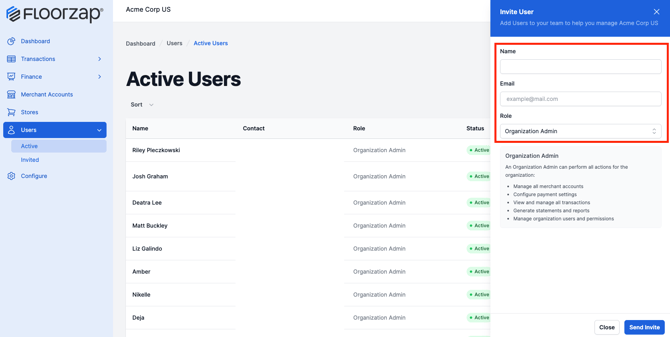
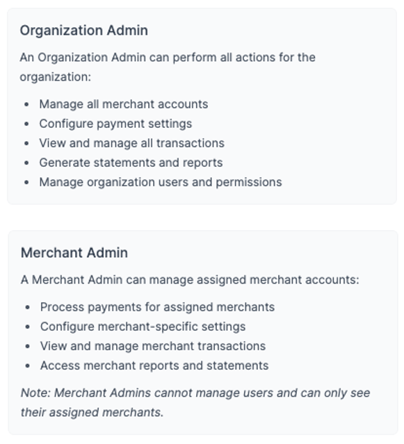
Which user role do I select?
Below are the two types of user roles. Most users will be the organization role. However, if you have multiple merchant accounts (multiple locations with different EINs), you may want to limit who can see each account. This is when you would assign the Merchant Admin role and select the accounts they can view. If you are not sure how many merchant accounts you have, you can navigate to Merchant Accounts and all will be listed.
Step 4 - select the Send button on the bottom right corner.
The invitation does have a time limit. If it expires and needs resent or if you need to make a change, you can navigate to Invited under Users and view the outstanding invitations.