
How to Set Up Commission Calculations Based on Material and Labor
Set up commission calculations in your system to accurately reflect sales performance and reward your team. Customizing how commissions calculate—whether on material, labor, or both—ensures you’re tracking and incentivizing the right metrics.
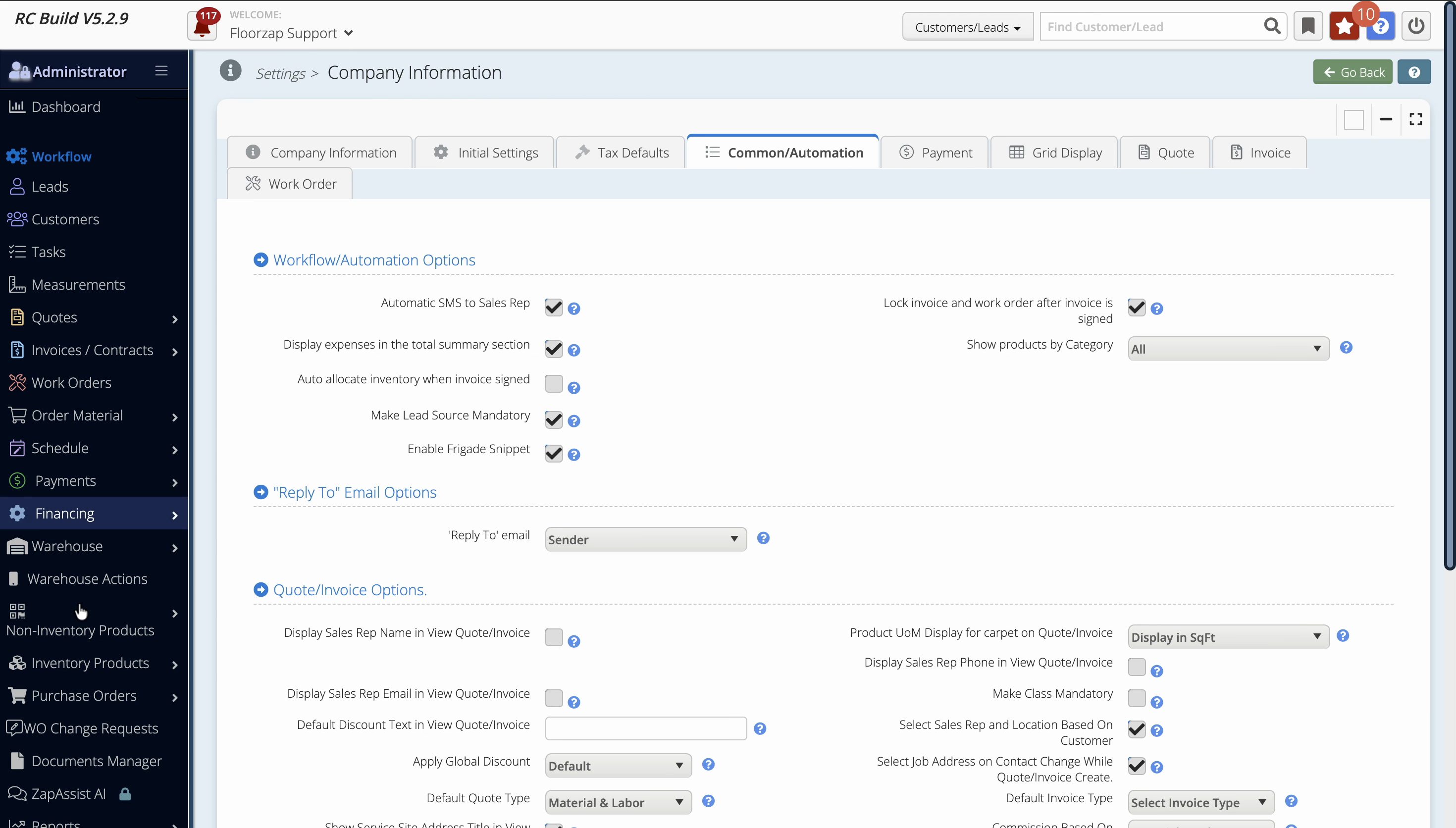
Step 1: Go to Settings in your main navigation.
Step 2: Choose System Settings.
Step 3: Click the Common Automation tab.
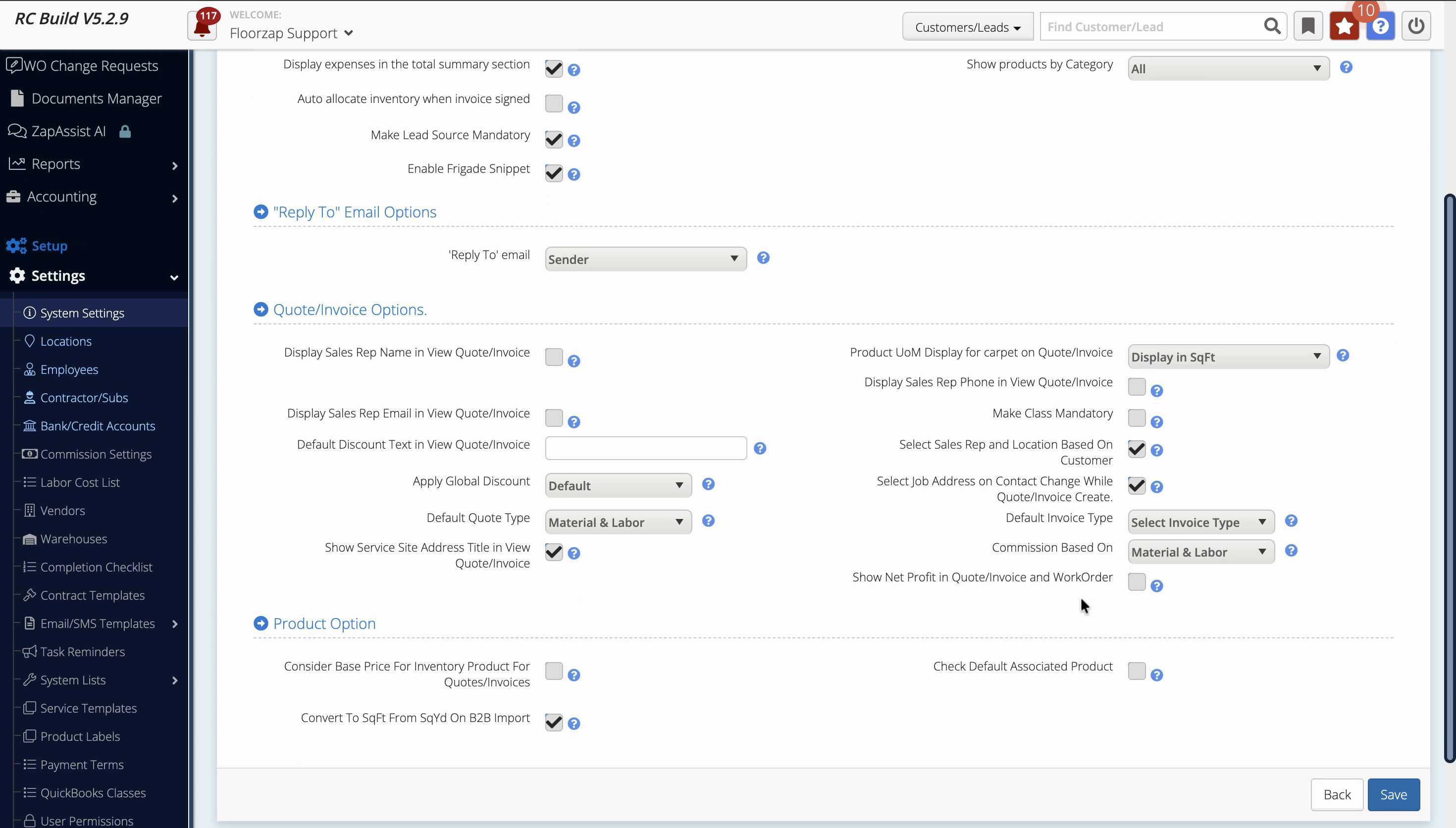
Step 4: Scroll down to the section labeled Commission is based on.
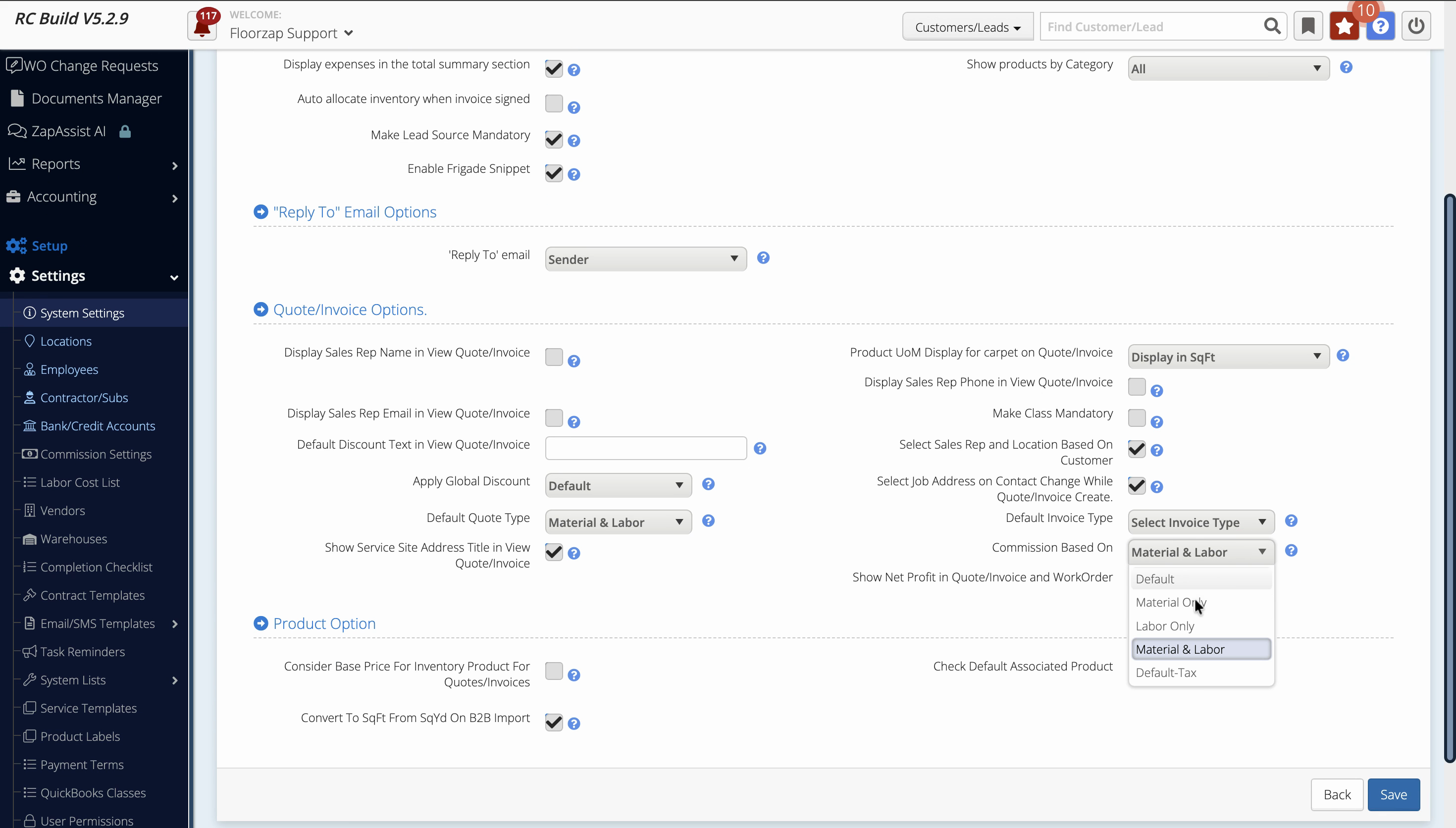
Step 5: Use the dropdown menu to select your commission calculation method. Options include:
-
Default (full invoice amount)
-
Material only
-
Labor only
-
Material and labor
-
Default tax if checked
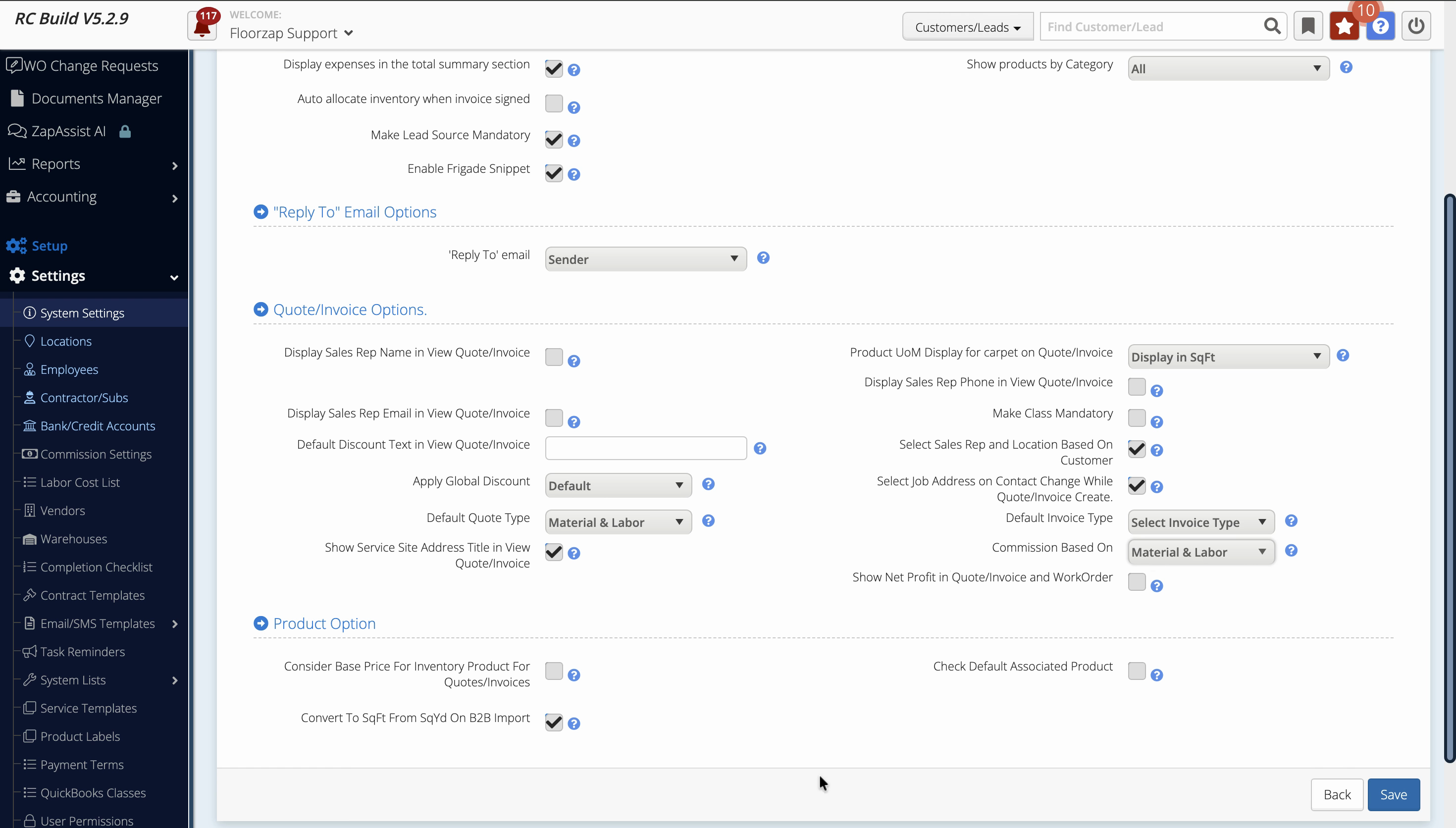
Step 6: To calculate commissions on both material and labor, select Material and labor from the dropdown. This setting ensures commissions are based only on the combined total of material and labor line items, not the full invoice amount.
Step 7: Review how the system calculates each commission type. For “Material and labor,” the calculation excludes freight, tax, and overhead, focusing only on profit from those items. For example:
-
Material and labor sale: $1,189.93
-
Material and labor cost: $474.76
-
Additional costs (use tax, freight): $101.39
-
Total cost: $576.15
-
Profit: $622.78
-
Commission (at 17%): $105.87
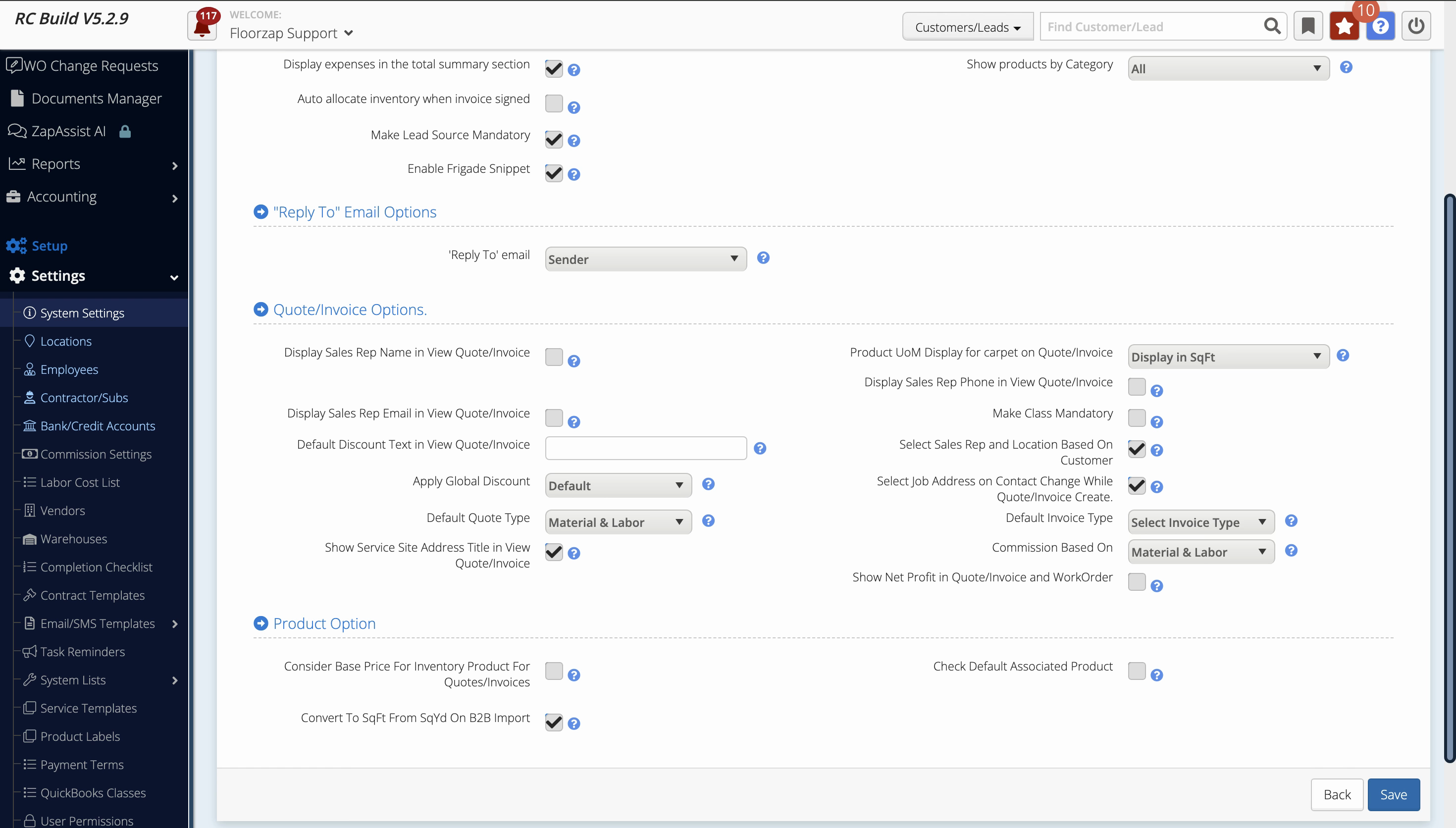
Step 8: Confirm your selection in the settings. The system will use this commission method moving forward.
Customizing commission calculations helps your team stay focused on the metrics that matter most. Adjust the commission setting any time your sales strategy changes to keep incentives aligned with your goals.